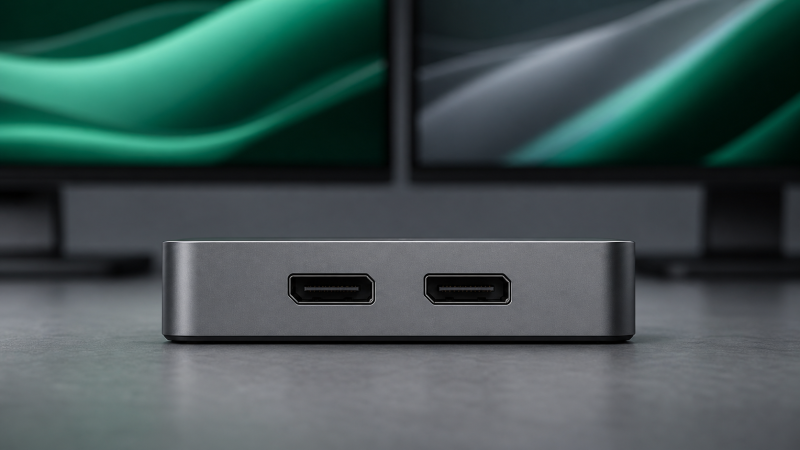
The Dell Pro Thunderbolt 4 Smart Dock SD25TB4 is our best overall dual-DisplayPort 1.4 choice for a qualified Thunderbolt desk. Native USB-C DP Alt Mode hosts are served by the Dell WD25, while the Lenovo ThinkPad USB4 Dock 5000 is the stronger native USB4 option. Every pick has two manufacturer-documented DP 1.4 sockets, and that physical match still does not guarantee the same resolution, refresh, or two-screen topology. Windows MST and DSC support, Mac display limits, the GPU, and the exact output group decide the result. Our broader USB-C dock guide covers desks that do not require two physical DisplayPort outputs.
Quick picks
- Dell SD25TB4: Managed native Thunderbolt choice with two DP 1.4 sockets.
- Dell WD25: Native USB-C DP Alt Mode choice for a confirmed DSC-capable host.
- Lenovo USB4 Dock 5000: Native USB4 choice with a qualified four-4K60 ceiling.
- StarTech 132N: Windows-oriented mixed dual-DP/dual-HDMI layout.
Compare the best dual-DisplayPort 1.4 docks
| Image | Product | Details | Check Price |
|---|---|---|---|
 | Dell Pro Thunderbolt 4 Smart Dock SD25TB4 | Two DP 1.4 outputs: Yes Graphics path: Native Thunderbolt 4 Host/DSC boundary: Exact Dell display table controls Charging: Up to 130W supported Dell; 96W non-Dell Best for: Managed Thunderbolt desk | Check Price on Amazon |
 | Dell Pro Dock WD25 | Two DP 1.4 outputs: Yes Graphics path: Native USB-C DP Alt Mode Host/DSC boundary: DP Alt Mode lanes and DSC control Charging: Up to 100W Dell; 96W non-Dell Best for: Current native USB-C desk | Check Price on Amazon |
 | Dell Thunderbolt Dock WD22TB4 | Two DP 1.4 outputs: Yes Graphics path: Native Thunderbolt 4 Host/DSC boundary: Dell resolution table controls Charging: Dell 130W branch is host dependent Best for: Established modular Dell fleet | Check Price on Amazon |
 | Lenovo ThinkPad USB4 Dock 5000 | Two DP 1.4 outputs: Yes Graphics path: Native USB4 Host/DSC boundary: GPU, DP tunneling, DSC, and OS control Charging: 65W bundled; up to 100W optional Best for: Qualified native USB4 desk | Check Price on Amazon |
 | StarTech 132N-TB4USB4DOCK | Two DP 1.4 outputs: Yes Graphics path: Native Thunderbolt 4/USB4 Host/DSC boundary: Qualified Windows ceiling; Mac differs Charging: 98W Best for: Mixed DP/HDMI Windows desk | Check Price on Amazon |
 | HP Thunderbolt Dock 120W G4 | Two DP 1.4 outputs: Yes Graphics path: Native Thunderbolt Host/DSC boundary: Qualifying DP 1.4 DSC Windows host Charging: Up to 100W USB-C PD Best for: HP and enterprise fleet | Check Price on Amazon |
 | Lenovo ThinkPad Universal Thunderbolt 4 Dock 40B00135US | Two DP 1.4 outputs: Yes Graphics path: Native Thunderbolt 4 Host/DSC boundary: Qualified Windows ceiling; Mac differs Charging: Up to 100W USB PD Best for: Established Lenovo deployment | Check Price on Amazon |
1. Dell Pro Thunderbolt 4 Smart Dock SD25TB4 — best overall managed Thunderbolt choice
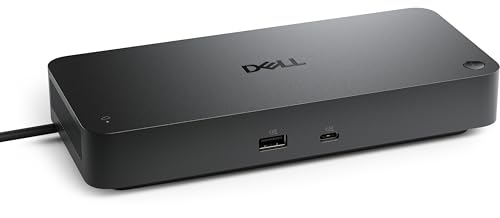
A managed desk where direct GPU behavior matters, and where both monitors already accept DisplayPort, is what the native Thunderbolt architecture here suits. Dell documents two DisplayPort 1.4 outputs on the SD25TB4, along with HDMI 2.1, multifunction USB-C DisplayPort 1.4, and downstream Thunderbolt 4 display routes.
The two sockets do not create two streams by themselves. Resolution and refresh come from Dell’s host display table, the GPU, DP generation, DSC support, OS, and selected output group. macOS does not turn a Windows MST branch into two extended desktops, and the exact Mac processor’s native-display limit still applies. Dell lists up to 130W for supported Dell systems and up to 96W for non-Dell systems.
Our Take
For a qualified Thunderbolt laptop on a managed Dell-style desk, the SD25TB4 is the buy. Confirm the exact two-DP mode instead of purchasing from the port labels alone.
- Two manufacturer-documented DP 1.4 outputs
- Native GPU path
- Dell-documented 2.5GbE and managed-desk features
- Display ceiling remains host and DSC dependent
- Highest charging branch is Dell specific
2. Dell Pro Dock WD25 — best native USB-C choice

No Thunderbolt here, and no DisplayLink either: the WD25 uses native USB-C DP Alt Mode. Dell gives it two DisplayPort 1.4 sockets, HDMI 2.1, a multifunction USB-C DisplayPort 1.4 connection, and 2.5GbE. That makes it the straightforward choice when the laptop’s USB-C port exposes the required native video and Thunderbolt expansion is not needed.
USB-C shape alone is not enough. The host must support DP Alt Mode, and Dell’s DSC-dependent display ceiling varies with the exact laptop GPU, DP lanes, OS, output group, cables, and monitors. A Mac also remains subject to its native display count and its lack of ordinary MST extended-desktop splitting. Dell documents up to 100W for supported Dell systems and up to 96W for non-Dell systems.
Our Take
Where the office host is a confirmed native USB-C machine, the WD25 fits. It avoids a software graphics driver, but it cannot supply display streams the laptop port does not expose.
- Two native DP 1.4 sockets
- No DisplayLink path
- 2.5GbE for a modern office desk
- Requires USB-C DP Alt Mode
- Dual-display result depends on host lanes and DSC
3. Dell Thunderbolt Dock WD22TB4 — best established modular Dell choice

An existing Dell fleet already running the WD-series management and service model has an obvious continuation here. Dell’s WD22TB4 is the established modular option in this lineup, and Dell’s documentation lists two DisplayPort 1.4 outputs, HDMI 2.0, multifunction USB-C DisplayPort 1.4, two downstream Thunderbolt 4 ports, and Gigabit Ethernet.
Dell’s display-resolution table controls every multi-monitor ceiling. The exact host, GPU, DP and DSC support, OS, cable, adapter, and output group all remain part of the mode. Dell’s 130W charging path is host dependent too, rather than a universal result for any Thunderbolt laptop. Mac buyers must use the exact native display branch instead of importing a Windows MST configuration.
Our Take
When modular Dell deployment matters more than buying the newest design, the WD22TB4 answers. Its documentation is the authority for your exact two-DP setup.
- Two documented DP 1.4 outputs
- Modular Dell platform
- Native Thunderbolt display path
- Gigabit rather than 2.5GbE in our sources
- Charging and displays remain host specific
4. Lenovo ThinkPad USB4 Dock 5000 — best native USB4 choice
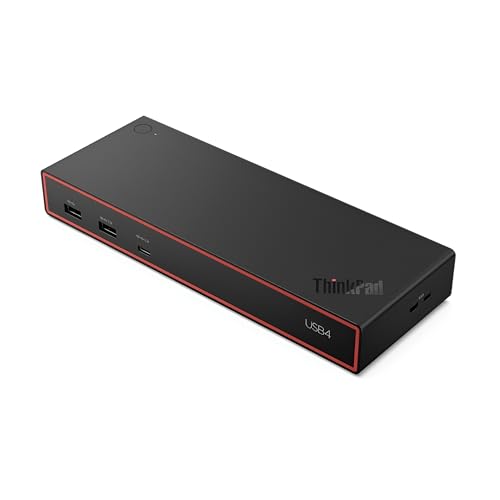
This is the pick with room to grow past two screens. Lenovo documents two DisplayPort 1.4 sockets, HDMI 2.1, and full-function USB-C DisplayPort 1.4 on a USB4 40Gbps upstream link. Its qualified ceilings include two 4K144 displays or four 4K60 displays, giving a capable host substantial native display headroom.
Those ceilings are separate branches, not a promise that two DP sockets always run at any chosen timing. The laptop’s USB4 router, GPU, DP tunneling, DSC support, OS, output selection, cables, and monitors control the result, and on macOS the exact Apple processor limit remains controlling. Lenovo’s bundled 100W supply delivers 65W to the host; an optional 135W supply raises the documented host ceiling to 100W.
Our Take
Reserve it for a verified USB4 workstation that needs native DP outputs and may grow beyond two screens. Plan for the optional supply if 65W is not enough.
- Two DP 1.4 outputs on native USB4
- Qualified high-resolution multi-display ceilings
- Additional full-function USB-C display route
- Exact mode is host and DSC dependent
- Bundled charging is limited to 65W
5. StarTech 132N-TB4USB4DOCK — best mixed dual-DP and dual-HDMI Windows layout

A Windows desk that may mix DisplayPort and HDMI monitors over time is what the 132N is built around. StarTech provides two DisplayPort 1.4 and two HDMI 2.1 outputs, and the maker documents up to four 4K60 displays on qualified Windows hosts. It also includes 2.5GbE and a 98W host-charging ceiling.
Four sockets do not equal four supported displays on every laptop, and the four-4K60 ceiling does not prove a particular two-DP high-refresh mode. Decisive instead are the exact Thunderbolt 4 or USB4 host, GPU, DSC path, operating system, selected ports, and display chain. StarTech documents different Mac paths, so the Windows ceiling must not be reused for macOS.
Our Take
Connector flexibility on a qualified Windows workstation is what you are buying. Use StarTech’s topology matrix to decide which two sockets and modes can operate together.
- Two DP 1.4 and two HDMI 2.1 outputs
- Qualified four-display Windows ceiling
- 2.5GbE and 98W charging
- Mac topology differs
- Port count does not prove a selected two-screen mode
6. HP Thunderbolt Dock 120W G4 — best HP and enterprise choice

Enterprise fleets get a documented DSC branch here. HP documents two DisplayPort 1.4 outputs and HDMI 2.0 on the Thunderbolt Dock G4, along with 2.5GbE, and its display ceiling reaches up to four external displays and includes triple 4K60 on qualifying Windows hosts with DP 1.4 and DSC. That makes it a useful pick when HP’s exact host documentation confirms the two-DP branch.
The 120W in the dock name refers to the product and adapter class, not guaranteed laptop delivery. HP documents up to 100W USB-C Power Delivery to the host. Display count and timing stay dependent on the exact laptop GPU, Thunderbolt path, DSC, OS, connector combination, cables, and monitors. A Windows triple-display ceiling cannot be transplanted to a Mac.
Our Take
After checking the host matrix, take the G4 for an HP-centered fleet or enterprise desk. Its two DP sockets are real; the desired two-screen mode still needs qualification.
- Two documented DP 1.4 outputs
- 2.5GbE
- Qualified DSC multi-display ceiling
- Exact host qualification required
- Product name does not equal delivered host wattage
7. Lenovo ThinkPad Universal Thunderbolt 4 Dock 40B00135US — best established Lenovo choice

For fleets already standardized on Lenovo, this established dock covers the two-DP requirement. Lenovo documents two DisplayPort 1.4 outputs and HDMI 2.1 on this Universal Thunderbolt 4 Dock. Its qualified Windows ceiling reaches up to four 4K60 displays, and the dock supplies up to 100W USB Power Delivery under the supported host path. Gigabit Ethernet covers ordinary office networking.
The word universal does not remove host limits. Control still sits with the exact Thunderbolt or USB-C implementation, GPU, DP and DSC support, OS, output combination, cables, and displays. Lenovo’s Windows multi-stream ceiling also does not become an equivalent Mac topology; each Mac model and processor needs its native display limit checked separately.
Our Take
Confirm the host table, then buy this model for an established Lenovo deployment that needs two physical DP 1.4 outputs. Do not buy from the Universal label alone.
- Two maker-documented DP 1.4 outputs
- Qualified four-4K60 Windows ceiling
- Up to 100W USB Power Delivery
- Mac and Windows topologies differ
- Gigabit rather than 2.5GbE
How to choose a dock with two DP 1.4 outputs
Start with the laptop, not the sockets
USB-C DP Alt Mode, USB4, and Thunderbolt can all carry native DisplayPort video, though they do not expose the same number of streams or bandwidth on every host. Look up the exact laptop model’s external-display table first. On Windows, MST can split supported streams and DSC can make higher-resolution combinations fit. On macOS, ordinary MST does not create multiple extended desktops, so the Apple processor’s native-display count and the dock’s Mac matrix remain decisive.
Treat DP 1.4 as an interface version
DP 1.4 guarantees none of dual 4K60, 4K120, HDR, VRR, DSC, a color depth, or a particular chroma mode. Those are complete-link claims. Match the GPU, OS, dock output group, cable, and monitor input. Our DisplayPort 1.4 versus 2.1 guide helps separate interface capability from an actual supported mode.
Keep charging and display support separate
Dell’s vendor-specific charging, Lenovo’s optional larger supply, and the USB PD ceilings on HP and StarTech are different branches. A dock can run the monitors while delivering less power than a workstation needs. Compare the laptop’s accepted input against the maker’s delivered host figure rather than the adapter label.
Where connector type is flexible but the monitor count is fixed, our dual-monitor dock guide covers HDMI, USB-C, and software-display alternatives.