The Dell Pro Thunderbolt 4 Smart Dock SD25TB4 is our first choice when your laptop has Thunderbolt 4 and its display table confirms two 4K 60Hz streams. Where the host cannot drive two native displays, a DisplayLink model such as the VisionTek VT4600DL can add two 4K 60Hz office desktops through USB graphics. That flexibility comes with a driver, OS permissions, and workload limits. So the order of operations matters: establish the laptop’s exact port and native-display capability first, then choose the graphics path. Our broader USB-C docking station guide covers desks that do not specifically require two 4K 60Hz monitors.
Quick picks
- Dell SD25TB4: Native Thunderbolt route for a qualified host and managed desk.
- Plugable UD-6950PDZ: Hybrid route with one native group and two DisplayLink groups.
- VisionTek VT4600DL: DisplayLink route for two office displays from USB-C or USB-A.
- Lenovo ThinkPad USB4 Dock 5000: Native USB4 route when the host supports the required display topology.
Compare the best dual-4K60 USB-C docks
| Image | Product | Details | Check Price |
|---|---|---|---|
 | Dell Pro Thunderbolt 4 Smart Dock SD25TB4 | Graphics path: Native Thunderbolt 4 Dual-4K60 requirement: Qualified host DP/DSC display table Mac boundary: Exact Mac native-display limit applies Charging: Up to 130W supported Dell; 96W non-Dell Best for: Managed native Thunderbolt desk | Check Price on Amazon |
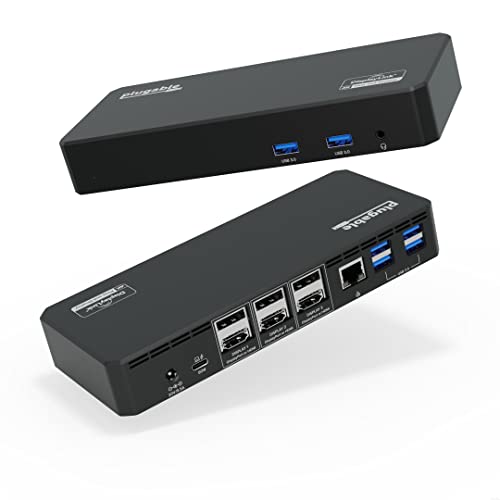 | Plugable UD-6950PDZ | Graphics path: One native group plus two DisplayLink groups Dual-4K60 requirement: DisplayLink driver; DP 1.4 for native group at 60Hz Mac boundary: macOS 11+; Screen Recording permission Charging: Negotiated up to 100W Best for: Hybrid office topology | Check Price on Amazon |
 | Dell Universal Dock UD22 | Graphics path: Hybrid native DP Alt Mode and DisplayLink Dual-4K60 requirement: Dell driver, host DP/DSC, and output matrix Mac boundary: DisplayLink software; native Mac limits remain Charging: Up to 96W before adaptive dock loading Best for: Validated Dell hybrid desk | Check Price on Amazon |
 | VisionTek VT4600DL | Graphics path: DisplayLink USB graphics Dual-4K60 requirement: Compatible DisplayLink driver; two active displays Mac boundary: macOS 10.12+ in retained maker scope Charging: Up to 100W over USB-C; none over USB-A Best for: USB-C or USB-A office hosts | Check Price on Amazon |
 | StarTech 116N-USBC-DOCK | Graphics path: Two DisplayLink groups plus one native group Dual-4K60 requirement: Use the two DisplayLink groups and driver Mac boundary: DisplayLink software; DP Alt Mode for native group Charging: Up to 100W under host negotiation Best for: Mixed HDMI and DisplayPort monitors | Check Price on Amazon |
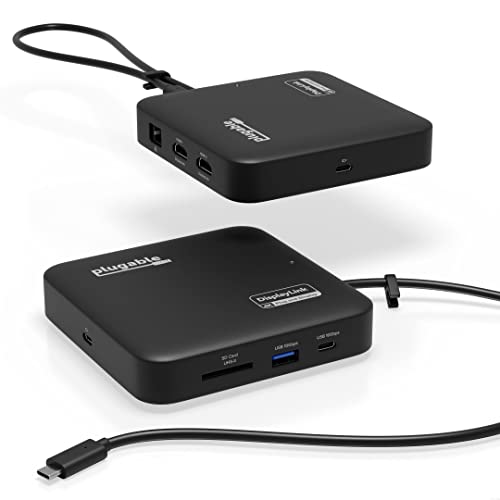 | Plugable USBC-6950PDZ | Graphics path: Dual DisplayLink DL-6950 Dual-4K60 requirement: DisplayLink driver; two HDMI 2.0 outputs Mac boundary: macOS 11+; Screen Recording permission Charging: Up to 82W; charger excluded Best for: Compact dual-monitor office desk | Check Price on Amazon |
 | Lenovo ThinkPad USB4 Dock 5000 | Graphics path: Native USB4 Dual-4K60 requirement: Qualified host GPU, DP tunneling, and DSC path Mac boundary: Exact Apple processor native-display limit applies Charging: 65W bundled; up to 100W with optional supply Best for: Qualified native USB4 desk | Check Price on Amazon |
1. Dell Pro Thunderbolt 4 Smart Dock SD25TB4 — best native Thunderbolt desk
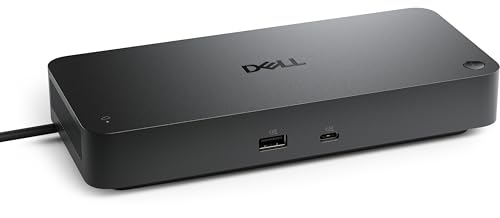
Keeping both displays on the native GPU route is the cleanest scenario on this list, and the SD25TB4 is the dock for it when the laptop has a qualified Thunderbolt 4 path. Dell documents two DisplayPort 1.4 sockets, HDMI 2.1, a multifunction USB-C DisplayPort 1.4 connection, and two downstream Thunderbolt 4 ports. That output choice makes it easier to match two monitors without moving to USB graphics.
Dell treats its display counts as host-dependent ceilings. Whether two 4K 60Hz desktops are actually available comes down to the laptop’s GPU, DisplayPort generation, DSC support, operating system, selected output group, cables, and monitor inputs. Dell also states up to 130W for supported Dell systems and up to 96W for non-Dell systems, so the higher number is not universal USB-C charging.
Our Take
For a capable Thunderbolt workstation that wants native display behavior, the SD25TB4 is the buy. Skip it if the laptop manual does not confirm the required dual-display route.
- Native GPU display path
- Several manufacturer-documented display connectors
- Managed Dell desk features
- Dual 4K 60Hz remains host and DSC dependent
- Highest charging branch is Dell-system specific
2. Plugable UD-6950PDZ — best hybrid office topology

Three display groups, one native and two not, is the structure to understand before buying. Plugable makes the first group native DP Alt Mode and gives the second and third DisplayLink DL-6950 USB graphics. For dual 4K 60Hz, you can use the two DisplayLink groups, or combine a DisplayLink group with the native group when the host provides DisplayPort 1.4. Plugable limits the native group to 4K 30Hz on a DisplayPort 1.2 host.
This is an office-first route, not a substitute for two native GPU streams. Plugable requires DisplayLink software for the USB-graphics groups and says macOS needs Screen Recording permission. Plugable’s guidance recommends this dock for office and web work rather than gaming, full-screen video, video editing, or graphics applications. Charging is a negotiated maximum up to 100W, not a fixed result for every laptop.
Our Take
Take this one when you want output flexibility and accept a mixed native/DisplayLink design. The group labels matter more than the six physical video sockets.
- Two DisplayLink groups can handle the dual-monitor office job
- Native group remains available for a capable host
- Broad documented Windows, macOS, and ChromeOS scope
- Driver and workload limits apply
- Native-group refresh depends on host DisplayPort support
3. Dell Universal Dock UD22 — best Dell hybrid route

Desks that need more display flexibility than the laptop’s native USB-C path alone can provide are where Dell puts its hybrid UD22. Dell documents two DisplayPort 1.2 outputs and HDMI 2.0 on the DisplayLink side, plus a USB-C DisplayPort 1.4 Alt Mode route. Synaptics DisplayLink software is required for full multi-monitor operation.
Do not read the connector list as a universal dual-4K60 promise. Dell’s exact driver, host DisplayPort and DSC capability, output grouping, and workload rules control the result. Within the Dell family that makes this the better pick when your validated configuration uses the hybrid topology, while the SD25TB4 stays preferable for a fully native qualified Thunderbolt path. Dell lists up to 96W before adaptive dock loading, so available host power can be lower as the dock allocates power to attached devices.
Our Take
A managed Dell office that has already checked Dell’s host matrix and accepts DisplayLink is exactly where the UD22 fits. It is not the dock to buy from socket count alone.
- Hybrid native and USB-graphics routes
- Dell-documented output grouping
- Useful managed-desk option
- DisplayLink driver required
- Exact dual-monitor mode depends on the Dell host table
4. VisionTek VT4600DL — best universal USB-C or USB-A DisplayLink route
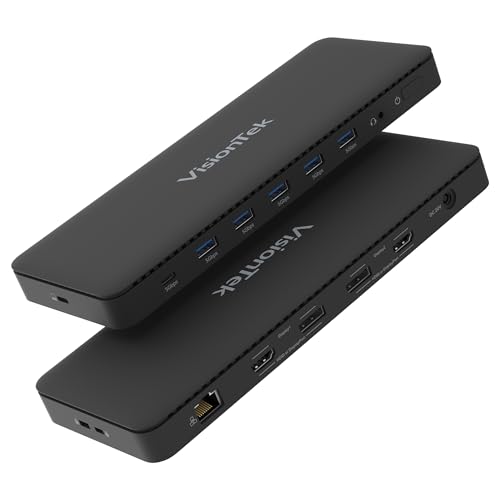
Four video sockets, two active displays: that gap is the first thing to internalize here. VisionTek explicitly supports up to two external 4K 60Hz displays through DisplayLink, and the VT4600DL carries two DisplayPort 1.2 and two HDMI 2.0 sockets while VisionTek limits active displays to two. Choose the connector pair your monitors need instead of assuming all four sockets operate together.
The dock can attach through USB-C or USB-A, which helps with hosts that lack two native display streams. DisplayLink drivers are required for full functionality. VisionTek lists Windows, macOS, and ChromeOS versions in its compatibility scope, though the exact OS, driver approval, cable, and host policy still matter. VisionTek states that USB-C hosts may receive up to 100W under USB Power Delivery negotiation. A USB-A host can use the dock’s data and display functions but cannot receive laptop charging.
Our Take
No other DisplayLink pick here reaches two displays this directly. Buy it for productivity desktops, not because its four sockets imply four monitors.
- Manufacturer documents two 4K 60Hz DisplayLink displays
- USB-C and USB-A host options
- HDMI or DisplayPort connector choice
- Only two of four video sockets are active at once
- USB-A cannot charge the host
5. StarTech 116N-USBC-DOCK — best mixed native and DisplayLink output choice
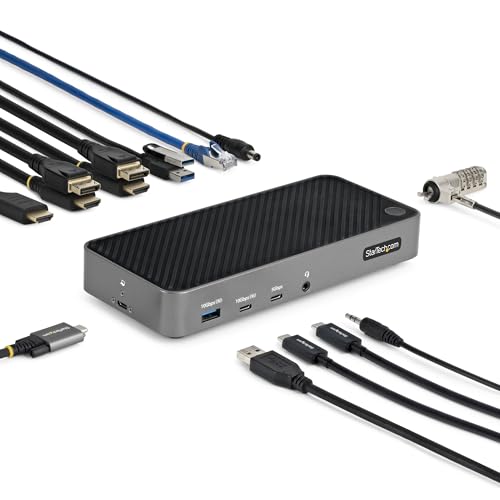
Monitors that disagree about connectors are the case this dock handles. StarTech documents two DisplayLink DL-6950 groups that each let you select HDMI 2.0 or DisplayPort 1.2 and reach up to 4096 x 2160 at 60Hz. A third HDMI output uses the host’s native DP Alt Mode and reaches up to 4096 x 2160 at 30Hz. For the dual-4K60 job, the two DisplayLink groups are the relevant pair.
The distinction matters, because the dock is neither fully native nor fully DisplayLink. Full functionality requires a USB-C host with DP Alt Mode and USB Power Delivery, even though the two USB-graphics groups handle the 60Hz pair. StarTech lists broad OS support and 100W host charging through the included adapter, with the normal host negotiation condition.
Our Take
Where the desk mixes HDMI and DisplayPort monitors and you want a third, lower-refresh native option, this model earns the slot. Keep the two 60Hz DisplayLink groups on office workloads.
- Two selectable DisplayLink connector groups
- Separate native third-output path
- Included powered charging route
- Driver required for the two high-resolution groups
- Native third output is limited to 4K 30Hz
6. Plugable USBC-6950PDZ — best compact dual-DisplayLink route

Moving one laptop between two desks is what the captive USB-C host cable and focused port set are for. Plugable documents two HDMI 2.0 outputs driven by DisplayLink DL-6950, each supporting up to 3840 x 2160 at 60Hz. The dock also includes 10Gbps USB-A and USB-C data ports, UHS-II SD, and Gigabit Ethernet.
Power needs planning here. Plugable says the dock accepts a 45W to 100W USB-C supply and passes up to 82W to the host, though no charger is included. DisplayLink software is required, and macOS installation needs Screen Recording permission. Plugable says this exact model is not compatible with HDCP-protected playback, gaming, or 3D rendering.
Our Take
When a native dual-display path is unavailable, this is the compact answer for two office monitors. Add the correct charger and keep protected or graphics-heavy work off the DisplayLink route.
- Two manufacturer-documented 4K 60Hz outputs
- Captive host cable
- Card reader and Ethernet for a compact desk
- Charger is not included
- Protected playback, gaming, and 3D limits
7. Lenovo ThinkPad USB4 Dock 5000 — best qualified native USB4 desk
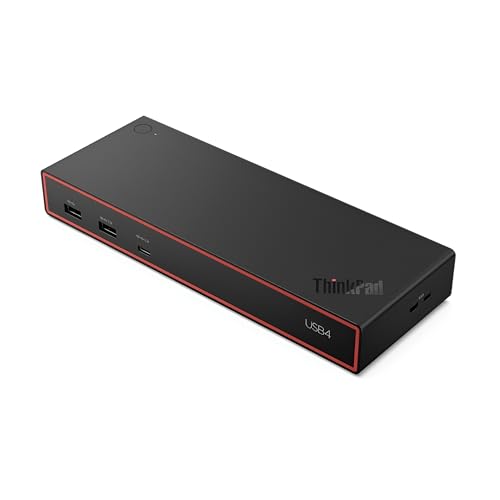
Dual 4K 60Hz sits comfortably inside this dock’s documented ceiling, which is exactly why the host check still decides everything. Lenovo gives this native USB4 dock two DisplayPort 1.4 sockets, HDMI 2.1, and a full-function USB-C DisplayPort 1.4 output. Its documented ceilings include two 4K displays at up to 144Hz or four 4K displays at 60Hz, subject to the host. The pair only appears when the laptop’s USB4 router, GPU, DisplayPort tunneling, DSC path, OS, and selected port group support it.
The bundled 100W supply provides 65W to the laptop, and Lenovo states that an optional 135W supply can raise host charging to 100W. Mac buyers must also check the exact Apple processor’s native external-display limit, because no USB4 dock creates extra native streams beyond that limit.
Our Take
Reserve the Dock 5000 for a native USB4 workstation whose manual confirms the display route. It is a stronger fit than DisplayLink for motion or color-sensitive work, but it cannot override the host.
- Native USB4 graphics path
- Multiple DP 1.4 display routes
- Qualified high-display-count ceiling
- Host and DSC capability control every ceiling
- Higher charging requires an optional power supply
How to choose a dual-4K60 dock
Identify the graphics path first
Native docks carry GPU display streams through Thunderbolt, USB4, or USB-C DP Alt Mode. They are the preferred route for protected playback, high-motion work, color-managed applications, and any workflow that depends on direct GPU behavior. Two monitors still require two streams or a supported Windows MST/DSC topology, and a USB-C connector alone proves neither.
DisplayLink builds additional desktops through USB graphics. It solves a real office problem when the host exposes only one native display, or when a Mac’s native topology is too limited for the desk. What arrives with those desktops is a driver, permissions, and product-specific workload rules. DisplayLink does not increase a Mac’s native-display count; it creates a separate software-display path.
Check the complete two-monitor chain
Confirm the exact laptop model, OS, GPU, DP and DSC support, dock output group, cable or adapter, and monitor input. A physical HDMI or DisplayPort version guarantees nothing about two simultaneous 4K 60Hz desktops. Our dual-monitor docking guide covers other resolutions and connector combinations.
Charging also varies by host. Vendor-specific Dell charging, optional higher-wattage supplies, and pass-through inputs are not the same USB Power Delivery result and should not be compared as though they were. Work from the laptop’s required input and the maker’s exact compatibility table.