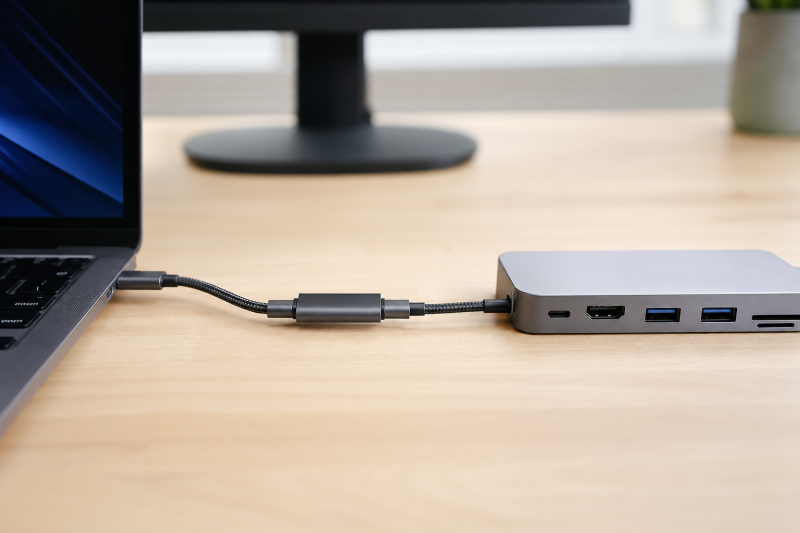
If the dock works when its host cable goes straight into the computer and fails only when a USB-C extension is added, the direct connection is your control. Recreate that working route, record power, USB data, and display separately, then insert only the extension and repeat the same observations. Do not reinstall drivers while the changed cable segment already explains the difference.
Preserve the direct baseline
Return the setup to the last known-good route:
computer USB-C port -> dock host cable -> dock
Use the same computer port, dock charger, dock host cable, monitor cable, monitor input, and peripherals planned for the extension test. Let the system settle, then complete the direct column before inserting anything.
| Function | Direct dock route | Extension inserted | Observable check |
|---|---|---|---|
| Power | Pass / fail | Pass / fail | Dock powers, laptop charging state stays stable, no repeated reconnect |
| USB data | Pass / fail | Pass / fail | Same keyboard, drive, Ethernet adapter, or other dock device enumerates |
| Display | Pass / fail | Pass / fail | Same monitor input shows the same intended mode without dropouts |
“Dock lights are on” is not a complete pass. A dock can receive some power while its USB devices or display path remains absent. Likewise, a picture does not prove that high-speed USB data survives the added segment.
If the dock fails in the direct column, stop. The extension is no longer the variable. A direct monitor failure belongs with the USB-C monitor connection guide, while an isolated adapter path is a separate adapter problem.
Insert only the extension
Shut down or disconnect devices according to their manuals, add the extension between the same host port and dock host cable, then restore the setup. Do not change the dock charger, host port, display cable, or monitor input during this pass.
Run the three rows again in the same order:
- Note whether the dock and host show a stable power state.
- Check whether the same dock USB devices appear.
- Confirm whether the same display input receives a picture.
- Leave the setup connected for a few minutes, which is long enough to notice an immediate reconnect loop.
Write the result as three states, such as power pass / data fail / display fail. That line is more useful than “the dock does not work” because it identifies what the extension failed to preserve.
Then remove only the extension and reconnect the dock directly. A recovered direct baseline confirms that the computer, dock, charger, display, and downstream devices still work in the control topology.
Read the pattern, not the connector shape
Different results narrow different requirements:
| Extension result | What that proves | What remains unproven |
|---|---|---|
| Power works; USB and display fail | Some power reaches the route | Required data and display paths |
| Power and low-speed USB work; storage is much slower | A data path exists | The extension’s high-speed data tier |
| USB devices work; display fails | USB data survives | Required video mode and complete display path |
| Display works; dock USB devices fail | The display route survives | Dock upstream USB data |
| All three work but reconnect | Basic capability is present at least briefly | Connection stability for this exact chain |
| All three fail; direct immediately recovers | Added extension is the decisive changed segment | Whether the extension is incompatible, faulty, or undocumented |
USB-C plugs do not identify the feature set. USB-IF’s product-language guidance distinguishes USB Type-C connector shape from data capabilities. It also records USB 2.0 Type-C operation up to 480Mbps, while USB 3.2 has higher signaling tiers. Those are path ceilings, not guarantees about an unnamed extension.
A charging or wattage label therefore does not establish a USB data tier or display support. A “high speed” label without a named USB mode is also too vague for a dock that depends on a particular host path.
Compare the exact claims with the failed row
Open the official product record for the extension and the dock manual. Record only explicit statements for:
- supported USB data mode;
- display or DisplayPort Alt Mode support, if stated;
- USB Power Delivery role and supported power, if stated;
- connector direction and intended host/device placement;
- whether cable chaining or an intermediate extension is supported;
- any model-specific restrictions supplied by the dock maker.
An absent claim stays not documented. Do not convert it into “supported” because a retailer title mentions charging, 4K, Thunderbolt, USB4, or an e-marker. Do not convert it into “prohibited” merely because the public USB-IF compliance summary does not name a consumer extension category.
The USB-IF March 2025 compliance summary lists Type-C-to-Type-C, Type-C-to-legacy, and Type-C-to-legacy adapter assemblies among covered passive cable types. The summary does not state an exact receptacle-to-plug extension rule. Treat it as a limit on what the standards material covers, not as a ban on extensions.
Isolate a data-only failure
When power and display still work but USB storage or another data device is slow, repeat a same-device comparison. Connect that device directly to a documented host data port, then through the dock directly, then through the dock plus extension. Keep the same file set and transfer direction.
USB-IF defines 5, 10, and 20Gbps USB 3.2 signaling tiers, and those are link ceilings rather than file-copy benchmarks. Compare your two routes against each other, not against a published rate.
If the extension-only route creates the repeatable drop, use the USB-C cable speed procedure to document the data branch. Do not blame length by itself. Two cables of equal length can advertise and implement different modes, and no universal extension length limit appears in the standards material cited here.
Isolate a display-only failure
When USB devices enumerate but the display goes blank only through the extension, keep the dock-to-monitor cable and monitor input unchanged. Confirm that direct host-to-dock operation restores the same display mode.
If the failing downstream route specifically uses USB-C to HDMI after the dock, separate that adapter path with the USB-C-to-HDMI no-signal guide. Do not mix an adapter failure with the extension A/B result.
Keep the last topology that passed
Decide the wiring from the repeated result:
- Direct passes; extension loses one required function: remove the extension and retain the direct route.
- Extension claim omits the failed function: treat that capability as unproven, even if another function works.
- Extension explicitly claims the failed function: record the exact model, direction, and three-row A/B result, and mark this sample as failing the function its own documentation publishes.
- Extension and direct both start failing: discard the old comparison and diagnose the new direct failure before judging the extension.
Label the working host cable and port so the control can be recreated.
Sources
Standards vocabulary
USB-IF’s USB Type-C specification page establishes a connector ecosystem with scalable capability. Its Type-C and USB 2.0 Type-C language guidance separates plug shape from USB data tier, while the USB 3.2 overview supplies signaling ceilings rather than transfer promises.
Evidence boundary
The USB Type-C compliance summary, revision 2.1b lists the passive assembly categories covered by that March 2025 document. Product-specific power, data, video, direction, and length conclusions depend on the exact dock and extension records published by their makers.