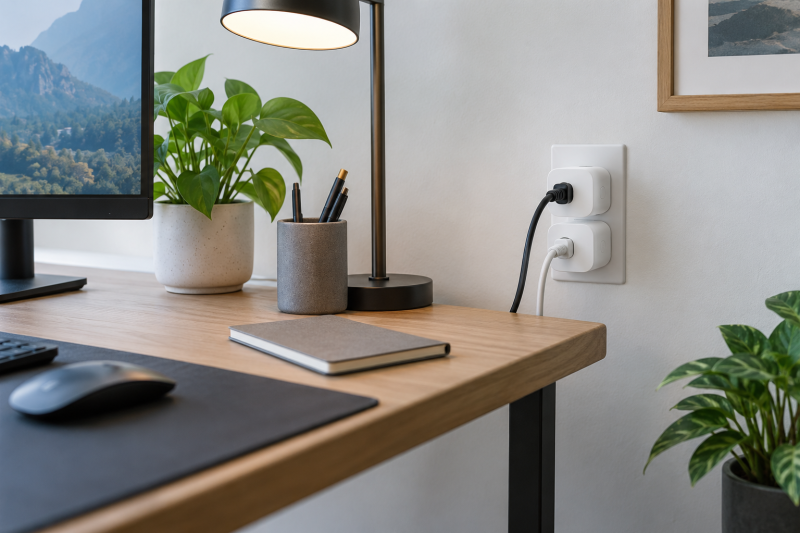
An energy-monitoring smart plug can show the power use of one plug-in device and switch it through its app. For a workstation, it is useful for a monitor, lamp, charger or other compatible load, not as a way to guess the total draw of a whole desk.
Check the device load and the plug’s listed limit before connecting anything. A 15A rating is not permission to exceed the equipment or outlet rating, and an app report is a usage aid rather than an electrical safety assessment.
Use a smart plug for one compatible device. Do not plug a power strip or workstation UPS into it unless both makers explicitly allow that setup.Smart Plugs Compared
| Image | Product | Details | Check Price |
|---|---|---|---|
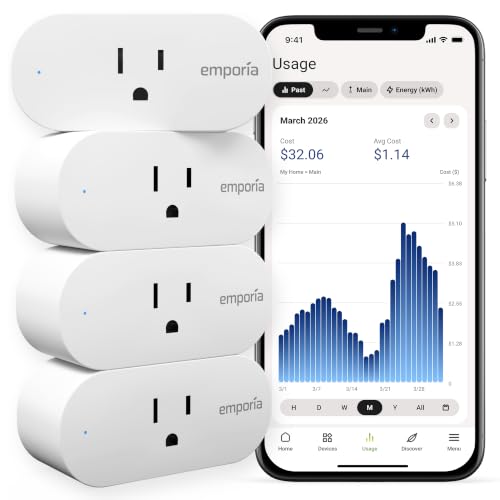 | Emporia Energy Monitoring Plug | Best fit: Four-plug workstation start Pack: Four Monitoring: Energy listed Load: 10A continuous listed | Check Price on Amazon |
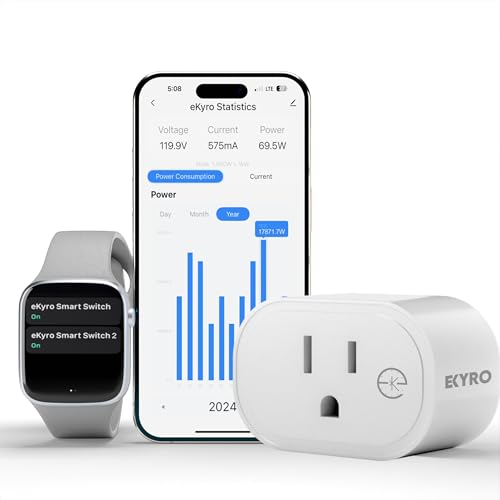 | eKyro Energy Monitor | Best fit: Live electrical readout Load: 15A, 1800W Views: Voltage, current, watts Control: Scheduling listed | Check Price on Amazon |
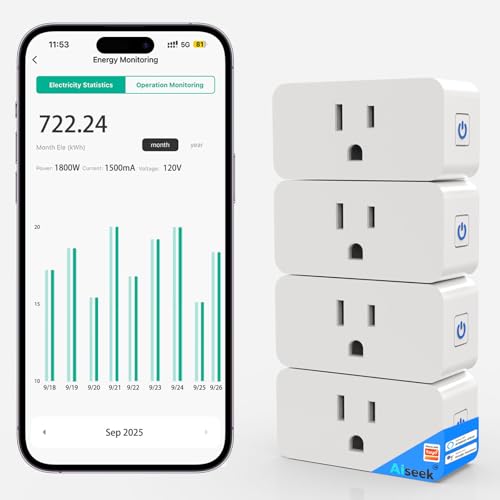 | AiSeek 4-Pack | Best fit: Compact four-pack Pack: Four Load: 15A, 1800W Wi-Fi: 2.4GHz | Check Price on Amazon |
 | Tapo P110M | Best fit: Matter monitoring Load: 15A Platform: Matter listed Monitoring: Energy listed | Check Price on Amazon |
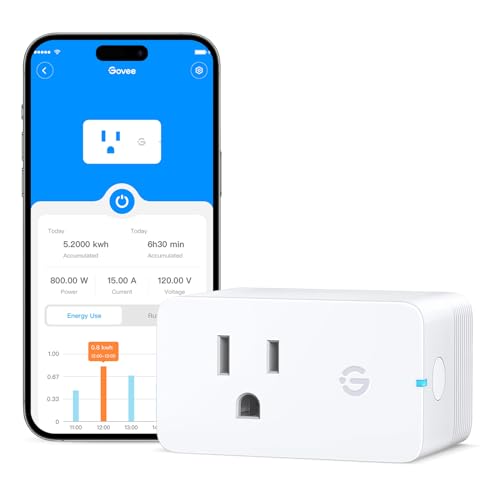 | Govee Smart Plug | Best fit: Single-plug history Views: Power, current, voltage History: Daily to yearly Wi-Fi: 2.4GHz | Check Price on Amazon |
 | Kasa KP115 | Best fit: Established app option Monitoring: Energy listed Wi-Fi: 2.4GHz Control: App and voice listed | Check Price on Amazon |
1. Emporia Energy Monitoring Plug — Best Four-Plug Workstation Start
Emporia lists this four-pack Wi-Fi energy-monitoring plug with scheduling, app control and a 10A maximum continuous load. It fits a desk where several small, separately controlled devices need their own records at the outlet.
The listing requires 2.4GHz Wi-Fi. Check the load of each device and avoid treating a four-pack as a reason to put every part of a workstation behind app control.
Our Take Buy the Emporia if several low-power desk devices need separate monitoring and the 10A continuous limit fits each one.
- Four plugs listed.
- Energy monitoring listed.
- 10A continuous limit listed.
- 2.4GHz Wi-Fi required.
2. eKyro Energy Monitor — Best Live Electrical Readout
eKyro lists a 15A, 1800W smart plug with live voltage, current and wattage views. It suits a buyer who wants those specific electrical readings for one compatible desk device.
The plug has app automations and schedules, but a measurement screen does not identify whether a connected device has a fault. Use it to observe a known-compatible load, not to diagnose mains problems.
Our Take Buy the eKyro if a single desk device needs live voltage, amps and watts.
- Voltage, current and watts listed.
- 15A, 1800W listing.
- One outlet only.
- Not a diagnostic tool.
3. AiSeek 4-Pack — Best Compact Four-Pack
AiSeek lists a 15A 1800W four-pack with energy tracking, scheduling and 2.4GHz Wi-Fi. It is for a workstation where a few compatible accessories need basic outlet monitoring without purchasing separate single plugs.
Use the pack only with loads inside the stated specification. A compact body may preserve nearby sockets, but it does not change the limit of the wall outlet or connected equipment.
Our Take Buy the AiSeek if you have several compatible low-risk accessories and a four-pack with basic app tracking is the priority.
- Four-pack listed.
- 15A, 1800W listed.
- 2.4GHz Wi-Fi required.
- Check outlet spacing.
4. Tapo P110M — Best Matter Monitoring Pick
Tapo lists the P110M as a 15A Matter-compatible smart plug with energy monitoring and threshold controls. It fits a desk already using a Matter-capable platform where the integration path counts for as much as the individual plug app.
Use the energy statistics to track a device. An automatic threshold can turn a compatible device off under a chosen condition. Confirm the device can safely be switched before automating it.
Our Take Buy the Tapo if Matter support and monitoring both belong in the same workstation setup.
- Matter support listed.
- Energy monitoring listed.
- Check existing platform support.
- One plug per outlet.
5. Govee Smart Plug — Best Single-Plug History View
Govee lists this plug with real-time power, current and voltage monitoring plus daily, weekly and monthly history views. It is useful when one device, such as a desk lamp or compatible charger, needs a simple usage record.
The listing requires 2.4GHz Wi-Fi for its remote functions. Keep high-draw equipment, surge-protected systems and devices that should not lose power outside a casual automation plan.
Our Take Buy the Govee if one compatible device is the goal and historical energy views are more useful than a multipack.
- Power, current and voltage listed.
- History views listed.
- 2.4GHz Wi-Fi required.
- Single outlet.
6. Kasa KP115 — Best Established App Option
Kasa lists the KP115 as a smart plug with energy monitoring and 2.4GHz Wi-Fi setup. It is a reasonable single-plug option for a compatible device when the buyer already uses the Kasa app or voice-control ecosystem.
The product title identifies energy monitoring, while the setup instructions still require the correct outlet and device load. Use its monitoring view as a way to observe ordinary usage, not to validate electrical safety.
Our Take Buy the Kasa if its app ecosystem is the deciding factor and one compatible device needs monitoring.
- Energy monitoring in title.
- 2.4GHz Wi-Fi setup listed.
- Single plug.
- Check device load first.
Buying Guide
Decide what one outlet should reveal
A smart plug measures the device plugged into that outlet. Use it for a monitor, lamp, charger or other compatible device when you want to see a specific load. It cannot separate several devices downstream of a power strip. Keep the plug’s packaging and model name with the desk records for future setup changes.
Power, current and voltage are different fields. A live watt figure is useful for an immediate view, while daily or monthly history can show a pattern. Pick the view that answers the workstation question instead of collecting data without a purpose.
Monitoring does not prove electrical safety. If a device gets hot, trips a breaker or has a damaged cable, disconnect it and use appropriate electrical advice. Do not use the app to diagnose a mains fault.
Check load, outlet and Wi-Fi before setup
The plug’s listed current limit must cover the connected device. Do not treat a 15A maximum as a target. Read the device label and leave power strips, UPS units and equipment that must not lose power outside an ordinary switching routine.
2.4GHz Wi-Fi is a recurring setup requirement. Several listed models use that band. Confirm the phone and home network can complete the maker’s pairing process before replacing a manual outlet habit with an app.
One plug needs one accessible outlet. A wide body can block a neighbouring socket, while a four-pack can be useful only if each device is a proper fit. Check physical spacing before deciding between a single plug and a pack.
Use scheduling carefully at a work desk
A schedule can switch compatible accessories on or off at a chosen time. It works best for a desk lamp or other device that is safe to restart. Do not schedule equipment that needs a controlled shutdown.
Energy thresholds are a convenience feature, not an equipment policy. Confirm that a device can tolerate a cut-off before using automatic switching. A monitor and a computer are affected differently when power changes.
Keep manual control and network equipment on their own appropriate power path. Test a new automation when you are present, then check the device state after it runs. A USB-C power meter measures a different USB-C power path. A router, storage device or computer may need uninterrupted service. For a shared desk, label each controlled outlet so an automation cannot cut power to the wrong accessory, then record the chosen app, device and schedule in a simple desk note for later troubleshooting.
Frequently Asked Questions
Can I monitor a whole workstation through one smart plug?
You get only one combined outlet reading, and only if the plug and connected equipment allow the arrangement. The plug cannot distinguish the monitor from the computer, charger or other gear connected downstream.
Use separate plugs for separate compatible devices when you need individual readings. Avoid adding a smart plug ahead of a UPS or power strip unless the relevant manufacturers support that configuration.
Start with a low-risk accessory. A lamp or compatible charger is easier to validate than critical work equipment. Confirm switching behavior before building a larger automation routine.
Do smart plugs work without 5GHz Wi-Fi?
The listed models here use 2.4GHz Wi-Fi for setup or remote control. A dual-band router can still work when its 2.4GHz network is available to the plug and phone during pairing.
Follow the maker’s app instructions for onboarding. Network names, permissions and router settings can affect setup. Do not assume a plug will join the same way as a laptop or phone.
Local outlet control, remote app features and a desktop surge protector solve different problems. Test the exact function you care about after installation, keep the outlet accessible and do not use a plug as a substitute for workstation safety equipment.
Bottom Line
Choose Emporia for several compatible low-power accessories, Tapo P110M for listed Matter integration or Govee for one plug with history views. Check the load and Wi-Fi setup before connecting anything.