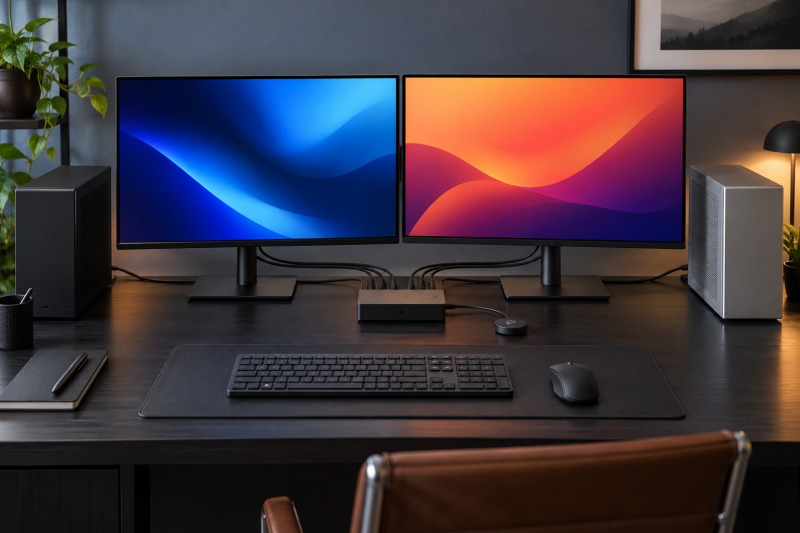
An HDMI 2.1 KVM switch can keep a high-refresh monitor, keyboard, mouse, and other USB devices attached while you change between two computers. The setup is useful for a desk used for gaming and work, a shared edit station, or any desk where moving cables is a chore.
Before you look at the biggest resolution number on a listing, check whether the KVM supports your exact monitor count, source count, connector mix, and refresh mode. The six HDMI KVMs below fit different desk layouts.
Pick the KVM around the display layout you own, then confirm its stated refresh mode and USB ports.HDMI 2.1 KVM Switches Compared
| Image | Product | Details | Check Price |
|---|---|---|---|
 | CKLau 2x2 HDMI 2.1 KVM | Best fit: Dual-monitor desks needing EDID emulation Monitors: 2 Computers: 2 Listed mode: 4K 144Hz, 8K 60Hz Switching: Hotkey, mouse, front button, or wired remote USB: USB 3.0 peripheral sharing | Check Price on Amazon |
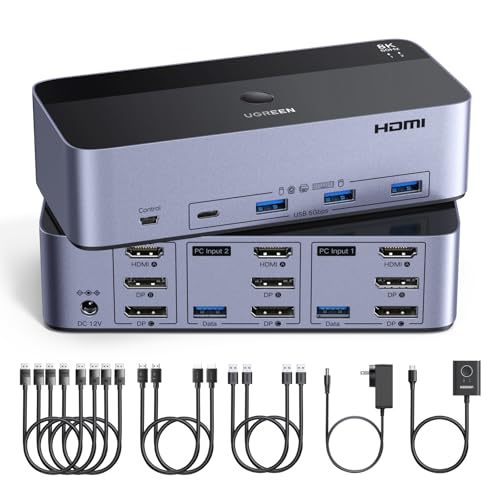 | UGREEN 3-monitor KVM | Best fit: Three-monitor desks Monitors: 3 Computers: 2 Listed mode: 8K 60Hz | Check Price on Amazon |
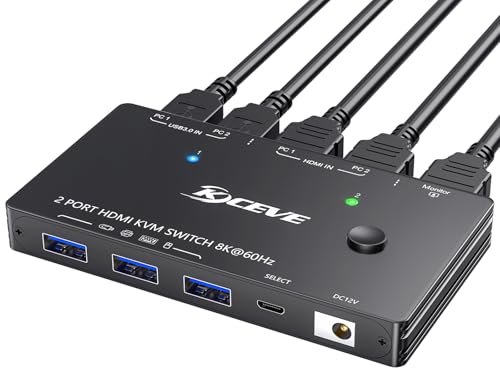 | KCEVE 2x1 HDMI KVM | Best fit: Simple one-monitor HDMI KVM Monitors: 1 Computers: 2 Listed mode: 4K 120Hz, 8K 60Hz | Check Price on Amazon |
 | ATLAHET 4-computer dual-monitor KVM | Best fit: Four computer sources Monitors: 2 Computers: 4 Listed mode: 4K 120Hz, 8K 60Hz | Check Price on Amazon |
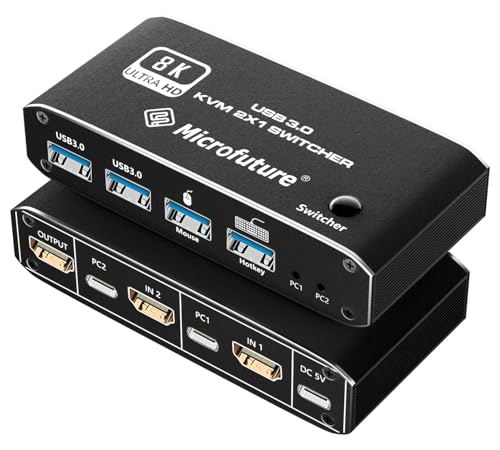 | HDMI 2.1 2x1 KVM with hotkey | Best fit: One-monitor KVM with hotkey Monitors: 1 Computers: 2 Listed mode: 4K 120Hz, 1080p 240Hz | Check Price on Amazon |
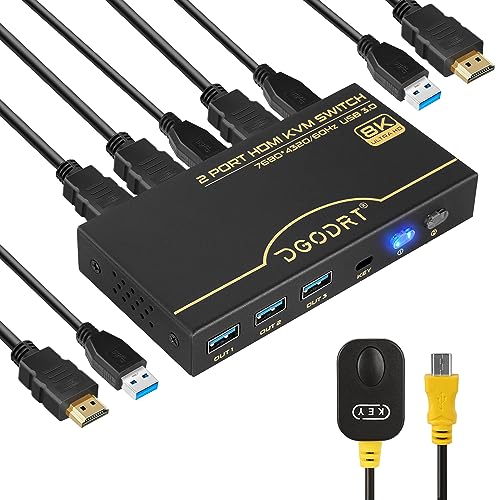 | DGODRT KS608D HDMI 2.1 KVM | Best fit: Basic one-monitor high-refresh switching Monitors: 1 Computers: 2 Listed mode: 4K 120Hz, 8K 60Hz USB: 3 USB 3.0 devices Switching: Wired remote | Check Price on Amazon |
1. CKLau 2×2 HDMI 2.1 KVM Switch — Best Dual-Monitor EDID Pick
CKLau lists a two-monitor, two-computer HDMI 2.1 KVM with 8K at 60Hz and 4K at 144Hz support, a USB 3.0 hub, audio and microphone sharing, and included input cables. It suits a high-refresh desk where both computers need the same pair of displays and shared peripherals.
Built-in EDID emulation is the distinguishing feature because the listing says it helps maintain display detection, resolution, window size, and icon placement during switching. Each computer still needs one compatible video output for every connected monitor, and the source, display, and cables must all support the selected refresh mode.
Our Take Buy the CKLau if a dual-monitor desk needs EDID handling and several switching methods. Hotkeys, mouse switching, front controls, and a wired remote provide more control choices than a basic button-only KVM.
- Lists HDMI 2.1 with 8K at 60Hz and 4K at 144Hz.
- EDID emulation can help retain desktop arrangement while switching hosts.
- Four switching methods suit different permanent desk layouts.
- Each computer needs a separate video path for each monitor.
- Final refresh support still depends on sources, displays, and cables.
2. UGREEN 8K 60Hz HDMI DisplayPort KVM for 3 Monitors — Best for Three-Monitor Desks
UGREEN lists an 8K at 60Hz HDMI and DisplayPort KVM for three monitors and two computers. The three-monitor layout is the defining feature. It suits a workstation with a central main screen plus supporting panels for chat, timelines, code, or reference material.
Three-screen switching is more involved than a one-monitor setup because every host needs the right display outputs and cables. Check the exact HDMI and DisplayPort mapping, monitor input requirements, and graphics capabilities before buying a KVM around a headline resolution.
Our Take Buy the UGREEN if both computers need three displays. It suits a workstation, and a desk with a single screen is better served by a simpler KVM.
- Lists support for three monitors and two computers.
- Mixes HDMI and DisplayPort connections.
- Needs multiple compatible video outputs per host.
- More cables mean more setup variables.
3. KCEVE KVM Switch for 2 Computers and 1 HDMI Monitor — Best Simple One-Monitor HDMI KVM
KCEVE lists a two-computer, one-monitor HDMI KVM with 8K at 60Hz and 4K at 120Hz. A one-monitor KVM is often the most reliable way to share a high-refresh display because it needs fewer video paths and fewer decisions about extended desktop behavior.
It is the right choice when one display does the main work and a second screen is not part of the desk. If you regularly need two screens on both computers, start with a dual-monitor KVM instead of adding a second, unrelated switching routine.
Our Take Buy the KCEVE if you want a simple high-refresh HDMI KVM. It suits a single premium monitor shared between a work laptop and a desktop or a game console as the second computer.
- Clear one-monitor, two-computer layout.
- Lists 4K at 120Hz and 8K at 60Hz.
- Does not solve a dual-monitor desk.
- Verify HDMI version on every device.
4. ATLAHET 4-Computer Dual-Monitor HDMI KVM — Best for Four Computer Sources
ATLAHET lists a four-computer, dual-monitor HDMI KVM with 8K at 60Hz, 4K at 120Hz, four USB 3.0 devices, and copy/extend modes. The four-computer capacity is its main feature, and it suits a desk that includes multiple workstations, a test machine, and a personal computer.
This KVM is not easy to set up casually. The video inputs, USB host links, controller location, and monitor modes need a written map. It suits a permanent multi-system station, not a laptop used at a single-screen desk now and then.
Our Take Buy the ATLAHET only if four source computers are a daily need. The extra capability adds cable and troubleshooting work that you avoid with a two-computer KVM.
- Lists four computer sources and two monitors.
- Includes four USB 3.0 shared-device ports.
- Complex cable plan for a permanent setup.
- Overkill for two ordinary computers.
5. HDMI 2.1 2×1 KVM with USB-C Selector and Hotkey — Best One-Monitor KVM with Hotkey
This listing identifies a one-monitor, two-computer HDMI 2.1 KVM with four USB 3.0 device ports, hotkey control, 4K at 120Hz, and 1080p at 240Hz. The listed modes suit a mixed desk where refresh rate counts at more than one resolution.
The hotkey and USB-C power connection are useful details, but inspect the listing’s exact connector role. The monitor still needs a signal path that matches the stated HDMI mode.
Our Take Buy the hotkey KVM if you want to switch with a keyboard hotkey instead of a remote and share several USB peripherals. Confirm the USB-C power connection suits the desk before making it the center of a laptop setup.
- Lists multiple high-refresh video modes.
- Four USB 3.0 ports and hotkey are stated.
- USB-C role needs exact verification.
- One monitor only.
6. DGODRT KS608D HDMI 2.1 KVM Switch — Best Basic One-Monitor High-Refresh Pick
DGODRT lists the KS608D as a one-monitor, two-computer HDMI 2.1 KVM with 8K at 60Hz, 4K at 120Hz, HDR, and sharing for three USB 3.0 devices. The metal switch suits a straightforward desk where one high-refresh monitor moves between two computers.
The package lists two HDMI 2.1 cables, two USB 3.0 cables, and a wired remote, reducing the number of basic connections that need to be sourced separately. It is also listed as plug-and-play without an additional power supply, but the source, cable, monitor, and chosen display mode still set the practical limit.
Our Take Buy the DGODRT if you value simple wired-remote switching for one monitor and two computers. Choose a dual-monitor model instead if both computers must keep two screens available.
- Lists 4K at 120Hz and 8K at 60Hz over HDMI 2.1.
- Included video, USB, and remote cables cover the basic two-host layout.
- One-monitor design cannot serve a dual-display desktop.
- Signal path still needs compatible source, display, and cable modes.
Buying Guide
Map the monitor and computer count first
The monitor count decides the KVM category. A one-monitor KVM is easier to select and cable, while dual- and triple-monitor models need a compatible output from every computer for every display. Do not buy a three-screen KVM before confirming both hosts can supply the required video signals.
Source count also affects the choice. Two-computer models suit a setup with one work computer and one personal computer, whereas a four-computer KVM such as the ATLAHET dual-monitor KVM belongs on a permanent multi-system station. Extra inputs cost more than money, since you have more cables to manage and more paths to troubleshoot.
Read resolution and refresh together
4K at 120Hz and 1080p at 240Hz are different operating modes. A KVM listing can support several of them without every mode applying to every monitor count or connector combination. Match the mode you actually use, rather than treating the highest listed number as universal support.
The full signal path must agree. The computer output, KVM input, cable, KVM output, monitor input, and monitor setting all need to support the intended mode. Use certified or known-good HDMI cables and test the actual resolution and refresh setting after installation.
Separate USB peripheral sharing from power and storage
KVM USB ports are best for keyboards, mice, webcams, and similar peripherals. High-draw storage, audio interfaces, and capture hardware can need more power or stability than an ordinary shared USB port provides. Test critical hardware before you make it part of a production setup.
Laptop charging is a separate requirement. A KVM can switch video and USB without delivering the power a laptop needs. Pair it with the right power adapter or a dock, and see our Thunderbolt dock guide and USB-C monitor guide for the rest of the desk design.
Frequently Asked Questions
Does HDMI 2.1 guarantee 4K at 120Hz through a KVM?
No. Every device in the signal path needs to support the intended mode. A monitor or source with a lower HDMI capability can limit what you get even when the KVM listing names 4K at 120Hz.
Use the KVM’s published port and mode details, then test the exact display setting. A working 4K 60Hz connection does not by itself prove the higher-refresh mode will work at the desk.
Can one KVM switch two monitors between two laptops?
Yes, if the KVM explicitly supports two monitors and both laptops can supply the required video outputs. A dual-monitor KVM needs two video paths from each host in most arrangements, and many simple laptop desks do not have a second path.
Map the outputs before buying the switch. A dock may provide the needed display connections, but its compatibility with the laptop and monitor modes needs separate confirmation.
Will a KVM add input lag for gaming?
A listing alone cannot answer the question. Switching hardware, cables, monitor mode, and the host configuration all affect the practical result. Do not treat a headline resolution as a latency measurement.
For a high-refresh game desk, test the KVM with the actual monitor and input devices during the return window. Keep a direct cable path available until you have verified the mode you use.
Bottom Line
The CKLau HDMI 2.1 KVM suits two screens and two computers that benefit from EDID emulation. Choose the UGREEN 3-monitor KVM only for a true three-display workstation, or the KCEVE 2×1 KVM when one high-refresh monitor is enough. Map every source, display, cable, and USB device before making a KVM the center of the desk.