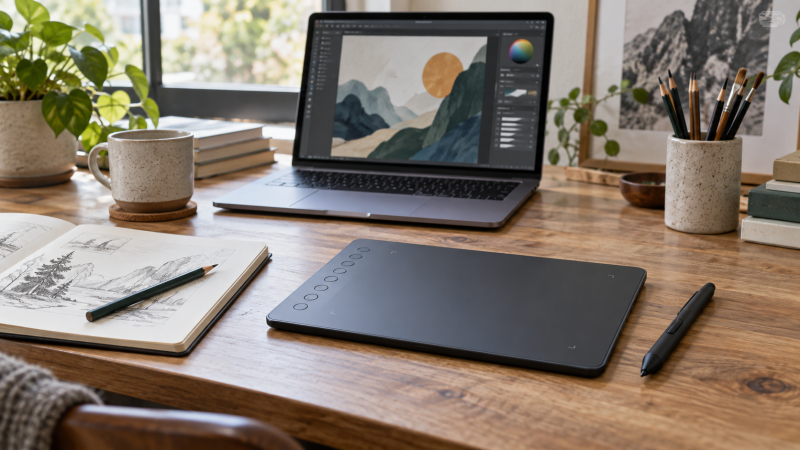
A screenless drawing tablet gives an artist pen control while the artwork stays on the laptop display. Wireless connection can clear one cable from a crowded desk, but it does not remove the need for driver support, charging and a workable drawing area. More pressure levels on a product title will not rescue a tablet that maps poorly to your screen or loses connection during a long session.
These six Amazon US listings explicitly describe wireless tablet-to-host connectivity. A battery-free pen is common even on a wired tablet and does not make the tablet itself wireless, so check how the tablet connects to the host. The products span small travel surfaces, shortcut-heavy desk layouts and a larger pro model. They are pen tablets, not pen displays, so you draw on the pad while looking at the computer screen.
Pick the active area and shortcut layout for the work you repeat. Then confirm that Bluetooth or the supplied dongle works with your exact laptop OS and ports, and test the tablet in your actual art app before relying on wireless mode.Wireless Drawing Tablets Compared
| Image | Product | Details | Check Price |
|---|---|---|---|
 | XPPen Deco MW | Area: 8 x 5 in listed Wireless: Bluetooth 5.0; dongle listed Controls: 8 keys Best fit: Balanced desk layout | Check Price on Amazon |
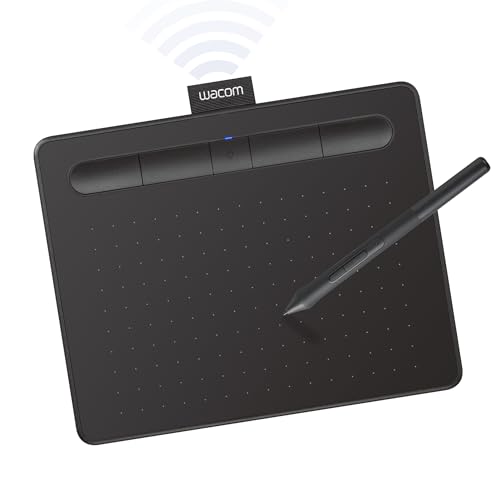 | Wacom Intuos Small | Area: Small format Wireless: Bluetooth Wired: USB-A listed Best fit: Simple compact start | Check Price on Amazon |
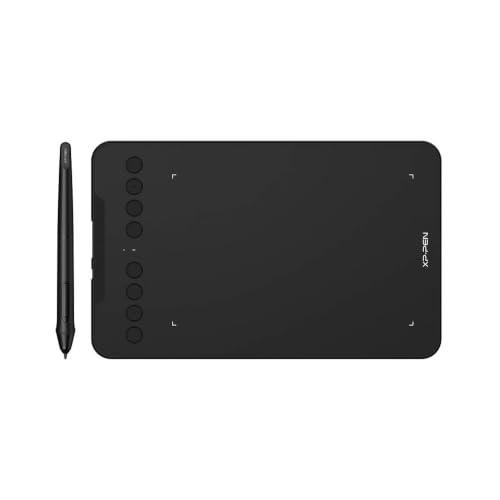 | XPPen Deco mini7W | Area: 7 x 4 in listed Wireless: Bluetooth/dongle described Controls: 8 keys Best fit: Travel pad | Check Price on Amazon |
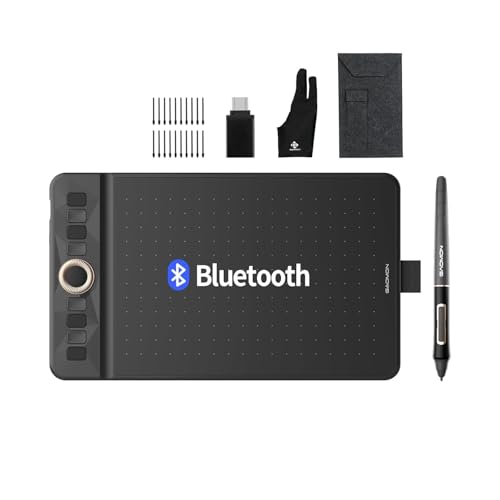 | GAOMON WH851 | Area: 8 x 5 in listed Wireless: Bluetooth 5.0 Controls: Dial + 8 keys Best fit: Mid-size dial workflow | Check Price on Amazon |
 | HUION KD200 | Area: 8.9 x 5.6 in listed Wireless: Bluetooth 5.0 Controls: 23-key area, dial + 5 keys Best fit: Shortcut-heavy art desk | Check Price on Amazon |
 | Wacom Intuos Pro Medium | Area: Medium 16:9-oriented format Wireless: Bluetooth multi-computer Controls: 10 keys + 2 dials Best fit: Pro daily workflow | Check Price on Amazon |
1. XPPen Deco MW — Best Balanced Eight-by-Five Layout
The Deco MW listing names an 8-by-5-inch drawing area, Bluetooth 5.0, eight customizable shortcut keys and a battery-free X3 stylus. XPPen also lists 8192 pressure levels and tilt response. The active area can give a laptop artist more hand travel than a tiny travel pad without taking over a full desk. Shortcut keys are useful only after mapping them to actions such as undo, brush size or canvas rotation in the app you actually use.
The exact offer describes an included dongle and USB-A-to-USB-C cable alongside the wireless claim. Check whether your laptop has the needed USB-A port for that dongle, or whether native Bluetooth is supported for your OS and driver version. The seller lists broad Windows, macOS, Linux, ChromeOS and Android compatibility, but broad compatibility is not proof that every app-specific shortcut works identically. Test pen pressure, tilt and reconnect behavior before relying on it for a deadline.
Our Take Choose Deco MW for a mid-size wireless pen surface with enough shortcut keys to keep a laptop keyboard out of the drawing zone. Verify the exact Bluetooth or dongle path for your laptop.
- 8-by-5-inch active area listed.
- Bluetooth and included dongle described.
- Eight customizable keys.
- USB-A dongle may need a laptop adapter.
- App shortcuts require setup.
2. Wacom Intuos Small — Best Simple Bluetooth Start
The exact Intuos Small listing explicitly names Bluetooth host connection and a USB-A wired option. Wacom describes a battery-free EMR pen, so you do not have to recharge the stylus itself. The smaller physical surface suits a laptop desk that must also hold a mouse, notebook or second input device. It can be a straightforward starting point for sketching, markup or photo edits when you do not need a built-in keypad beside the drawing area.
Wacom’s seller copy makes broad software-compatibility claims and mentions registration-based software access. Treat the latter as a changing bundle, not a permanent hardware specification. Check the current Wacom driver for your operating system and whether your favorite app uses the pen pressure and buttons you expect. If Bluetooth feels inconsistent, the wired option is a useful diagnostic fallback. Confirm that your laptop can accept its cable or adapter.
Our Take Pick Intuos Small for a compact Bluetooth pen tablet when a simple drawing surface outranks a large bank of controls. Confirm the actual active area and driver fit before ordering.
- Bluetooth and wired host options listed.
- Battery-free EMR pen.
- Small desk footprint.
- Smaller hand-travel area than medium models.
- Bundle terms and drivers need checking.
3. XPPen Deco mini7W — Best Compact Seven-by-Four Travel Pad
XPPen lists the Deco mini7W with a 7-by-4-inch active area, eight press keys, a battery-free pen and a wireless host path. The feature text describes an included USB dongle and Bluetooth 5.0. For a laptop art desk that is sometimes a café table or classroom, the shorter drawing surface can be easier to pack and set down. It may feel cramped to an artist who makes long sweeping strokes or maps it across several wide displays.
The seller lists 16,384 pressure levels and tilt response for this exact offer, but the useful test is whether pressure changes smoothly in your drawing app. Its wired USB-C connection is described with an adapter. Check what cable and adapter are in the current box and how they fit your laptop, especially if it has no USB-A port for the dongle. Keep the wired path available for setup and troubleshooting even when the desk goal is cable-free drawing.
Our Take Choose mini7W when portability and eight shortcuts outrank a larger drawing area. Make sure its wireless method is supported by your laptop, not just by the product title.
- Compact 7-by-4-inch area.
- Wireless dongle and Bluetooth described.
- Eight shortcut keys.
- Less room for long pen strokes.
- Port and adapter fit need checking.
4. GAOMON WH851 — Best Dial on a Mid-Size Pad
GAOMON lists the WH851 as an 8-by-5-inch Bluetooth 5.0 tablet with USB-C wired mode, eight customizable keys and a central dial. The dial can be assigned to actions such as brush size, canvas zoom or scrolling, which may be more comfortable than tapping a laptop key while the other hand holds the pen. The battery-free AP519 pen is described with tilt response and 16,384 pressure levels. The tilt and pressure figures are listing specifications, not evidence of how the surface feels to a particular artist.
The seller claims up to 18 hours of tablet battery operation. Treat it as an upper limit to test under your wireless usage, not guaranteed workday endurance. Its adjustable aspect-ratio feature may help map the pad to a wide laptop or external monitor. Check the driver settings so a drawn circle remains round, because a mismatch can distort strokes even when the pen is accurate. Confirm macOS, Windows or Android support for the exact host you use.
Our Take Pick WH851 if a dial is central to your art workflow and an 8-by-5-inch area suits your desk. The advertised battery figure and pressure count should not replace a driver and mapping test.
- Bluetooth and USB-C wired modes.
- Dial plus eight keys.
- Aspect-ratio setting described.
- 18-hour runtime is a seller claim.
- Dial usefulness depends on app mapping.
5. HUION KD200 — Best Built-In Keyboard Workflow
The Inspiroy Keydial KD200 pairs an 8.9-by-5.6-inch active area with 23 keyboard-style keys, a dial and five custom press keys. HUION lists Bluetooth 5.0 host connection and a battery-free PW517 pen with tilt response. This arrangement suits an artist who frequently changes tools, zooms, saves or uses modifiers and wants those commands beside the canvas instead of reaching over the laptop keyboard.
The seller claims at least 18 hours of battery operation and a short recharge time. Test both under your own workload. HUION lists Windows, macOS, Android and certain iOS app conditions, but app support is not uniform across platforms. Check your exact laptop OS and drawing software before paying for the built-in keypad. The extra keys also make the tablet wider than a minimal pad, so measure the physical desk area, not only the active drawing dimensions.
Our Take Choose KD200 when the integrated keypad will reduce keyboard reach during long sessions. For occasional sketching, a smaller tablet may be easier to keep on the desk.
- Integrated 23-key shortcut area.
- Dial and five custom keys listed.
- Bluetooth host connection.
- Large physical footprint for a laptop desk.
- Software support varies by platform.
- Runtime claim needs real-world checking.
6. Wacom Intuos Pro Medium — Best Large Pro Control Surface
The exact Intuos Pro Medium offer includes Pro Pen 3, Bluetooth host connectivity, ten customizable ExpressKeys and two mechanical dials. Wacom describes a wider 16:9-oriented format for modern displays and a larger active surface than its small Intuos line. Those controls may suit an illustrator or retoucher who spends hours in layered art software and wants repeatable hand motions without moving back to the keyboard.
The seller lists pen pressure, tilt and adjustable grip details, but those details do not promise a specific feel to every user. Check whether the pen’s button arrangement and tablet dials map well in your software. Bluetooth can switch between multiple computers according to the listing. Verify the pairing workflow if you move between a laptop and desktop. Its greater desk footprint is the tradeoff, so lay out the laptop, tablet and mouse positions before buying a pro surface just for its specification list.
Our Take Pick Intuos Pro Medium if the larger working area, dials and configurable pen fit a daily professional workflow. It is more tablet than a casual note-taking desk needs.
- Pro Pen 3 with adjustable grip listed.
- Ten ExpressKeys and two dials.
- Bluetooth multi-computer switching described.
- Requires more desk area.
- Control mapping varies by art app.
Buying Guide: Make Wireless Drawing Reliable
Separate wireless host support from pen power
A battery-free stylus describes the pen, not the tablet’s connection to a laptop. Every product in this comparison explicitly lists Bluetooth or a wireless dongle for the tablet-to-host path. Check which method your laptop and operating system support. A tablet may pair over Bluetooth but still need a USB cable to charge. The word “wireless” does not mean the hardware never touches a cable.
For a USB-dongle path, confirm port shape and adapter need before ordering. An older laptop may have USB-A, while a thin modern model may need a hub. The USB-C hub guide can help with that port decision, but it will not make an unsupported tablet driver work. Keep a wired fallback available while installing drivers or diagnosing dropouts.
Match active area to screen and drawing style
The active drawing area is not the same as the tablet’s outside dimensions. XPPen mini7W lists 7 by 4 inches, Deco MW and GAOMON WH851 list 8 by 5, and HUION KD200 lists 8.9 by 5.6. More space can make long strokes easier, while a smaller pad saves desk and bag room. Check the total footprint when keys or a dial sit beside the drawing surface.
Map the pad to the screen aspect ratio and displays you actually use. A laptop plus external monitor may stretch the cursor movement unless you limit the tablet to one screen or adjust mapping. Test circles and diagonal lines in the art app. The Thunderbolt monitor guide addresses a second display, but a larger screen still needs the tablet mapping set deliberately.
Check driver, battery and shortcut behavior
Install the current manufacturer driver for the exact tablet model and OS. Then test pressure, tilt, pen-button assignments and reconnect after sleep. App support can differ: a control might work in one painting program and not another. Software bundles also change over time, so buy for the hardware workflow rather than a temporary license offer.
Plan charging around actual sessions. GAOMON and HUION quote long runtime, but both are seller claims under unspecified workloads. Wacom and XPPen models also need their exact charging path checked. Do a full working-day trial, note the battery indication, and keep the USB cable reachable. A wireless tablet that dies halfway through a project is worse than an ordinary wired one.
Frequently Asked Questions
Can I see my drawing on these tablets?
No. The tablets on this page are screenless pen tablets. The drawing appears in software on your laptop or external monitor while your hand moves the pen on the tablet surface. Drawing on the pad while watching the screen takes practice, especially if you have only used paper or a direct-pen display before.
If drawing directly on an image is essential, look for a pen display or compatible tablet computer instead. Do not assume that Bluetooth connectivity or a high pressure number means the pad has its own screen.
Does a battery-free pen make the entire setup cable-free?
No. A battery-free pen only means the stylus does not need its own charging battery. The tablet still needs power, a wireless radio or dongle, and occasional charging or a USB fallback. The XPPen, Wacom, GAOMON and HUION listings here describe distinct ways to connect, so check the exact box contents and laptop ports.
Even in wireless mode, keep a tested cable nearby. A cable helps when installing software, charging and determining whether a lag or disconnect comes from radio interference rather than the pen or app.
Are more pressure levels always better for drawing?
Not automatically. The listing’s pressure-level number is only one input specification. Driver behavior, pen feel, active area, tilt response and your app’s brush engine affect the actual line. The mini7W and WH851 list 16,384 levels, while other models list 8192, but that count alone does not rank the finished artwork.
Try a slow stroke from light to heavy pressure and a repeated fine line in the software you use. If the curve feels wrong, adjust the driver pressure settings before assuming the hardware is incapable. Comfort and consistency across a long session count for more than a bigger number in a title.
Bottom Line
For a laptop art desk, start with driver support and active-area fit, then choose the wireless connection and shortcuts. Deco MW and WH851 offer mid-size layouts. Intuos Small and mini7W save space. KD200 adds a built-in keypad. Intuos Pro Medium offers a larger professional control surface. Keep a charging and wired fallback plan whichever wireless tablet you choose.