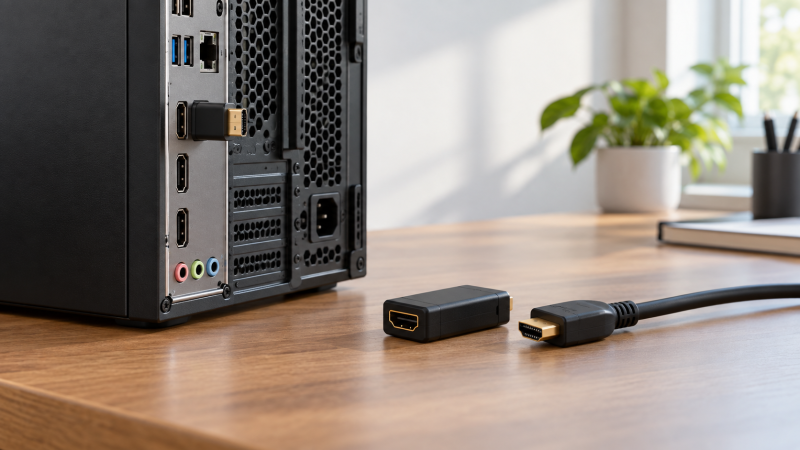
A workstation that runs without a monitor still needs the computer to believe a display is connected. An HDMI EDID emulator supplies display information to the source so a remote desktop can have a usable resolution. The buying trap is that “EDID emulator” describes two different shapes: a closed-end dummy plug for a headless HDMI port, and an inline passthrough for a physical monitor or a switch that may be turned off or disconnected.
Choose the shape first. A dummy plug creates a virtual screen but has nowhere to attach your physical monitor. An inline device can preserve a display identity while video passes through. The six New-offer picks below cover both, including one with a button to copy a connected monitor’s EDID. Their advertised timings are seller claims, not measurements from a local workstation.
For a PC that will never have a local display, start with a dummy plug. For a workstation whose monitor, KVM or extender sometimes disappears, start with a passthrough emulator. Do not buy one shape expecting the other connection layout.HDMI EDID Emulators Compared
| Image | Product | Details | Check Price |
|---|---|---|---|
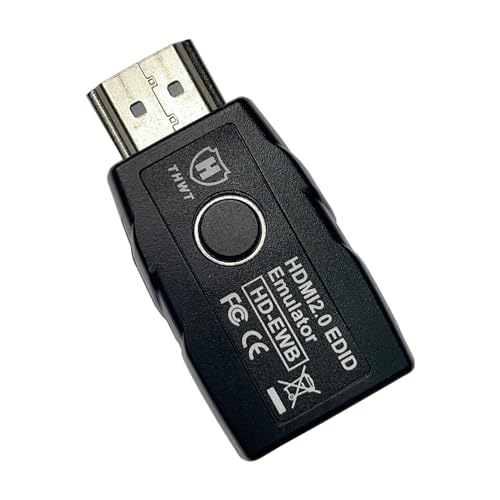 | THWT HD-EWB | Type: Inline/copy Listed mode: 4K60 / 1080p240 EDID control: Preset + copy button Best fit: Copy a known monitor | Check Price on Amazon |
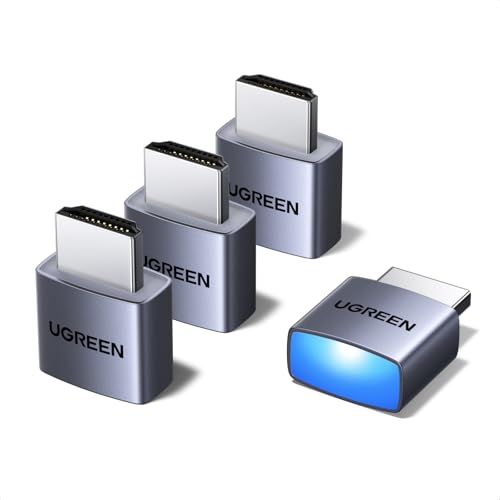 | UGREEN 4-Pack Dummy Plug | Type: Dummy plug Listed mode: 4K60 (4:2:0) EDID control: Fixed profile Best fit: Four headless PCs | Check Price on Amazon |
 | DTECH 4K Dummy Plug | Type: Dummy plug Listed mode: Up to 4K60 EDID control: Fixed profile Best fit: One headless PC | Check Price on Amazon |
 | EVanlak 1080p Passthrough | Type: Inline passthrough Listed mode: Up to 1080p60 EDID control: Fixed profile Best fit: 1080p monitor stability | Check Price on Amazon |
 | Woieyeks 4K Passthrough | Type: Inline passthrough Listed mode: Up to 4K60 EDID control: Fixed profile Best fit: 4K monitor on/off | Check Price on Amazon |
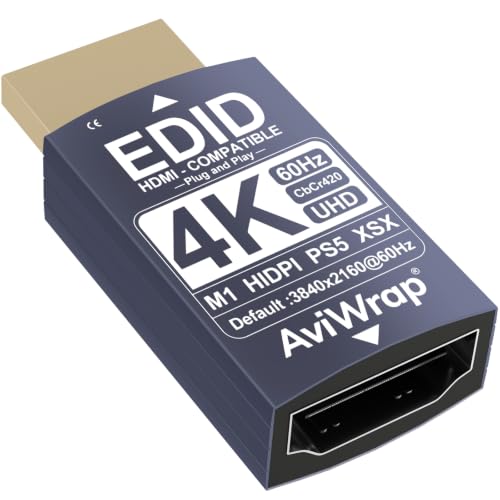 | AviWrap 4K Passthrough | Type: Inline passthrough Listed mode: Up to 4K60 EDID control: Fixed profile Best fit: Simple KVM path | Check Price on Amazon |
1. THWT HD-EWB — Best EDID Copy Control
THWT’s HD-EWB is an inline HDMI 2.0 emulator with more explicit EDID controls than the other picks. Its listing says a button selects an internal 1080p60 preset or an external 4K60 preset, and holding it for three seconds copies the connected monitor’s EDID for later emulation. The copy mode is useful when a remote workstation needs to present the same display identity after a KVM changes inputs or the actual screen is removed. The seller also says it can operate headlessly, with no monitor attached.
The listing specifies 2.1-channel audio for the presets. If the setup needs 5.1 or 7.1, the seller directs buyers to copy the EDID of a display that advertises that audio format. THWT says HDCP is passed through, not stripped. It explicitly cautions that HDMI 2.1 devices and some 4K60 4:4:4 hot-plug situations may lose signal. It draws power from the HDMI source, so no separate supply is listed. Even so, test the full source, emulator, cable and display chain.
Our Take Buy the HD-EWB when copying a known monitor’s EDID is more useful than presenting a generic virtual display. Its controls are clear, but the HDMI 2.1 and high-bandwidth hot-plug caveats make it a conditional fit.
- Can copy a connected monitor’s EDID.
- Two stated presets and a physical control button.
- Seller explicitly supports headless use.
- Preset audio is limited to 2.1 channels.
- Seller cautions against HDMI 2.1 devices.
- Some 4K60 hot-plug paths may lose signal.
2. UGREEN 4-Pack Dummy Plug — Best Multi-PC Headless Pack
UGREEN sells four closed-end HDMI dummy plugs together. Each plugs into an HDMI output and gives the computer a virtual display without another video cable, monitor or separate power lead. For four compact PCs in a remote work or lab setup, the pack saves you from buying four single units. For just one machine, count the unused plugs before choosing it over a single plug.
The seller lists 4K60 at 4:2:0 and 1080p120. The two are different signal modes, and the 4K headline does not promise 4:4:4 desktop text at that refresh. UGREEN also lists an indicator LED and Windows, Mac and Linux compatibility. The listing’s broad claims about remote-control applications are not evidence that every app, GPU driver or operating system will pick the same default resolution. Check the display settings after inserting the plug and again after reboot.
Our Take Buy the UGREEN pack when several headless workstations need their own virtual HDMI screen. The four plugs are its main advantage. Confirm that its listed 4K60 chroma mode meets your desktop needs.
- Four plugs for separate machines.
- No display cable or external power listed.
- LED indicates connection status.
- No HDMI output for a physical monitor.
- 4K60 claim is specified at 4:2:0.
- Extra units may go unused on one PC.
3. DTECH 4K Dummy Plug — Best Single Headless PC
The DTECH offer is a single HDMI dummy plug, not an inline adapter. It goes straight into the computer’s HDMI output so the system sees a display even when no monitor is attached. The plug is the simple choice for a home server, Mac mini or remotely administered desktop whose local display is intentionally absent. You cannot connect a physical monitor to its closed end.
DTECH lists up to 4K60 and plug-and-play operation without a driver or separate power supply. The product copy names Windows, Mac and Linux, but it does not specify every GPU, operating-system release or remote-desktop software combination. Its 4K figure is a seller ceiling, not proof of a particular chroma format or application frame rate. Set a usable resolution locally before placing a machine where physical troubleshooting is difficult.
Our Take Buy this DTECH plug when exactly one HDMI-equipped PC needs a virtual screen and no pass-through monitor connection. It is the simpler single-unit counterpart to UGREEN’s four-pack.
- One compact plug for one headless PC.
- Seller lists up to 4K60.
- No driver or external power listed.
- Cannot feed a local monitor.
- Listing does not detail chroma at 4K60.
- Remote-app performance is not established.
4. EVanlak 1080p Passthrough — Best Fixed 1080p Desk
EVanlak describes an HDMI EDID-lock passthrough for a machine whose attached display sometimes turns off or disappears. The seller says it keeps the source from treating that screen as removed, which can prevent desktop windows from rearranging during a monitor or KVM power cycle. The listing also says it can stand in for a virtual monitor when the display is absent, but its normal advantage over a dummy plug is that an HDMI signal can pass onward.
Its stated default is 1920 × 1080 at 60 Hz, with listed modes from 800 × 600 at 60 Hz to 1080p60. The low ceiling makes it a poor fit if the workstation must retain a 4K desktop or high-refresh monitor mode. The product copy is unevenly written and mentions several converter and multi-display arrangements without a clear test matrix. Treat the stable 1080p EDID behavior as the purchase reason, and verify the exact source-to-display chain yourself.
Our Take Buy EVanlak for a 1080p desk where windows keep rearranging when the display is turned off. Do not choose it for a 4K target just because its connector is HDMI.
- Inline path can retain display identity.
- 1080p60 default is stated.
- Seller mentions virtual-monitor use.
- Listed ceiling is 1080p60.
- No clear compatibility matrix for converters.
5. Woieyeks 4K Passthrough — Best Monitor-On-Off Stability
Woieyeks markets an inline EDID lock that passes HDMI video and audio while keeping the computer’s display arrangement from resetting when a monitor or KVM path is switched off. The listing says it can be inserted in a KVM’s HDMI path and continue representing the display when the physical screen is disconnected. It also describes use as a virtual monitor for remote access, so it suits a desk with a local monitor and an occasional headless session.
The seller lists up to 3840 × 2160 at 60 Hz, with another line mentioning 4096 × 2160 at 60 Hz. Do not confuse either with guaranteed 4K60 operation through every KVM or adapter. The listing expressly says HDCP is not supported, an important restriction for protected video paths. It says no driver or separate power is needed. If your workflow includes HDCP-protected playback, remove this model from the shortlist before troubleshooting a black screen.
Our Take Buy Woieyeks if your main complaint is windows rearranging when a 4K-capable display or KVM goes away. Its stated HDCP limitation rules it out if you need protected content.
- Inline path retains a display identity.
- Seller lists 4K60 modes.
- No separate power listed.
- Seller says HDCP is unsupported.
- Actual KVM and adapter combinations need testing.
- Not a closed-end dummy plug.
6. AviWrap 4K Passthrough — Best Simple Inline KVM Path
AviWrap also sells a male-to-female inline emulator for a screen or KVM that is repeatedly connected and disconnected. Its listing describes passing the video and audio signal while retaining EDID information across those changes. Consider this type when a workstation normally drives a physical display and only becomes effectively headless when the KVM selects another computer.
The seller lists up to 4K60 and 1080p120, no driver and no separate power. It also says the adapter can sit in series with a KVM. The listing calls the device a headless adapter, but does not explain whether it offers a configurable or copied EDID profile. Do not assume the controls available on THWT are present here. HDCP passthrough appears in the title, while the detailed feature bullets do not establish behavior in every protected playback setup.
Our Take Buy AviWrap for a straightforward inline KVM or monitor on/off job when you don’t need a selectable EDID profile. Verify the actual timing and protected-content behavior on the equipment you own.
- Male-to-female passthrough layout.
- 4K60 listed.
- No external power listed.
- No stated EDID-copy control.
- Title’s HDCP claim needs setup-specific confirmation.
Buying Guide: Match the Emulator to the Disappearing Screen
Decide whether you need a dummy plug or passthrough
A dummy plug ends the video path. UGREEN and DTECH make sense when the workstation should have a virtual screen but no local monitor. The male HDMI connector goes into a free HDMI output, and the computer treats the plug’s advertised EDID as a display. If the PC has a separate physical monitor, a dummy plug can appear as an additional display rather than stabilizing the existing one. Confirm which screen the remote-desktop program captures before leaving the machine unattended.
A passthrough keeps an HDMI route to a physical display. EVanlak, Woieyeks, AviWrap and THWT occupy the source-to-monitor or source-to-KVM path. They are for a display whose power, cable or switch state changes. An HDMI switch selects a source, and an HDMI splitter mirrors one source. Neither substitutes for checking the EDID path. Test the physical order of PC, emulator, switch and monitor.
Choose an EDID mode the workflow can really use
The resolution figure is only one part of the EDID. EVanlak rates its default at 1080p60, while DTECH and the 4K-oriented picks list a 4K60 ceiling. UGREEN states 4K60 at 4:2:0. THWT names different preset timings and audio capabilities. A remote editing desktop may value readable 4:4:4 text more than a headline 4K number. A streaming or control dashboard may be satisfied with a lower mode. Check resolution, refresh, chroma and audio together.
A copied EDID can be more predictable than a generic preset. THWT offers a copy action, started by holding its button, for a connected monitor, while the other products here do not describe an equivalent user control. Copying is useful when a known display mode must survive a KVM switch, but the source listing warns that an old screen or poor cable can prevent the copy. Keep a fallback preset and a direct PC-to-monitor cable available when diagnosing the setup.
Test the complete remote and protected-video path
HDCP behavior is not interchangeable. Woieyeks explicitly says HDCP is unsupported. THWT says it passes HDCP through but does not remove it. AviWrap names HDCP passthrough in its title. For protected playback, a copied display identity does not bypass content protection, and a working desktop does not prove a video service will play. If you play protected video, verify the actual source, switch, cable, emulator and display together before depending on it.
A virtual monitor is not remote access software. The plug can advertise a display, but it does not install or secure a remote connection. Configure the OS, remote-access tool and recovery path while a physical monitor is still available. Then reboot, disconnect the screen, reconnect remotely and confirm the selected resolution. Keep a fallback display or direct cable nearby for driver resets and BIOS-level troubleshooting that a remote desktop may not expose.
Frequently Asked Questions
Will a dummy plug let me connect a monitor later?
Not through that same plug. UGREEN and DTECH are closed-end dummy plugs with no HDMI output socket. Remove the plug and attach the monitor, or use a different output on the PC. A machine with both a monitor and a dummy plug may see two displays. Two displays can change window placement and which screen a remote tool captures.
If you want one physical HDMI route that survives a monitor being turned off, choose an inline passthrough instead. THWT, EVanlak, Woieyeks and AviWrap are in that category, but each advertises a different EDID and video-mode boundary.
Does 4K60 on the listing mean my remote desktop will run at 4K60?
No. 4K60 is a seller-stated video timing, not a measured frame rate in a remote application. UGREEN specifies 4K60 at 4:2:0, while THWT describes particular 4K60 presets. GPU output, OS display settings, remote protocol, network performance and the EDID advertised to the computer all affect what you actually see.
After installation, look at the operating system’s selected mode and the remote application’s captured desktop. Test a reboot and the exact monitor or KVM state change that caused your original problem before accepting the setup.
Can an EDID emulator fix a protected-video black screen?
Not necessarily. EDID and HDCP are separate concerns. An emulator can advertise display capabilities while protected content still needs a valid HDCP path. Woieyeks says HDCP is unsupported. THWT describes passthrough, not bypass. The other listings do not establish every protected-playback combination.
Use the direct source-to-display connection as a baseline, then add each component one at a time. If protected content fails after the emulator is inserted, do not assume an EDID mode change alone will solve the authorization or handshake problem.
Bottom Line
THWT HD-EWB offers the most explicit EDID selection and copy control, but is conditional for HDMI 2.1 paths. UGREEN 4-Pack is for several fully headless PCs. DTECH 4K suits one. For an existing monitor or KVM that vanishes from the OS, choose an inline model by the needed resolution and HDCP boundary, then test that actual connection chain.