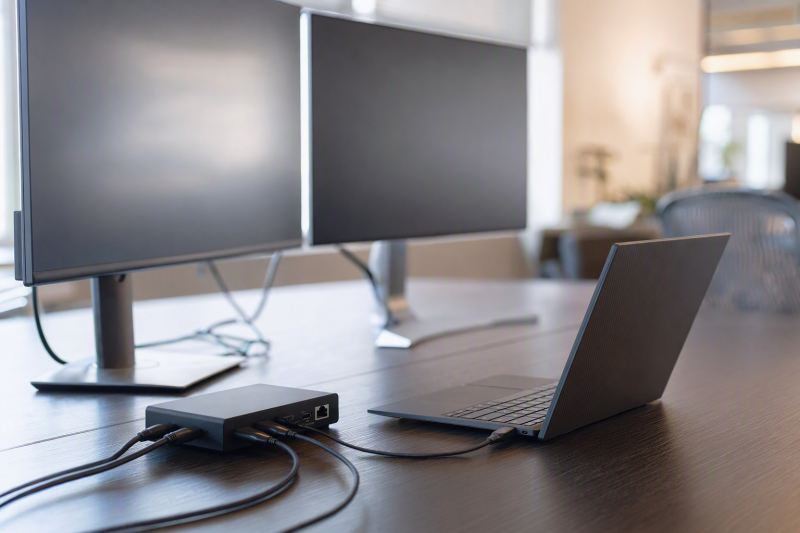
For a qualifying ThinkPad X1 Carbon, the Lenovo ThinkPad USB4 Dock 5000, model 40BF0100US, is the best dock on this list. Lenovo identifies it as the successor to the Universal USB-C Dock, and its adapter-dependent charging makes the real checkout decision clear. Each alternative answers one different need: the USB4 Smart Dock 5500 is better for a managed office, Plugable TBT-UDM is the driverless third-party desk choice, CalDigit TS4 prioritizes port density, and Lenovo’s USB-C Slim Travel Dock is the one-monitor travel option.
“ThinkPad X1 Carbon” is a laptop family, not a port specification. Before buying, find the full generation and machine type, then use Lenovo PSREF and support to confirm its CPU platform, USB-C DisplayPort Alt Mode, USB Power Delivery, USB4 or Thunderbolt generation, native external-display count, and accepted charging power. Firmware, operating system, cables, and the monitor chain are separate checks on top of that. Our broader ThinkPad docking station guide covers the family-level alternatives.
Quick picks
- Lenovo ThinkPad USB4 Dock 5000: Best official successor for a qualifying X1 Carbon.
- Lenovo ThinkPad USB4 Smart Dock 5500: Best managed-office option.
- Plugable TBT-UDM: Best driverless third-party TB4/USB4 desk dock.
- CalDigit TS4: Best port-dense choice for a documented TB4 or USB4 X1.
- Lenovo USB-C Slim Travel Dock: Best one-monitor portable option.
Compare ThinkPad X1 Carbon docks
| Image | Product | Details | Check Price |
|---|---|---|---|
 | Lenovo ThinkPad USB4 Dock 5000 40BF0100US | Best for: Official Universal USB-C Dock successor Host path: USB4 intended; reduced USB-C fallback Display routes: 2x DP 1.4, HDMI 2.1, full-function USB-C Laptop power: 65W included setup; up to 100W with optional 135W adapter Buyer check: Exact X1 generation and display matrix | Check Price on Amazon |
 | Lenovo ThinkPad USB4 Smart Dock 5500 40BC0135US | Best for: Managed Lenovo office Host path: USB4 on qualifying X1 Display routes: 2x DP 1.4, HDMI 2.1, full-function USB-C Laptop power: Up to 100W on selected adapter configuration Buyer check: Host-specific display and management support | Check Price on Amazon |
 | Plugable TBT-UDM | Best for: Driverless third-party desk Host path: Thunderbolt 4 or USB4 Display routes: Two HDMI; downstream Thunderbolt Laptop power: Up to 100W Buyer check: Exact X1 controls native display count | Check Price on Amazon |
 | CalDigit TS4 | Best for: Port-dense TB4/USB4 desk Host path: Thunderbolt 4 or USB4 for intended features Display routes: DisplayPort 1.4 plus downstream Thunderbolt Laptop power: 98W Buyer check: Plain USB-C loses capabilities | Check Price on Amazon |
 | Lenovo USB-C Slim Travel Dock 4X11N40213 | Best for: One-monitor travel Host path: Video/data/power-capable USB-C Display routes: One HDMI Laptop power: Up to 65W pass-through Buyer check: Integrated cable; exact host conditions | Check Price on Amazon |
1. Lenovo ThinkPad USB4 Dock 5000 40BF0100US — best overall
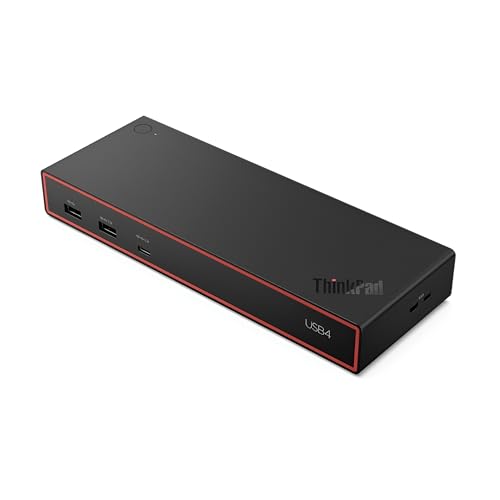
Lenovo names the USB4 Dock 5000 as the successor to its Universal USB-C Dock. That exact identity matters because similar Lenovo names cover different hardware. Match model 40BF0100US and listing B0GDB5J3VP rather than assuming any “universal” listing is equivalent.
Lenovo documents a USB4 40Gbps upstream design with two DisplayPort 1.4 outputs, HDMI 2.1, a full-function USB-C DisplayPort 1.4 connection, six USB data ports, and Gigabit Ethernet. Its published display layouts are ceilings subject to the laptop, graphics, operating system, and display chain. This page does not assign any maximum layout to an X1 Carbon until the exact PSREF row qualifies it.
Charging depends on the package too. Lenovo says the included 100W adapter supplies a 65W laptop configuration. Reaching up to 100W requires Lenovo’s optional 135W adapter and a host that negotiates that input. A larger dock adapter does not force the X1 to accept more power.
Our Take
Choose the Dock 5000 when Lenovo’s official successor path fits the exact X1 Carbon. Confirm both its display matrix and whether 65W from the included configuration is enough before adding another adapter.
- Lenovo’s named Universal USB-C Dock successor
- USB4 host link with several display routes
- Official Lenovo desk option for qualifying systems
- Included adapter configuration supplies 65W to the laptop
- Display ceiling remains exact-host dependent
2. Lenovo ThinkPad USB4 Smart Dock 5500 40BC0135US — best for managed offices
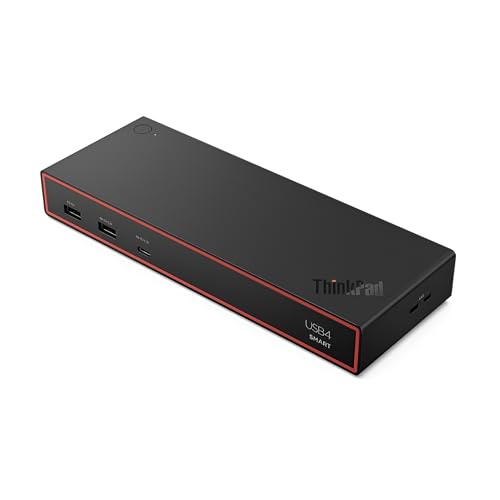
The USB4 Smart Dock 5500 moves ahead when IT management is the buying reason, and Lenovo positions it as an official USB4 managed-office dock. Lenovo states the selected 40BC0135US configuration uses a 135W adapter and carries an up-to-100W laptop charging ceiling for a qualifying host.
Lenovo documents one HDMI 2.1, two DisplayPort 1.4 connections, a full-function USB-C video port, six USB data ports, and Gigabit Ethernet. The maker also publishes multi-monitor ceilings for capable hosts. Those are dock capabilities, not proof that a particular X1 Carbon generation can expose them. CPU platform, graphics engine, port mode, internal-panel use, OS, and display chain can reduce the result.
Buy this over the Dock 5000 when Lenovo management functions and a standard office deployment matter. On a single personal desk, management may add less value than the Plugable’s third-party port mix or the CalDigit’s density.
Our Take
Choose the Smart Dock 5500 for a managed X1 Carbon fleet after checking each admitted machine type. Do not use the ThinkPad logo as a compatibility matrix.
- Official Lenovo managed-office USB4 option
- Several native display outputs
- Up-to-100W ceiling on selected adapter configuration
- Management value is limited for a simple home desk
- Monitor count remains host-specific
3. Plugable TBT-UDM — best driverless third-party desk dock

Plugable’s TBT-UDM is the strongest third-party choice for an X1 Carbon whose exact specification documents Thunderbolt 4 or USB4. Plugable describes it as driverless and provides two HDMI outputs, a downstream Thunderbolt port, SD and microSD UHS-II readers, Ethernet, audio, USB-A, and USB-C connections.
Plugable rates dual HDMI output up to 4K60 and host charging up to 100W on supported systems. Neither figure transfers automatically to every X1 generation. Native display count, DisplayPort resources, graphics platform, and the monitor chain control whether one or two screens work at a given format, and the laptop negotiates its accepted power independently.
“Driverless” means the dock does not use DisplayLink for this path. It does not mean the host can drive both displays or expose all bandwidth through basic USB-C. Buy it only after the X1’s TB4 or USB4 host class is documented. Our Thunderbolt 4 dock roundup provides wider context.
Our Take
Choose TBT-UDM for a qualifying TB4 or USB4 X1 Carbon when media readers, native HDMI outputs, and downstream Thunderbolt matter more than Lenovo management.
- Driverless native display path
- Two HDMI outputs and downstream Thunderbolt
- UHS-II readers, Ethernet, audio, and USB
- Intended path requires documented TB4 or USB4
- Dual-display result still depends on the X1 generation
4. CalDigit TS4 — best port-dense option
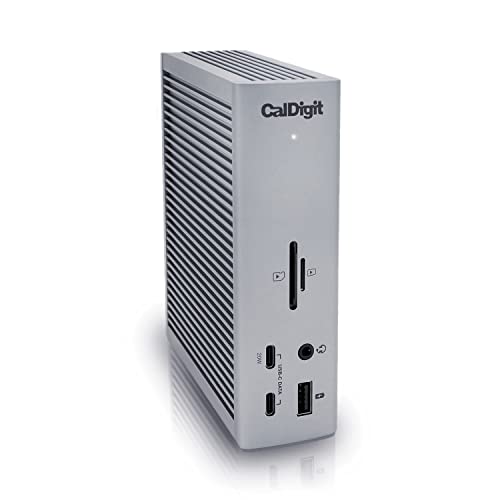
CalDigit TS4 is the pick for a desk crowded with storage, network, media, audio, and USB devices. CalDigit documents 18 ports, including three Thunderbolt 4 or USB4 connections, three USB-C ports, five USB-A ports, DisplayPort 1.4, 2.5GbE, SD and microSD readers, and audio connections. Host charging is rated at 98W.
The important limits here are unusually clear. CalDigit says a plain Windows USB-C host gets one external display through the TS4, and its 2.5GbE path needs PCIe connectivity from Thunderbolt or USB4. An older X1 Carbon with basic USB-C can therefore lose capabilities even though the connector fits.
Display ceilings remain tied to the exact laptop and displays. Select the TS4 only for an X1 Carbon whose Lenovo specification names Thunderbolt 4 or USB4 and whose power input fits a 98W dock ceiling. This is a port-density verdict, not a promise that every connected device can saturate its link simultaneously.
Our Take
Choose TS4 when a qualifying X1 needs many downstream ports and 2.5GbE. Skip it on basic USB-C, where core reasons for paying for it fall away.
- 18-port design
- 2.5GbE plus SD and microSD readers
- 98W host-charging ceiling
- Plain USB-C loses display and network capabilities
- No Lenovo fleet-management role
5. Lenovo USB-C Slim Travel Dock 4X11N40213 — best portable option

Lenovo’s Slim Travel Dock is built for one external monitor and a compact bag. It uses an integrated host cable and provides HDMI, two USB-A ports, and three USB-C connections. Lenovo identifies two USB-C ports as 10Gbps data and the third as power-only for pass-through charging.
Lenovo documents a single-display ceiling up to 4K60 and power pass-through up to 65W, both subject to the host and setup. The X1 Carbon’s USB-C port must provide the required display, data, and power functions. Lenovo also states a 5V/3A host requirement when the dock runs without an AC adapter.
The integrated cable reduces travel pieces but cannot be replaced as easily as a removable cable. This dock is not a smaller substitute for the multi-monitor desk products. It is the branch for one display, a few accessories, and a qualifying charger on the road.
Our Take
Choose the Slim Travel Dock for a documented video-capable USB-C X1 Carbon and one travel screen. Use a full desk dock for several monitors, faster networking, or downstream Thunderbolt.
- Compact official Lenovo travel branch
- Integrated cable
- Up-to-65W pass-through under Lenovo conditions
- One external display only
- Host must supply the required USB-C functions
How to match a dock to an X1 Carbon
Find the exact machine type and generation
Do not stop at “X1 Carbon.” Record the generation and machine type from the bottom label, firmware utility, or Lenovo support record, then use its exact PSREF row to identify the CPU platform, graphics, USB-C DisplayPort Alt Mode, USB Power Delivery, USB4, or Thunderbolt generation. Similar-looking X1 generations can expose different host capabilities.
Separate the data, display, and power paths
A USB-C connector can carry several independent functions. The dock needs the data mode it expects, the laptop must expose the native display resources required for the chosen screens, and charging must negotiate at a rate the laptop accepts. A dock adapter rating is not the power delivered to the computer. Our USB4 versus Thunderbolt 4 guide helps classify the port, though the Lenovo model record controls.
Plan the exact monitor topology
Write down monitor count, input type, resolution, refresh rate, and whether the internal X1 panel stays active. Then compare that plan against both Lenovo’s machine display limits and the dock maker’s host matrix. Physical HDMI, DisplayPort, and USB-C outputs do not prove the X1 can light all of them at once, and adapters, cables, display firmware, OS, and graphics settings can change the result further.
Choose official management or third-party ports
The Smart Dock 5500 is the managed-office branch, and Dock 5000 is the official successor choice. Plugable supplies a driverless native-display desk path, while CalDigit supplies the widest port set on this list. The Travel Dock strips the job down to one display and portable pass-through power.
Check charging against the original adapter
Compare the X1’s supplied charger and Lenovo’s accepted USB-C power against the dock output. Dock 5000 provides a documented 65W configuration from the included 100W adapter, with up to 100W requiring an optional 135W unit and qualifying host. The Smart Dock 5500 is rated for up to 100W on its selected configuration, TBT-UDM advertises up to 100W, the TS4 is specified at 98W, and the Travel Dock is documented for up to 65W pass-through. Every one of those is a ceiling, not an accepted-draw guarantee.
Frequently asked questions
Does every X1 Carbon support Thunderbolt 4 or USB4?
No. The family spans multiple generations. Check Lenovo’s exact PSREF or support record for the machine type and CPU platform instead of inferring the port from the laptop name.
Can a dock drive every output printed on its rear panel?
Not necessarily. The host’s native display count, DisplayPort resources, graphics, OS, cables, adapters, and monitor chain control the usable topology.
Will a 100W dock charge every X1 Carbon at 100W?
No. The dock’s ceiling, its power adapter, and the laptop’s negotiated accepted input are three separate things. The computer takes only a supported mode.
Final recommendation
Lenovo ThinkPad USB4 Dock 5000 is the best overall pick for a qualifying X1 Carbon because it is Lenovo’s named Universal USB-C Dock successor and its 65W versus optional-100W power path is clearly bounded. After that, one requirement picks each alternative: Smart Dock 5500 for management, Plugable TBT-UDM for a driverless third-party desk, CalDigit TS4 for port density, Lenovo’s Slim Travel Dock for one display on the road. Whichever you buy, the exact X1 generation and machine type remain the final compatibility authority.