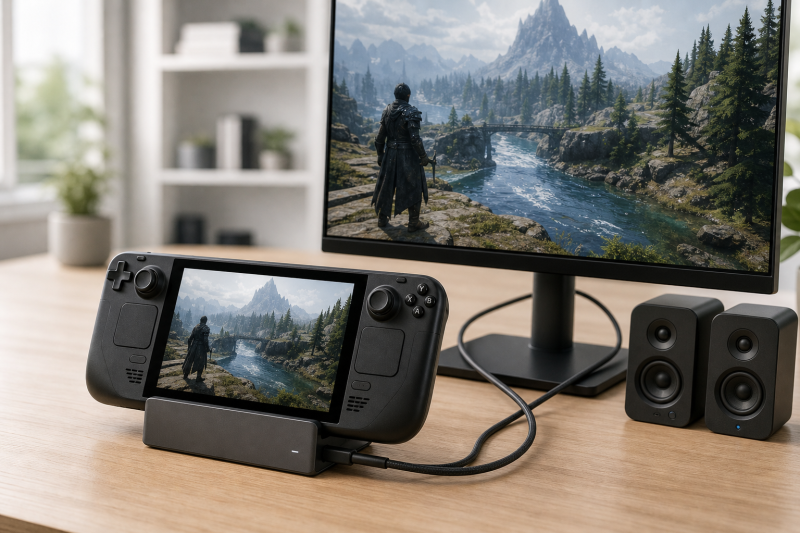
When the dock already puts a picture on your TV or monitor, leave that display route intact and choose its audio endpoint in Steam > Settings > Audio. Valve treats TVs and some monitors as external audio devices. If the intended output appears, select it, raise the Deck and display volume from mute, and play a Steam UI sound. If it never appears, the task changes from volume control to finding the missing HDMI, DisplayPort, or USB audio endpoint.
Name the output you expect
Write one line for the physical route before resetting the dock:
Steam Deck -> dock -> HDMI or DisplayPort cable -> display -> speakers/audio out
For a USB headset, DAC, or speaker attached to the dock, write a second route:
Steam Deck -> dock USB data port -> USB audio device
Those are different endpoints. The display cable can carry picture and audio to a capable TV, monitor, receiver, or soundbar. A USB audio device arrives over the dock’s USB data path. Do not select a USB headset when the intended sound should leave through HDMI.
Write down three things before changing any setting:
- The output currently selected in Steam > Settings > Audio.
- The exact endpoint name SteamOS shows for it, copied character for character rather than as a generic external device label.
- The first point in the route where the sound stops, which is the Deck’s own output list, the display’s audio path, or the USB audio device.
Save those three lines again after each change, so a newly appearing or renamed endpoint is obvious. If the list offers nothing but the Steam Deck’s own speakers, no external audio endpoint has arrived at SteamOS yet, and the display route and the USB audio route have to be separated before anything else.
Use Gaming Mode audio controls first
Open Steam > Settings > Audio in Gaming Mode. Valve puts the Deck’s audio settings there. Select the intended TV, monitor, HDMI/DisplayPort output, or USB device when it appears.
Check these states without changing the display resolution:
- Deck output volume is above zero.
- The selected output is not muted.
- Enable UI Sounds is on for a quick system sound check.
- The game or application is not muted in its own settings.
- Another Bluetooth, USB-C, or 3.5 mm audio device is not still selected.
Valve’s basic troubleshooting guide specifically suggests switching to another output and back when audio routing is wrong. That is a selection refresh, not proof that the dock or cable failed.
If UI sounds work but one game is silent, keep the dock alone. Check that game’s audio output, master volume, and speaker mode. A working SteamOS sound already shows that the external route can carry audio.
Treat the display as an audio device
A working picture does not prove that the screen can play sound. Read the exact TV or monitor manual for built-in speakers, audio output, input-specific audio settings, and mute behavior. Some monitors accept HDMI or DisplayPort video but contain no speakers. Others expose audio only through a headphone jack.
Confirm that the monitor or TV is set to the same HDMI or DisplayPort input used by the dock. Then inspect its own volume, mute, receiver, and soundbar route. If an AV receiver or soundbar sits between the dock and screen, remove it for one direct dock-to-display comparison only when the display itself can produce audio.
For multichannel sound, Valve documents a separate Desktop Mode control. While the Deck is connected to the display, enter Desktop Mode, select the speaker icon, find the HDMI/DisplayPort output, open its three-line menu, and choose the channel count the receiving device supports. Valve says that choice remains after returning to Gaming Mode.
Do not select 5.1 or 7.1 merely because it is offered. The TV, receiver, soundbar, and complete route must accept that channel format. Stereo is the safer comparison when capability is uncertain.
Give USB audio its own branch
A USB audio device connected through the dock should appear as a separate SteamOS output. If it is present, select it and check its physical mute, volume wheel, and power indicator. Then move only that device to another documented USB data port on the dock.
If it remains absent, disconnect other USB peripherals for one comparison. A charging response or indicator light does not prove that the device has a working USB data path. If the same USB audio device appears when connected directly to the Deck through its documented interface, the added dock path is the changed segment. If the dock’s other USB peripherals are missing alongside it, this is no longer an audio-only endpoint problem, so use the Steam Deck dock USB ports guide instead.
Valve says third-party USB-C hubs and docks often work, but Thunderbolt and DisplayLink docks are not officially supported. Keep any conclusion tied to the exact third-party dock manual. Do not borrow Valve Dock firmware steps or port capabilities for another model.
Refresh Valve-owned software and Dock firmware
Install available SteamOS updates through Steam > Settings > System > Software Updates, then restart from Steam > Power > Restart. Reopen Audio settings and record whether the endpoint list changed.
For Valve’s official Docking Station, Valve provides a full reconnect sequence intended to trigger its firmware update:
- Connect the official power supply and Deck to the Dock.
- Restart the Deck.
- Unplug both the Deck and power supply from the Dock.
- Wait 10 seconds.
- Reconnect the power supply and Deck.
If the update does not start, Valve’s alternate step is to connect Deck and power supply, then unplug the power supply from the Dock. These are official Dock instructions. A third-party dock needs its own maker’s procedure.
The official Dock reset is also a complete unplug: Deck, power supply, and display cables all come out before reconnecting. Because the Dock can draw power from the Deck, removing only its charger is not a full reset.
Change one edge of the audio route
After updates and output selection, make one comparison at a time:
- Same dock and display, another input on that display whose manual supports audio.
- Same dock and input, another documented HDMI or DisplayPort cable.
- Same dock and cable, another display known to play audio from that input.
- Same USB audio device, direct connection versus one documented dock USB port.
Keep resolution and refresh rate stable while diagnosing sound. If the picture disappears, fix that first with the Steam Deck dock external-monitor procedure before returning to audio.
Leave SteamOS on a known route
Stop at whichever route now describes your setup:
- Endpoint selected and audible: keep its exact SteamOS name and display input recorded.
- Endpoint present, display silent: the remaining checks belong to the display, receiver, supported channel mode, or their cable route.
- USB endpoint appears only when direct: the added dock USB path does not preserve that device’s data connection.
- Endpoint absent after current SteamOS and exact Dock guidance: compare the exact dock and audio-device records for the audio route you need. If that route is absent from the dock’s own documentation, the capability is missing rather than misconfigured, so stop repeating output-selection steps.
Sources
SteamOS selection and update controls come from Valve’s Steam Deck Basic Use and Troubleshooting Guide. The official Dock firmware reset, display-route comparisons, third-party compatibility limits, and HDMI/DisplayPort multichannel control come from Valve’s Docking the Steam Deck. Neither record establishes speaker support for an unnamed display or audio support for an unnamed third-party dock.