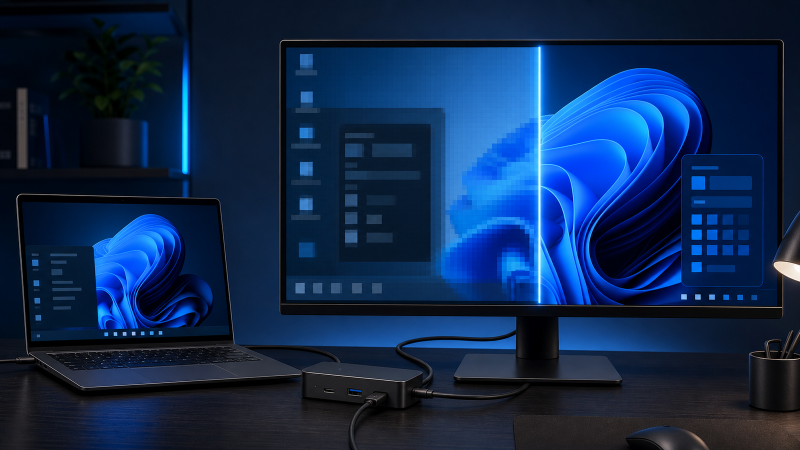
Your monitor runs a clean picture through the USB-C dock, and Windows will only offer something like 1920 by 1080 on a panel that is rated for 3840 by 2160. That gap has one question sitting behind it, and answering it does most of the work: does the same monitor reach the resolution you want when you plug it straight into the laptop instead of through the dock? Nothing in Windows can add a resolution that the laptop, the dock, the output you chose, the cable, and the monitor cannot already offer together, so the fix is never a forced mode. It is finding which link in that chain is holding the number down, and the direct-versus-docked test points straight at it.
The steps below fit a stable picture stuck below the mode you want. Use a different guide if:
- the monitor shows no image at all, which the USB-C monitor not working guide covers
- the picture reaches the resolution you want but flickers or goes black, which is a stability problem rather than a missing mode
- you want to know whether a setup can carry a demanding resolution and refresh rate at all, which the high refresh rate cable and display-path guide covers
Read the mode you have against the mode you want
Before you compare anything, pin down where you are and where you want to be. Open Settings > System > Display, click the numbered rectangle for the external monitor, and use Identify if you are unsure which rectangle is which. Note the Windows display number, the resolution currently selected, every resolution in the list, the one marked Recommended, whether the mode is Duplicate or Extend or a single monitor, the refresh rate under Advanced display, and the monitor model and its active input. Then set the target next to it, meaning the native resolution and refresh rate the monitor is rated for and whether you need that on one screen or two.
Microsoft’s resolution guidance marks one resolution as recommended and warns that running below the monitor’s native resolution can make text less sharp, shrink or stretch the image, or add borders. The recommended label describes the route you have connected right now, so it does not tell you the dock can carry the monitor’s full native timing. Windows can also give the same monitor a different number after you move a cable or reconnect the dock, so select the monitor again before you compare any two settings, and keep a screenshot of the Display and Advanced display pages to compare later. Leave the graphics drivers, registry, and EDID alone until the comparison below tells you which part holds the resolution down, because changing them first moves the very parts you are trying to measure.
The one comparison that splits the problem: direct versus docked
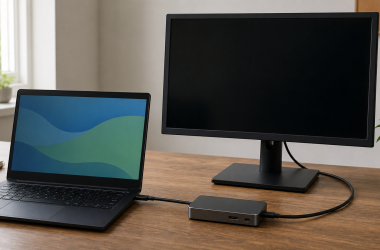
Reduce the setup to one monitor on one dock output, then run the same monitor straight off the laptop and read the two results side by side. Disconnect the second monitor and every adapter, KVM, extension, converter, or daisy chain you do not need. Keep the dock on its documented host-facing port with its approved power supply and the host cable its maker names, connect one monitor to one native dock output with one suitable display cable, and select the matching input on the monitor. Then, only when the laptop has a documented display output that fits the monitor, connect the same monitor directly, keeping the same monitor input, the same display cable where the connectors allow, the same requested resolution and refresh rate, and the same Windows projection mode. A USB-C shaped port does not by itself carry DisplayPort Alt Mode, so the DisplayPort Alt Mode check shows how to confirm that feature from the laptop specification before you trust a direct comparison.
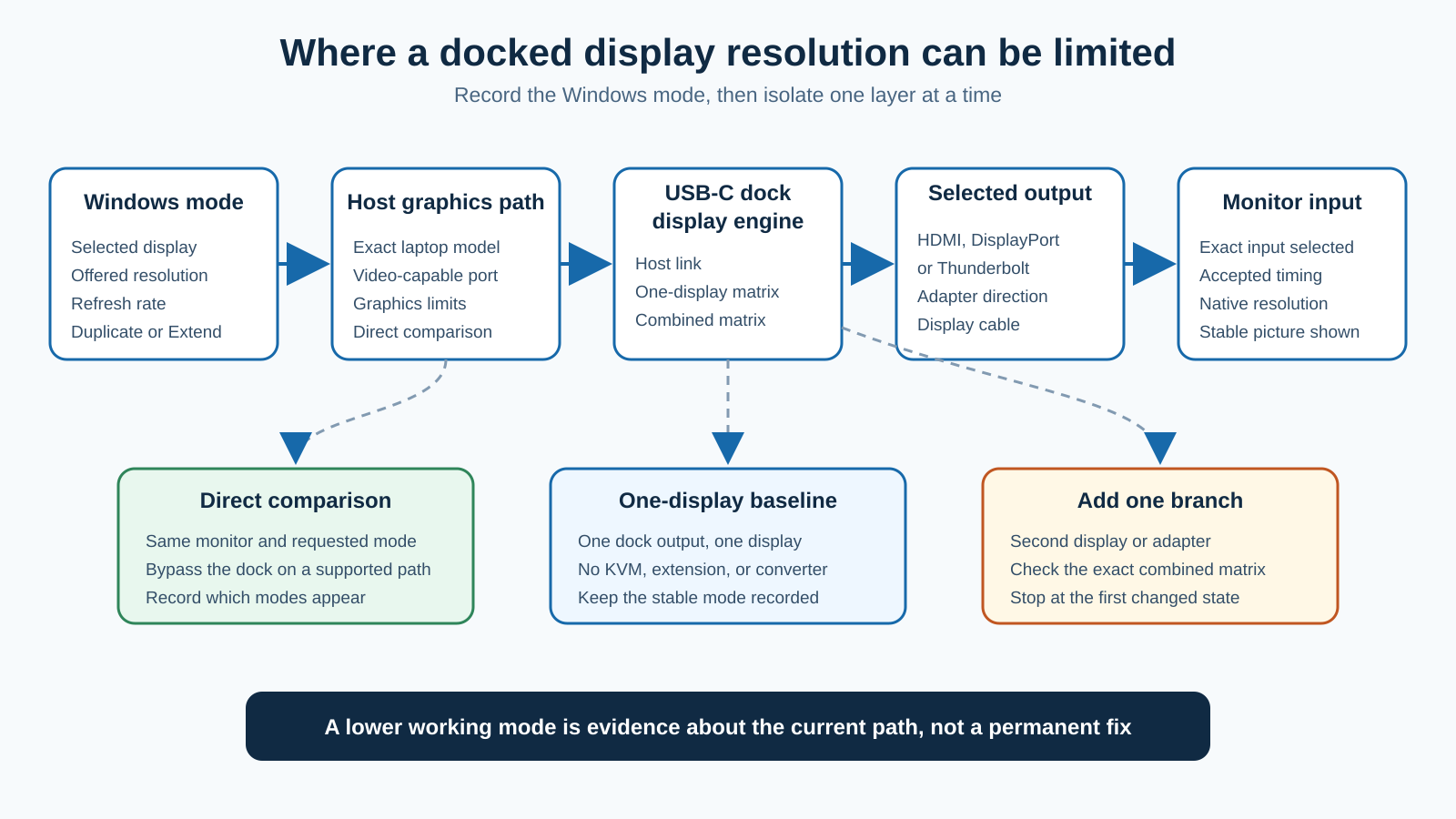
Read the two routes together, and the table sends you to the branch that fits:
| Direct route | Docked route | What it isolates |
|---|---|---|
| Offers the resolution you want | Stuck low | The docked path only: the dock host cable, the dock’s display engine, the output you chose, or an added adapter |
| Also stuck low | Stuck low | Not the dock: the monitor input, the laptop graphics, or the cable |
| No supported direct output exists | Stuck low | Read the laptop and dock specifications, and do not substitute a different adapter and treat that result as equal |
| One monitor reaches the mode | A second monitor lowers one or both | The combined-monitor path, not the single-monitor route |
When the direct connection is also stuck low
If the direct route is stuck at the same low resolution, the dock is not the cause and adding dock parts back will not help. Keep the monitor fixed and check the monitor input the picture is using, the laptop graphics capability, the display cable, and the same monitor on another source you already know reaches the mode. Microsoft’s external-monitor guidance recommends securing or replacing one cable and comparing another system, because each of those changes one part of the route. If the monitor reaches the mode from another computer but not from this laptop on any route, the laptop video path or its graphics limit is the cause, not the dock, and that makes it the laptop or graphics maker’s to answer, with the direct route, the cable comparison, the Windows build, and the graphics model.
Only after the route is isolated does software enter the picture. Install current Windows updates, review the optional driver updates that match your exact graphics hardware, and then open the laptop maker’s own page for that model. Record the current versions before you change them, read the prerequisites, and keep power stable during any maker-approved firmware process. Never install a graphics package meant for a different laptop configuration or a driver from an aggregation site, and repeat the same direct route after each justified update, one update at a time.
When the direct connection is correct but the dock is low
If the monitor reaches the resolution you want on the direct route and loses it through the dock, the limit lives in the docked path, so work through that path one part at a time. The model printed on the dock case is not enough. Note the dock’s full model, its revision where shown, its power supply, and its host cable, then the laptop’s full model or service identifier, its processor or graphics configuration, and the USB-C or Thunderbolt port in use. The laptop specification should name the video-capable port and the DisplayPort or Thunderbolt path it supports, because a USB-C port can carry data and charging with no video signal. VESA describes DisplayPort running over the USB Type-C connector as an Alternate Mode, and that standard does not mean a particular laptop implements it. The dock manual should identify the upstream host port and the host link it requires, which USB-C ports are downstream data and which carry video, the role of each HDMI, DisplayPort, or Thunderbolt output, the single-monitor and combined-monitor limits, any condition on host graphics or compression, and the cable or adapter each output needs. Dell’s current dock family brochure shows why the exact model controls the answer, because Dell lists different host links, output roles, display counts, and conditional limits across its current dock families, and a limit on one Dell dock under one host condition is not a rule for another model or brand. The power a dock draws says nothing about what it can display, and working Ethernet or charging does not mean the laptop is sending the video lanes and mode you need.
With the specifications in hand, isolate the removable parts of the docked route. If the dock uses a removable host cable, a data-speed result is useful background but does not settle whether the cable carries the video mode you want, which the USB-C cable testing guide explains, so replace a host cable only after you know the video, data, length, and power it must carry, using the USB-C cable guide once the cable is the isolated part. Then add any adapter, KVM, or converter back on its own and check the exact input and output connectors, the direction of a one-way converter, the adapter’s documented resolution and refresh conditions, the display cable on the output side, whether the route needs active conversion, and the KVM’s documented video path. An HDMI label on a port does not state its version or which modes it carries, so if the isolated route needs an HDMI 2.1 dock output, compare models in the USB-C docks with HDMI 2.1 guide only after you know what the laptop and monitor support. Never force a custom resolution to get around the limit, because a forced mode can leave a blank or unstable picture and hides the result you are trying to read. When the split lands inside the dock, that split is also the sharpest thing to hand over: one dock output that offers the mode while another documented output does not is the dock maker’s, and one cable that offers it while another does not on the same fixed route is the cable maker or seller’s, each shown by screenshots of the two mode lists. When the dock’s own documentation shows it cannot carry the mode you need from your host, compare only models that publish the host and output combination you need in the USB-C docking station guide.
When adding a second monitor drops the resolution
If one monitor reaches the mode alone and a second monitor lowers one or both, the combined-monitor path is the clue, not the single-monitor route. Keep the first monitor on the exact output and mode that worked, add the second monitor on the output combination the dock manual names, open Display settings, and use Identify. Record whether both monitors stay detected, whether either selected resolution changes, whether the offered refresh rates change, whether Windows switches to Duplicate, and whether moving the second cable to another documented output changes the result. Two monitors together can be held to a lower mode than one monitor reaches alone, because the laptop graphics path, the dock design, the pair of outputs you chose, and the monitor timings all take part, and one dock’s limits never carry to another dock whose ports merely look the same. A drop that shows up only with the second screen belongs to the laptop and dock makers together, with both outputs, both monitor models, the requested timings, and the single-monitor result that worked.
Duplicate and Extend are the first thing to settle here. Windows Duplicate shows the same desktop on both monitors, and Windows Extend gives each monitor its own part of the desktop, so pick the mode you actually want before deciding a resolution is missing. For confirmed DisplayLink hardware, Synaptics states that duplicate mode uses the same resolution on both displays, which can fit one screen poorly, so switch to Extend when you want separate desktops and the exact dock supports the setup. Never assume DisplayLink from a USB-C plug or from a dock with several video outputs. Look for the DisplayLink name in the dock manual or on the official product page, because native DisplayPort Alt Mode and DisplayLink are different paths: DisplayLink software adds nothing to a native output, and a native graphics update does not create a missing DisplayLink USB graphics device. The DisplayLink docking station guide helps identify that product class once you have confirmed it. If the monitors are connected as a chain rather than as separate dock outputs, the USB-C monitor daisy-chain guide covers the extra MST and monitor-output requirements, and if the dock’s documentation shows it cannot drive two independent outputs, compare the requirements in the dual-monitor docking station guide.
Where the resolution limit sits
The direct-versus-docked comparison places the limit; repetition is what makes that placement trustworthy. A single reading can come from a warm cable, a half-seated plug, or a mode Windows dropped for one boot, so run the same comparison twice with everything else held fixed, and act only on a result that repeats. When it does repeat, a lower working mode is not a compromise to settle for but the evidence itself: 1920 by 1080 on a 4K panel that holds steady on the direct route and vanishes through the dock is the chain showing exactly where its bandwidth runs out. Forcing a custom mode past that point buries that evidence, which is why the lower mode reads as proof, not as a picture you have to accept.
Frequently asked questions
Why is my 4K monitor stuck at 1080p through a USB-C dock?
The limit can sit in the laptop video path, the dock’s combined-monitor limits, the output you chose, an adapter, the cable, duplicate mode, or the monitor input. Get one monitor working, compare a direct route, and read the exact laptop and dock specifications together before you replace hardware.
Why is the resolution I want missing from Windows?
Windows only lists the modes the current route offers it. A change in Settings cannot add a mode that the laptop, dock, output, cable, converter, and monitor do not support together. Check that you selected the right monitor, because changing the route can change the display numbers.
Can a USB-C cable lower display resolution?
A cable can be part of the limit, but connector shape and successful charging do not confirm what video it carries. Compare one cable you know is suitable in the same fixed route, and remember that a storage speed test is not a measure of display capability.
Can adding a second monitor lower the first monitor’s resolution?
Yes. The mode you get with two monitors can be lower than the mode one monitor reaches alone, because the laptop graphics, the dock’s limits, the output pair, and the monitor timings all take part. Get one monitor working first and add the second on a documented output.
Does DisplayLink use the same resolution for duplicated displays?
Synaptics states that confirmed DisplayLink displays use the same resolution in mirror or duplicate mode. Switch to Extend when you want separate desktops and the exact dock supports the modes you are asking for.
Should I install a generic graphics driver?
No. Start with Windows Update and any applicable optional updates. Then use the support pages for your exact computer, GPU, and dock. Do not use an unofficial driver scanner, and do not remove every display adapter.
When should I replace the dock?
Replace or reassign it after its official documentation shows the mode is unsupported, or after a controlled comparison isolates the dock while the same laptop, monitor, mode, and cable work on another supported route.
Sources
The recommended resolution and the warning about running below native are what the direct-versus-docked comparison is read against, both set out in Microsoft’s resolution selection guidance. Its multiple-display controls and external-monitor isolation cover the two-screen setup and cable checks, its refresh-rate selection covers the rate, and its USB-C connection messages cover the connector. VESA documents DisplayPort Alt Mode over USB-C, Synaptics documents DisplayLink display modes, and Dell’s current dock brochure supplies an exact-model example of conditional display limits. Every model-specific limit belongs to that product rather than to every dock.