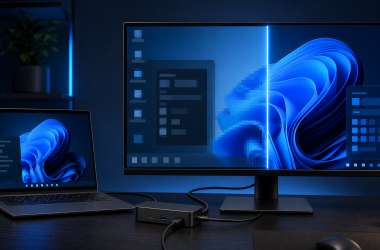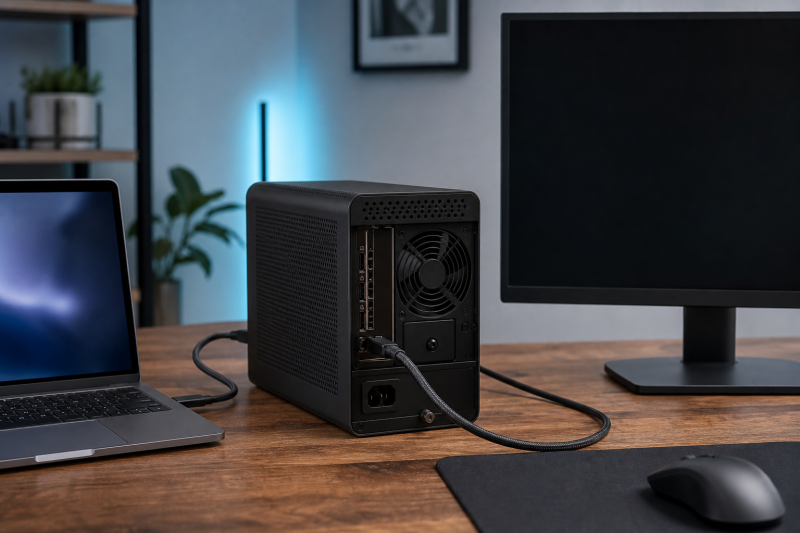
Keep the successful enumeration result. If Device Manager still lists the graphics card inside the Thunderbolt eGPU without an error, trace the monitor from a physical output on that card. Do not restart with Thunderbolt authorization, enclosure discovery, or missing-card repair. The blank screen is now a GPU-output path problem until evidence moves it elsewhere.
If the installed GPU disappears or shows a device error, leave this procedure for the eGPU enclosure detected but GPU missing guide. A missing card and a blank monitor are different problems.
Protect the enumeration checkpoint
Open Device Manager > Display adapters and record the exact external GPU name and status. Also record the enclosure name under its relevant Thunderbolt, USB4, PCI Express, or system-device entry if Windows exposes one.
Do not uninstall either device. The starting checkpoint is:
| Component | Required starting state |
|---|---|
| Thunderbolt eGPU enclosure | Present and powered |
| Installed graphics card | Listed by exact name, without a device error |
| External monitor | Powered but reports no signal or remains blank |
| Display cable | Connected to an output on the external graphics card |
If the GPU entry vanishes during a later cable or monitor test, note the exact moment. Losing the card is a different problem from a blank monitor, and it does not prove the monitor is bad.
Draw one port-to-panel route
Write the path as physical connectors:
GPU DisplayPort 1 -> DisplayPort cable -> monitor DisplayPort input
or:
GPU HDMI 2 -> HDMI cable -> monitor HDMI 1 input
The cable must begin at the graphics card installed inside the enclosure. A laptop HDMI port, laptop USB-C display output, enclosure service port, or motherboard-style connector does not prove output from the eGPU.
AMD’s official no-display guidance starts with the cable secured at the discrete graphics card output and the matching monitor input. The same physical distinction applies here because Windows has already enumerated the card. It does not turn AMD’s desktop instructions into enclosure firmware guidance.
Record each attempt on a port card:
| GPU output | Cable or adapter | Monitor input selected | Windows detects display | Panel result |
|---|---|---|---|---|
| Exact connector | Exact type and direction | Exact menu label | Yes / no | Image / no signal / blank |
A filled port card prevents a cable swap from being confused with an input change.
Prove the monitor and cable edge
Follow the enclosure maker’s instructions for disconnecting or powering down, then reseat both ends of the display cable. Power the monitor and select the input that matches the port card, rather than leaving input selection on Auto.
Then make one comparison at a time:
- Same GPU output and monitor, another known-working cable of the required type.
- Same GPU and cable, another input on the same monitor.
- Same GPU and cable, another monitor known to accept that connection.
- Same monitor and cable, another physical output on the external GPU.
Microsoft recommends cable replacement, another system or monitor comparison, and another video output for an external display that does not appear. AMD likewise names the graphics-card connector, matching monitor input, and spare cable in its no-display checks.
An adapter adds another directional segment. Write DisplayPort source to HDMI display, not merely DP/HDMI adapter. Do not assume a passive or bidirectional mode that the exact maker does not document.
Ask Windows whether a display arrived
Press Windows + P and choose Extend for the baseline. Then open Settings > System > Display > Multiple displays and use Detect when available.
Classify what Windows reports:
- Display appears in Settings but panel says no signal: Windows and the GPU have at least identified a display object. Keep the selected input, link mode, cable, and GPU-vendor display state in scope.
- Display never appears: stay with physical output, cable/adapter, monitor input, exact driver, and GPU output capability.
- Display appears only on a second GPU port: the first connector or its mode is isolated.
- Display appears only with another cable or monitor: keep the working comparison and investigate the changed segment.
- GPU disappears during detection: return to enumeration repair rather than continuing display settings.
Do not cycle through unrelated graphics preferences for individual games. Application GPU selection is a different state from a monitor that receives no signal from a physical eGPU output.
Keep GPU-vendor instructions separate
Use the current supported driver package for the exact external GPU and Windows version. Record its existing version before changing it, install from the GPU or computer maker’s official route, restart when instructed, then check that the card still enumerates before retesting the same port card.
For an AMD Radeon eGPU, AMD’s display documentation says detected displays appear in its display settings and provides Detect when a display is absent. It also says the graphics driver must be installed and the displays must be connected to the graphics card. Those controls are AMD-specific.
For an NVIDIA or Intel card, use that vendor’s current documentation and package. AMD’s menu paths do not apply to an NVIDIA or Intel card.
Avoid a blanket “clean driver” removal while enumeration works. It destroys the known checkpoint and can make it unclear whether the next failure belongs to the card, the display, or the installation.
Reduce the output side without reopening the enclosure
Disconnect extra monitors from the eGPU and leave one direct display cable. Remove a KVM, receiver, converter, capture device, or MST hub for one baseline when a direct compatible connection is available.
Keep the host-to-enclosure Thunderbolt cable and port unchanged during display-side tests. If moving that cable is necessary, treat it as a new host/enclosure comparison and verify the GPU entry again before judging the monitor.
Razer’s current Core X V2 page requires a host with external-graphics support and limits officially tested GPU support to its compatibility list. It also specifies the supplied Thunderbolt cable for the host link. These are Core X V2 conditions, not universal eGPU rules.
For another enclosure, use its own GPU list, power-supply requirement, host support, and Thunderbolt cable instructions. If your exact configuration is not documented, the display failure cannot be assigned solely to Windows.
Isolate the remaining segment
Finish by assigning the unresolved state to the smallest remaining segment:
| Repeated observation | Remaining segment |
|---|---|
| One GPU port fails; another drives the same monitor and cable | First GPU output or its supported mode |
| One cable fails; another works on the same GPU port and monitor input | Cable or adapter |
| One monitor/input fails; another works on the same GPU output | Monitor input or monitor configuration |
| Windows detects the display, but every direct panel test stays blank | GPU-vendor display state, mode compatibility, or panel input behavior |
| No display is detected on any direct output, but GPU remains healthy | Exact GPU driver/output and enclosure/host compatibility record |
| GPU disappears during the test | Missing-GPU/enclosure path, outside this page |
When the compatibility row itself is unproven, use the Thunderbolt 5 eGPU enclosure guide only to resolve that documented host/enclosure decision. It is not a substitute for the cable and input comparisons above.
Sources
Windows projection, cable, monitor, and alternate-output checks come from Microsoft’s external monitor connection procedure. AMD’s no-display hardware checks support the graphics-card-output, matching-input, and cable comparison, while AMD’s multiple-display procedure supplies the Radeon-only detection branch.
The enclosure example is Razer’s current Core X V2 product and compatibility record. Its host eGFX, tested-GPU, and supplied-cable conditions remain specific to that enclosure. No NVIDIA control-panel path is described anywhere above, because AMD’s Radeon instructions do not carry to another vendor’s card.