If a docked monitor works before sleep but stays blank after Windows 11 resumes, preserve that before-sleep result. The result proves that the laptop, dock, output, cable, monitor input, and display mode can work together in at least one state. The failure begins during the sleep-to-resume transition.
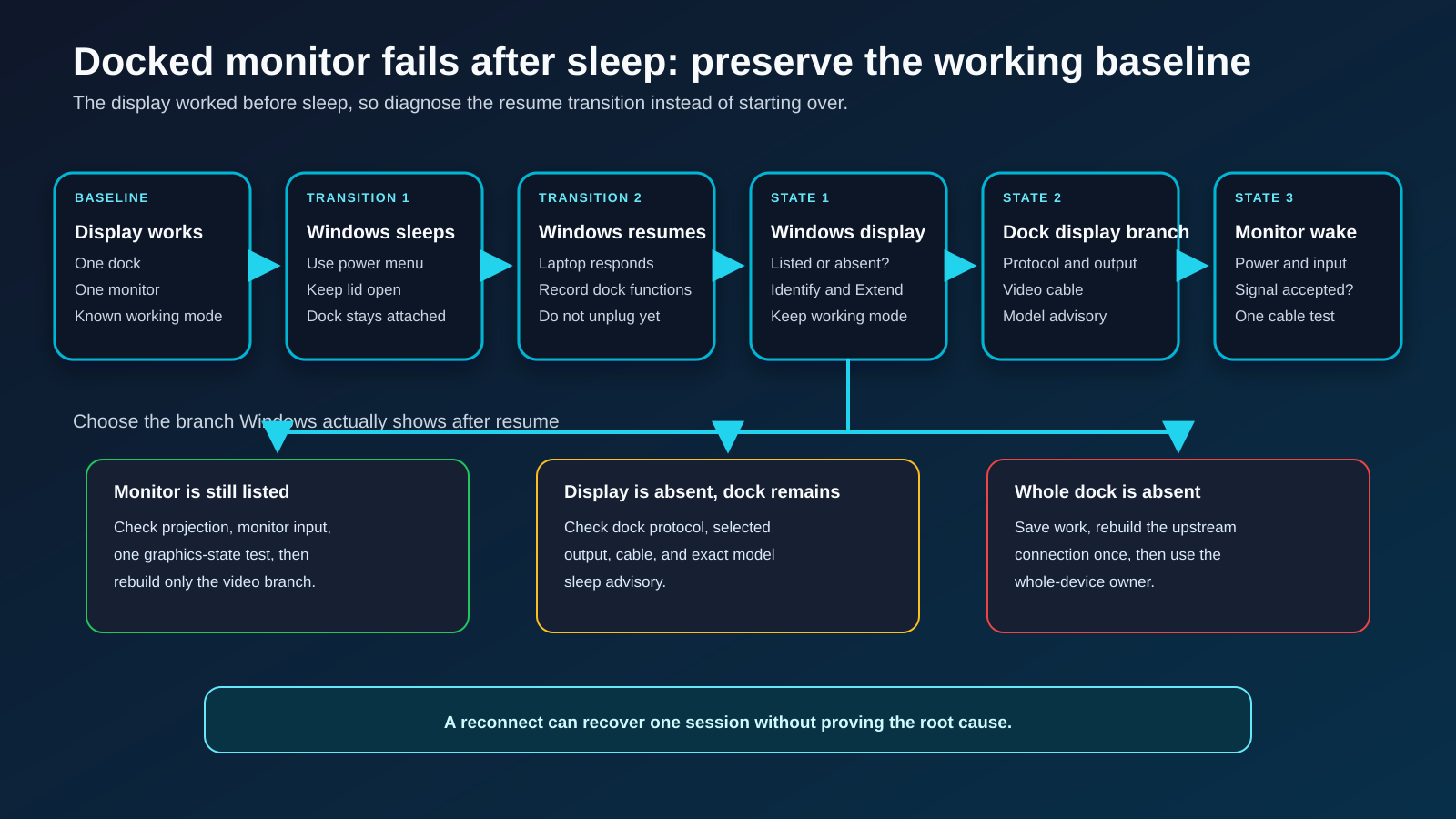
After waking the laptop, check whether Windows still lists the monitor. If it does, focus on projection, the monitor’s standby and input state, the video output, and the requested mode. If it does not, check whether the dock itself still appears, then isolate the dock connection, protocol, and exact model support.
Do not troubleshoot this as a display that never worked. The working pre-sleep state is your most useful evidence.
Start with the post-resume state
| What happens after resume | What it suggests | Next check |
|---|---|---|
| Windows still lists the monitor, but it is blank | Windows retained a display object, but the screen did not show the current output | Projection mode, monitor input, standby state, and one graphics-state test |
| Windows no longer lists the monitor, but dock USB or Ethernet works | The dock remains partly present, while its display branch did not return | Dock protocol, display output, video cable, and post-resume reattach |
| Windows no longer lists the monitor or any dock device | The problem is broader than display wake | Use the whole-device detection guide |
| Monitor returns after its video cable is reconnected | The session can recover when the display branch is rebuilt | Exact output, cable, monitor input behavior, and model advisory |
| Monitor returns only after the dock upstream cable is reconnected | Rebuilding the whole dock path changes the result | Host port, upstream cable, dock protocol, and exact dock support |
| Direct monitor connection wakes, but docked connection does not | The computer and monitor can resume through the direct route | Dock path and dock-specific support |
| Problem occurs only when the laptop lid is closed | Lid action and closed-lid display policy may control the behavior | Use the separate lid-policy owner, not this resume sequence |
Record the row before disconnecting anything.
The shortest safe sequence
- Rebuild a simple working setup before sleep with one dock, one monitor, and one cable.
- Record whether Windows lists the monitor and which display mode works.
- Put Windows to sleep from the power menu, not by closing the lid.
- Wake the laptop and wait for the Windows desktop to respond.
- Check monitor power, selected input, and whether Windows still lists it.
- If listed, press Windows + P and choose Extend for the test.
- If listed but blank, press Windows + Ctrl + Shift + B once.
- Reconnect only the monitor cable at the dock and record the result.
- If the display is absent and other dock functions also failed, save work and reconnect the dock upstream cable once.
- Compare a direct display route or another exact supported dock only after the state is recorded.
The graphics shortcut is a one-time state test from Microsoft’s blank-screen guidance, not proof that the graphics driver caused the problem. Repeating the shortcut is not a repair plan.
Capture a clean working baseline
Before the next sleep test, reduce the route to:
Windows 11 laptop -> USB-C dock -> one video cable -> one monitor
Temporarily remove:
- a second monitor;
- KVMs;
- AV receivers;
- video switches;
- cable extenders;
- conversion adapters that are not required;
- nonessential dock peripherals.
Open Settings > System > Display and record:
- whether the external monitor is detected;
- its display number;
- whether Windows is using Extend, Duplicate, or another mode;
- the working resolution and refresh rate;
- the selected monitor input;
- which dock output is used.
Also record the laptop, dock, monitor, upstream cable, and video cable models. A repeatable baseline lets support distinguish a resume problem from a permanent compatibility problem.
If the screen is already missing before sleep, use the USB-C monitor not working guide. The resume owner begins only after the route works.
Reproduce sleep without adding a lid variable
Microsoft distinguishes sleep from shutdown and hibernation in its current power guidance. Use Start > Power > Sleep for the diagnostic cycle.
Do not close the laptop lid during this test. The lid can trigger a separate power action and change the display layout.
Use one cycle:
- Confirm the external display is working.
- Save open work.
- Choose Sleep.
- Wait until the laptop enters sleep.
- Wake it with the laptop’s documented method.
- Wait for Windows to become responsive.
- Observe the monitor without unplugging the dock.
Record:
- monitor power indicator state;
- any on-screen no-signal message;
- laptop screen state;
- whether USB, Ethernet, or audio on the dock returned;
- whether Windows still lists the external monitor.
Do not conclude that a blinking light means the same thing on every monitor. Use the exact monitor manual for indicator meanings.
Branch 1: Windows still lists the monitor
Open Settings > System > Display. Use Identify to see whether Windows still assigns the external screen a number.
If it is listed:
- Press Windows + P.
- Choose Extend.
- Select the external display in Settings.
- Keep the last known working resolution and refresh rate.
- Select the matching input on the monitor.
Microsoft’s multiple-monitor guide documents Detect, Identify, arrangement, and projection modes. The Windows controls can correct a saved projection state, but they cannot repair a missing physical path.
Use the graphics-state shortcut once
Microsoft’s blank-screen guidance includes Windows + Ctrl + Shift + B to reset the graphics driver state.
Press it once. Note whether the monitor returns.
If it returns, record that the session recovered after the shortcut. Do not translate that result into “the driver was corrupt.” The test changed graphics state, not the dock hardware, cable, monitor input, or firmware.
If it does not return, continue to the monitor branch.
Rebuild only the monitor branch
Keep the dock connected to the laptop.
- Disconnect the video cable from the dock.
- Wait a few seconds.
- Reconnect it to the same output.
- Keep the same monitor input selected.
- Check Windows detection again.
If the monitor returns, the display branch can recover when reattached. The result does not identify the failed component by itself.
Test one other compatible video cable only after recording the result. If the replacement cable changes the outcome while everything else stays fixed, inspect or replace the original cable.
The USB-C cable guide applies when USB-C is the display cable. The USB-C to DisplayPort guide applies only after that conversion route is isolated.
Branch 2: Windows no longer lists the monitor
In Settings > System > Display, open Multiple displays and choose Detect once.
If the display remains absent, check whether another dock function returned:
- USB keyboard or mouse;
- Ethernet;
- audio endpoint;
- card reader;
- charging, treated only as a power clue.
Other dock functions work
The dock is partly present. Focus on its display branch:
- exact dock protocol;
- selected output;
- video cable;
- monitor input;
- model-specific sleep advisory;
- exact laptop and GPU support.
Do not assume that working charging proves the dock enumerated. USB Power Delivery and display data are different functions.
Other dock functions also fail
Save work before changing the upstream connection. Disconnect and reconnect the dock’s host cable once.
Record whether:
- the dock returns;
- the monitor returns;
- only some functions return;
- Windows reports a USB-C or Thunderbolt limitation.
If the whole dock remains absent, use the whole-device owner linked above. Do not repeat a display-only cycle while the dock itself is missing.
Identify the dock protocol
The same connector can lead to different display systems:
- USB-C DisplayPort Alt Mode;
- Thunderbolt or USB4 tunneled display;
- DisplayLink USB graphics;
- a hybrid dock that combines native and DisplayLink outputs.
Read the exact dock manual. Do not infer the path from the HDMI or DisplayPort socket.
If the dock uses native USB-C video, verify the laptop’s exact port with the DisplayPort Alt Mode guide.
If it is DisplayLink-powered, use Synaptics’ device-state guidance only for the DisplayLink branch. A native-output problem does not become a DisplayLink problem because another product from the maker uses that technology.
Compare cold attach and post-resume attach
Use two controlled sequences.
Sequence A: cold attach
- Start Windows with the dock disconnected.
- Wait until the desktop is ready.
- Connect the powered dock.
- Record whether the monitor appears.
Sequence B: attached through sleep
- Confirm the same display works.
- Put Windows to sleep with the dock attached.
- Wake the laptop.
- Record whether the monitor appears.
If A works consistently and B fails consistently, you have a resume-specific reproduction. Send that distinction to the laptop or dock maker.
Do not call cold attach the permanent fix. Cold attach is a comparison that isolates the state transition.
Compare the direct display route
If the laptop manual documents a direct display-capable output:
- Keep the same monitor and compatible cable.
- Bypass the dock.
- Confirm a working direct image.
- Run one sleep and resume cycle.
Interpret the result carefully:
- direct route wakes, docked route does not: focus on dock path and model support;
- neither route wakes: focus on laptop GPU, Windows, monitor, and direct cable;
- both routes wake with a different cable: inspect the original cable;
- one monitor input wakes and another does not: use the monitor’s exact input documentation.
The USB-C cable-speed test guide does not prove wake behavior, but it helps stop a charging-only or limited data result from being treated as full cable validation.
Use firmware only when an exact advisory matches
Do not update every component.
An exact product advisory is useful because it names:
- dock model;
- affected symptom;
- supported operating system or host;
- package and version scope;
- installation requirements;
- expected change.
Plugable’s current TBT3-UDZ firmware article names one or both monitors not waking after sleep, reboot, or cold boot as a reason to consider its exact update.
Plugable’s TBT4-UDZ article says the dock generally does not need a firmware update unless its named video issue applies.
The two product pages illustrate the rule: apply firmware only to the named model and symptom. Do not use either package on another dock.
Use the same standard for laptop BIOS, GPU software, USB controller packages, and monitor firmware. A package existing is not evidence that it belongs in this sequence.
Do not start with broad power changes
Avoid generic instructions to:
- disable USB selective suspend;
- disable Modern Standby;
- turn off every Device Manager power option;
- change registry sleep values;
- disable hibernation;
- force a high-performance power plan;
- bypass dock or Thunderbolt security.
Broad power changes expand risk and erase the clean baseline. They also affect more than the display branch.
If the exact laptop or dock maker documents one setting for the exact model and symptom, preserve the original value, follow that source, and retest the same simple route.
Escalation matrix
| Reproducible state | Best support owner | Evidence to provide |
|---|---|---|
| Display works before sleep, stays listed after resume, but remains blank | Laptop GPU or monitor maker | Windows build, mode, monitor input, graphics-state result |
| Display disappears after resume while dock USB stays present | Dock maker | Dock model, protocol, output, cold-attach and resume results |
| Entire dock disappears after resume | Laptop or dock maker | Host port, upstream cable, power, Device Manager state |
| Direct display wakes, docked display does not | Dock maker | Same monitor and comparable cable, two sequence results |
| Exact model advisory names the symptom | Advisory owner | Model, current version, supported package, result after update |
| One cable or input alone changes the result | Cable or monitor owner | Exact route and working comparison |
Include:
- laptop, dock, GPU, and monitor models;
- Windows 11 build;
- dock protocol;
- cables and adapters;
- working before-sleep state;
- after-resume state;
- Device Manager and Windows Display observations;
- exact one-variable comparisons.
Replacement boundary
Replace the dock only when:
- the route works before sleep;
- the resume failure is repeatable;
- the same monitor and cable wake directly;
- another exact supported dock wakes on the same laptop;
- the original dock fails after its exact advisory or supported software path;
- one display is tested without intermediate hardware.
If the current dock lacks the required compatibility rather than failing, use the USB-C dock guide after recording the host port and display need. If the requirement is two displays, use the dual-monitor dock guide only after verifying the host’s display capacity.
If the display fails only at a demanding mode after resume, use the high-refresh display-path guide instead of replacing hardware from the sleep symptom alone.
Frequently asked questions
Why does the monitor work after reconnecting the dock?
Reconnecting rebuilds several parts of the path at once and may restore the session without proving whether the host port, dock, display output, software state, or cable caused the failed resume.
Should I disable USB power management?
Not as a generic first step. Preserve the working baseline and isolate the failed state. Change a power setting only when the exact laptop or dock maker documents it for the exact model and symptom.
Why is the monitor detected but blank after sleep?
Windows may retain a display object while projection, graphics state, the dock output, monitor input, or requested mode does not return normally. Check those branches one at a time.
Does working Ethernet prove the dock display path woke?
No. Working Ethernet proves only that a narrower dock function returned. The display path can use different internal components and output logic.
Should I update dock firmware?
Only when an official advisory names the exact dock and relevant symptom. Read the release notes and keep the simple one-monitor route for the retest.
Is closing the laptop lid the same as a sleep test?
Not necessarily. Lid action can invoke sleep and change display behavior. Use the Windows power menu to isolate sleep without adding the lid variable.
Sources and methodology
The procedure uses Microsoft’s current Windows sleep, blank-screen, multiple-monitor, and external-display guidance. Exact Plugable TBT3-UDZ and TBT4-UDZ advisories support the model-specific firmware boundary. Synaptics evidence applies only when the exact dock is confirmed as DisplayLink-powered.
Sources were checked on July 28, 2026. No laptop, dock, cable, adapter, or monitor was physically tested. The sequence records and compares states without promising a fix or claiming one universal cause for post-resume failure.