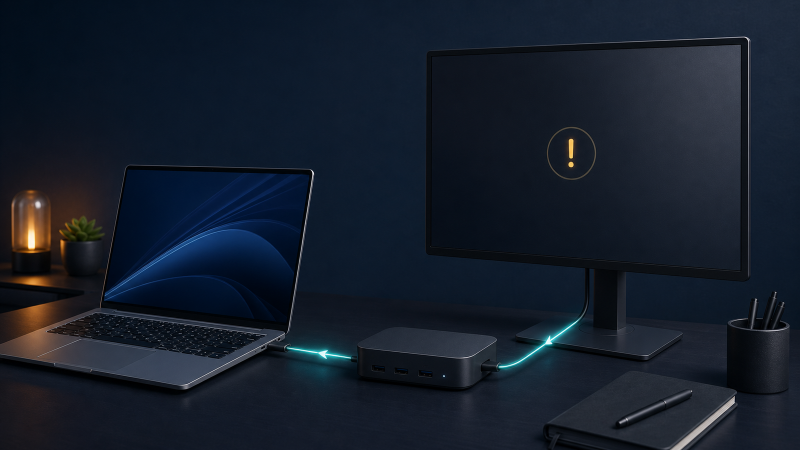
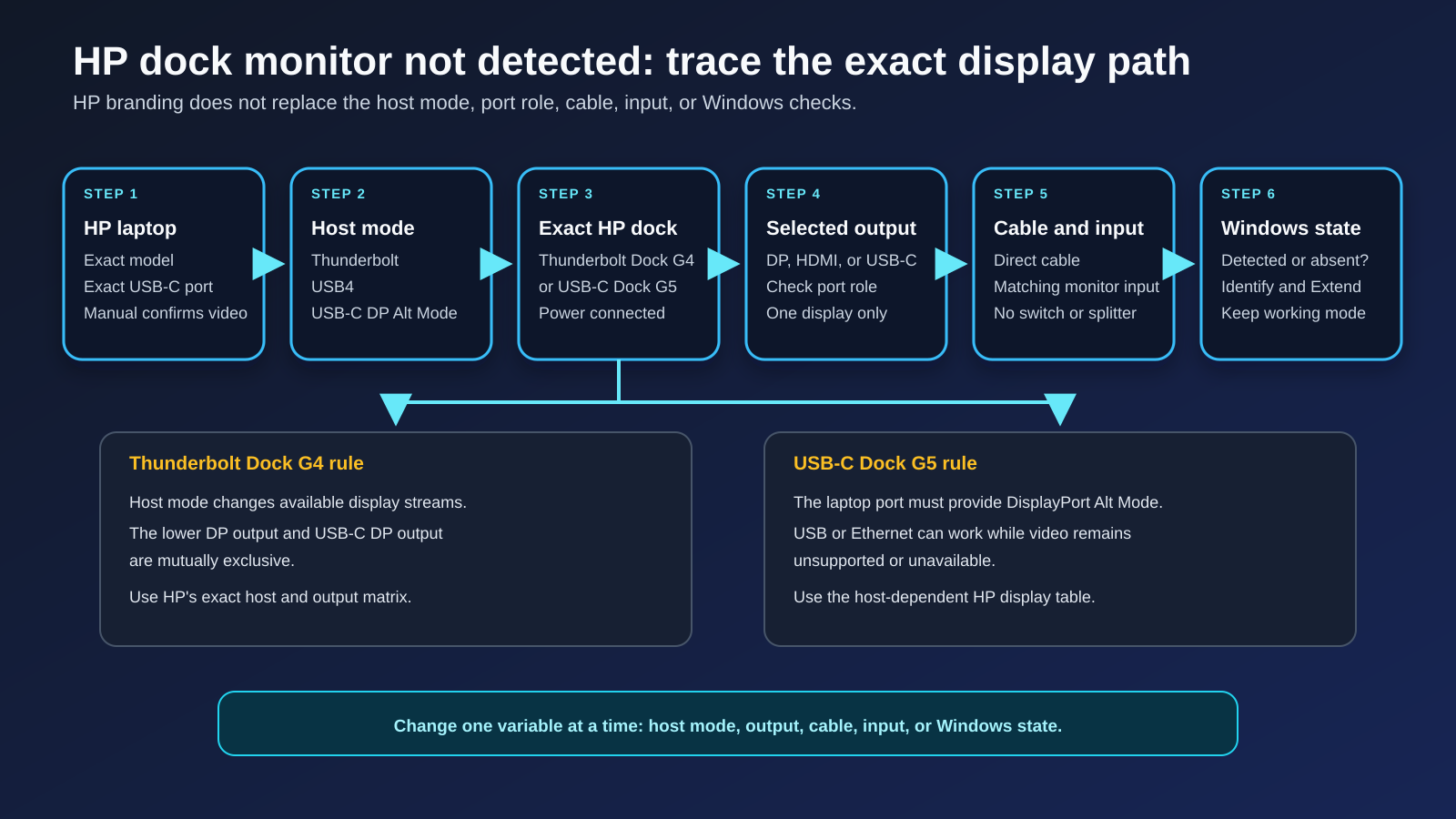
If an HP dock is connected but its monitor is missing, identify the dock before changing Windows. The HP Thunderbolt Dock G4 and HP USB-C Dock G5 do not expose the same display path. The G4 changes behavior with the laptop’s Thunderbolt, USB4, or USB-C host mode. The G5 requires DisplayPort Alt Mode from the laptop’s USB-C port.
Start with one monitor, one cable, and one dock output. Then check whether Windows detects the display. If it does, the next branch is Windows projection or the monitor input. If it does not, the next branch is the host mode, selected dock output, cable, or monitor route.
The HP name on both devices does not prove that the laptop port carries video or that every dock output works in the current host mode.
Start with the exact state
| What works now | What the state means | Check next |
|---|---|---|
| Dock USB or Ethernet works, but Windows does not list the monitor | The dock has some data connection, but the display path is still unproved | Exact dock model, host port, host mode, and selected output |
| Windows lists the monitor, but the screen says no signal | A display route reached Windows, but the monitor did not show the selected signal | Projection mode, monitor input, cable, and requested mode |
| One G4 output works and another does not | The host and dock can produce some video | G4 output role and the documented mutually exclusive pair |
| The same display works directly from the laptop | The monitor and tested input can work in that comparison | Dock host mode, dock output, and dock-to-monitor cable |
| The monitor works at a lower resolution or refresh rate | The route exists at the lower mode | Exact HP host matrix, cable, adapter, and monitor-input limits |
| Nothing on the dock appears in Windows | This is broader than an HP display-output problem | Use the whole-device Thunderbolt checklist |
Do not install a driver or firmware package until you know which row matches.
The shortest safe sequence
- Read the dock label and record
HP Thunderbolt Dock G4orHP USB-C Dock G5. - Record the exact laptop model and the USB-C or Thunderbolt port used.
- Disconnect every display except one.
- Use one direct HDMI, DisplayPort, or USB-C display route without a switch or converter where possible.
- Select the matching input on the monitor.
- Open Settings > System > Display > Multiple displays, then choose Detect.
- If Windows lists the display, press Windows + P and choose Extend for the test.
- If Windows does not list it, test one other documented dock output or one other known compatible cable.
- Compare the monitor directly from a display-capable laptop output, if available.
- Use HP’s exact dock and laptop support pages only after the failed layer is clear.
Keep the laptop, dock, monitor, and requested mode fixed while changing one cable or output. A changed result is useful only when the rest of the path stays the same.
Record the HP model and full route
Write down:
- laptop model;
- Windows 11 build;
- dock model and product number;
- laptop port used;
- HP dock power supply;
- dock output used;
- cable and any adapter;
- monitor model and selected input;
- requested resolution and refresh rate;
- whether Windows lists the monitor;
- which other dock functions work.
The record separates an HP compatibility question from a generic no-image problem. If the monitor is connected directly to a laptop USB-C port rather than through the dock, use the native USB-C monitor guide instead.
G4 and G5 are different starting points
| Exact dock | Host requirement that matters first | Display outputs documented by HP | Important boundary |
|---|---|---|---|
| HP Thunderbolt Dock G4 | Laptop can connect in Thunderbolt 4, Thunderbolt 3, USB4, or USB-C multifunction mode | Two DisplayPort 1.4, HDMI 2.0, one USB-C DisplayPort output, and one downstream Thunderbolt 4 port | Host mode changes available streams and downstream-port behavior. The lower DP output and USB-C DP output are mutually exclusive. |
| HP USB-C Dock G5 | Laptop USB-C port must provide DisplayPort Alt Mode | Two DisplayPort 1.4 and one HDMI 2.0 | HP’s display table changes with the host’s DisplayPort generation and DSC capability. Thunderbolt branding on the laptop does not turn this dock into a Thunderbolt dock. |
The entries are connector inventories and documented conditions, not a promise that every connector can drive every requested combination.
For the G4, identify the host mode first
HP’s Thunderbolt Dock G4 technical white paper describes three relevant connections:
- Thunderbolt mode when the host supports Thunderbolt;
- USB4 mode when the host supports USB4;
- USB-C multifunction mode when the host provides USB data and DisplayPort Alt Mode without Thunderbolt or USB4.
Host mode changes the dock’s internal route. HP says the rear downstream Thunderbolt port is fully functional with a Thunderbolt or USB4 host. With a USB-C multifunction host, that port behaves as a USB data port with video rather than as a full downstream Thunderbolt connection. HP also documents fewer independent video streams in multifunction mode.
Do not infer the mode from the plug. Check the laptop’s exact manual or specification page. If the laptop’s USB-C documentation is unclear, use the DisplayPort Alt Mode check before treating the dock as defective.
Check the G4 output pair that cannot work together
The G4 white paper labels the lower DisplayPort output and the USB-C DisplayPort output as mutually exclusive. Only one of those two can be used at a time.
For a one-monitor test:
- Disconnect every other display from the dock.
- Choose one output.
- Connect one monitor directly.
- Check Windows detection.
- Move the same monitor and cable to another compatible output.
- Record which output changed the result.
If one output works, do not immediately replace the dock. Confirm that the failed socket is not part of the mutually exclusive pair and that the cable direction matches the output.
When several displays are planned, use HP’s exact external-display matrix. Windows cannot add an independent stream that the host and dock do not expose. A dual-monitor dock guide is a shopping handoff only if the current host and dock combination is documented not to meet the required topology.
For the G5, prove DisplayPort Alt Mode
HP’s USB-C Dock G5 data sheet says the host USB-C port must support DisplayPort Alt Mode for USB-C display functionality.
The G5 can still expose USB or Ethernet when the display path is unavailable or limited. A working mouse does not prove that the laptop sent DisplayPort video into the dock.
Check:
- Is the dock connected to the laptop port documented for USB-C video?
- Does the laptop manual name DisplayPort Alt Mode, Thunderbolt, or a display icon for that exact port?
- Does another direct display-capable USB-C adapter work from the same port?
- Does the G5 show the same result on another laptop whose manual confirms USB-C video?
The last two steps are comparisons, not requirements. They help separate the laptop port from the dock.
HP’s G5 display table also changes with the host’s DisplayPort level and DSC support. Do not start by forcing a maximum resolution. Start with one monitor at a mode both the laptop and monitor document.
Reduce the route to one direct display cable
Build this path:
HP laptop -> HP dock -> one video cable -> one monitor
Temporarily remove:
- KVMs;
- AV receivers;
- capture devices;
- extenders;
- splitters;
- a second or third monitor;
- conversion adapters that are not required;
- nonessential dock peripherals.
Select the monitor input manually. HDMI 1, HDMI 2, DisplayPort, and USB-C are separate inputs even when the monitor can switch automatically.
If a direct dock-to-monitor cable works after an intermediate device is removed, keep the simple route and troubleshoot the removed layer separately.
Do not confuse cable shape with cable capability
A USB-C cable can support charging or data without supporting the display or host behavior required by the setup. Use the cable supplied for the HP dock when HP requires it. If a replacement is needed, match the protocol and current rather than choosing by plug shape.
The USB-C cable guide explains shopping categories. The cable-speed test guide explains why a data result does not prove a display mode.
For a USB-C-to-DisplayPort route, the cable and adapter guide belongs after the existing conversion product is isolated.
Read the Windows display state
Microsoft’s multiple-monitor guidance separates detection from projection.
Open Settings > System > Display.
Windows lists the monitor
Choose Identify and note the display number. Press Windows + P and choose Extend for the diagnostic test.
If the monitor is listed but blank:
- select the exact monitor input;
- use a mode documented by both laptop and monitor;
- connect the same cable to another compatible monitor input;
- test one other dock output;
- remove conversion hardware.
A listed display means Windows has some display information, not that the monitor accepted the requested signal.
Windows does not list the monitor
Choose Multiple displays > Detect once. If nothing appears, stop changing projection settings. Return to:
- laptop host capability;
- exact HP dock model;
- dock power;
- selected dock output;
- cable;
- monitor input.
Microsoft’s USB-C problem guide notes that the computer, port, cable, connected device, and intermediate path must support the required feature. A Windows limitation notification is evidence of a mismatch, but the absence of a notification is not proof of support.
Run one-variable comparisons
Use a small result table:
| Comparison | Keep fixed | Change | What a changed result isolates |
|---|---|---|---|
| Dock output | Laptop, dock, monitor, mode | One compatible output | Output role or connector branch |
| Video cable | Laptop, dock output, monitor input | One known compatible cable | Original cable or connector fit |
| Monitor input | Laptop, dock, cable | Another documented input | Original input or input-specific limit |
| Direct laptop display | Laptop, monitor, cable where compatible | Bypass dock | Dock path versus laptop and monitor |
| Another supported host | Dock, cable, monitor | Laptop | Original host port or host capability |
One successful comparison does not prove every mode. Repeat only at the exact target resolution and refresh rate after the simple route works.
If the setup fails only at a high mode, use the full 4K and high-refresh display-path guide instead of treating the symptom as complete monitor absence.
Use software and firmware only after topology
Do not search for an “HP dock driver” before identifying the dock and failed layer.
Use this order:
- Open HP’s support page for the exact dock product number.
- Open the laptop maker’s page for the exact laptop model.
- Compare the listed Windows version and the named symptom.
- Read the release notes for any proposed package.
- Apply only a package that names the dock, laptop, or affected component.
- Retest the same one-monitor route.
An update that names another HP dock, another host family, or another symptom is not evidence for this setup. Do not use third-party driver sites or a tool that updates every device automatically.
Escalation and replacement boundary
| Evidence after isolation | Best owner | What to provide |
|---|---|---|
| Exact HP dock disappears entirely from every known supported host | HP dock support | Dock product number, power supply, host models, ports tested |
| G4 output fails only in a combination excluded by HP’s matrix | Compatibility limit | Exact host mode and required display combination |
| G5 lacks video from a port not documented for Alt Mode | Laptop compatibility | Laptop model and port specification |
| One cable fails while another works in the same route | Cable replacement | Exact protocol, length, and display mode required |
| One monitor input fails from several known working sources | Monitor support | Monitor model, input, cables, and modes tested |
| Windows lists the monitor but it remains blank on a supported route | Laptop GPU or monitor support | Windows build, display state, mode, and connection map |
Replace the HP dock only after the same exact output fails with:
- a documented compatible host;
- one known compatible cable;
- one monitor and matching input;
- dock power connected as documented;
- the setup reduced to one display;
- no model-specific port conflict.
If the current dock is incompatible rather than failed, use the HP dock buying guide with the exact laptop port and display requirement already recorded.
Frequently asked questions
Why does USB work on my HP dock when the monitor does not?
USB data and display video are separate functions. The G5 requires DisplayPort Alt Mode from the host. The G4 changes display behavior with its Thunderbolt, USB4, or USB-C multifunction host mode. Working USB proves only that some data path exists.
Can I use every G4 display connector at once?
Do not assume so. HP documents host-dependent display matrices, and the lower DisplayPort output and USB-C DisplayPort output are mutually exclusive. Use the exact G4 table for the host mode.
Does an HP laptop automatically support every HP dock?
No. Match the laptop’s exact USB-C, USB4, or Thunderbolt port to the dock’s documented host requirement. Brand match is not a protocol or display-stream guarantee.
Should I update the HP dock firmware first?
No. Identify the model and physical path first. Use an exact HP package only when its supported products and release notes match the dock, Windows version, and symptom.
Why is the monitor detected but still blank?
Windows may have display information while the monitor is on the wrong input or cannot accept the selected signal. Check projection, input, cable, conversion, and a lower documented mode one variable at a time.
Sources and methodology
The procedure uses HP’s current Thunderbolt Dock G4 technical white paper and data sheet, HP’s USB-C Dock G5 data sheet, and Microsoft’s current Windows display and USB-C guidance. The evidence was retrieved on July 28, 2026.
HP’s product support shell blocked plain automated retrieval, so it controls no claim here. The directly retrievable HP PDFs control the model-specific port and host statements.
No laptop, dock, cable, adapter, or monitor was physically tested. The sequence isolates states and components without promising a repair or labeling a part defective before a controlled comparison.