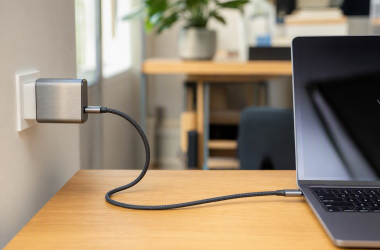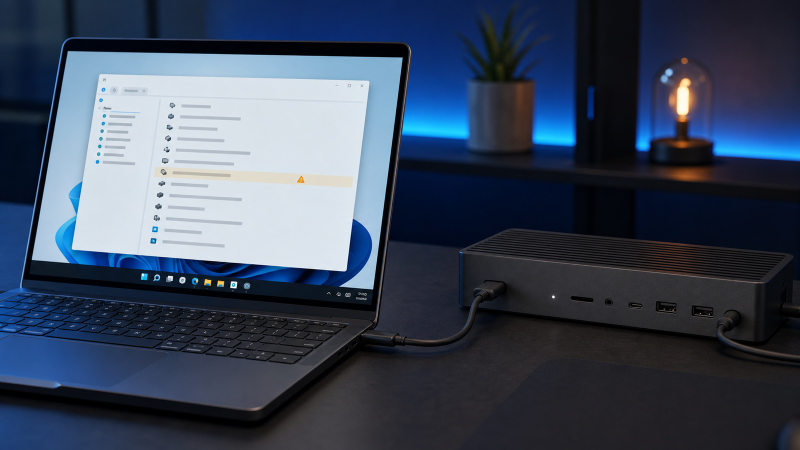
If a Thunderbolt device is not detected in Windows 11, start by proving the connection before changing drivers. Confirm that the exact computer model and physical USB-C port support Thunderbolt, connect the accessory with its documented cable and power supply, remove hubs and extensions, and then record what Windows shows in Device Manager. A USB-C socket is not proof of Thunderbolt. Dell documents computers that have USB-C but lack the Thunderbolt controller required for Thunderbolt devices, while Intel describes Thunderbolt as a certified technology that uses the USB-C connector shape.
The fastest safe test is one direct connection through a known-compatible port and cable. If the device appears with an error, use the exact Device status code. If it remains completely absent, change one physical variable at a time before assuming a driver problem. Start software updates with Windows Update and applicable optional drivers, then use the support pages for the exact computer and accessory models.
| Symptom | What the evidence says | Safe next step |
|---|---|---|
| Device is totally absent | Windows has not enumerated the whole accessory on this path. | Prove the exact host port, cable, accessory power, and direct connection before changing software. |
| Device is present with a warning icon or error code | Windows can see an entry but reports a specific device state. | Record its category, exact name, Device status, and code, then use Microsoft’s resolution for that code. |
| Device appears and disconnects intermittently | The path works at least briefly, but cable, power, port, accessory, or model-specific software remains suspect. | Keep the setup fixed and substitute one documented component at a time. |
| Dock is present but one display, Ethernet, audio, USB, or storage function fails | The dock has enumerated, so this is a downstream-function problem rather than a wholly missing device. | Troubleshoot only that function through the dock and computer makers’ documentation. |
| Legacy Control Center and Windows disagree | The legacy application may not represent the current Windows 11 device state. | Use Device Manager, Windows notifications, and actual device behavior as the primary evidence. |
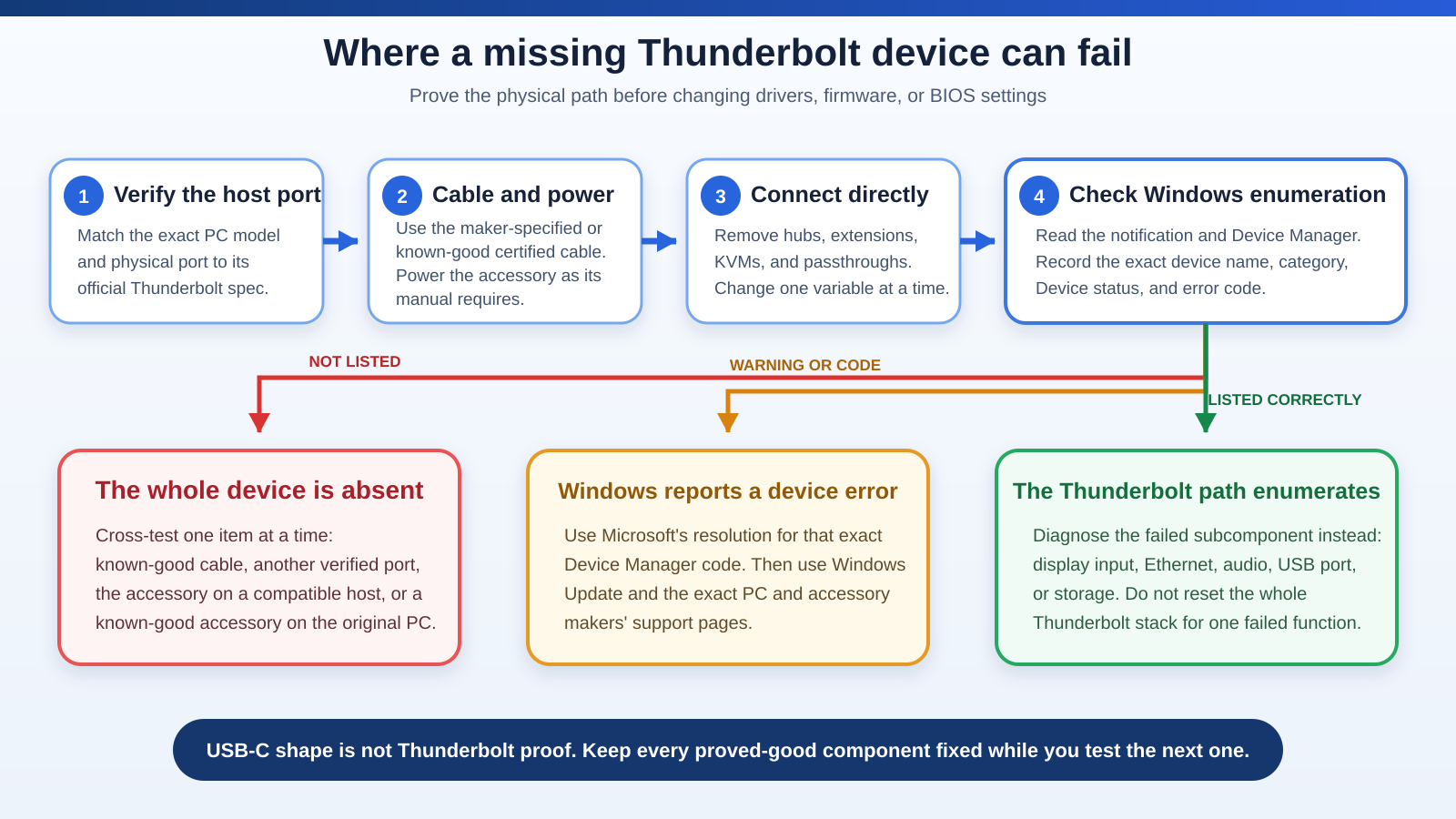
The flowchart starts with facts outside Windows: a verified Thunderbolt host port, the correct cable, documented accessory power, and a direct connection. Only then does it branch on Windows enumeration. A missing entry points back to the physical path, a warning points to the exact error code, and a correctly listed dock sends you to the failed downstream function instead of a blanket Thunderbolt repair.
Step 1: Prove the exact PC and port support Thunderbolt
Find the computer’s complete model or service identifier. A family name such as “Latitude,” “ThinkPad,” or “Zenbook” is not precise enough because one family can include several generations and port configurations. Open the manufacturer’s support page for that exact configuration and read its I/O specification or user manual.
Look for Thunderbolt beside the physical port you intend to use. Intel recommends checking the product’s I/O specification and the Thunderbolt mark. A mark helps only when you can match it to the correct receptacle. Some computers have two identical-looking USB-C ports with different functions, and some models offered Thunderbolt only as an order-time option.
Dell’s current support article makes the connector boundary explicit. It separates USB-C charging, data-only use, DisplayPort over USB-C, and Thunderbolt support. It also lists configurations with a USB-C receptacle but no Thunderbolt controller. Connecting a Thunderbolt dock to those ports cannot add the missing controller.
Do not infer support from the processor name, charging behavior, a working USB drive, or a DisplayPort Alt Mode monitor. Those observations prove only the function that worked. If the manual describes Thunderbolt 3, 4, or 5, the Thunderbolt generation guide explains the differences without replacing the exact computer specification.
If the computer documentation says USB4 rather than Thunderbolt, keep that wording. USB4 and Thunderbolt overlap, but one label should not be silently converted into the other. Windows USB information can provide supporting clues, so the Windows USB version guide may help with inventory. It is not a universal Thunderbolt capability detector.
Stop here if the maker’s specification shows that the exact port lacks the required host function. A driver, application, or firmware menu cannot create controller hardware that the computer does not have.
Step 2: Simplify the cable, accessory power, connection, and port
Build the shortest documented path:
- Shut down or disconnect the accessory only as its manual permits.
- Connect the accessory’s own power supply when the maker requires external power.
- Use the maker-specified host cable or a known-good certified cable that matches the Thunderbolt or USB4 generation and power requirements.
- Connect the accessory directly to the verified host port.
- Remove cable extensions, adapters, intermediate hubs, and a second dock.
- Disconnect nonessential downstream devices for the first enumeration check.
Microsoft says a USB4 device or dock should be connected directly to the PC or through a USB4 dock, and it tells readers to use the cable supplied by the device maker or a certified USB4 cable. Its limited-functionality guidance also says that the computer, cable, port, and connected feature must match.
Connector fit does not qualify a cable. An ordinary USB-C cable may carry charging or basic data while lacking the capability required by the attached Thunderbolt device. Cable direction, generation, length, power support, and certification are separate facts. Read the cable label and maker specification rather than judging the plug.
Accessory power is another independent gate. A dock can light an indicator or pass limited power without completing the host connection. Use the accessory’s documented supply and power sequence. Do not copy a timed button hold or unplug sequence from a different dock model.
Once the direct path is assembled, reconnect it once and wait for Windows to react. Record whether Windows displays a connection notification, plays the device sound, creates a Device Manager entry, or shows no response. Do not begin changing firmware or removing devices until this baseline is written down.
Step 3: Read Windows notifications and Device Manager evidence
Windows may display messages such as USB device not recognized, USB4 device functionality might be limited, or Thunderbolt device functionality might be limited. Copy the wording exactly. A limited-functionality message supports a mismatch somewhere in the current port, cable, device, or intermediary path. It does not identify which component is responsible.
Next, open Device Manager:
- Right-click Start and select Device Manager.
- Inspect the categories that contain the connected accessory or its controller.
- Record the category name exactly as shown.
- Record the full device name, including any generic or unknown-device wording.
- Right-click that exact entry, select Properties, and read Device status.
- Record the complete message and error code before closing the window.
Do not assume that every Thunderbolt or USB4 accessory appears under one universal category. A dock can expose several devices under different categories. The useful record is what your system actually shows: category, name, warning icon, Device status, and code.
If nothing changes when you connect the accessory, that absence is evidence about the whole current path. Return to the verified port, cable, accessory power, and direct connection. If the dock itself appears but a network adapter, display, audio device, USB port, or storage device fails, the whole dock is not missing. Diagnose that named subcomponent instead.
Windows notifications can be turned off, so silence is not proof that the connection is compatible. Device Manager is also not a cable-certification tool. It reports what Windows currently enumerates through the assembled path.
Step 4: Run Windows Update and applicable optional driver updates
After recording the baseline, use Microsoft’s preferred update route:
- Open Settings.
- Select Windows Update.
- Install current recommended Windows updates.
- Select Advanced options.
- Under Additional options, open Optional updates.
- Install only driver updates that apply to the affected computer or accessory.
- Restart Windows after the updates finish.
Microsoft states that recommended drivers can arrive through Windows Update, while optional drivers are not installed automatically. This makes the optional-updates list worth checking, but it is not an instruction to install every entry. Match the provider and device to your exact hardware.
Reconnect the same direct path after the restart. Keep the same port, cable, accessory power, and downstream-device state. If the result changes, record the new Device Manager name, status, and code. If it does not change, continue to the exact maker boundary rather than searching for a generic driver package.
Do not download a driver from an unofficial aggregation site. Microsoft says manual drivers should come from the device manufacturer’s official site and must match the Windows version and architecture.
Step 5: Use the exact PC and accessory makers’ update boundaries
Open two official support records: one for the complete computer model and one for the exact accessory model. Check their operating-system compatibility, setup guide, cable requirement, power requirement, driver history, and firmware notes.
Intel explains why the PC maker matters. It supplies Thunderbolt firmware and drivers to OEMs, but the OEM tests, validates, and publishes updates for its platform. An owner of a Dell, HP, Lenovo, ASUS, Acer, or another OEM system should therefore use that maker’s page rather than installing a generic Intel package.
Apply only updates listed for the exact model and current Windows version. Read the complete instructions before starting. A PC BIOS update or accessory firmware update may require AC power, a connected dock, a specific driver state, or a particular order. If the support page does not cover your model, contact the maker instead of borrowing steps from a similar-looking product.
Dell’s dock article shows why a universal sequence is unsafe. Its component list changes across the WD15, TB16, TB18DC, WD19-family, and D6000 contexts. It also says some Ice Lake and Tiger Lake computers use native Thunderbolt support rather than the legacy controller driver listed for older systems. Its BIOS menu names and choices belong to the listed Dell systems.
Do not change security level, kernel DMA protection, or a Thunderbolt enable option from generic advice. If Device Manager reports a code that points to firmware or the maker’s documentation, follow the exact computer manufacturer’s instructions for that code and configuration.
Step 6: Follow the resolution for the exact Device Manager code
Microsoft’s error-code page is not one general driver recipe. Each code has its own description and resolution.
Code 10 says the device cannot start. Microsoft directs the reader to update the driver for that exact device. This does not identify whether the underlying issue is a host controller, accessory component, compatibility problem, or hardware failure.
Code 28 says drivers for the device are not installed. Use Windows Update first, then the exact maker’s compatible package if required.
Code 29 says device firmware did not provide required resources. Microsoft sends the reader to the hardware documentation or computer maker. It does not authorize changing an unrelated BIOS option.
Code 35 points to insufficient system-firmware information and tells the reader to contact the computer manufacturer about an appropriate update.
Code 43 means a driver told Windows that the device reported a problem. Microsoft includes maker documentation and a device-specific reinstall in its resolution. Code 43 is not interchangeable with Code 10, and neither code proves that the cable is good or bad.
Code 45 describes hardware that is not currently connected. Reconnect the device and then reassess the physical path. Do not treat a historical disconnected entry as proof of a currently working connection.
Use Device Manager’s update, rollback, or reinstall workflow only on the exact affected entry and only when Microsoft’s resolution or the maker’s instructions support it. Never remove every USB or system controller as a first attempt. Keep a record of the device name and current driver details before a justified change.
Step 7: Cross-test one variable at a time
Cross-testing can separate a bad cable, accessory, host port, or computer, but only when every other variable stays fixed.
Start from the documented direct setup and make one change:
- Replace only the host cable with a known-good certified cable of the required generation.
- Move only the connection to another documented Thunderbolt port on the same computer.
- Connect the same accessory and cable to another compatible computer.
- Connect a known-good compatible Thunderbolt accessory to the original computer and port.
Record the same evidence after each change: notification, Device Manager category, full device name, Device status, and code.
If a second cable makes the device enumerate while the original setup and endpoints stay unchanged, the first cable becomes the leading isolated variable. If the same accessory and cable fail on two supported computers, the accessory or cable remains suspect. If several known-good accessories fail only on one computer, the host port or computer support stack becomes the leading boundary.
Intermittent behavior needs the same discipline. Do not swap the cable, port, power supply, driver, and accessory at once. A temporary success after five changes does not identify the responsible variable.
Escalate with the evidence you collected. Give the maker the PC model, accessory model, cable model, power supply, affected port, Windows build, Device Manager entry, error code, driver version, and the one-variable cross-test results.
Only consider replacement after the evidence identifies an incompatible or faulty component. If the cable is isolated, choose the correct generation from the Thunderbolt 5 cable guide or verify full-featured requirements in the broader USB-C cable guide. If the dock is isolated and the host requirements are known, compare documented options in the Thunderbolt docking-station guide or the USB4 hubs and docks guide.
Why the correct OEM process changes by computer generation
Thunderbolt implementation moved across controller generations, Windows driver models, and PC designs. A procedure written for an older add-in controller may not apply to a newer integrated implementation. That is why processor-family shorthand is not enough and why a copied driver order can be wrong.
Intel’s support page for listed NUC products says those Windows 11 systems use the operating system’s built-in Thunderbolt driver and have no separate download. That statement belongs to the products Intel lists. It does not mean every Windows 11 computer should ignore its OEM driver and firmware page.
Intel separately says the legacy Thunderbolt Control Center was designed for Windows 10 and does not show attached devices or driver versions under Windows 11 in the listed NUC context. Therefore, an empty legacy application is not proof that the hardware failed. Use the exact PC documentation, current Windows evidence, and actual accessory behavior.
USB4 can also transport high-speed device traffic through the USB-C connector. The USB4 explainer describes that standard, but the exact host implementation remains the controlling fact. Do not assume that a USB4 label automatically supplies every Thunderbolt feature or that the absence of Thunderbolt wording means the USB4 port is defective.
Frequently asked questions
Why is Thunderbolt not showing in Device Manager?
The exact host port may not support Thunderbolt, the cable or accessory power path may be wrong, the accessory may not be enumerating, or Windows may list a controller or subdevice under a different category. Confirm the PC specification and direct path, then record what changes in Device Manager when you connect the accessory.
Does Windows 11 need a separate Thunderbolt driver?
There is no universal answer for every PC. Intel says the driver is built into Windows 11 for the specific NUC products listed in its support article. Other computers remain governed by their exact OEM support pages. Start with Windows Update, then follow the PC maker’s model-specific instructions.
Is Thunderbolt Control Center required in Windows 11?
Do not use that legacy application’s device list as the sole test. Intel says it was designed for Windows 10 and does not show attached devices or driver versions on Windows 11 for the listed NUC products. Check Device Manager, Windows notifications, the PC specification, and actual device behavior.
Why does my USB-C port not detect a Thunderbolt device?
USB-C is the connector shape, not proof of a Thunderbolt controller. The port may support charging, USB data, or DisplayPort without Thunderbolt. Check the official I/O specification for the exact computer configuration and physical port.
Can an ordinary USB-C cable stop a Thunderbolt device from appearing?
Yes. The plug can fit while the cable lacks the required Thunderbolt or USB4 capability. Use the accessory maker’s cable or a known-good certified cable that matches the documented generation, length, and power requirements.
Should I enable Thunderbolt in BIOS?
Do not apply a generic BIOS instruction. First prove that the exact PC configuration contains Thunderbolt hardware. If the exact Device Manager code or PC support page directs you to a named setting, follow that model’s documentation. An absent or unavailable option may simply reflect hardware that was not included.
Why does the dock appear but its monitor or Ethernet port not work?
The dock has enumerated, so the failure is narrower than a wholly missing Thunderbolt device. Record the failed downstream device and use the dock maker’s display, network, audio, USB, or storage troubleshooting path. Keep the working dock functions out of the repair scope.
When should I suspect hardware failure?
Suspect a component only after controlled substitution. An accessory that fails through two known-good compatible cables on multiple supported hosts points toward the accessory. Several known-good accessories failing only on one documented host points toward that computer or port. Give those results to the appropriate maker.
Are Code 10 and Code 43 the same problem?
No. Code 10 says the device cannot start. Code 43 says a driver reported that the device had a problem. Read Microsoft’s separate resolution for the exact code and apply it to the exact Device Manager entry.
Is USB4 the same as Thunderbolt 4?
No. They share parts of the ecosystem and connector, but certification and required capabilities differ. The USB4 versus Thunderbolt 4 guide explains the boundary. Your computer’s I/O specification still controls what its port implements.
Why is the USB4 Hubs and Devices page missing in Windows 11?
Microsoft documents this Settings page for USB4-capable systems starting with Windows 11 build 22621.1778. Windows enables it when a USB4 host router is detected, and Microsoft says it does not appear on systems that are not USB4-capable. Some host routers enumerate only when a USB4 device is attached. The page being absent does not prove that a Thunderbolt 3 accessory is broken, and Microsoft’s OEM registry guidance is not a reader repair step. Check the exact PC specification, current Windows build, and PC maker’s support page.
How We Research
This guide uses current primary documentation retrieved through July 23, 2026. Microsoft documents USB-C and USB4 connection messages, direct-connection checks, USB4 Settings visibility, Windows Update, optional drivers, Device Manager workflows, and the separate resolutions for each Device Manager code. Intel documents OEM support responsibilities and the limited product scope of its Windows 11 NUC driver and Control Center statements. Dell supplies explicit evidence that a USB-C receptacle can exist without a Thunderbolt controller and shows why dock and firmware workflows vary by model and generation.
We map each material claim to those sources in the accompanying evidence ledger and keep every vendor statement inside its product scope. The guide reports no original repair measurements or success percentage. Its diagnostic method holds the setup steady and changes one variable at a time so the result can support a narrow next step.