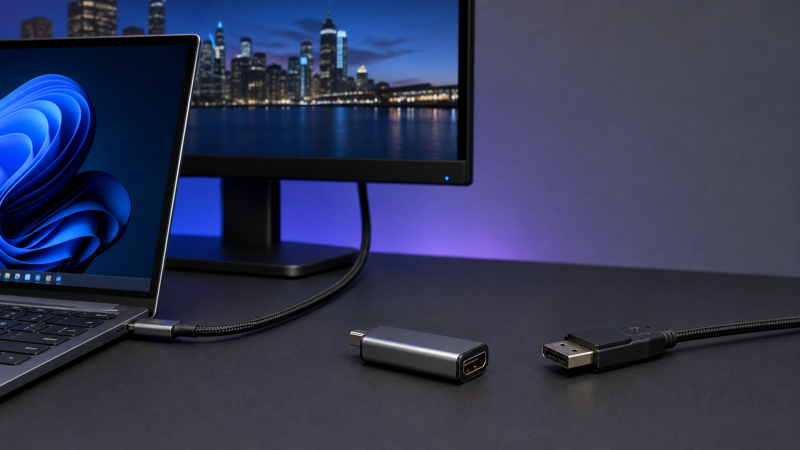
The Cable Matters 201386 is the strongest short-adapter choice when you already own a good full-size DisplayPort cable and want a maker-labeled DP 2.1 path. Choose the 1m Zeskit TC-DPX100 when VESA certification matters, or the 10ft Cable Matters 201346-BLK-10 when you need a longer bidirectional video cable and understand that it carries no USB data or USB Power Delivery. For an older DP 1.2 setup that needs either video direction, Plugable’s USBC-DP is the more modest match.
Those roles are more useful than choosing by the largest number on a product page. A cable marked 80Gbps cannot make a slower GPU, USB-C port, monitor input, or uncompressed timing go faster. Your computer must first expose DisplayPort video through that USB-C or Thunderbolt port. If that is unclear, follow our guide to checking USB-C DisplayPort Alt Mode before buying anything.
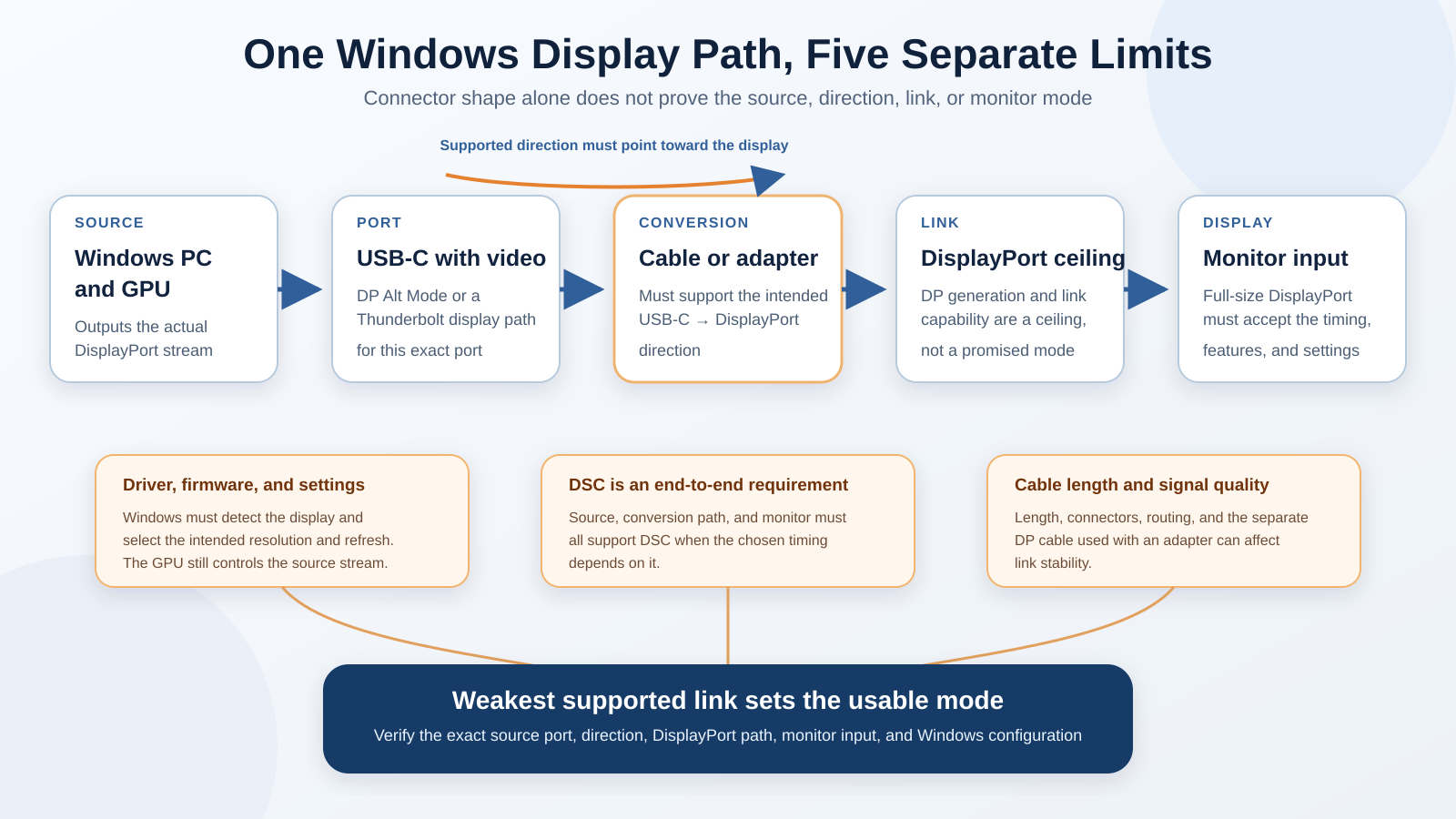
Think of the connection as five separate gates: the Windows PC and GPU, the video-capable USB-C port, the supported cable or adapter direction, the DisplayPort link ceiling, and the monitor’s full-size DisplayPort input. DSC, the graphics driver, Windows display settings, and cable signal quality can add further limits. The weakest supported part of that path sets the mode you can actually use.
Current Evidence and Updates
July 2026: This guide uses exact manufacturer pages and an Amazon US identity and New-offer refresh completed on July 23, 2026. All ten models below returned a matching model or part number, a primary image, and at least one active New listing at the cutoff. Availability can change, so the exact variation still needs another refresh immediately before publication.
The list does not rank products by their biggest advertised resolution. Manufacturer 4K, 8K, 16K, refresh, HBR, UHBR, bandwidth, HDR, and DSC statements use different conditions and are not one controlled comparison. Our DisplayPort 2.1 explainer covers the newer standard in detail. Here, those labels help match a product to a known host and monitor path.
Quick Picks
- Best DP 2.1 short adapter: Cable Matters 201386 lets you keep a separate DisplayPort cable and carries the maker’s 80Gbps ceiling.
- Best long bidirectional DP 2.1 cable: Cable Matters 201346-BLK-10 is 10ft/3m and explicitly video-only, with no USB data or Power Delivery.
- Best certified short DP 2.1 cable: Zeskit TC-DPX100 is the 1m X-Tech variation and carries an exact VESA-certified statement.
- Best bidirectional DP 1.4 cable: Club 3D CAC-1557 is 1.8m, lists HBR3, and expressly works in either video direction.
- Best fixed-direction 6ft DP 1.4 cable: Cable Matters 201036-BLK-1.8m runs from a USB-C source to a DisplayPort monitor.
- Best active DP 1.4 short adapter: Club 3D CAC-1567 is an active, bus-powered, unidirectional adapter with a 22cm tail.
- Best compact DP 1.4 adapter: Cable Matters 201086 reuses an existing full-size DisplayPort cable.
- Best bidirectional DP 1.2 cable: Plugable USBC-DP is a 6ft cable for more modest display paths in either video direction.
- Best compact travel adapter: Targus ACA968GLX is a small DP Alt Mode adapter with a two-year limited warranty.
- Best 2m DP 1.4 cable: Belkin AVC014bt2MBK documents a 6.6ft length, HBR3, and DSC support.
| Image | Product | Details | Check Price |
|---|---|---|---|
 | Cable Matters USB-C to DisplayPort 2.1 Adapter (201386) | Type: Short USB-C male to DisplayPort female adapter Direction: USB-C source to DisplayPort display Maker DP label: DisplayPort 2.1 Documented link label: Up to 80Gbps maker ceiling Cable length or adapter form: Compact metal-housing adapter Video-only / USB data / PD boundary: Product page documents video; USB data and PD are not stated Host requirement: USB-C, USB4, or Thunderbolt port with DisplayPort Alt Mode Best for: Keeping an existing full-size DisplayPort cable | Check Price on Amazon |
 | Cable Matters 40Gbps Bidirectional USB-C to DisplayPort 2.1 Cable (201346-BLK-10) | Type: Integrated USB-C to full-size DisplayPort cable Direction: Bidirectional video Maker DP label: DisplayPort 2.1 DP40 / UHBR10 Documented link label: 40Gbps maker ceiling Cable length or adapter form: 10ft / 3m Video-only / USB data / PD boundary: Video only; no USB data; no USB Power Delivery Host requirement: DP Alt Mode in either supported source direction; USB-C display needs separate power when reversed Best for: A long bidirectional video run | Check Price on Amazon |
 | Zeskit X-Tech Bidirectional USB-C to DisplayPort 2.1 Cable (TC-DPX100) | Type: Integrated USB-C to full-size DisplayPort cable Direction: Bidirectional product label Maker DP label: DisplayPort 2.1; VESA certified Documented link label: 80Gbps maker ceiling Cable length or adapter form: 1m / 3ft Video-only / USB data / PD boundary: Product page documents video; USB data and PD are not stated Host requirement: USB-C, USB4, or Thunderbolt connection operating in DP Alt Mode Best for: A short certified DP 2.1 cable | Check Price on Amazon |
 | Club 3D USB-C to DisplayPort 1.4 Bidirectional Cable (CAC-1557) | Type: Integrated USB-C to full-size DisplayPort cable Direction: Bidirectional Maker DP label: DisplayPort 1.4 / HBR3 Documented link label: 32.4Gbps maker label Cable length or adapter form: 1.8m / 5.91ft Video-only / USB data / PD boundary: USB-port powered; USB data and PD carriage are not stated Host requirement: USB-C source needs DP 1.4 Alt Mode for the maker maximum Best for: Bidirectional DP 1.4 video | Check Price on Amazon |
 | Cable Matters USB-C to DisplayPort 1.4 Cable (201036-BLK-1.8m) | Type: Integrated USB-C to full-size DisplayPort cable Direction: Unidirectional USB-C source to DisplayPort monitor Maker DP label: DisplayPort 1.4 / HBR3 Documented link label: Mode ceiling depends on HBR3 and DSC Cable length or adapter form: 6ft / 1.8m Video-only / USB data / PD boundary: Product page documents video; USB data and PD are not stated Host requirement: USB-C or Thunderbolt source with DP Alt Mode Best for: A fixed-direction 6ft DP 1.4 run | Check Price on Amazon |
 | Club 3D USB-C to DisplayPort 1.4 Active Adapter (CAC-1567) | Type: Active USB-C male to DisplayPort female adapter Direction: Unidirectional USB-C input to DisplayPort output Maker DP label: DisplayPort 1.4 / HBR3 Documented link label: 8.1Gbps per lane HBR3 maker label Cable length or adapter form: 22cm / 8.66in adapter tail Video-only / USB data / PD boundary: USB bus-powered; ordinary USB data and PD are not stated Host requirement: USB-C DP Alt Mode; DSC 1.2 and DP 1.4 required for maker 8K60 ceiling Best for: An active short DP 1.4 adapter | Check Price on Amazon |
 | Cable Matters USB-C to DisplayPort 1.4 Adapter (201086) | Type: Short USB-C male to DisplayPort female adapter Direction: Unidirectional USB-C source to DisplayPort monitor Maker DP label: DisplayPort 1.4 Documented link label: 32.4Gbps maker label Cable length or adapter form: Compact metal-housing adapter Video-only / USB data / PD boundary: Product page documents video; USB data and PD are not stated Host requirement: USB-C or Thunderbolt port with DP Alt Mode Best for: Reusing a DP cable with a compact adapter | Check Price on Amazon |
 | Plugable USB-C to DisplayPort Bidirectional Adapter Cable (USBC-DP) | Type: Integrated USB-C to full-size DisplayPort cable Direction: Bidirectional video Maker DP label: DisplayPort 1.2 Documented link label: Maker ceiling up to 4K60 Cable length or adapter form: 6ft / 1.8m Video-only / USB data / PD boundary: No external power; USB data and PD carriage are not clearly stated Host requirement: DP Alt Mode, USB4, or Thunderbolt in USB-C-source direction Best for: DP 1.2 systems that need either video direction | Check Price on Amazon |
 | Targus USB-C to DisplayPort Alt Mode Adapter (ACA968GLX) | Type: Short USB-C male to DisplayPort female adapter Direction: USB-C laptop to DisplayPort display Maker DP label: DisplayPort Alt Mode; exact DP version not stated Documented link label: Maker ceiling up to 8K30 Cable length or adapter form: 2.11 x 0.87 x 0.45in compact adapter Video-only / USB data / PD boundary: Product page documents video; USB data and PD are not stated Host requirement: USB-C laptop with DP Alt Mode; Thunderbolt 3 compatible Best for: A compact travel adapter | Check Price on Amazon |
 | Belkin USB-C to DisplayPort 1.4 Cable (AVC014bt2MBK) | Type: Integrated USB-C to full-size DisplayPort cable Direction: USB-C source to DisplayPort display Maker DP label: DisplayPort 1.4 / HBR3 / DSC Documented link label: 32.40Gbps maker label Cable length or adapter form: 6.6ft / 2m Video-only / USB data / PD boundary: Product page documents video; USB data and PD are not stated Host requirement: USB-C source and DisplayPort display must support the requested mode and DSC where needed Best for: A 2m DP 1.4 cable | Check Price on Amazon |
1. Cable Matters 201386 — Best DP 2.1 Short Adapter

Cable Matters identifies the 201386 as a USB-C to DisplayPort 2.1 adapter. The short adapter form is the reason to choose it: you can keep a DisplayPort cable whose length and connector routing already suit the desk, instead of replacing the whole run. Its metal housing and driver-free setup also make it easy to move between known video-capable computers.
The maker labels the adapter for up to 80Gbps and publishes very high conditional display modes. Treat those figures as ceilings, not outcomes. Cable Matters itself says the GPU, monitor, cable, and DSC support must all match a requested high-refresh mode. A Thunderbolt or USB4 logo does not remove that requirement, and an ordinary USB-C port still needs DisplayPort Alt Mode.
Our Take
Choose the 201386 when a compact adapter and a separate full-size DisplayPort cable fit your setup. Skip it if you want one integrated cable or cannot verify video output on the host USB-C port.
- DP 2.1 maker label
- Compact metal adapter
- Keeps the display cable replaceable
- Needs a separate DisplayPort cable
- Headline modes depend on the full path
2. Cable Matters 201346-BLK-10 — Best Long Bidirectional DP 2.1 Cable
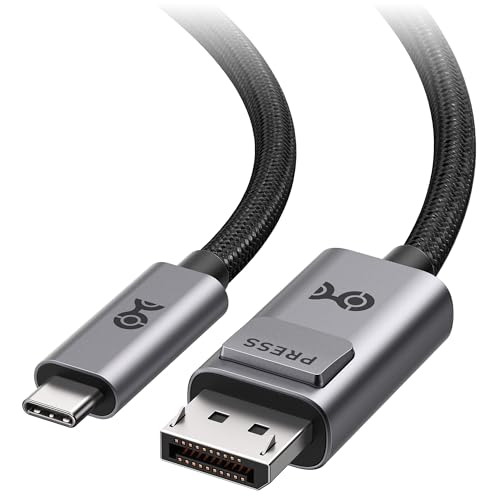
The exact 201346-BLK-10 variation is a 10ft/3m integrated cable. Cable Matters labels the family DP 2.1 DP40, UHBR10, and 40Gbps, and documents bidirectional video. In the normal direction it connects a USB-C, USB4, or Thunderbolt DP Alt Mode source to a DisplayPort monitor. In reverse it can connect a DisplayPort source to a USB-C display that accepts DP Alt Mode input.
The electrical boundary matters as much as direction: this is a video-only cable. Cable Matters expressly says it carries no ordinary USB data and no USB-C Power Delivery. A reverse-connected USB-C portable monitor therefore needs a second power port or an external supply. A one-port monitor that expects video and source power over the same USB-C cable is a poor match.
Our Take
Choose this cable for a long video run or a setup that may need either supported direction. Skip it when the USB-C display depends on source power, a built-in USB hub, webcam, or touch data over the same cable.
- 10ft bidirectional video path
- DP40 and UHBR10 maker labels
- Explicit data and power boundaries
- No USB data
- No USB Power Delivery
3. Zeskit X-Tech TC-DPX100 — Best Certified Short DP 2.1 Cable
Zeskit’s TC-DPX100 is the 1m/3ft X-Tech variation. The first-party product data ties that exact SKU to the 1m length, while the page lists DP 2.1, an 80Gbps ceiling, DP Alt Mode, and VESA certification. It is the pick for a short desk connection when certification is a firm buying requirement.
Zeskit calls the cable bidirectional and lists USB 3.1, USB 3.2, USB4, and Thunderbolt 3/4/5 operation in DP Alt Mode. Read that carefully: the USB or Thunderbolt family name does not guarantee the target display mode. The source still has to output a suitable DisplayPort stream, and the monitor input must accept it. The “16K” product name is also a maker label, not a promise for an arbitrary Windows PC.
Our Take
Choose the TC-DPX100 for a short, certified DP 2.1 cable path. Skip it when 1m cannot reach without tension or when your host manual does not confirm video on the selected USB-C port.
- VESA-certified statement
- Exact 1m SKU
- DP 2.1 maker label
- Short for some desk layouts
- USB data and PD carriage not stated
4. Club 3D CAC-1557 — Best Bidirectional DP 1.4 Cable
Club 3D’s CAC-1557 is a 1.8m/5.91ft cable with DP 1.4, HBR3, HDR, and 32.4Gbps maker labels. The product page lists USB-C and DisplayPort as both inputs and outputs, and the linked English specification sheet expressly calls the cable bidirectional. That makes its reverse-direction claim stronger than a vague marketplace title.
In the usual Windows path, the USB-C source needs DP 1.4 Alt Mode to reach the maker’s upper modes. In reverse, a DisplayPort source can feed a compatible USB-C display. Club 3D lists USB-port power and says no external supply is required, but that is adapter power, not a general promise that it powers a USB-C monitor. The specification also says Dual Mode DisplayPort, or DP++, is not supported.
Our Take
Choose the CAC-1557 when you need bidirectional DP 1.4 video in a standard six-foot-class run. Skip it when you need DP 2.1 or a confirmed one-cable power path for a USB-C portable monitor.
- Bidirectionality stated in the spec sheet
- 1.8m length
- HBR3 and HDR maker labels
- No DP 2.1 label
- DP++ is not supported
5. Cable Matters 201036-BLK-1.8m — Best Fixed-Direction 6ft DP 1.4 Cable

The selected 201036-BLK-1.8m is a 6ft integrated cable in Cable Matters’ 201036 family. Its direction is fixed: USB-C or Thunderbolt source to full-size DisplayPort monitor. The manufacturer says it does not work in reverse and does not feed a USB-C monitor. That clear boundary makes it easier to buy for a conventional laptop-to-monitor desk.
Cable Matters labels the current product DP 1.4 and discusses HBR3, DSC, MST, and conditional modes up to 8K60Hz or 4K240Hz. Those modes require the source port and monitor to support the same DP 1.4 HBR3 plus DSC path. Driver, firmware, and settings can also matter. The current page URL retains older 4K60 wording, while the body documents the broader DP 1.4 family, so the exact model and page body matter more than the URL slug.
Our Take
Choose this 6ft cable for a known USB-C-source-to-DP-monitor connection. Skip it for reverse use, USB-C monitors, or any setup whose host cannot confirm DP Alt Mode.
- Clear source-to-monitor direction
- 6ft exact variation
- Locking DisplayPort latch
- Not reversible
- Upper modes require HBR3 and DSC support
6. Club 3D CAC-1567 — Best Active DP 1.4 Short Adapter
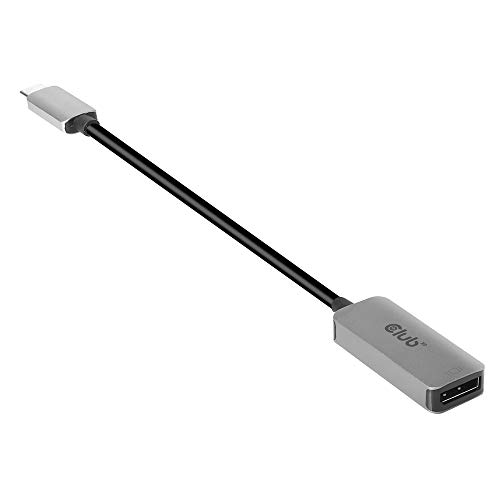
The CAC-1567 is an active adapter with a USB-C male input, DisplayPort 1.4 female output, and a 22cm/8.66in cable tail. Club 3D expressly calls it unidirectional. The English specification lists HBR3, HBR2, HBR, RBR, HDR, HDCP, USB bus power, and no external supply.
“Active” describes electronics in the adapter; it does not upgrade the source GPU or the monitor. Club 3D’s maker ceiling of 8K60Hz requires the USB-C source to support both DSC 1.2 and DP Alt Mode 1.4. The page also says source resolution remains the limit. That qualification is exactly why this belongs as a defined adapter choice, not as a magic fix for an older USB-C port.
Our Take
Choose the CAC-1567 when you specifically want a documented active DP 1.4 adapter and a short flexible tail. Skip it for reverse video or when a single integrated cable would reduce connection points.
- Active design
- Clear USB-C input and DP output
- Detailed linked specification sheet
- Unidirectional
- Maximum mode needs DSC 1.2 end to end
7. Cable Matters 201086 — Best Compact DP 1.4 Adapter

Cable Matters’ 201086 is a compact DP 1.4 adapter for a USB-C or Thunderbolt source and full-size DisplayPort monitor. It is unidirectional and requires DP Alt Mode. The page explicitly rules out reverse DisplayPort-to-USB-C use, power-only or data-only USB-C ports, USB-A, HDMI, and Thunderbolt 1/2.
The metal housing, cable-tail strain relief, and locking DisplayPort connection are sensible details for an adapter that may travel. Cable Matters also lists MST and audio support, plus conditional modes up to 8K60Hz or 4K240Hz with compatible equipment. Those figures do not prove a target timing on your PC. Confirm the GPU output, monitor input, link rate, DSC support, and Windows setting first.
Our Take
Choose the 201086 when you want a small DP 1.4 adapter and a replaceable DisplayPort cable. Skip it when you need bidirectional video or DP 2.1 signaling.
- Compact metal design
- DP 1.4 maker label
- Clear direction and port exclusions
- Requires a separate DP cable
- Cannot feed a USB-C display in reverse
8. Plugable USBC-DP — Best Bidirectional DP 1.2 Cable
Plugable’s USBC-DP is a 6ft/1.8m bidirectional cable with a DP 1.2 maker label. It can connect a USB-C DP Alt Mode, USB4, or Thunderbolt source to a DisplayPort monitor, or a DisplayPort source to a full-featured USB-C display. The page lists Windows 10/11, macOS 11+, ChromeOS 100+, and Linux.
This is not the high-refresh DP 1.4 or DP 2.1 pick. Plugable states a headline ceiling up to 4K60Hz, while the detailed mode table contains mixed 4K30 and 4K60 entries. That makes its role simpler: choose it for a known DP 1.2-class path and bidirectional video, not to win a timing comparison. Plugable also warns that a portable USB-C monitor needing both power and video from one port will not work in the DisplayPort-source direction.
Our Take
Choose USBC-DP for DP 1.2 equipment that needs either supported video direction. Skip it for a target that expressly requires DP 1.4, DP 2.1, or source power over USB-C.
- Bidirectional video
- 6ft length
- Broad stated OS scope
- DP 1.2 rather than 1.4 or 2.1
- Detailed mode table has mixed 4K entries
9. Targus ACA968GLX — Best Compact Travel Adapter
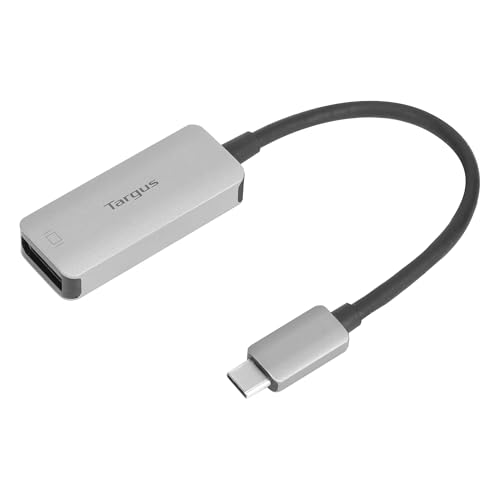
Targus’ ACA968GLX is a small USB-C to DisplayPort Alt Mode adapter. The official page gives exact dimensions of 2.11 x 0.87 x 0.45in and a weight of 0.05lb, making its travel role easy to understand. It connects a USB-C laptop to a DisplayPort display, lists Thunderbolt 3 compatibility, and carries a two-year limited warranty.
Targus states a maker ceiling up to 7680×4320 at 30Hz but does not identify an exact DisplayPort version, HBR level, or DSC requirement on the current page. Do not fill in those blanks from the Amazon title or from another adapter. The honest fit is a compact Alt Mode adapter for a host and monitor whose required mode you can already verify.
Our Take
Choose ACA968GLX when compact dimensions and a clearly named USB-C-laptop-to-DP-display path matter most. Skip it if you need an exact DP 1.4/2.1 or HBR/UHBR specification before purchase.
- Small published dimensions
- DP Alt Mode requirement is explicit
- Two-year limited warranty
- Exact DP version is not stated
- USB data and PD boundaries are not stated
10. Belkin AVC014bt2MBK — Best 2m DP 1.4 Cable

Belkin’s AVC014bt2MBK is a USB-C to DisplayPort 1.4 cable with a precise 6.6ft/2m technical specification. Belkin lists 32.40Gbps, HBR3, DSC, HDCP 2.2, HDR, backwards compatibility with DP 1.2, plug-and-play setup, and a two-year warranty.
The page states conditional modes up to 8K60Hz and 4K144Hz. Those depend on the USB-C source, monitor, DSC support, and requested timing. One lower marketing block calls the cable “6-foot,” which conflicts with the 6.6ft/2m technical bullet. This guide uses the precise technical value and keeps the conflict visible rather than averaging or guessing. Belkin does not expressly state ordinary USB data or Power Delivery carriage.
Our Take
Choose this cable when a 2m DP 1.4 run fits the desk and HBR3/DSC documentation matters. Skip it when you need DP 2.1 or an expressly bidirectional path.
- 6.6ft/2m technical length
- HBR3 and DSC documented
- Two-year warranty
- Not labeled DP 2.1
- Page also contains a conflicting six-foot phrase
Cable Versus Short Adapter
An integrated cable has one USB-C plug, one full-size DisplayPort plug, and no detachable DP cable in between. It reduces connection points and makes the supported length obvious. The trade-off is that a damaged connector or a changed desk layout means replacing the whole run. Direction also stays fixed unless the manufacturer expressly says bidirectional.
A short adapter ends in a DisplayPort receptacle and uses a separate DisplayPort-to-DisplayPort cable. That is useful when the monitor cable is already routed through an arm or wall channel, or when you want to swap the adapter without disturbing the rest of the desk. The extra connection adds another point to check when troubleshooting, and the separate DP cable must support the requested link too.
Measure the path with slack for lid movement, monitor arms, and strain relief. Do not stretch a 1m cable diagonally across a desk just because it reaches when everything is still. A longer run can be convenient, but signal quality and the product’s documented ceiling matter more as the run grows.
USB-C Shape Does Not Prove Display Output
USB-C describes the connector. A port with that shape may carry charging, USB data, DisplayPort Alt Mode, Thunderbolt, USB4, or some combination. It may also be wired for charging and slow data only. No cable can add a GPU display stream that the port never exposes.
Start with the exact computer manual, support page, or port diagram. Look for DisplayPort Alt Mode, DisplayPort over USB-C, or a Thunderbolt specification that includes display output. Our Thunderbolt 3, 4, and 5 guide explains how several interface generations use the same plug. If the PC has several USB-C ports, verify the specific one you plan to use.
Thunderbolt and USB4 can carry DisplayPort video, but the exact implementation and source GPU still decide the available stream. The USB4 versus Thunderbolt 4 comparison is the better owner for that standards question. Here, the buying rule is simple: require an affirmative video-output statement for the exact port.
Directionality and Bidirectional Exceptions
Many USB-C-to-DisplayPort products work only from a USB-C source to a DisplayPort display. Cable Matters 201036 and 201086, Club 3D CAC-1567, and Targus ACA968GLX all document that normal direction. Turning the cable around does not reverse the electronics or protocol negotiation.
Bidirectional models are exceptions, not a default. Cable Matters 201346, Club 3D CAC-1557, and Plugable USBC-DP have express first-party support for video in both directions. Zeskit also uses a bidirectional product label. Reverse use means a DisplayPort source feeding a USB-C display that can accept DisplayPort video. It does not mean any USB-C monitor will work.
Power is a separate problem. A DisplayPort connector does not provide the normal USB-C Power Delivery path that many portable monitors expect. Cable Matters states that 201346 carries no PD and no USB data. Plugable warns that its reverse path cannot serve a portable monitor that requires both power and video from one USB-C port.
DP 1.2, DP 1.4, and DP 2.1 Labels
The maker DP label describes the product’s intended DisplayPort generation, not a guaranteed Windows mode. Plugable USBC-DP is the DP 1.2 pick. Several middle products are DP 1.4. The first three are labeled DP 2.1 by their makers.
Choose a product whose documented ceiling meets the source and monitor you actually own. A DP 2.1 cable can work with older equipment when the maker documents backward compatibility, but the link then negotiates to what both endpoints support. Buying a higher label does not change a DP 1.4 GPU output into DP 2.1.
HBR3 and UHBR are link-rate families within DisplayPort. Our HBR2 versus HBR3 guide explains the older high-bit-rate terms. Cable Matters 201346 uses DP40/UHBR10 wording, while Club 3D and Belkin document HBR3 on their DP 1.4 products. Compare exact labels, not only “8K” text.
Link Ceiling Is Not Display Payload
A raw link number is not the same as usable pixel payload. Encoding, timing blanking, color depth, chroma format, audio, and protocol overhead all consume or shape the connection. The source and display negotiate a mode; the cable or adapter only has to carry what that path supports.
That is why two manufacturer pages can name the same resolution and still describe different conditions. One may assume DSC, another may use a different color format, and a third may omit the test path. This guide does not line those numbers up as measured winners.
For 4K high refresh, check the GPU output specification, the exact USB-C port, the monitor’s DisplayPort input version, DSC support, and the monitor manual’s timing table. Our guide to cables for high-refresh monitors covers the wider cable question. Windows must then expose and select the intended refresh rate without silently lowering resolution or color quality.
DSC Must Work End to End
Display Stream Compression can let a supported path carry a mode that would not fit uncompressed. It is not a feature the cable invents. The source GPU, output path, adapter where applicable, and display must all support the required DSC behavior. Driver and firmware support can also decide whether the mode appears.
Club 3D CAC-1567 makes this especially clear by conditioning its 8K60 ceiling on DSC 1.2 and DP Alt Mode 1.4 at the source. Cable Matters 201036 and Belkin AVC014bt2MBK also document DSC. If either endpoint lacks it, choose a lower uncompressed mode or a different hardware path rather than expecting the cable to compensate.
Monitor Input, Drivers, Firmware, and Windows Settings
Connect to the monitor’s full-size DisplayPort input, then use the monitor menu to select that input. Some monitors expose a DisplayPort-version setting, compatibility mode, DSC option, or input-specific refresh limit. Read the exact manual before changing it.
Update the graphics driver from the laptop, desktop, or GPU maker when the monitor is missing, flickers, or omits an expected mode. Firmware and BIOS updates can matter on USB-C and Thunderbolt display paths too. Apply only updates intended for the exact hardware, keep the PC on stable power, and follow the vendor instructions.
In Windows, open Settings, System, Display, choose the external screen, then open Advanced display. Confirm both resolution and refresh rate. A refresh option alone is not proof that Windows kept the native resolution or preferred color format. If the screen stays blank, use a conservative mode and work upward after the direct connection is stable.
When a Dock or USB-C Monitor Is a Better Fit
A simple conversion cable is right when the only job is one video path from a known USB-C source to a full-size DisplayPort input. It does not add Ethernet, storage ports, charging, or multiple independent display engines. If those are requirements, a dock may be the better product category.
A USB-C monitor can combine video, charging, and a USB hub in one connection when both computer and monitor support the same feature set. Our USB-C monitor guide covers that purchase. For higher-end single-cable desks, compare Thunderbolt monitors instead of trying to make a video-only conversion cable carry data and power it was never built to carry.
If you only need a normal USB-C-to-USB-C data or charging cable, use the USB-C cable guide. Connector similarity does not make that category interchangeable with USB-C-to-DisplayPort conversion products.
Pre-Purchase Compatibility Checklist
- Identify the source: Confirm the computer, GPU, and exact USB-C port.
- Prove video output: Find DP Alt Mode, DisplayPort over USB-C, Thunderbolt display, or equivalent first-party wording.
- Identify the display input: Require a full-size DisplayPort input, not HDMI, Mini DisplayPort, or USB-C only.
- Write down the target mode: Record resolution, refresh rate, color depth, HDR, and whether DSC is required.
- Check both endpoint limits: Read the GPU/PC and monitor manuals, including the monitor timing table.
- Choose the direction: Buy unidirectional for the normal USB-C-source path, or an expressly bidirectional model only when reverse use is real.
- Separate video from power/data: Do not assume a conversion cable carries USB data, touch, hub traffic, webcam traffic, or charging.
- Choose cable or adapter: Decide whether one integrated run or a replaceable DP cable better suits the desk.
- Measure with slack: Account for monitor-arm motion, laptop placement, and strain relief.
- Check maker link labels: Match DP version, HBR/UHBR, and DSC requirements without treating them as performance guarantees.
- Check the exact variation: Match model suffix, length, connectors, and ASIN, not only the family photo.
- Plan a fallback: Know a conservative resolution and refresh rate for initial setup.
Windows Connection and Troubleshooting
- Shut down or sign out of heavy graphics work, then connect the cable directly between the chosen USB-C source port and the monitor’s DisplayPort input.
- Select DisplayPort in the monitor’s input menu and wait for Windows to enumerate the screen.
- Open Windows Display settings, choose Extend or Duplicate, then confirm the detected resolution.
- Open Advanced display and select the intended refresh rate. Recheck resolution after changing it.
- If there is no image, reseat both ends, try the monitor’s other DisplayPort input if documented, and test a conservative mode.
- Remove docks, hubs, KVMs, and extension cables while diagnosing. A direct path makes direction and endpoint limits easier to isolate.
- Try another known video-capable USB-C port on the same PC, if the manual lists one.
- Update the exact system BIOS, Thunderbolt/USB4 firmware, and graphics driver through the hardware maker.
- Test the monitor and its DP input with another known source, or test the PC with another known display, to separate endpoint faults.
- If the monitor remains absent or unstable, isolate the host, cable, and display before buying another cable at random.
Frequently Asked Questions
Does every USB-C port support a DisplayPort monitor?
No. USB-C is the connector shape. The port must expose DisplayPort Alt Mode or a Thunderbolt/USB4 display path. Some USB-C ports support only charging and USB data. Verify the exact computer manual and the specific port before buying a conversion cable.
Is a USB-C to DisplayPort cable better than an adapter?
Neither form is always better. An integrated cable has fewer connection points and one fixed length. A short adapter lets you reuse or replace a separate DisplayPort cable and can fit existing desk routing. Both still depend on the same source and display limits.
Can I use a USB-C to DisplayPort cable backwards?
Only when the exact manufacturer documents bidirectional video. Cable Matters 201346, Club 3D CAC-1557, and Plugable USBC-DP do. Cable Matters 201036 and 201086 and Club 3D CAC-1567 do not. Never infer reversibility from matching connector shapes.
Does a DP 2.1 cable guarantee DP 2.1 output?
No. The source GPU and USB-C port must output the needed DisplayPort link, and the monitor input must accept it. The connection negotiates to the weakest supported endpoint or product. A DP 2.1 label cannot upgrade a DP 1.4 source.
Will any of these products guarantee 4K at high refresh?
No. The target timing depends on source bandwidth, monitor support, color format, bit depth, DSC where needed, cable/adapter capability, driver, and Windows settings. Read the exact timing tables and treat maker “up to” modes as ceilings.
What is the difference between HBR3 and UHBR10?
They are link-rate labels from different DisplayPort generations. HBR3 appears on DP 1.4 products here. UHBR10 appears in Cable Matters’ DP 2.1 DP40 description. The label helps define a ceiling but does not, by itself, guarantee a resolution and refresh combination.
Do I need DSC for 8K or high-refresh 4K?
It depends on the exact timing and path. Several maker ceilings in this list condition their upper modes on DSC. The source, adapter where relevant, and monitor must all support the required DSC behavior. If they do not, use a mode that fits without it.
Do USB-C to DisplayPort cables carry USB data or charging?
Do not assume so. Cable Matters expressly says 201346 is video-only, with no ordinary USB data and no USB Power Delivery. Other pages may document only video and leave data/PD unstated. Buy a dock or direct USB-C monitor path when data and charging are required.
Can Thunderbolt use these USB-C to DisplayPort products?
It can when the exact Thunderbolt port exposes compatible DisplayPort video and the product page lists the path. Several picks list Thunderbolt 3, 4, or 5. The GPU and port still set the source stream, so the Thunderbolt name alone does not guarantee the maker’s highest mode.
Is Plugable USBC-DP too old because it is DP 1.2?
Not when the actual source and display need only a DP 1.2-class path. It remains useful for a 6ft bidirectional connection and a maker ceiling up to 4K60. It is simply not the pick for a DP 1.4 or DP 2.1 requirement.
Can a bidirectional cable power a portable USB-C monitor?
Not automatically. Cable Matters 201346 carries no USB Power Delivery, and Plugable warns that USBC-DP cannot serve a reverse-connected portable monitor that needs both video and power from one port. Use a monitor with separate power or a product expressly designed for the full requirement.
Why does Windows show a lower refresh rate than the cable page?
The cable page describes a product ceiling. Windows reports modes accepted by the current source, monitor, driver, timing, and link. Check native resolution, monitor input mode, DSC support, graphics driver, and the exact port before concluding the cable is faulty.
Can I add a dock between the PC and cable?
Sometimes, but the dock’s downstream port must output compatible DisplayPort video and the whole dock path must support the target mode. Diagnose with a direct PC-to-monitor connection first. Add the dock only after the simple path works.
How We Research and Select
The process began with a fixed ten-product slate and a hard minimum of seven survivors. Each exact manufacturer page was retrieved directly on July 23, 2026. The two Club 3D English specification sheets were also read because they supply exact direction, active-design, cable-length, and DSC details that matter to the verdicts.
One Amazon US GetItems request then checked all ten exact ASINs in order with the condition set to New. The returned model or part number had to match the first-party identity, at least one New listing had to be active, and a primary image had to be present. No price entered the research record or article.
Technical facts come from the manufacturers, not Amazon. The comparison focuses on exact connectors, direction, DP label, documented link label, length or form, video/data/power boundary, and host requirement. Maker display modes remain attributed ceilings because the products were not measured together under one test setup.
No cable or adapter was physically tested for this guide. The order reflects defined buyer roles and evidence clarity, not a fabricated speed league table. Missing specifications stay missing, and conflicts remain visible.
Exclusions and Market Limitations
USB-C-to-USB-C, DisplayPort-to-DisplayPort, Mini DisplayPort, HDMI, docks, multiport hubs, DisplayLink graphics adapters, and DisplayPort-source-only-to-USB-C products are outside this list. A bidirectional pick appears only when its ordinary USB-C-source-to-full-size-DisplayPort-display direction is also documented.
The list contains three Cable Matters models and two Club 3D models, so it is not brand-balanced. Targus does not state an exact DP version. Plugable publishes mixed detailed 4K entries. Belkin publishes both 6.6ft/2m and a looser six-foot phrase. These limits are disclosed because filling gaps with assumptions would make the comparison less useful.
Offer availability can change after the July 23 cutoff. The exact ASIN, variation, New-offer status, and manufacturer page should be refreshed immediately before any future publication.