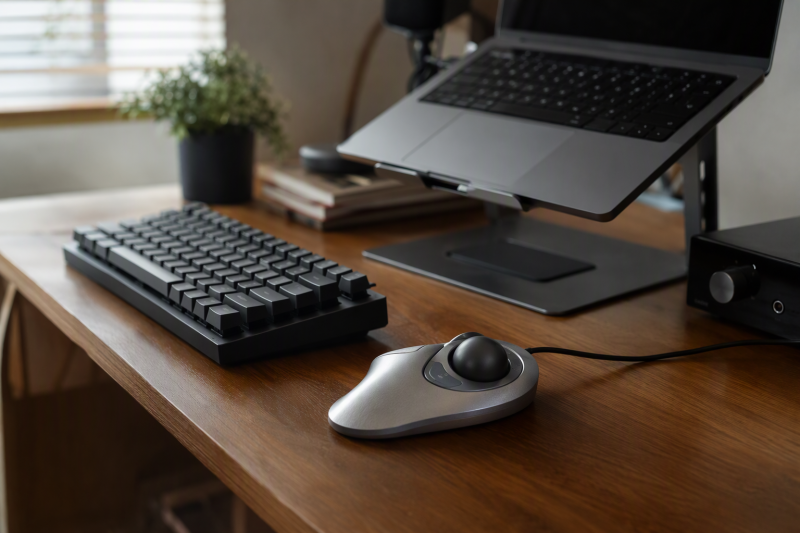
A thumb trackball moves the cursor while its housing stays in one place, so it is useful beside a laptop, keyboard, notebook, or coffee mug and needs no sweeping area. The tradeoff is that the thumb performs repeated rolling, and the stationary body can still be wider than a compact mouse. Hand fit, ball smoothness, angle, and button reach count for more than a generic ergonomic label.
The eight models here cover simple single-angle shapes, adjustable hinges, a 54-degree vertical body, a wired steel-bearing design, and multi-device wireless options. All appear intended for right-hand thumb control. A trackball can change forearm movement and desk use, but it is not a treatment for pain or repetitive-strain conditions. Persistent pain, numbness, tingling, or weakness needs qualified medical advice.
The Logitech Ergo M575S is the best overall fit for most home offices because it supports most hand sizes, connects through Bluetooth or Logi Bolt, offers three customizable buttons, includes quiet clicks, and has a claimed battery life of up to 18 months from one AA battery. The ProtoArc EM02 is the best adjustable rechargeable pick with 0- and 15-degree positions. For a cable-only desk, the ELECOM IST M-IT11URWH supplies exact dimensions, a 36mm ball, steel roller bearings, and a 28-degree angle.
| Image | Product | Details | Check Price |
|---|---|---|---|
 | Logitech Ergo M575S | Control: Right-hand thumb ball Connection: Bluetooth or Logi Bolt USB Buttons: 3 customizable Clicks: Quiet Power: 1 AA; up to 18 months claimed | Check Price on Amazon |
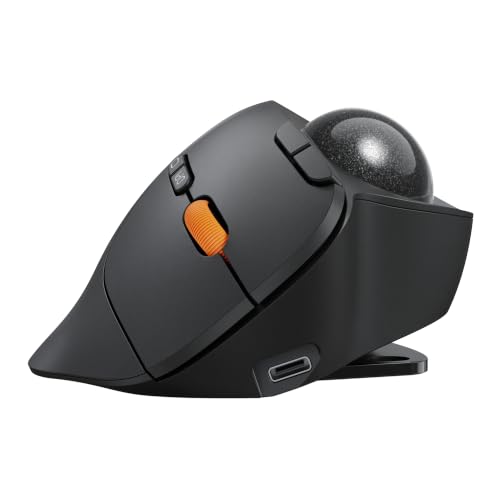 | ProtoArc EM02 | Control: Right-hand thumb ball Angle: 0 or 15 degrees Connection: Bluetooth and 2.4GHz; 3 devices DPI: 200, 400, 800, 1200, 1600 Power: USB-C rechargeable | Check Price on Amazon |
 | Nulea M501 | Control: Right-hand thumb ball Connection: Bluetooth and USB receiver; 3 devices DPI: 4 levels; values not stated Buttons: 6, not programmable Power: Rechargeable | Check Price on Amazon |
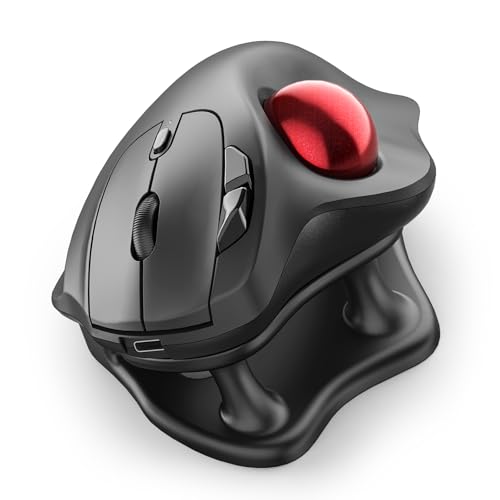 | Nulea M511 | Control: Right-hand thumb ball Angle: 21.7-degree stand Connection: Bluetooth and USB receiver; 3 devices DPI: 400, 800, 1200, 1600 Buttons: 6, not programmable | Check Price on Amazon |
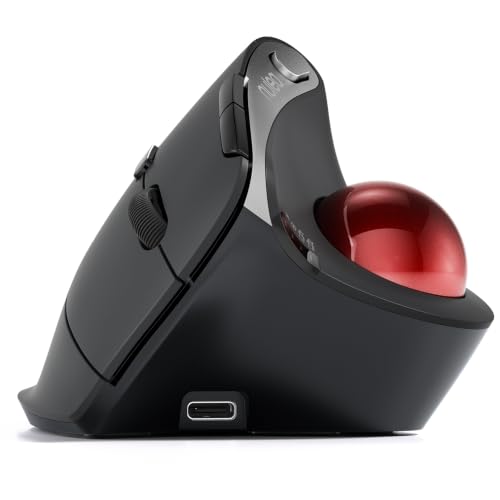 | Nulea M506 | Control: Right-hand thumb ball Angle: 54 degrees Connection: 2 Bluetooth plus USB receiver DPI: 400, 800, 1200, 1600 Power: Up to 21 days claimed | Check Price on Amazon |
 | ProtoArc EM01 NL | Control: Right-hand thumb ball Angle: Adjustable 0 to 20 degrees Connection: Bluetooth and 2.4GHz; 3 devices DPI: 200, 400, 800, 1200, 1600 Power: Rechargeable | Check Price on Amazon |
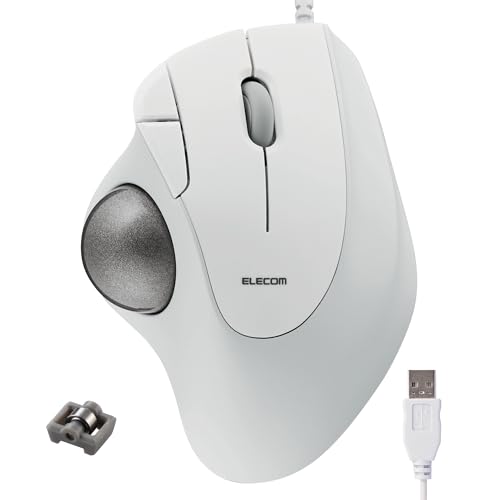 | ELECOM IST M-IT11URWH | Control: Right-hand 36mm thumb ball Angle: 28 degrees Size: 3.8 x 5.0 x 2.0 inches Connection: Wired USB-A Bearings: Replaceable steel roller type | Check Price on Amazon |
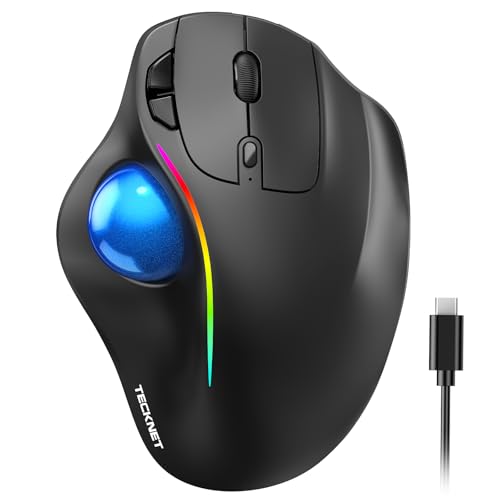 | TECKNET TK-MS023 | Hand fit: Medium-to-large right hands Size: 5.5 x 4.1 x 2 inches Connection: 2 Bluetooth plus 2.4GHz DPI: 100, 200, 400, 800, 1200 Power: 500mAh rechargeable | Check Price on Amazon |
Quick Picks
- Best overall: Logitech Ergo M575S for broad hand fit, Bluetooth or Bolt connectivity, quiet clicks, customization, and long claimed battery life.
- Best adjustable rechargeable pick: ProtoArc EM02 for 0- and 15-degree positions, three-device support, and five DPI levels.
- Best simple rechargeable value: Nulea M501 for three-device switching, four DPI levels, and six straightforward buttons.
- Best high-angle option: Nulea M506 for a 54-degree right-hand body and claimed 21-day battery.
- Best wired bearing design: ELECOM IST M-IT11URWH for its 36mm ball, steel roller bearings, and stated 3.8 x 5.0-inch footprint.
- Best for larger hands: TECKNET TK-MS023 for an explicitly medium-to-large-hand body and five low-DPI settings.
1. Logitech Ergo M575S — Best Overall
The Logitech Ergo M575S uses a sculpted right-hand body and thumb-operated blue ball. Logitech describes it as a good fit for most hand sizes rather than giving a strict hand-length range. Because the body stays stationary, it needs only enough desk room for the base and hand overhang, not the zone a mouse sweeps across.
Connection is available through Bluetooth or the included Logi Bolt USB receiver. Bluetooth preserves a laptop port, while Bolt can simplify pairing on a desktop or permitted work system. Three buttons are customizable through Logi Options+ for shortcuts and Smart Actions. Customization depends on supported software and on any workplace installation rules.
Quiet clicks make the M575S suitable for calls and shared rooms. A supplied AA battery is claimed to last up to 18 months, though connection mode and use affect the result. The ball can be ejected for cleaning, which any trackball needs eventually. Logitech also states 52% certified post-consumer recycled plastic for the graphite version.
Best for: Most right-handed home-office users who want dependable dual-mode connectivity and useful customization.
Pros
- Bluetooth and Logi Bolt receiver
- Quiet clicks and three customizable buttons
- Up to 18 months claimed from the included AA battery
Cons
- Physical dimensions are listed, but no hand-size range is stated
- Customization requires compatible software
2. ProtoArc EM02 — Best Adjustable Rechargeable Pick
The ProtoArc EM02 uses a hinge to switch between a flat 0-degree position and a 15-degree tilt, according to the manufacturer. Two fixed positions are simpler than a freely moving hinge and let the user compare a lower palm angle with a more raised posture. Body dimensions and hand-size guidance are not supplied, so angle adjustability does not guarantee fit.
ProtoArc states the mouse connects through Bluetooth or a 2.4GHz receiver and can switch among three devices. Forward and back buttons do not work on macOS, which limits it for editors or office users on a Mac. Five DPI levels from 200 to 1600, as listed by the manufacturer, give slow cursor options for learning and detailed selections.
The internal battery charges through USB-C and has a claimed 90-day standby time, not a 90-day active runtime. Quiet-touch buttons suit late-night work. ProtoArc suggests one to two weeks for adaptation and explains that dust on the ball and three white rollers can cause rough movement. Because ProtoArc is open about adaptation time and cleaning, the EM02 is a sensible first adjustable trackball.
Best for: Users who want to compare flat and tilted thumb-trackball postures without changing devices.
Pros
- Selectable 0- and 15-degree positions
- Three-device Bluetooth and receiver support
- USB-C rechargeable with five DPI settings
Cons
- No dimensions or hand-size target stated
- Forward and back buttons do not work on macOS
3. Nulea M501 — Best Simple Rechargeable Value
The Nulea M501 is a conventional fixed-angle thumb trackball that features six buttons, according to the manufacturer. Its curved right-hand shell aims to support the palm while the thumb moves the ball. Published measurements list a 5.51-inch length and 4.37-inch width, though the supplied details do not give the ball size or body angle.
Nulea specifies that Bluetooth and a stored 2.4GHz USB receiver connect up to three devices. Switching is handled by a button on the bottom, which is less convenient than a top control but prevents accidental changes. Four DPI levels are stated in the title, although their exact values are not included in the supplied bullets.
The built-in battery is rechargeable with the included cable. Nulea warns against fast chargers and recommends a computer USB port or 5V charger. Runtime and charge time are not stated. All six buttons are fixed rather than programmable, making this a simple multi-device choice for buyers who do not need application mappings.
Best for: A straightforward three-device rechargeable trackball without software customization.
Pros
- Bluetooth and USB receiver for three devices
- Rechargeable internal battery
- Six-button right-hand layout
Cons
- Ball size and battery runtime are not stated
- Buttons are not programmable
4. Nulea M511 — Best Fixed Tilt Stand
The Nulea M511 adds a 21.7-degree tilt stand to a six-button thumb trackball. The fixed elevation turns the palm farther than the 15-degree ProtoArc EM02 position but much less than Nulea’s 54-degree M506. A higher angle can feel natural for one hand and unstable for another, so it should be tested rather than selected by the largest number.
It supports three devices through Bluetooth and an included 2.4GHz receiver. Four sensitivity levels are specified at 400, 800, 1200, and 1600 DPI. The four settings cover slow precision through normal multi-monitor movement. Compatibility includes computers, laptops, tablets, and phones, subject to their pointer support.
Nulea describes the ball, every button, and the wheel as silent, a broader claim than products that quiet only main clicks. The built-in battery is rechargeable, but capacity, runtime, and charging details are not stated. Buttons are not programmable. Choose it for the fixed tilted posture and quiet control set, not software flexibility.
Best for: Shared-room work where a fixed 21.7-degree tilt and broadly quiet controls are desirable.
Pros
- 21.7-degree tilt stand
- Three-device Bluetooth and receiver connection
- Four named DPI levels and all-control quiet claim
Cons
- Fixed tilt cannot be flattened
- No battery runtime, size, or programmable buttons
5. Nulea M506 — Best High-Angle Option
Nulea specifies a 54-degree vertical body for the M506, which combines with a thumb ball and rotates the right hand much farther than the other trackballs here. Its textured palm surface and contoured shell aim to keep the grip stable. This shape may suit someone moving from a vertical mouse, but it creates a taller device and may require more clearance beside a laptop stand.
The manufacturer provides two Bluetooth channels and one USB receiver channel to support three connected devices. A switch changes among a PC, Mac, laptop, or tablet. The buttons provide crisp audible feedback rather than silent operation, so this is not the quietest home-office choice.
Nulea lists four DPI settings ranging from 400 to 1600. Nulea claims up to 21 days of continuous operation after a full charge, though test conditions are not provided. The ball detaches without tools for cleaning. As with the M511, physical dimensions and hand-size guidance are missing, so the high angle should not be mistaken for proven fit.
Best for: Right-handed users who want a thumb ball in a strongly vertical 54-degree shell.
Pros
- 54-degree vertical body
- Three-device Bluetooth and receiver support
- Claimed 21-day battery and removable ball
Cons
- Audible clicks
- No physical dimensions or hand-size target
6. ProtoArc EM01 NL — Best Wider Angle Adjustment
The ProtoArc EM01 NL offers an adjustable hinge from 0 to 20 degrees, a wider range than the EM02’s two stated positions. The wider range lets the user tune palm rotation more gradually. The purple finish distinguishes it visually, but ball diameter is not provided.
ProtoArc states that two Bluetooth channels plus 2.4GHz wireless support three devices. The rechargeable battery removes disposable cells, though runtime and capacity are not stated. The manufacturer lists five DPI settings spanning 200, 400, 800, 1200, and 1600, the same range as the EM02.
Left and right clicks are quiet, while the scroll wheel and side buttons are not. The split between quiet clicks and the noisier wheel and side buttons counts in a shared home office. ProtoArc recommends cleaning the ball and three white rollers when movement becomes sticky and allowing one to two weeks for adaptation. Pick it when fine angle adjustment is more important than published size data.
Best for: Users who want to experiment across a 0- to 20-degree hinge range.
Pros
- Adjustable 0- to 20-degree angle
- Three-device wireless connection
- Rechargeable power and five DPI settings
Cons
- Only main clicks are quiet
- Ball size and runtime are not stated
7. ELECOM IST M-IT11URWH — Best Wired Bearing Design
The ELECOM IST is the most mechanically distinctive model here. ELECOM specifies a 36mm silver ball that runs on steel roller bearings rather than the small static supports common in trackballs. ELECOM describes the bearings as replaceable with separately sold parts, though ruby-ball replacement bearings are not included.
The body holds the right hand at a manufacturer-stated 28-degree angle. ELECOM lists the dimensions as 3.8 inches wide, 5.0 inches long, and 2.0 inches high, with a weight of 6.2oz. Those measurements show that the stationary footprint is not tiny, but it needs no surrounding sweep area.
A wired USB-A connection eliminates batteries, sleep delays, wireless interference, and charging. Compatibility is stated for Windows, PC, and Mac without detailed version or button-function information. The ELECOM is the best fit when rolling mechanism and dependable cable operation take priority over multi-device switching.
Best for: A fixed workstation that values smooth mechanical bearings and published dimensions over wireless freedom.
Pros
- 36mm ball on replaceable steel roller bearings
- 28-degree angle and complete dimensions
- Wired USB-A requires no battery
Cons
- Five-inch body length is not physically tiny
- Replacement ruby bearings are not included
8. TECKNET TK-MS023 — Best for Larger Hands
TECKNET explicitly sizes the TK-MS023 for medium-to-large hands. At 5.5 x 4.1 x 2 inches, it has the broadest documented body in this group and is not a physically compact mouse. It still suits a crowded desk because it remains stationary, but buyers must reserve its full base area and hand overhang.
Its 16-degree angle is moderate, and Bluetooth plus 2.4GHz connections support three devices. The claimed wireless range is up to 34 feet. Five DPI steps are unusually low at 100, 200, 400, 800, and 1200, which can aid fine control but may require considerable thumb rolling on a large display.
A 500mAh rechargeable battery is stated, and a 15-minute charge is claimed to power one full day. TECKNET recommends one to two weeks of familiarization. A seller claim of 50% less strain is not an independent medical result. Fit, workload, grip, and posture still govern comfort.
Best for: Medium-to-large hands that need a stationary pointer and very low DPI options.
Pros
- Explicit medium-to-large-hand sizing and dimensions
- Three-device wireless support
- Five DPI levels down to 100 and 500mAh battery
Cons
- 5.5 x 4.1-inch body is wide for a small desk
- Strain-reduction percentage is a seller claim
Buying Guide: Choosing a Thumb Trackball for a Small Desk
Separate stationary use from a small footprint
A trackball saves movement area because its housing does not travel. A stationary housing does not make every body compact. TECKNET measures 5.5 x 4.1 inches, while ELECOM is 3.8 x 5.0 inches. Both need their entire base plus room for the hand.
Measure width, depth, cable exit, and hand overhang beside the laptop or keyboard. A slightly larger body can still be the better small-desk device if it stays comfortable and removes the sweep zone required by a mouse.
Match the shell to hand size
The thumb should reach the center and edges of the ball without the palm sliding forward. Main buttons and wheel should remain accessible without squeezing. Logitech states a fit for most hand sizes, while TECKNET explicitly targets medium-to-large hands.
When measurements or hand guidance are missing, use a workable return period and test a full normal session. A stationary mouse that stretches the thumb can be tiring even though the arm barely moves.
Compare fixed and adjustable angles
Angle changes forearm rotation and the pressure points under the palm. ProtoArc offers 0 to 15 degrees on EM02 and 0 to 20 degrees on EM01 NL. Nulea fixes M511 at 21.7 degrees and M506 at 54 degrees.
There is no universally best angle. Start with the position that lets the hand rest without gripping, then check whether all buttons and the full ball remain reachable. A higher shell also needs vertical clearance near shelves or stands.
Choose DPI for thumb travel
Low DPI slows the pointer and can make small selections easier, but it demands more ball rotation. ProtoArc starts at 200 DPI, while TECKNET goes down to 100. Logitech uses software cursor-speed control rather than listing hardware steps in the supplied data.
Adjust one sensitivity control at a time so hardware DPI and operating-system acceleration do not work against each other. Test slow diagonals, small targets, and a full-screen crossing on the actual monitor arrangement.
Plan device switching and receiver ports
Bluetooth leaves USB ports free, while a receiver can offer straightforward pairing on compatible computers. Logitech provides Bluetooth and Logi Bolt; most Nulea and ProtoArc picks support three devices through two wireless modes.
Check where the device-switch button sits. A bottom button requires lifting the trackball, while a top button is faster. Confirm USB-A receiver fit on a USB-C-only laptop and whether workplace policy permits Bluetooth.
Decide between rechargeable and replaceable power
Logitech uses one included AA battery with an up-to-18-month claim. Rechargeable models remove battery swaps, but several omit active runtime or charge time. ELECOM avoids the question with wired USB-A.
For rechargeable models, use the specified cable and charging source. Nulea warns against fast chargers for M501. Standby figures should not be read as continuous-use runtime, and battery results vary with connection and daily workload.
Check button mapping and operating-system limits
Custom buttons can hold browser navigation, undo, paste, or application shortcuts. Logitech provides three customizable buttons, while Nulea says its six buttons are not programmable. ProtoArc notes that EM02 forward and back controls do not work on macOS.
Confirm the exact OS and application behavior before depending on a shortcut. Software may be blocked on managed laptops, and a button that works in a browser may not send a useful editing command.
Allow time for thumb control
With a trackball, the movement shifts from arm and wrist sweeping to repeated thumb rolling. ProtoArc and TECKNET suggest one to two weeks of adjustment. Begin with browsing and ordinary office tasks before deadline-critical precision work.
Keep grip pressure light and take movement breaks. A trackball is not medical treatment. Stop if discomfort worsens, and seek qualified advice for persistent pain, numbness, tingling, or weakness.
Clean the ball and supports safely
Dust and oils gather on the ball and its support points, eventually causing rough motion. Logitech, ProtoArc, and Nulea describe removable-ball cleaning. ELECOM uses roller bearings that may need model-specific care.
Follow the maker’s removal instructions, keep liquid away from the sensor, and never pry with a sharp tool. Reinstall a clean, dry ball. Scratchy motion often signals dirt before it signals an electronic fault.
Related Small-Desk Guides
A trackball should sit within easy reach of the keyboard. Compare finger trackballs, vertical mice, compact keyboards, and laptop stands when arranging the surface.
For connections and space, see guides to USB-C hubs, USB-C docking stations, monitor arms, and desk cable management. Each can change the port and placement constraints around a trackball.
Frequently Asked Questions
Is a thumb trackball better than a finger trackball?
Neither mechanism is universally better. A thumb model keeps the index and middle fingers on buttons and a wheel, while a finger model uses those fingers for a larger central ball. Hand size, previous discomfort, and task determine the better fit.
Thumb models can feel familiar to mouse users but concentrate motion in the thumb. Finger models may offer more ball surface for broad rolls. Test the intended device rather than choosing by category alone.
Does a trackball need a mouse pad?
No tracking surface is required because the ball moves while the housing stays still. The device does need a stable, flat location where its base will not rock or slide.
A thin desk mat can protect the surface and improve grip, but a thick wrist-rest pad may change hand height. Keep the trackball close enough for a relaxed shoulder.
Is lower DPI always more precise?
Lower DPI is not always more precise. It slows pointer movement for each ball rotation, which can make small targets easier, but if it is too low, the thumb must roll repeatedly to cross a large or high-resolution display.
Start at 800 or 1200 DPI when available, then adjust for the task. Coordinate the setting with operating-system pointer speed and acceleration.
Can I use a thumb trackball with a Mac?
Basic pointing and clicking are broadly supported on many models, but side buttons and customization vary. ProtoArc states that EM02 forward and back controls do not work on macOS.
Check the current OS requirements for any configuration app. Managed Macs may block software even when the trackball works as a basic pointer.
How often should the ball be cleaned?
Clean it when rolling becomes rough, sticky, or inconsistent. Frequency depends on the room, daily use, and skin contact rather than a fixed calendar.
Remove the ball only as instructed, wipe its support points gently, and keep moisture away from the sensor. ELECOM’s roller-bearing system may have different care needs than static supports.
Final Verdict
The Logitech Ergo M575S is the best overall thumb trackball for a small home-office desk. It avoids movement space, works through Bluetooth or Logi Bolt, offers quiet clicks and customization, fits most hand sizes, and carries a claim of up to 18 months from one included AA battery.
Choose the ProtoArc EM02 to compare flat and 15-degree positions with rechargeable three-device support, or the ELECOM IST M-IT11URWH for wired reliability and steel roller bearings. The Nulea M506 suits buyers deliberately seeking a 54-degree vertical shell. The TECKNET TK-MS023 can save sweep room for larger hands, but its 5.5 x 4.1-inch body must be measured carefully on a small desk.