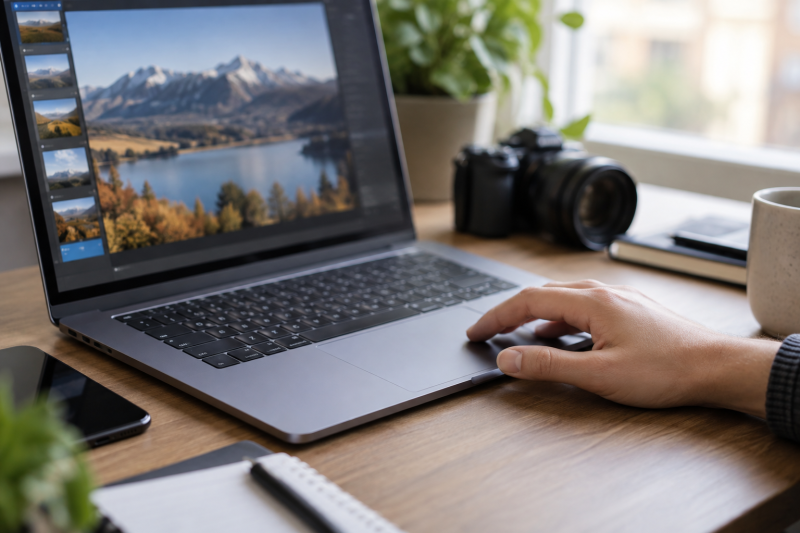
A haptic touchpad makes its click sensation with force feedback rather than a hinged mechanical click. It can feel consistent across more of the pad, which may appeal to editors who scrub timelines, drag image controls or work without a mouse. It does not, by itself, make a laptop faster or more color-accurate.
These five exact Amazon US laptop offers had active New listings when selected. Each laptop’s model family has evidence for a haptic touchpad. An X1 Carbon offer was excluded because Lenovo sells that family with either a mechanical or haptic pad and the exact offer did not settle which one. Before buying, verify the seller’s precise configuration and the applications you edit in.
Choose a laptop for your editing software and screen first, then confirm that its exact touchpad is haptic.Haptic Touchpad Laptops Compared
Screen, memory and GPU specifications in this table come from the exact Amazon offers; haptic-pad support comes from the maker documents named below. Confirm the seller’s configuration before buying.
| Image | Product | Details | Check Price |
|---|---|---|---|
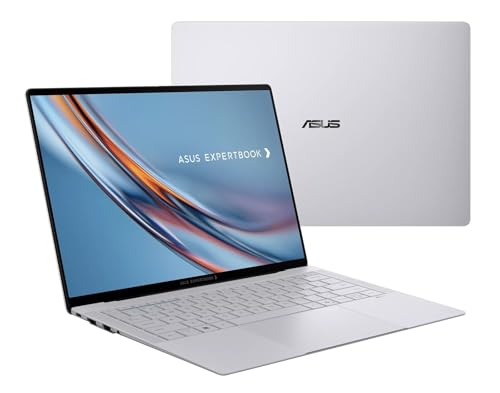 | ASUS ExpertBook Ultra B9406CAA | Screen: 14-inch 3K OLED touch Haptic evidence: ASUS B9406CAA support Main fit: Portable business editing Main catch: Seller-specific configuration | Check Price on Amazon |
 | ThinkPad X9-15 Gen 1 | Screen: 15.3-inch 2.8K Haptic evidence: Lenovo X9-15 user guide Main fit: Larger portable workspace Main catch: No X9-15p feature transfer | Check Price on Amazon |
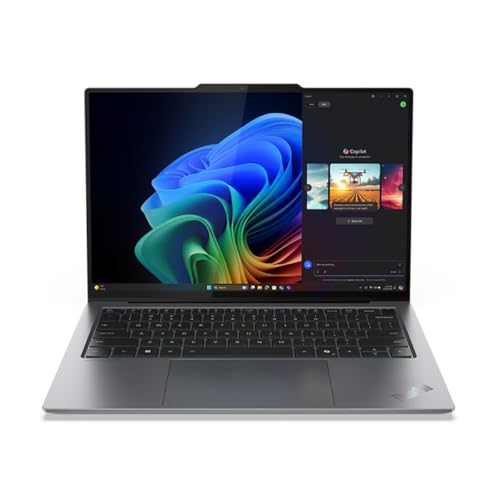 | ThinkPad X9-14 Gen 1 | Screen: 14-inch WUXGA Haptic evidence: Lenovo X9-14 user guide Main fit: Smaller travel desk Main catch: Less built-in canvas | Check Price on Amazon |
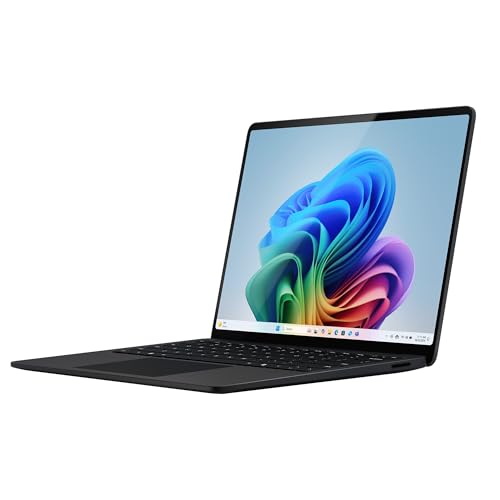 | Surface Laptop 13.8-inch | Screen: 13.8-inch touch Haptic evidence: Microsoft 8th Edition 13.8 Main fit: Compact Windows editing Main catch: Check app and ARM fit | Check Price on Amazon |
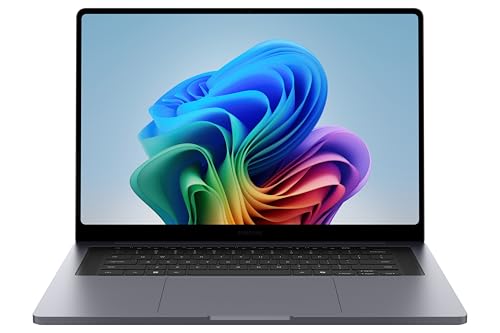 | Galaxy Book6 Ultra | Screen: 16-inch AMOLED Haptic evidence: Samsung Book6 Ultra page Main fit: GPU-assisted visual editing Main catch: Large-screen travel weight | Check Price on Amazon |
1. ASUS ExpertBook Ultra B9406CAA — Best 14-Inch OLED Business Editor
ASUS lists B9406CAA among its models with a haptic touchpad. The exact Amazon offer is an ExpertBook Ultra B9406CAA-XSP76T-GR, configured by the seller, with a 14-inch 3K OLED touch screen, Core Ultra X7 358H, 32GB memory and 1TB SSD. The ExpertBook Ultra is the compact business choice for an editor who needs a sharp built-in screen and often works away from an external mouse.
The touchpad’s click feel is a preference, not a measurable promise of better edits. Try a similar unit if you can, especially if accidental taps bother you. Check the exact seller warranty and model suffix. The Amazon title starts with the seller’s name rather than simply ASUS. Ask separate questions about brightness, color workflow and use with a static interface when the screen is OLED. Our desktop-monitor guide is about adding a second display, not calibrating this one.
ASUS lists haptics for the B9406CAA model. Confirm the exact seller configuration before ordering.Our Take Choose the ExpertBook Ultra if a portable OLED business laptop fits your work and you want a haptic pad built in. Do not buy it on touchpad feel alone without checking the seller and display needs.
- ASUS names B9406CAA in its haptic-touchpad support page.
- Exact offer lists a 14-inch 3K OLED touch panel.
- 32GB memory and 1TB SSD are stated in this offer.
- Seller-specific configuration and warranty need checking.
- OLED may not fit every static editing interface or color workflow.
2. Lenovo ThinkPad X9-15 Gen 1 — Best Large Haptic Business Workspace
Lenovo’s X9-15 Gen 1 guide has a section dedicated to its Haptic Touchpad. The exact Amazon listing is model 21Q60025US with a 15.3-inch 2.8K screen, Core Ultra 7 268V, 32GB memory and 1TB SSD. Its larger panel has more room for a preview and controls on one built-in screen than the smaller X9-14 below.
The listing is the X9-15 Gen 1, not the X9-15p model. Do not transfer processor, ports or display claims between them. The 15.3-inch size is a tradeoff in a bag or on an airplane tray. If your editing work stays at one desk, an external portable monitor or full-size display may change how valuable the larger laptop panel is.
Our Take Buy X9-15 Gen 1 if the larger built-in canvas is useful and you still want Lenovo’s haptic touchpad. Choose a smaller laptop if travel space is more important than on-device screen area.
- Lenovo documents a haptic pad for X9-15 Gen 1.
- 15.3-inch 2.8K screen offers a larger built-in canvas.
- Larger footprint than the 14-inch options.
- Different from X9-15p; similar names can mislead buyers.
- Listing does not prove real-world touchpad feel.
3. Lenovo ThinkPad X9-14 Gen 1 — Best Compact X9 Haptic Option
Lenovo’s X9-14 Gen 1 user guide describes a Haptic TouchPad for this 14-inch family; the exact Amazon offer does not independently confirm its touchpad configuration. Confirm model 21QA0006US has that pad with the seller before ordering. Amazon lists this model with a WUXGA display, Core Ultra 7 268V, 32GB memory and 1TB SSD. Compared with the X9-15, this model is the easier choice to carry when editing sessions move between home, office and clients.
The 14-inch WUXGA panel has less built-in pixel area than the 15.3-inch X9 offer. If you keep a full timeline, bins and preview open together, you may need an external display. Do not confuse the pad’s feedback with a pressure-sensitive drawing surface. You use a touchpad to navigate the desktop, while drawing and retouching may still call for a pen tablet. Our USB4 laptop list is about connectivity when a dock becomes part of the desk.
The X9-14 and X9-15 are distinct sizes. Pick by how much editing canvas you need away from a desk.Our Take Choose X9-14 Gen 1 when compact travel is important, provided the seller confirms this configuration has the Lenovo haptic pad. Add a larger display at your main desk if the built-in WUXGA workspace is too tight.
- Haptic TouchPad is identified in Lenovo’s X9-14 guide.
- 14-inch size is easier to carry than X9-15.
- Less built-in pixel area for complex editing layouts.
- Haptics do not replace a pen or calibrated mouse for every task.
4. Microsoft Surface Laptop 13.8-Inch — Best Compact Windows Haptic Workflow
Microsoft documents a next-generation haptic touchpad on the 13.8-inch Surface Laptop 8th Edition. The Amazon offer lists a 13.8-inch Surface Laptop with Snapdragon X2 Elite, 16GB memory and 512GB SSD. It is a smaller touch-screen option for an editor who values the Surface design and can run the specific Windows applications, codecs and plugins needed for the job.
With the Snapdragon processor, software compatibility is an explicit purchasing question. Check whether your editing application and hardware drivers support this ARM-based Windows configuration, including any color meter, capture hardware or audio interface. A haptic pad is no help with an incompatible plugin. Microsoft’s page says some advanced haptic features are limited to select models and apps, so confirm the exact seller model if those features are essential. Our capture-card roundup is about a separate input device, not compatibility with this Surface.
Our Take Choose the 13.8-inch Surface if your Windows editing stack supports it and a compact haptic touchpad is appealing. Verify the exact model and application support before ordering.
- Microsoft documents haptics for the 13.8-inch 8th Edition.
- Compact touch-screen laptop format.
- Snapdragon app and peripheral fit needs checking.
- Advanced haptic features vary by app and model.
- 16GB memory may limit some larger projects.
5. Samsung Galaxy Book6 Ultra — Best 16-Inch GPU-Assisted Editing Setup
Samsung explicitly confirms an advanced haptic touchpad for Galaxy Book6 Ultra. The exact Amazon listing names a 16-inch AMOLED display, RTX 5070 graphics, 32GB memory and 1TB storage. The Book6 Ultra is the large-screen choice when editing that uses a GPU, or other visual workloads, already justifies the hardware. The pad is a convenient part of the package, not the reason to buy an expensive GPU laptop on its own.
The 16-inch screen can hold more editing controls than a smaller laptop, but take the full machine, charger and workspace into account if you travel. Samsung describes touchpad feedback and palm rejection. The descriptions are maker claims, not independent measurements of cursor precision. If color judgment is important, calibrate the panel and working environment. Our desktop-speaker guide is about listening at an editing desk, not visual accuracy.
Our Take Pick Galaxy Book6 Ultra if editing that uses a GPU and a 16-inch screen are already on your shortlist. Its haptic pad, confirmed by Samsung, is a useful extra, not a performance guarantee.
- Samsung confirms a haptic touchpad for Book6 Ultra.
- Exact offer lists RTX 5070, 32GB memory and 1TB storage.
- 16-inch AMOLED gives a larger built-in work area.
- More hardware than light editing needs.
- Large laptop and charger can weigh on travel plans.
Buying Guide
1. Confirm the pad is actually haptic on the exact offer
A family name may hide two touchpad types. Lenovo’s X1 Carbon Gen 14 can ship with a mechanical trackpad or a haptic pad, so the product name alone is not proof. Check the model code, seller specifications and maker documentation. The X9-14 and X9-15 guides identify haptics. ASUS and Samsung also name the technology for their models.
Click feel remains personal. Haptics simulate a click with force feedback rather than moving the whole pad like a hinged mechanism. Haptic feedback does not make every gesture accurate for every person. Test palm rejection, click force and edge behavior if possible. A USB-C dock can attach a mouse at a fixed desk, but it does not change the built-in touchpad.
2. Match the editing application and hardware first
Check software support before anything else. On the Snapdragon Surface, confirm your Windows editing app, plugins and peripherals run on the ARM system. On the other laptops, verify the versions of the tools you use, GPU acceleration needs and the right media codecs. You can’t make up for an unsupported capture card or driver with a better input surface.
A pen tablet and touchpad do different jobs. The pad handles pointing, scrolling and gesture navigation. Detailed retouching or drawing may still be better with a pen, mouse or dedicated controller. Our monitor-controller roundup is about audio monitoring, another separate editing control.
3. Choose a workable screen and desk layout
Pixel space is important for editing panels. According to the exact Amazon offers, the X9-14 has a WUXGA 14-inch screen, the X9-15 has a 15.3-inch 2.8K screen, and the Samsung has a 16-inch AMOLED panel. The ASUS offer lists a 14-inch 3K OLED touch display. A higher pixel count can help fit controls, but usable workspace depends on scaling and eyesight.
Color is a separate verification step. A manufacturer panel description does not prove your unit is calibrated for a print or video workflow. Check coverage, calibration options and the lighting where you work. An external display can help, but our monitor-arm guide is about placement, not color accuracy.
4. Balance travel size and compute hardware
Fourteen inches is easier to carry. ASUS, X9-14 and Surface are the compact choices, while X9-15 and Galaxy Book6 Ultra have more built-in screen area. Choose by where you edit most often, not by assuming the biggest pad always feels best.
GPU needs vary by editor and project. The exact Samsung Amazon offer lists RTX 5070 graphics, relevant if your app can use them for effects or exports. The X9 models and Surface are about other portability and platform questions. Keep the budget for storage, backup and a comfortable desk. The full editing setup needs more than a haptic touchpad.
FAQ
Is a haptic touchpad automatically more precise than a mechanical one?
No. Haptics change the click mechanism and feedback. Cursor tracking also depends on sensors, software, settings and your hands. No independent tracking measurements were made for these five laptops.
Try the gestures you use most, such as timeline scrubbing and drag selection, before treating any touchpad as a workflow improvement. Many editors still use a mouse, pen tablet or hardware controller for specific tasks.
Can I use a haptic touchpad for photo retouching instead of a pen?
You can navigate an image editor with a haptic touchpad, but it does not become a pressure-sensitive drawing tablet. Brush, mask and selection work may be more comfortable with a pen or mouse.
Check how your editing application maps gestures and shortcuts. The value of a haptic pad is in laptop navigation and feedback, not a guaranteed replacement for every editing input.
Why is the ThinkPad X1 Carbon Gen 14 not on this list?
The X1 Carbon Gen 14 family offers both mechanical and haptic touchpad configurations. The active New Amazon listing we found did not clearly identify which pad its exact configuration had, so including it would risk recommending the wrong product.
If you prefer the X1, ask the seller for its exact Lenovo model code and compare the code with a model-specific product sheet. A family brochure alone is not proof of the hardware in the retail box.
Bottom Line
Choose ASUS ExpertBook Ultra for a compact OLED business workflow, ThinkPad X9-15 for more portable canvas, or Galaxy Book6 Ultra when work that uses a GPU justifies a large laptop. Verify the touchpad variant and editing software before ordering.