The best USB-C to HDMI 2.1 adapter for a supported Mac is Cable Matters’ macOS-specific model. Cable Matters publishes distinct firmware and refresh guidance for that exact adapter, which is more useful than treating every USB-C-to-HDMI product as interchangeable. For a laptop that also needs power through the same connection, its charging version is the better fit. Neither choice can create video output from a USB-C port that carries data and power only.
The five picks below all serve one HDMI display. They are not dual-monitor hubs, and this guide is not the right choice when your priority is charging pass-through rather than a high-refresh video path. Confirm the exact port specification, adapter direction, HDMI cable, monitor input, and selected resolution or refresh. Our USB-C to DisplayPort cables and adapters guide is the better route for a monitor that has DisplayPort rather than HDMI.
Quick picks
- Cable Matters USB-C to HDMI 2.1 Adapter for macOS: Best for an eligible Mac when Cable Matters’ firmware-specific refresh guidance fits the exact chip family.
- Cable Matters USB-C to HDMI 2.1 Adapter with charging: Best when one USB-C connection needs both an HDMI display and a qualified power input.
- Cable Matters USB-C to HDMI 2.1 Adapter: Best for a general non-Mac route when you can check the complete host, GPU, cable, and display path.
- CalDigit USB-C to HDMI 2.1 8K Video Adapter: Best for a CalDigit-oriented desk that has a spare compatible USB-C or Thunderbolt video output.
- Belkin Connect USB-C to HDMI 2.1 Adapter: Best for buyers who want a USB-IF-certified tethered adapter with a maker-documented 4K high-refresh ceiling.
| Image | Product | Details | Check Price |
|---|---|---|---|
 | Cable Matters USB-C to HDMI 2.1 Adapter for macOS | Buyer fit: Supported Mac high-refresh route Video boundary: Maker publishes chip-family-specific 4K refresh guidance Direction: USB-C host to HDMI display | Check Price on Amazon |
 | Cable Matters USB-C to HDMI 2.1 Adapter with charging | Buyer fit: One HDMI display plus power input Video ceiling: Up to 8K 60Hz or 4K 240Hz, conditional Power input: Up to 140W USB-C PD | Check Price on Amazon |
| Cable Matters USB-C to HDMI 2.1 Adapter | Buyer fit: General one-display non-Mac route Video ceiling: Up to 8K 60Hz or 4K 240Hz, conditional Direction: USB-C or Thunderbolt host to HDMI display | Check Price on Amazon |
 | CalDigit USB-C to HDMI 2.1 8K Video Adapter | Buyer fit: Compatible CalDigit-oriented desk Video ceiling: Up to 8K 60Hz with DSC or 8K 30Hz without DSC Signal features: HDCP 2.3, DSC, HDR | Check Price on Amazon |
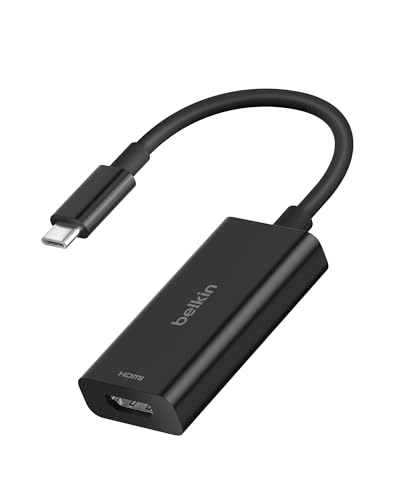 | Belkin Connect USB-C to HDMI 2.1 Adapter | Buyer fit: USB-IF-certified tethered adapter Video ceiling: Up to 8K 60Hz or 4K 144Hz Cable: Short tethered USB-C cable | Check Price on Amazon |
1. Cable Matters USB-C to HDMI 2.1 Adapter for macOS — Best for supported Macs
Cable Matters’ model 201488 is the strongest first choice when the computer is one of the Mac chip families covered by the maker’s own guidance. Cable Matters says its custom firmware can reach 4K at 120Hz on listed M1 through M3 systems and 4K at 240Hz on listed M3 Pro, M3 Max, M4, and M4 Pro or Max systems. Those numbers are model-family conditions, not a guarantee for every Mac, HDMI display, or television.
This device is a USB-C-host-to-HDMI-display adapter, not a reverse HDMI-to-USB-C converter. That direction makes a difference if the source is a console or another device with HDMI output. The same product page says variable-refresh features such as VRR, G-Sync, and FreeSync are not supported, so a buyer who needs one of those features should not infer it from the HDMI 2.1 label alone.
Our Take
Choose this Cable Matters adapter when the exact Mac is in the maker’s listed support guidance and your monitor needs a documented high-refresh HDMI route. For a Windows-first setup, use the general Cable Matters alternative below instead of assuming the macOS firmware is the best match.
- Cable Matters publishes chip-family-specific 4K high-refresh guidance for its macOS-focused model 201488.
- The maker identifies the adapter as a one-way USB-C host to HDMI display conversion path.
- Cable Matters lists an HDMI 2.1 video ceiling for a compatible display chain.
- The published Mac guidance varies by chip family, so a MacBook name by itself is not enough to select the mode.
- Cable Matters states that VRR, G-Sync, and FreeSync are not supported by this adapter.
2. Cable Matters USB-C to HDMI 2.1 Adapter with charging — Best HDMI plus charging route
Cable Matters’ model 201438 changes the buying job by adding a USB-C power input. The manufacturer specifies up to 140W Power Delivery through the adapter while also listing conditional video ceilings up to 8K at 60Hz and 4K at 240Hz. This adapter is the option to compare when a laptop has one practical USB-C port for the desk and you need that port to handle an HDMI display and a charger, rather than buying a basic video-only dongle.
The charging number is not a promise that every laptop will accept that level. The charger, the cable that feeds the adapter, and the computer’s accepted charging input each set a limit. Video needs its own qualification too. Cable Matters calls for a USB-C device with DisplayPort Alt Mode support for the documented display path. Keep power and display checks separate even though they enter the same adapter.
Our Take
Pick Cable Matters’ adapter when the laptop needs video and power from the same port and its documented input requirements fit the rest of the chain. If charging is not part of the job, a video-only adapter leaves fewer conditions to review.
- Cable Matters documents a USB-C charging input up to 140W for model 201438.
- The maker lists conditional HDMI video ceilings up to 8K at 60Hz and 4K at 240Hz.
- The adapter combines one display route and one qualified charging route in the same USB-C connection.
- The host, charger, input cable, and laptop acceptance limit the actual charging result.
- The documented display path requires a USB-C host with DisplayPort Alt Mode support.
3. Cable Matters USB-C to HDMI 2.1 Adapter — Best for a non-Mac HDMI 2.1 route
Cable Matters’ model 201388 is the straightforward video-only choice for a compatible non-Mac computer, tablet, or Thunderbolt host. Its maker documentation is unusually direct about the conditions. The adapter is unidirectional from USB-C with DisplayPort Alt Mode or Thunderbolt to an HDMI display, and the result depends on the host port, graphics hardware, drivers, HDMI 2.1 display, HDMI cable, and selected mode. That directness makes it a better fit for a buyer willing to verify a whole PC display chain rather than chasing the largest printed refresh number.
Cable Matters also draws a hard macOS boundary for this version, listing a 4K at 60Hz limit and directing buyers who need higher Mac refresh modes to its firmware-enhanced macOS model. It is not a hub or a charging adapter. If your computer needs a second HDMI display, use our USB-C to dual HDMI adapter guide instead of trying to make a single-output converter do a different job.
Our Take
Buy this Cable Matters adapter for a general one-display HDMI path when the host and monitor documentation are clear. Its value is the explicit compatibility boundary, not a universal claim that every USB-C laptop can reach its headline modes.
- Cable Matters clearly identifies model 201388 as unidirectional USB-C or Thunderbolt host to HDMI display conversion.
- The maker documents the host, GPU, display, cable, driver, and selected-mode conditions beside its higher video ceilings.
- The product is a focused video adapter rather than a multiport hub with unrelated ports to qualify.
- Cable Matters limits this version to 4K at 60Hz on macOS.
- The adapter cannot accept HDMI from a game console or send it to a USB-C monitor.
4. CalDigit USB-C to HDMI 2.1 8K Video Adapter — Best for a CalDigit dock route
CalDigit’s USB-C to HDMI 2.1 8K Video Adapter is the natural option for a CalDigit-oriented desk when an unused compatible USB-C or Thunderbolt digital-video output needs to reach an HDMI display. CalDigit specifies up to 8K at 60Hz with DSC or 8K at 30Hz without DSC. It also lists HDCP 2.3, DSC 1.32a, and HDR support. Those terms describe the adapter’s stated signal path, while the computer and display still determine whether a chosen mode is available.
CalDigit says HDMI 2.1 support on macOS requires an M2 computer or newer using its stated operating-system release. Otherwise, it describes an HDMI 2.0b ceiling of 4K at 60Hz through Thunderbolt ports.
Our Take
Choose the CalDigit adapter when the desk already centers on compatible USB-C or Thunderbolt gear and you can verify the host conditions. Its clear DSC and macOS notes are more useful than treating an 8K label as a fixed outcome.
- CalDigit specifies separate 8K ceilings with DSC and without DSC for this exact adapter.
- The maker lists HDCP 2.3, DSC, and HDR as part of the adapter’s documented video path.
- CalDigit states compatibility with USB-C digital-video output and Thunderbolt or USB4 host classes.
- CalDigit’s HDMI 2.1 macOS condition depends on both the Mac generation and the stated operating-system release.
- Without DSC, CalDigit lists a lower 8K ceiling for the same adapter.
5. Belkin Connect USB-C to HDMI 2.1 Adapter — Best USB-IF-certified tethered option
Belkin’s Connect AVC013 is the choice for a buyer who wants a compact tethered adapter from a maker that publishes a specific high-refresh ceiling without claiming 4K at 240Hz. Belkin specifies up to 8K at 60Hz or 4K at 144Hz, along with HBR3, DSC, HDR10+, and HDCP 2.2 support. The company also identifies the product as USB-IF certified and gives it a short tethered USB-C cable, which is useful when a rigid adapter would crowd a closely spaced laptop port.
Its published 4K high-refresh ceiling is lower than the most ambitious Cable Matters claims, which is why it is not the pick for a buyer targeting the highest listed refresh mode. It is a better match when the display is within Belkin’s documented ceiling and the priority is a tethered, certified one-display adapter. The host must still expose a compatible video signal. A USB-C connector with charging alone does not satisfy that condition.
Our Take
Pick Belkin when a USB-IF-certified tethered adapter and a documented 4K high-refresh target outweigh an 8K-focused specification. Confirm the host’s video capability before ordering, then choose an HDMI cable and display input that match the selected mode.
- Belkin documents up to 8K at 60Hz or 4K at 144Hz for its AVC013 adapter.
- The maker identifies the short USB-C tether and USB-IF certification for this product.
- Belkin lists HBR3, DSC, HDR10+, and HDCP 2.2 in the adapter’s supported feature set.
- Belkin’s stated 4K ceiling is 144Hz, not the higher mode claimed for some other picks in this guide.
- The adapter cannot establish video output when the computer’s USB-C port is data-only or charging-only.
How to choose a USB-C to HDMI 2.1 adapter
Check the host video path first
Read the computer maker’s exact port specification before choosing an adapter. The useful phrases are DisplayPort Alt Mode, Thunderbolt, USB4 with display output, or another explicit digital-video statement. A USB-C port can carry data, charging, or both without sending a display signal. Start with the port’s documented function, not its connector shape.
Before you buy, confirm these three items:
- The exact laptop, tablet, handheld, or dock output supports video
- The adapter direction runs from that USB-C host to an HDMI display
- The display has an HDMI input that supports the resolution and refresh you plan to select
One confirmed item does not supply the others. A high-refresh monitor cannot add DisplayPort Alt Mode to a data-only laptop port, and an HDMI 2.1 adapter cannot reverse an HDMI console signal into a USB-C monitor.
Treat the advertised mode as a conditional ceiling
An adapter maker can state an 8K or high-refresh mode, but the complete connection sets the final result. The source device’s graphics path, the adapter, the HDMI cable, the monitor or television input, operating-system settings, and sometimes display firmware can each affect the result. Cable Matters explicitly lists those variables for its standard adapter, while CalDigit distinguishes its 8K mode with DSC from the mode without DSC.
Use the monitor’s own manual to identify the HDMI input and the mode it accepts. Then set the desired resolution and refresh in the computer’s display controls after connecting the chain. If the preferred mode does not appear, lower one variable at a time rather than assuming the adapter is defective.
Separate a Mac-specific choice from a general USB-C choice
macOS behavior can be product-specific. Cable Matters gives its macOS model different firmware guidance from its general adapter, and CalDigit publishes an operating-system and Mac-generation condition for HDMI 2.1 support. Do not select an adapter by a generic “Mac compatible” label when the exact model, chip family, and operating system can set the available display mode.
For a Mac, write down the chip family and operating-system version first. For Windows, verify the laptop’s graphics and USB-C video specifications rather than copying a result from a different notebook. If your actual priority is a charger plus a display output, compare the next cohort page on USB-C to HDMI adapters with charging. Its buyer job is power and video together, not the highest refresh rate alone.
Use the right HDMI cable and display input
The adapter is not the whole HDMI segment. Cable Matters tells buyers of its standard adapter to use a certified HDMI 2.1 cable for its higher listed modes, and its support guidance notes that some televisions need an enhanced or high-refresh input setting. A cable that works for 4K video may not establish the same mode as the full high-refresh path you planned.
Set up the display path deliberately:
- Connect the adapter to the host before selecting the display mode
- Use an HDMI cable appropriate for the display’s documented input requirement
- Select the display’s correct HDMI input and enable its documented high-refresh mode when required
- Choose the resolution and refresh in the operating system after the display is detected
Do not rely on a gaming-console label, a generic USB-C port label, or a cable’s packaging as proof that this specific host-to-display path will negotiate the same result.
Frequently asked questions
Will a USB-C to HDMI 2.1 adapter work with every USB-C laptop?
No. The computer must provide a documented video signal through that port. Cable Matters identifies DisplayPort Alt Mode or Thunderbolt for its USB-C-host-to-HDMI path, and other makers use similar digital-video requirements. A data-only or charging-only USB-C port cannot produce an image through the adapter.
Can I connect a PlayStation or Xbox HDMI output to a USB-C monitor with these adapters?
No. These picks are USB-C-host-to-HDMI-display adapters. Cable Matters explicitly says its adapters are not bidirectional and do not convert an HDMI source to a USB-C display. Use a product designed for the console and monitor direction instead.
Why does my high-refresh monitor run at a lower mode?
The selected mode depends on the host graphics path, adapter, HDMI cable, monitor input, display setting, and operating system. Check the product documentation for each item, then lower the resolution or refresh if the desired mode is unavailable. A lower negotiated mode does not by itself prove that a component is faulty.