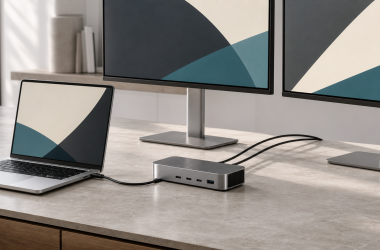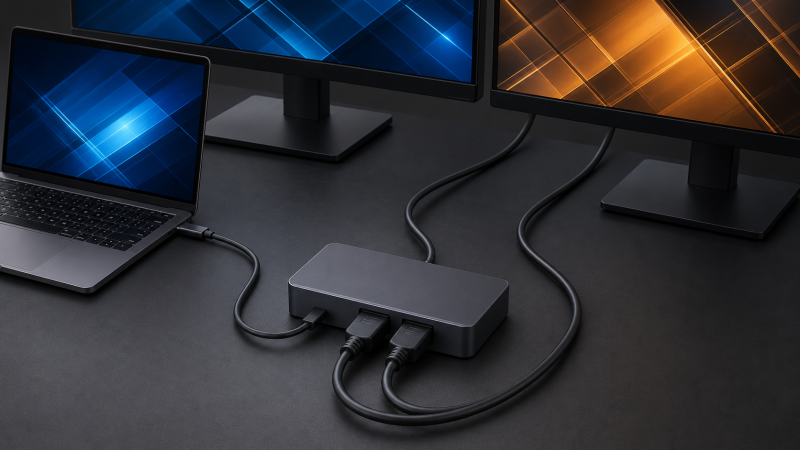
The Plugable TBT-UDH2 is our best overall pick when you want two native HDMI 2.1 sockets and can match the dock’s exact Thunderbolt host matrix. For a manufacturer-documented dual 4K120 branch on Windows or ChromeOS, the StarTech 155NA-USB4-DOCK is the sharper choice, and the Anker Prime DL7400 provides a driver-based alternative. What an HDMI 2.1 label proves is the physical interface, not full link bandwidth, two independent extended desktops, or a particular refresh on every laptop. For broader connector choices, start with our best USB-C docking stations.
Quick picks
- Plugable TBT-UDH2: Native dual-HDMI 2.1 Thunderbolt route with a two-display limit.
- StarTech 155NA: Explicit USB4 dual 4K60 and dual 4K120 branches for qualified hosts.
- ASUS DC500: Thunderbolt 4 layout with dual HDMI 2.1 and a DSC-dependent mixed-refresh branch.
- Anker Prime DL7400: DisplayLink alternative when native host streams are the constraint.
Compare the best dual-HDMI 2.1 USB-C docks
| Image | Product | Details | Check Price |
|---|---|---|---|
 | Plugable TBT-UDH2 | Two HDMI 2.1 ports: Yes Graphics path: Native Thunderbolt 5 Qualified dual-display mode: Exact TB5, TB4, or Mac host matrix Host boundary: Two active displays maximum Best for: Native dual-HDMI Thunderbolt desk | Check Price on Amazon |
 | StarTech 155NA-USB4-DOCK | Two HDMI 2.1 ports: Yes Graphics path: Native USB4 Qualified dual-display mode: Dual 4K60 4:4:4 or dual 4K120 4:2:2 Host boundary: Qualified Windows/ChromeOS; no macOS Best for: Explicit dual-high-refresh route | Check Price on Amazon |
 | ASUS Triple 4K Thunderbolt 4 Dock DC500 | Two HDMI 2.1 ports: Yes Graphics path: Native Thunderbolt 4 Qualified dual-display mode: One 4K60 plus one 4K120 with DSC Host boundary: Host, DSC, and selected outputs control Best for: Mixed-refresh Thunderbolt desk | Check Price on Amazon |
 | StarTech 132N-TB4USB4DOCK | Two HDMI 2.1 ports: Yes Graphics path: Native Thunderbolt 4/USB4 Qualified dual-display mode: Within qualified Windows four-4K60 ceiling Host boundary: Exact matrix required; Mac paths differ Best for: Mixed HDMI/DisplayPort Windows desk | Check Price on Amazon |
 | Anker Prime DL7400 A83B3 | Two HDMI 2.1 ports: Yes Graphics path: DisplayLink USB graphics Qualified dual-display mode: No complete retained maker matrix Host boundary: Windows 10/11 or macOS 13.5+; driver required Best for: DisplayLink connector alternative | Check Price on Amazon |
1. Plugable TBT-UDH2 — best overall native dual-HDMI 2.1 route
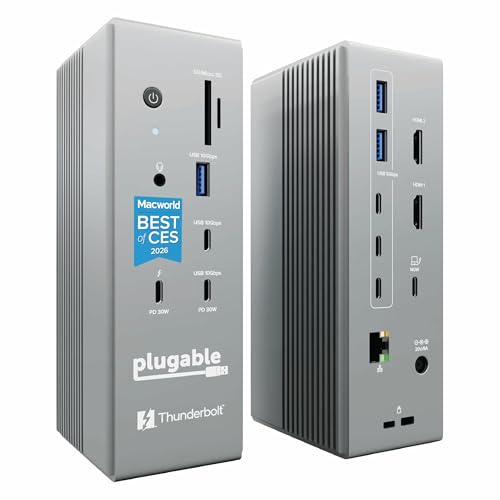
Two HDMI monitors, and no DisplayLink software sitting between the GPU and the screens, is the case this dock answers directly. Plugable gives the TBT-UDH2 two native HDMI 2.1 outputs on a Thunderbolt 5 dock. Plugable documents high-resolution dual-display branches for exact Thunderbolt 5, Thunderbolt 4, and Mac host categories rather than one mode for every USB-C laptop.
The host matrix is the buying gate. A Thunderbolt 5 label on the dock does not make a Thunderbolt 4 host expose the same bandwidth or display topology, and a Mac remains subject to its processor’s native external-display limit. Plugable also limits the dock to two active displays at once. It documents up to 140W host charging and 2.5GbE, though charging still depends on the supported host and power negotiation.
Our Take
Check Plugable’s row for your exact host, then buy the TBT-UDH2 for a clean native two-HDMI desk. Its value is the documented physical layout and native path, not a universal timing promise.
- Two native HDMI 2.1 sockets
- Exact Thunderbolt and Mac host branches
- High host-charging ceiling and 2.5GbE
- Exact dual mode must come from the host matrix
- Only two displays can be active
2. StarTech 155NA-USB4-DOCK — best explicit USB4 dual-high-refresh route
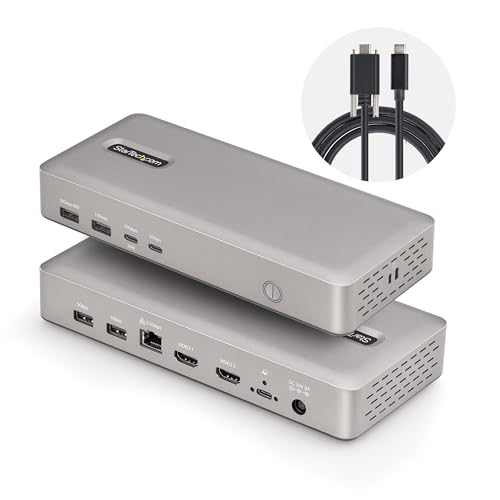
Here the dual-screen modes arrive with their chroma attached. StarTech documents two HDMI 2.1 outputs and a USB4 40Gbps upstream link, and on qualified Windows and ChromeOS hosts the maker specifies dual 4K 60Hz at 4:4:4 chroma or dual 4K 120Hz at 4:2:2. Those details make it the strongest pick when two high-refresh screens are the actual purchase reason and the chroma tradeoff is acceptable.
The qualification is narrow. StarTech says this model does not support macOS, and the cited modes still depend on the host GPU, DP/DSC path, OS, cables, and monitor inputs. Dual 4K120 at 4:2:2 is not equivalent to uncompressed 4:4:4, and it proves nothing about VRR, HDR, HDCP, or gaming behavior. StarTech lists up to 100W charging and 2.5GbE.
Our Take
Where its explicit Windows or ChromeOS matrix matches your laptop and displays, the 155NA is the pick. It is the wrong dock for a Mac and the wrong evidence for unlisted gaming features.
- Two manufacturer-documented HDMI 2.1 outputs
- Explicit dual 4K60 4:4:4 mode
- Explicit dual 4K120 4:2:2 mode
- No macOS support
- High-refresh branch uses 4:2:2 chroma
3. ASUS Triple 4K Thunderbolt 4 Dock DC500 — best triple-display-capable layout
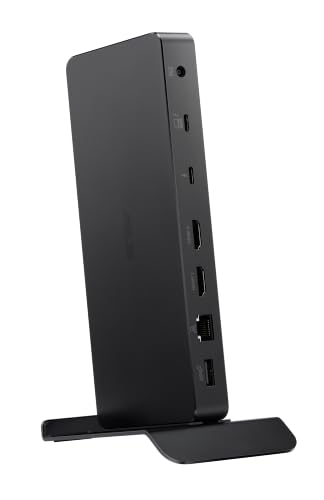
One fast primary panel beside one conventional 60Hz secondary is a common desk, and it gets a documented branch here. ASUS equips the DC500 with two HDMI 2.1 outputs and a DisplayPort path. The maker documents an up-to-triple-4K60 ceiling and a specific dual-display branch with one 4K 60Hz screen plus one 4K 120Hz screen when the required DSC conditions are met.
Do not convert the triple-display ceiling into a promise that both HDMI sockets always carry the cited dual mode. ASUS makes the result dependent on the host, including its video streams and DSC capability, while the selected ports, cables, and monitor inputs stay part of the chain. That makes the DC500 a match for a verified Thunderbolt 4 workstation rather than an arbitrary USB-C port.
Our Take
Two things favor the DC500: the ASUS compatibility branch matches a mixed-refresh desk, and you may also use its third display path. Verify the exact two-port combination before purchase.
- Two physical HDMI 2.1 outputs
- Maker documents a mixed 4K60 and 4K120 branch
- Third display path available on qualified hosts
- DSC and host conditions control high refresh
- Physical sockets alone do not prove the selected mode
4. StarTech 132N-TB4USB4DOCK — best quad-output Windows flexibility

Four video sockets rather than two is the reason to look here, especially if DisplayPort monitors may join the desk later. StarTech provides two HDMI 2.1 and two DisplayPort 1.4 outputs on the 132N. The manufacturer documents up to four 4K 60Hz displays on qualified Windows hosts, which gives a multi-monitor Windows workstation real connector flexibility. It also includes 2.5GbE and a manufacturer-rated 98W host-charging path.
That four-display headline is not proof that any two chosen HDMI ports deliver the same mode on every host. StarTech’s output matrix, the host’s Thunderbolt 4 or USB4 implementation, GPU, DSC support, OS, cable, and displays control the result. Mac paths differ from the Windows ceiling, so Mac buyers must work from the exact model and processor branch instead of borrowing the four-display number.
Our Take
A Windows desk that needs two HDMI 2.1 sockets now and may mix in DisplayPort later lands on the 132N. Buy from the exact topology table, not the four-socket count.
- Two HDMI 2.1 plus two DP 1.4 outputs
- Qualified four-4K60 Windows ceiling
- 2.5GbE and near-100W host charging
- Exact two-HDMI mode remains matrix dependent
- Mac topology differs
5. Anker Prime DL7400 A83B3 — best DisplayLink alternative
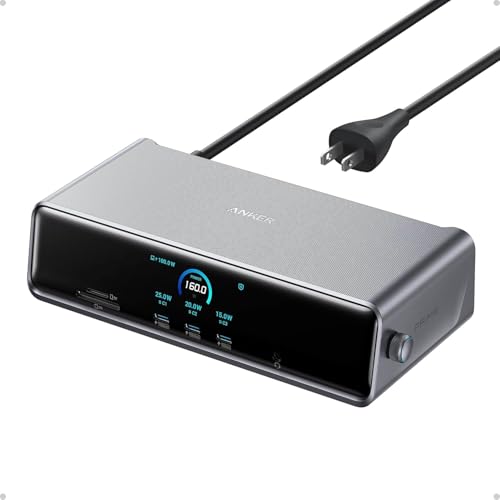
This is the alternative when the laptop cannot expose the required native display streams but the desk still needs two physical HDMI 2.1 sockets. Anker documents two HDMI 2.1 outputs and one DisplayPort 1.4 output on this DisplayLink dock. Anker’s exact page lists Windows 10/11 and macOS 13.5+, with DisplayLink software and macOS Screen Recording permission required.
Our Anker sources do not include a complete simultaneous-resolution matrix. Amazon’s catalog title mentions triple 4K60, and that is not promoted here as a manufacturer-verified mode. Anker’s up-to-140W host-charging branch also requires a USB PD 3.1 laptop and no more than one device connected to the front USB-C ports. The dock includes 2.5GbE, though its front USB-C ports are data and charging connections, not display outputs.
Our Take
Treat the DL7400 as a connector-layout and software-display option rather than a source of verified simultaneous timings. Confirm that DisplayLink suits the workload first.
- Two documented HDMI 2.1 sockets
- DisplayLink route for limited native hosts
- Windows and macOS scope in maker evidence
- No manufacturer simultaneous-mode matrix in our sources
- Maximum charging has front-port conditions
What dual HDMI 2.1 does and does not tell you
The socket version is only the first filter
Two manufacturer-documented HDMI 2.1 sockets satisfy the physical-output requirement and nothing beyond it. They reveal nothing about how much display bandwidth reaches the dock, whether DSC is used, whether chroma falls from 4:4:4 to 4:2:2, or whether the host can expose two extended desktops. Those facts come from the dock’s exact topology table. Our HDMI 2.1 versus DisplayPort 1.4 guide explains the interface differences without turning a connector label into a mode guarantee.
Native and DisplayLink routes solve different problems
The first four docks use native host video paths. They are preferable when the workload depends on direct GPU behavior, though the laptop must supply the streams. The Anker uses DisplayLink USB graphics, which can add desktops when the native path is limited, and that solution carries driver, permission, and product-specific workload boundaries. It does not change a Mac’s native-display limit; it creates software displays alongside it.
Confirm two extended desktops, not only two signals
A dock can have two active HDMI links without giving every host two independent extended desktops. Whether the second screen extends, mirrors, or remains unavailable is decided by the operating system and GPU. That matters most on Macs whose processor supports fewer native external displays than the dock’s physical output count. Use the exact Mac branch in the maker’s matrix, or choose the Anker only after confirming that its DisplayLink software path fits your applications.
Mixed-refresh desks need the same care. With one screen at 4K120 and the other at 4K60, confirm that the published mode applies to the two ports you plan to use together. A single-output maximum cannot be combined with a different single-output maximum to invent a simultaneous pair. Where the matrix lists DSC or 4:2:2, keep that condition attached to the complete dual-screen mode.
Verify the complete chain
Match the laptop model, port protocol, GPU, OS, DP and DSC capability, dock output group, HDMI cable, and both monitor inputs. On a high-refresh branch, keep the maker’s chroma condition attached, and infer nothing about HDR, VRR, HDCP, color depth, or gaming performance unless the exact matrix states it.
Charging needs its own check. A large adapter, a 140W headline, or a vendor-specific charging branch is not a universal result. Confirm delivered host wattage under the dock’s front-port load and the laptop’s accepted Power Delivery profile.