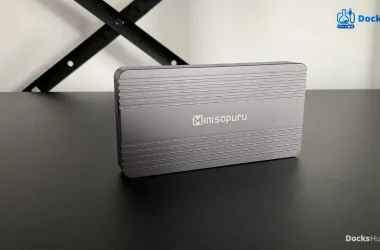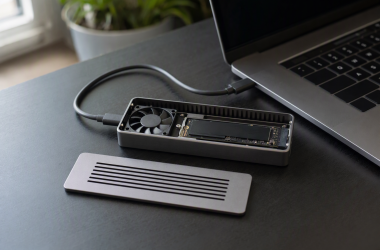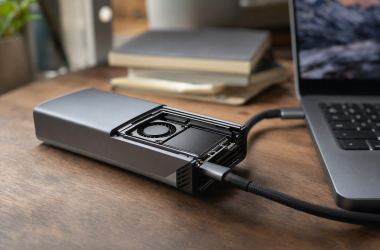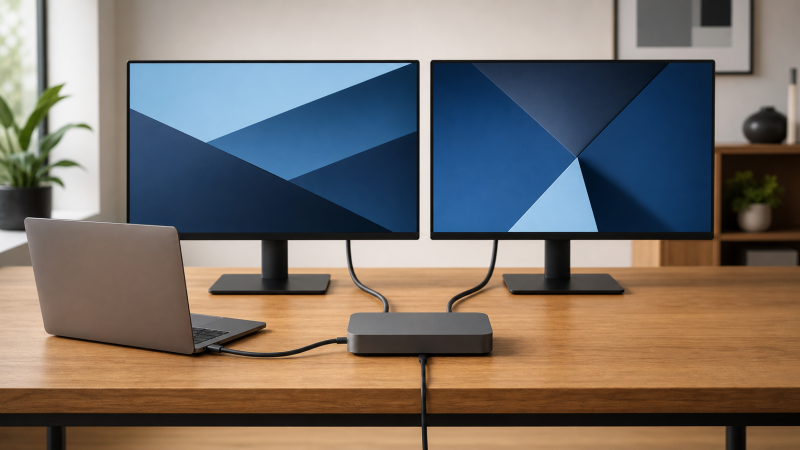
The StarTech 208N-USB4-DOCK is our best USB4 dock for dual 4K monitors, because StarTech documents two dedicated DisplayPort outputs and a qualified dual-display matrix. Lenovo’s ThinkPad USB4 Dock 5000 offers the broadest connector mix, while the D-Link DUF-901 pairs two DP outputs with a downstream USB4 display branch. No dual-4K headline is an unconditional promise that any two sockets will work together. The host GPU or Apple processor, USB4 display tunnel, DSC where required, operating system, output grouping, cables or adapters and monitor inputs all matter. Our general USB4 hubs and docks guide is a better starting point if two 4K screens are not your fixed requirement.
Quick picks
- StarTech 208N-USB4-DOCK: best documented dual-display matrix and two direct DP outputs.
- Lenovo ThinkPad USB4 Dock 5000: best for a desk mixing DP, HDMI and USB-C displays.
- D-Link DUF-901: best for two DP monitors plus a downstream USB4 branch.
- Microsoft Surface USB4 Dock: best USB-C-plus-HDMI dual 4K60 route on a capable host.
- Targus DOCK425GLZ: best compact DP-plus-HDMI setup when you supply power separately.
| Image | Product | Details | Check Price |
|---|---|---|---|
 | StarTech 208N-USB4-DOCK | Dual-display route: Two DP; video-capable USB-C is another route Host boundary: Qualified host/Apple matrix controls Maximum cited mode: StarTech cites up to dual 4K144 Charging: StarTech rates up to 100W Best for: Documented dual-DP desks | Check Price on Amazon |
 | Lenovo ThinkPad USB4 Dock 5000 | Dual-display route: Two DP, HDMI and full-function USB-C options Host boundary: Lenovo makes display result host-dependent Maximum cited mode: Lenovo cites up to two 4K144 Charging: 65W bundled; 100W with optional supply Best for: Connector-rich dual 4K desks | Check Price on Amazon |
 | D-Link DUF-901 | Dual-display route: Two DP plus downstream USB4/DP 1.4 Host boundary: Exact host and OS conditions apply Maximum cited mode: D-Link cites up to 8K30 or 4K144 by path Charging: D-Link rates up to 100W Best for: Dual DP plus USB4 expansion | Check Price on Amazon |
 | Microsoft Surface USB4 Dock | Dual-display route: Video-capable USB-C plus HDMI 2.1 Host boundary: Capable USB4/TB4 required for dual route Maximum cited mode: Microsoft cites dual 4K60 Charging: Microsoft rates up to 65W Best for: USB-C plus HDMI monitors | Check Price on Amazon |
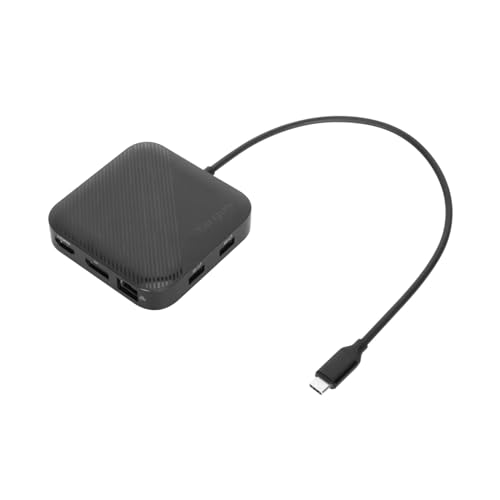 | Targus DOCK425GLZ | Dual-display route: DP 1.4 plus HDMI 2.1 Host boundary: Host and OS control dual result Maximum cited mode: Targus cites up to two 4K60 Charging: Up to 85W pass-through; charger excluded Best for: Portable mixed-output setup | Check Price on Amazon |
 | Plugable USB4-HUB3A | Dual-display route: Three USB4/TB4 branches; HDMI adapter included Host boundary: Capable host and Apple limits apply Maximum cited mode: Plugable cites up to dual 4K60 Charging: Plugable rates up to 60W Best for: Adapter-based USB-C display routes | Check Price on Amazon |
 | j5create JCD401 | Dual-display route: HDMI, DP and USB-C video options Host boundary: Host-dependent; base M1/M2 stay single-native Maximum cited mode: j5create host link is up to 20Gbps Charging: Up to 85W pass-through; charger excluded Best for: Compact mixed-output alternative | Check Price on Amazon |
1. StarTech 208N-USB4-DOCK — Best overall documented dual-display matrix
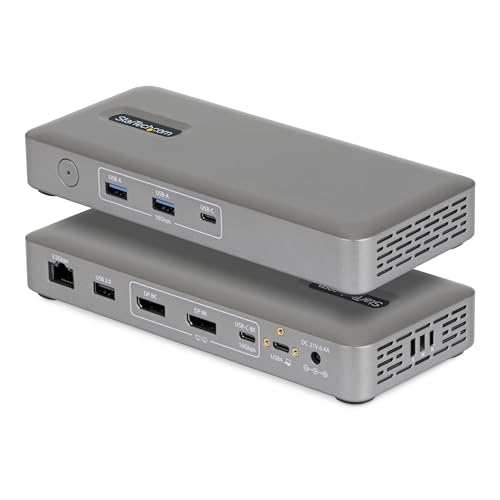
Two matching DP monitors have their cleanest starting point here. StarTech specifies a 40Gbps USB4 host connection and two DisplayPort outputs, and the manufacturer publishes a ceiling up to dual 4K144 on a qualified host. A third video-capable 10Gbps USB-C port adds routing flexibility without establishing a third independent display.
The exact matrix row still controls the result, so confirm the host GPU or Apple processor, DP and DSC capability, operating system and selected output group. StarTech also rates host charging at up to 100W and lists 2.5GbE. Neither downstream USB-C port is claimed as USB4 or Thunderbolt, which matters if a USB4 monitor or accessory is part of the chain.
Our Take For a dual-DP desk that wants the best documented ceiling and fewer adapter decisions, the 208N is the buy. Its advantage is the explicit topology, not a guarantee that an unqualified laptop can reach dual 4K144.
- StarTech documents two DP outputs and dual 4K144 ceiling
- Maker specifies up to 100W host charging and 2.5GbE
- Highest dual mode requires a qualified host path
- No downstream USB4 or Thunderbolt claim
2. Lenovo ThinkPad USB4 Dock 5000 — Best connector-rich dual 4K desk
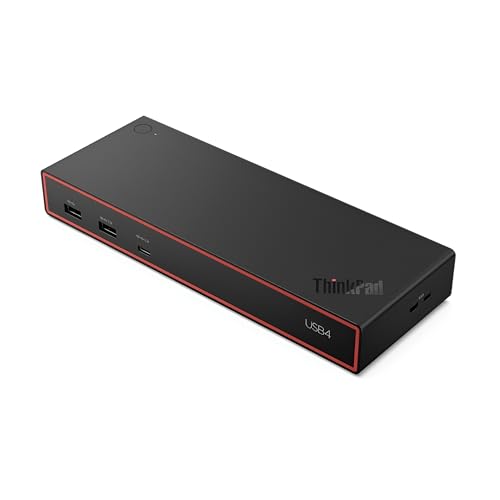
Where monitors do not agree on a connector, port variety becomes the point. Lenovo specifies a 40Gbps USB4 host link, two DP 1.4 outputs, HDMI 2.1 and a full-function 10Gbps USB-C connection with DP 1.4, and its cited ceilings include two 4K144 displays on a host with the required capability. You can build dual 4K with two DP cables or use another documented output combination, but only combinations supported by the host and dock matrix should be planned.
The 40BF0100US configuration includes a 100W adapter and, by Lenovo’s specification, delivers up to 65W to the laptop. Lenovo says an optional 135W supply raises host delivery to up to 100W. The downstream USB-C ports are not identified as USB4/TB branches.
Our Take Different inputs on your two monitors, or a desk that needs room to change later, both point at the Lenovo. Its connector count is an option set, not a promise that every video socket can run at once.
- Lenovo documents two DP, HDMI and USB-C video routes
- Maker cites a qualified two-4K144 ceiling
- Bundled power path supplies up to 65W to host
- Display combinations remain host-dependent
3. D-Link DUF-901 — Best dual DP plus downstream USB4 choice
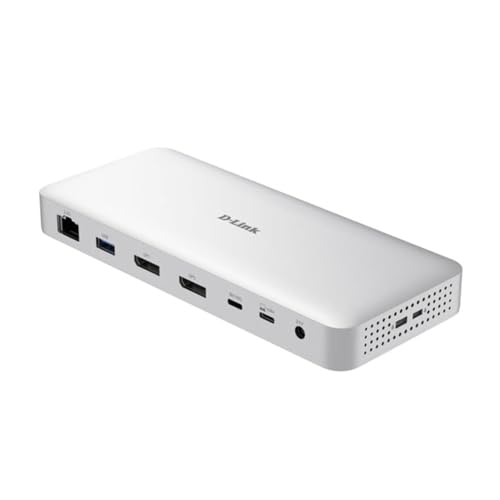
Keeping a high-bandwidth branch free while still driving two DP monitors is the specific trick here. D-Link specifies two DP 1.4 outputs alongside a 40Gbps USB4 upstream connection, and it documents a downstream 40Gbps USB4 port with DP 1.4 capability, so you can preserve that branch for a suitable monitor or peripheral. The manufacturer publishes single and dual modes under stated host conditions, with ceilings reaching 8K30 or 4K144 depending on the path.
That wording requires care, because neither the three video-capable routes nor the largest cited number establishes the exact two-screen result on your laptop. D-Link notes that Mac display count varies by model and excludes its listed 8K30 mode on macOS. D-Link rates the charging path at up to 100W and also specifies 2.5GbE. Our sources do not establish a bundled power adapter, so confirm current box contents and plan for a suitable USB-C PD supply if needed.
Our Take A two-DP desk that also needs one genuine downstream USB4 branch is exactly the DUF-901’s case. Confirm the exact dual-display row for your host rather than converting its single-display ceiling into a dual-display promise.
- D-Link documents two DP outputs and downstream USB4
- Maker specifies 2.5GbE and up to 100W charging
- Exact dual mode is host and OS dependent
- macOS has additional documented display limits
4. Microsoft Surface USB4 Dock — Best USB-C plus HDMI route
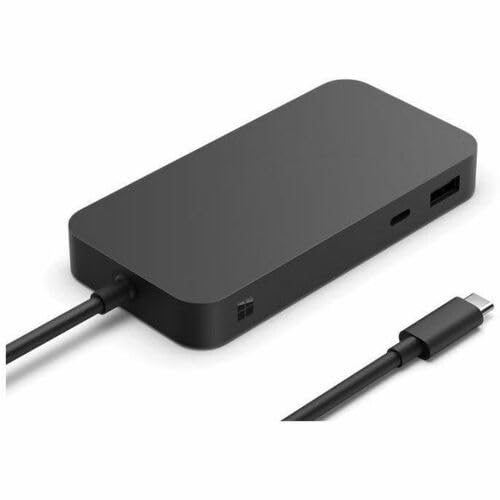
One USB-C-input monitor and one HDMI monitor is the layout this dock was built around. Microsoft specifies two downstream USB4 Gen 3/TB4-compatible USB-C ports with video output plus HDMI 2.1, and on a capable USB4 or Thunderbolt 4 host the company documents dual 4K60 through USB-C and HDMI. A suitable adapter also works on the USB-C route.
On a plain USB-C host, Microsoft explicitly reduces the display result to one 4K60 screen. That is why the connector alone is not enough. The dock’s included 100W supply delivers up to 65W to the laptop, according to Microsoft, so power-hungry hosts need a separate charging decision.
Our Take When one screen can use USB-C, the Surface dock gives a straightforward documented dual 4K60 path. Its clear plain-USB-C fallback is helpful, though 65W charging and the lack of two fixed conventional outputs narrow the audience.
- Microsoft documents dual 4K60 on capable USB4/TB4
- Two downstream USB4 video-capable branches add flexibility
- Plain USB-C is limited to one 4K60 display
- Microsoft caps host charging at 65W
5. Targus DOCK425GLZ — Best portable DP plus HDMI route
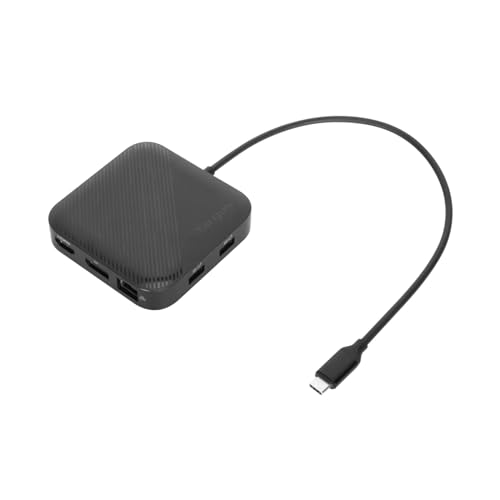
Travel presentations, and desks whose monitors lack matching inputs, are what the dedicated mixed outputs serve. Targus specifies a 40Gbps USB4 host connection with one DisplayPort 1.4 and one HDMI 2.1 output, and its published ceiling includes two 4K60 displays, subject to the host and operating system.
Unlike the full-size powered docks, the Targus can run from bus power or accept a separate USB-C supply for up to a rated 85W pass-through. No charger is included, and the dock uses part of that input before power reaches the laptop. Its downstream USB-C data port is rated at 10Gbps rather than USB4.
Our Take Portability and two conventional display sockets outranking included power is when the Targus wins. Verify native dual-display support on the exact host, especially on a Mac, before buying around the two-4K60 ceiling.
- Targus documents a qualified dual 4K60 route
- Bus-powered operation reduces the lightest travel setup
- Suitable USB-C charger is sold separately
- Dual extended displays are not universal across hosts
6. Plugable USB4-HUB3A — Best downstream-USB4 branch route
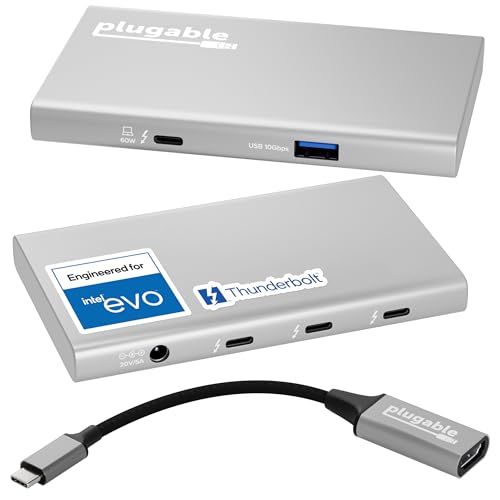
Nothing here is a fixed video socket, which is the whole idea. Plugable specifies a 40Gbps USB4/TB4 host connection and three downstream USB4/TB4 branches, and the maker documents up to dual 4K60 or one 8K on capable hosts and includes one USB-C-to-HDMI adapter. For two monitors, you need a second compatible cable or adapter and a host that exposes two native display paths through this topology.
The branch-first design suits USB-C-input monitors and mixed USB4 devices, though it omits the Ethernet and card-reader functions of larger docks. Plugable rates laptop charging at up to 60W from the included 100W supply. Follow its Apple processor documentation, because a one-display Mac remains a one-native-display host.
Our Take Choose the Plugable if you want to pick the display adapters yourself and preserve several high-bandwidth downstream ports. Fixed DP or HDMI docks are simpler when both monitors already use conventional cables.
- Plugable specifies three downstream USB4/TB4 ports
- Maker documents up to dual 4K60 on capable hosts
- Second display may require another adapter
- Host charging is rated at up to 60W
7. j5create JCD401 — Best compact 20Gbps dual-output alternative

The difference here is the number behind the name. j5create identifies a genuine USB4 controller in the JCD401 but rates the host data link at up to 20Gbps, not 40Gbps. The hub offers HDMI, DisplayPort and USB-C video routes, giving it more connector flexibility than a single-output travel hub, and the dual-display result remains dependent on the exact host path.
Base M1 and M2 Macs remain single-native-display systems through this topology, so the extra outputs do not create a second extended desktop. j5create specifies up to 85W pass-through and excludes the charger. Treat it as the compact mixed-output alternative, not the bandwidth-first recommendation.
Our Take Video-port choice in a small hub is how the JCD401 earns its place. Buy it only when 20Gbps is acceptable and the laptop documentation confirms the two-display route you intend.
- j5create documents HDMI, DP and USB-C video routes
- Compact pass-through design suits travel
- Maker caps the host link at 20Gbps
- Charger excluded and Mac display limits still apply
Build the dual 4K route on paper first
Write down the exact monitor inputs and target refresh rate. Two 4K60 DP monitors favor two dedicated DP outputs. A USB-C-input monitor plus an HDMI screen maps neatly to the Microsoft dock. Mixed HDMI and DP monitors fit Targus, and Plugable is useful when adapters and downstream flexibility are acceptable.
Then confirm the host can provide two independent display streams through its USB4 or Thunderbolt port, checking the GPU or Apple processor limit, DP tunneling and DSC requirement. A base Mac that supports one native external display does not gain a second from MST or another physical socket. Windows systems also vary by GPU and port implementation.
Read the dock’s output grouping as carefully as its maximum resolution, since a maker may cite one high single-display mode and a different dual-display combination. Never split a single-screen ceiling in half, and never assume all sockets work simultaneously. The dual-monitor docking-station guide covers more technologies if native USB4 is not mandatory.
Finally, account for cables and power. Each display connection needs a cable or adapter rated for the desired mode, and the dock’s host-delivery wattage must suit the laptop. Pass-through hubs require a separate supply and deliver less than its label after overhead. Our USB4 cable guide helps with the host connection, though no cable can add a missing display stream.
Frequently asked questions
Can any USB4 laptop run two 4K monitors?
No. USB4 identifies a protocol family rather than a universal display count. Confirm two display streams, the required DP/DSC path and the operating-system topology for the exact laptop.
Do I need DSC for dual 4K60?
Not in every documented topology. Follow the dock maker’s exact matrix for the chosen outputs and host. Where the target row requires DSC, both the host path and the rest of the display chain must support it.