For a Latitude fleet whose exact models support USB-C DisplayPort Alt Mode, the Dell Pro Dock WD25 is the best overall starting point. It puts native display routes, 2.5GbE, and the Dell ecosystem first without making Thunderbolt a requirement for every desk. The Latitude name alone is not a compatibility specification, though. Use each Service Tag and manual to confirm the host interface, charging branch, display capability, and qualified fleet behavior. Dock-button support, MAC address pass-through, PXE, Wake-on-LAN, AMT, DSC, and firmware management can vary by laptop generation, operating system, firmware, and dock. Approve those features from Dell’s exact compatibility material rather than turning a dock-family label into a fleet-wide promise.
Quick Picks
- Best overall USB-C fleet dock: Dell WD25
- Best managed Thunderbolt 4 branch: Dell SD25TB4
- Best established modular Thunderbolt branch: Dell WD22TB4
- Best mixed-fleet DisplayLink branch: Dell UD22
- Best exact Thunderbolt 5 branch: Dell SD25TB5
| Image | Product | Details | Check Price |
|---|---|---|---|
 | Dell Pro Dock WD25 | Host interface: USB-C with confirmed DP Alt Mode Fleet features: Exact Dell host qualification required Ethernet: Dell lists 2.5GbE Charging branch: Up to 100W on supported Dell systems Best for: Current native USB-C fleet | Check Price on Amazon |
 | Dell Pro Thunderbolt 4 Smart Dock SD25TB4 | Host interface: Thunderbolt 4 Fleet features: Exact Dell host qualification required Ethernet: Dell lists 2.5GbE Charging branch: Up to 130W on supported Dell systems Best for: Managed Thunderbolt 4 fleet | Check Price on Amazon |
 | Dell Thunderbolt Dock WD22TB4 | Host interface: Thunderbolt 4 Fleet features: Exact Dell host qualification required Ethernet: Dell lists Gigabit Ethernet Charging branch: Host-dependent 130W Dell path Best for: Established modular fleet | Check Price on Amazon |
 | Dell Universal Dock UD22 | Host interface: Supported USB-C data path plus driver Fleet features: DisplayLink driver deployment required Ethernet: Dell lists Gigabit Ethernet Charging branch: Up to 96W before dock loading Best for: Mixed-fleet office displays | Check Price on Amazon |
 | Dell Pro Thunderbolt 5 Smart Dock SD25TB5 | Host interface: Exact compatible Thunderbolt 5 path Fleet features: Exact Dell host qualification required Ethernet: Dell lists 2.5GbE Charging branch: Up to 300W Dell through supported path Best for: Qualified high-end TB5 branch | Check Price on Amazon |
 | CalDigit TS4 | Host interface: Thunderbolt 4 Fleet features: No Dell fleet-feature promise Ethernet: CalDigit lists 2.5GbE Charging branch: CalDigit rates host charging at 98W Best for: Peripheral-heavy individual desk | Check Price on Amazon |
 | Plugable TBT4-UDZ | Host interface: Thunderbolt 4 or USB4 Fleet features: No Dell fleet-feature promise Ethernet: Plugable lists 2.5GbE Charging branch: Negotiated below a rigid 100W guarantee Best for: Mixed monitor connectors | Check Price on Amazon |
1. Dell Pro Dock WD25 — Best Overall Current USB-C Fleet Dock

Where the Latitude models in scope have confirmed USB-C DisplayPort Alt Mode, the WD25 is the sensible default. Dell documents two DisplayPort 1.4 outputs, HDMI 2.1, a multifunction USB-C DisplayPort 1.4 route, 2.5GbE, and Dell management features that remain host specific. The display path is native, so it avoids a DisplayLink driver in the standard office image.
Dell publishes up to 100W for supported Dell systems and 96W for non-Dell systems. The exact Latitude still controls accepted charging, DSC-dependent displays, dock-button behavior, MAC pass-through, PXE, Wake-on-LAN, and remote management. Confirm each required feature in Dell’s model-specific material.
Our Take Standardize on the WD25 when USB-C DP Alt Mode covers the fleet and Dell confirms the management functions you actually deploy. Do not approve it from the connector shape or the Latitude badge alone.
- Dell lists 2.5GbE and native display outputs
- Current Dell USB-C fleet branch
- Requires confirmed DP Alt Mode for native video
- Fleet and DSC behavior must be qualified by exact host
2. Dell Pro Thunderbolt 4 Smart Dock SD25TB4 — Best Managed Thunderbolt 4 Fleet Dock
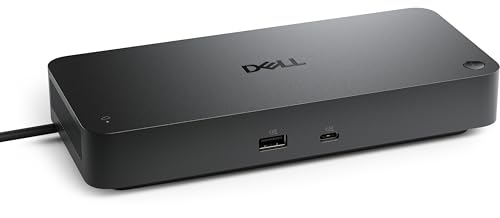
A Latitude group whose exact systems support Thunderbolt 4 and the required Dell behavior should be looking at the SD25TB4. Dell documents two DisplayPort 1.4 outputs, HDMI 2.1, a multifunction USB-C DisplayPort 1.4 connection, two downstream Thunderbolt 4 ports, and 2.5GbE. That makes it the stronger native expansion route when users need Thunderbolt peripherals alongside monitors and Ethernet.
Dell publishes up to 130W on supported Dell systems and 96W on non-Dell systems. Host DP and DSC support determine display ceilings. Management, boot, wake, MAC, and dock-button requirements must be checked separately for the exact Latitude, OS, BIOS, and dock firmware combination.
Our Take For a verified Thunderbolt fleet that benefits from downstream Thunderbolt and 2.5GbE, the SD25TB4 is the right dock. Its smart-dock name is not evidence that every Latitude exposes every enterprise feature.
- Dell documents Thunderbolt 4 and 2.5GbE
- Two downstream Thunderbolt 4 ports
- Display limits vary with host DP and DSC support
- Enterprise behavior needs exact-platform qualification
3. Dell Thunderbolt Dock WD22TB4 — Best Established Modular Thunderbolt Choice

The WD22TB4 fits organizations that prefer Dell’s established modular Thunderbolt 4 platform. Dell lists two DisplayPort 1.4 outputs, HDMI 2.0, a multifunction USB-C DisplayPort 1.4 route, two downstream Thunderbolt 4 ports, and Gigabit Ethernet. A long-lived platform can matter more than the newest connector set.
Dell’s host display table remains the authority for monitor ceilings, and the 130W Dell charging route is host dependent. A mixed Latitude inventory can therefore produce different results from the same dock. Qualify the exact models and firmware image before treating one successful desk as proof for the fleet.
Our Take Take the WD22TB4 when Dell’s exact documentation covers the Latitude estate and the modular platform matches your support process. Move to the SD25TB4 instead when 2.5GbE is the stronger requirement.
- Dell-documented modular Thunderbolt 4 platform
- Two downstream Thunderbolt 4 ports
- Gigabit Ethernet rather than 2.5GbE
- Dell host table controls multi-monitor ceilings
4. Dell Universal Dock UD22 — Best DisplayLink-Assisted Mixed-Fleet Choice

Mixed fleets that can live with a driver-managed display path have their compatibility branch in the UD22. Dell describes a USB-C 10Gbps hybrid dock with two DisplayPort 1.2 outputs, HDMI 2.0, USB-C DisplayPort 1.4 Alt Mode, Gigabit Ethernet, and a required Synaptics DisplayLink driver. Dell publishes up to 96W before adaptive dock loading.
DisplayLink adds software USB graphics; it is not the native GPU path. Driver deployment, host DP and DSC support, output grouping, and workload must be part of the fleet image. It is a poor promise for gaming, protected playback, color-critical work, or high-motion tasks.
Our Take Deploy the UD22 when its hybrid topology solves a real mixed-fleet display problem and IT can own the driver. Stay on the native WD25 or Thunderbolt paths where those already meet the monitor requirement.
- Dell documents hybrid native and DisplayLink groups
- Can fit supported mixed office-display estates
- Synaptics DisplayLink driver is required
- Software graphics add deployment and workload limits
5. Dell Pro Thunderbolt 5 Smart Dock SD25TB5 — Best Exact Thunderbolt 5 Branch
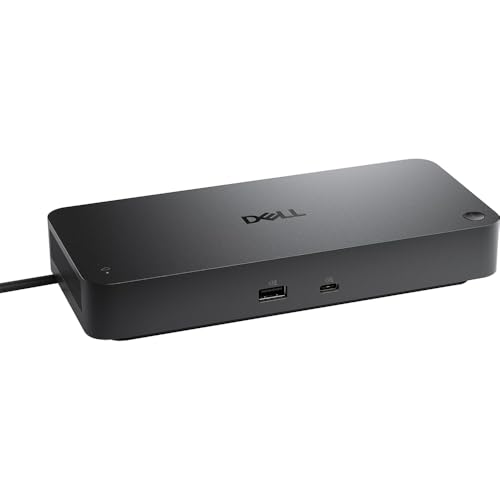
The SD25TB5 belongs only in the high-end branch where the exact Latitude supports Thunderbolt 5 and Dell lists the required cable and power path. Dell documents two DisplayPort 2.1 outputs, HDMI 2.1, a multifunction USB-C DisplayPort 2.1 route, two downstream Thunderbolt 5 ports, and 2.5GbE.
Dell publishes ceilings up to 300W for Dell systems and 240W for non-Dell systems, but the compatible host and cable route determine whether those figures apply. Do not buy it for a conventional Latitude fleet simply because the number is larger. Its display and management outcomes stay exact-host decisions.
Our Take Reserve the SD25TB5 for a verified Thunderbolt 5 Latitude deployment with a documented reason for the newer path. It is a compatibility branch, not a universal upgrade over the WD25 or SD25TB4.
- Dell lists Thunderbolt 5 and DisplayPort 2.1 routes
- Dell lists 2.5GbE and downstream Thunderbolt 5
- Headline power depends on an exact supported host and cable path
- Little reason to standardize without a real Thunderbolt 5 requirement
6. CalDigit TS4 — Best Peripheral-Heavy Individual Desk
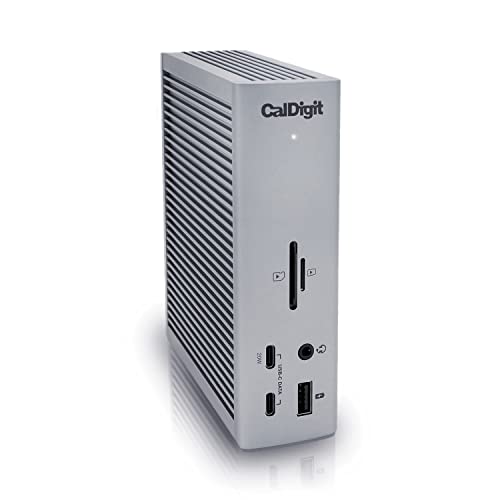
CalDigit’s TS4 is a single-desk answer, aimed at the individual Latitude user who values peripheral breadth over Dell-specific fleet behavior. CalDigit states that the Thunderbolt 4 dock provides DisplayPort 1.4 and downstream-Thunderbolt display routes, 2.5GbE, UHS-II readers, and 98W host charging.
Its display ceiling depends on the exact Dell GPU, OS, display route, adapters, and monitors. CalDigit’s 98W figure must also be compared with the Latitude’s accepted charging path. PXE, MAC pass-through, dock-button behavior, and Dell remote firmware functions should not be inferred for this third-party dock.
Our Take Give the TS4 to users whose card readers and peripheral needs justify a desk-specific exception. It is not the first choice for a standardized fleet image built around qualified Dell management behavior.
- CalDigit specifies 2.5GbE and UHS-II readers
- Native Thunderbolt 4 peripheral path
- No Dell fleet-feature promise
- Display route depends on the complete host chain
7. Plugable TBT4-UDZ — Best Mixed-Monitor Connector Choice
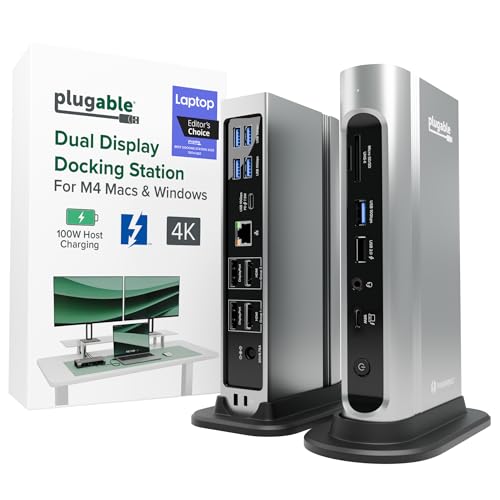
The TBT4-UDZ targets a supported Thunderbolt 4 or USB4 Latitude desk where monitor cabling is the awkward part. Plugable documents two HDMI and two DisplayPort groups plus 2.5GbE. IT can match either connector family without assuming every socket becomes an active display.
Plugable does not promise four simultaneous displays on every host, and charging is negotiated below a rigid 100W guarantee. The exact Latitude GPU and port determine the output topology. Dell enterprise functions sit outside what our Plugable sources establish and must not be assumed.
Our Take Reach for the TBT4-UDZ when existing HDMI and DisplayPort monitors justify the connector choice. For a managed standard image, a qualified Dell dock remains the clearer first branch.
- Plugable provides HDMI and DisplayPort groups
- Plugable lists 2.5GbE
- No four-display guarantee from socket count
- Dell fleet-specific functions are not established
How to Qualify a Latitude Dock for a Fleet
Build the exact host matrix
Export the Service Tags and group laptops by exact model, USB-C or Thunderbolt protocol, accepted charging path, GPU/display capability, operating system, and BIOS level. A single Latitude fleet can hold native USB-C, Thunderbolt 4, and newer Thunderbolt branches at the same time. Choose a primary dock only after those groups are visible.
Turn enterprise features into acceptance tests
List only the features the organization actually depends on, such as dock-button behavior, MAC address pass-through, PXE, Wake-on-LAN, AMT, DSC-based displays, or remote firmware handling. Dell’s exact laptop-and-dock qualification is the evidence boundary. A feature working on one Latitude generation does not establish it for another.
Test Ethernet as part of the approved image and network policy rather than as a port-count check. Native display paths simplify deployment, while DisplayLink adds a driver and a software graphics layer that must be maintained.
Pilot the whole desk topology
Validate the dock against the actual monitor inputs, resolutions, refresh modes, cables, adapters, Ethernet policy, BIOS settings, OS image, and charging expectation. Dell’s headline display or power ceiling is not a substitute for that topology. Keep the deployment decision scoped to the models that passed.
Frequently Asked Questions
Does a Dell dock guarantee PXE, Wake-on-LAN, and MAC pass-through on every Latitude?
No. Those are qualified compatibility branches. Check Dell’s documentation for the exact laptop, dock, OS, BIOS, and firmware combination required by the deployment.
Is DisplayLink a good default for a Latitude fleet?
It can solve a supported mixed-fleet office-display problem, but it adds a Synaptics driver and software USB graphics. Prefer a native DP Alt Mode or Thunderbolt path when that path already covers the monitor requirement.
Should every Latitude user receive the same dock?
Only if the exact host matrix and required features support that standard. A fleet with different port protocols, power needs, and display paths can need two qualified branches rather than one dock selected by connector shape.