For an XPS 15 or XPS 16 whose exact documentation confirms Thunderbolt 4 and the supported Dell charging path, the Dell Pro Thunderbolt 4 Smart Dock SD25TB4 is the best overall desk dock. The question that matters is not whether the plug fits. It is whether the dock supplies the operating power your configuration expects while supporting the intended display route. Record the Service Tag, original adapter wattage, host-port protocol, GPU route, and monitor layout before choosing. A dock can run every peripheral you need and still fall short of the laptop’s full-power requirement under sustained load. When that happens, keep the original charger connected rather than reading a lower dock figure as a compatibility failure.
Quick Picks
- Best overall Dell Thunderbolt desk: Dell SD25TB4
- Best established Dell power branch: Dell WD22TB4
- Best established USB-C DP Alt Mode branch: Dell WD19S
- Best native USB-C management branch: Dell WD25
- Best third-party creator desk when dock power is sufficient: CalDigit TS4
| Image | Product | Details | Check Price |
|---|---|---|---|
 | Dell Pro Thunderbolt 4 Smart Dock SD25TB4 | Required host port: Thunderbolt 4 on the exact XPS Dell power path: Up to 130W on supported Dell systems Display outputs: 2x DP 1.4, HDMI 2.1, USB-C DP, downstream TB4 Keep original charger?: Yes if exact power support is not established Best for: Current Dell Thunderbolt desk | Check Price on Amazon |
 | Dell Thunderbolt Dock WD22TB4 | Required host port: Thunderbolt 4 on the exact XPS Dell power path: Host-dependent 130W Dell path Display outputs: 2x DP 1.4, HDMI 2.0, USB-C DP, downstream TB4 Keep original charger?: Yes when Dell support does not cover full demand Best for: Established modular Dell setup | Check Price on Amazon |
 | Dell Dock WD19S | Required host port: USB-C with confirmed DP Alt Mode Dell power path: Dell-host-specific USB-C power behavior Display outputs: 2x DP 1.4, HDMI 2.0, multifunction USB-C display Keep original charger?: Plan to keep it for an unconfirmed high-power host Best for: Established native USB-C I/O | Check Price on Amazon |
 | Dell Pro Dock WD25 | Required host port: USB-C with confirmed DP Alt Mode Dell power path: Up to 100W on supported Dell systems Display outputs: 2x DP 1.4, HDMI 2.1, multifunction USB-C DP Keep original charger?: Likely for a host needing more than confirmed output Best for: Current native USB-C management path | Check Price on Amazon |
 | CalDigit TS4 | Required host port: Thunderbolt 4 Dell power path: CalDigit rates host charging at 98W Display outputs: DP 1.4 and downstream Thunderbolt routes Keep original charger?: Yes when 98W does not meet exact demand Best for: Creator peripheral selection | Check Price on Amazon |
 | Plugable TBT4-UDZ | Required host port: Thunderbolt 4 or USB4 Dell power path: Negotiated below a rigid 100W guarantee Display outputs: Two HDMI and two DisplayPort groups Keep original charger?: Yes for unconfirmed high-power operation Best for: Mixed HDMI and DisplayPort desk | Check Price on Amazon |
1. Dell Pro Thunderbolt 4 Smart Dock SD25TB4 — Best Overall Dell Thunderbolt Desk
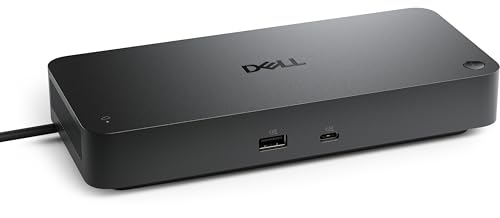
Start with the SD25TB4 for an exact XPS 15 or XPS 16 that Dell lists on the supported Thunderbolt and charging path. Dell documents two DisplayPort 1.4 outputs, HDMI 2.1, a multifunction USB-C DisplayPort 1.4 output, two downstream Thunderbolt 4 ports, and 2.5GbE. That is a strong native I/O base for a large XPS, with no software graphics driver in the path.
Dell publishes up to 130W on supported Dell systems and 96W on non-Dell systems, and neither figure proves full operating power for every XPS configuration. The laptop’s adapter requirement and Dell compatibility record decide whether you can remove the original charger. Display ceilings branch separately, on host DisplayPort and DSC capability.
Our Take When Dell confirms both the port and the power path for your XPS, the SD25TB4 is the cleanest choice. Keep the original adapter nearby until the exact combination is known to cover the load you run.
- Dell documents a native Thunderbolt 4 display path
- Dell lists 2.5GbE and downstream Thunderbolt 4
- Published 130W requires a supported Dell host
- Full-power operation is not guaranteed for every XPS configuration
2. Dell Thunderbolt Dock WD22TB4 — Best Established 130W Dell Path
The established Dell alternative is the WD22TB4, which applies when the exact host appears in Dell’s Thunderbolt and display documentation. Dell specifies a modular Thunderbolt 4 design with two DisplayPort 1.4 outputs, HDMI 2.0, a multifunction USB-C DisplayPort 1.4 route, two downstream Thunderbolt 4 ports, and Gigabit Ethernet.
Its 130W Dell charging route is host dependent. On a performance-focused XPS, compare that number with the original adapter requirement rather than treating it as a replacement promise. The same caution applies to displays: Dell’s WD22TB4 host table, not the number of sockets on the dock, determines the supported multi-monitor result.
Our Take Take the WD22TB4 when its mature modular design and exact Dell support entry line up with your laptop. It is no shortcut around checking power demand or the GPU-to-display path.
- Dell publishes an established modular Thunderbolt 4 design
- Two downstream Thunderbolt 4 ports expand the desk
- Dell host table controls the display ceiling
- Published charging can remain below a high-power XPS requirement
3. Dell Dock WD19S — Best Established Native USB-C Choice

An XPS whose exact port supports DisplayPort Alt Mode has an established native USB-C option in the WD19S. Dell documents a USB-C DP Alt Mode dock with two DisplayPort 1.4 outputs, HDMI 2.0, a multifunction USB-C display path, and Gigabit Ethernet. It keeps video on the laptop’s native display route and does not require DisplayLink.
That also defines its limits. Dell does not describe the WD19S as a Thunderbolt expansion dock, and a USB-C socket without DP Alt Mode cannot drive its native display outputs. Dell-specific power behavior depends on the host, so a larger XPS may still need its original adapter while the WD19S handles monitors, Ethernet, and USB devices.
Our Take If Dell confirms DP Alt Mode and you would rather not pay for unused Thunderbolt expansion, the WD19S is the established Dell I/O path. Keep separate power in the plan when the laptop’s adapter requirement exceeds the confirmed dock-host result.
- Dell documents native USB-C DP Alt Mode video
- Useful Dell display and Gigabit Ethernet layout
- No Thunderbolt expansion
- Requires DP Alt Mode and host-specific power checking
4. Dell Pro Dock WD25 — Best Current USB-C Management Choice

The WD25 carries the USB-C branch for an XPS 15 or XPS 16 with confirmed DP Alt Mode. Dell lists two DisplayPort 1.4 connections, HDMI 2.1, a multifunction USB-C DisplayPort 1.4 connection, 2.5GbE, and Dell management features whose availability remains host specific. Video follows the native GPU path instead of a DisplayLink layer.
Dell publishes up to 100W for supported Dell systems and 96W for non-Dell systems. Those numbers can serve a lower-power configuration and can still fall short of replacing the original adapter on a performance model. Dell’s display ceilings depend on DSC and the exact host as well.
Our Take The WD25 fits when you want Dell’s USB-C platform and the exact XPS can use its native DP Alt Mode route. Treat it as an I/O dock with conditional charging, not an automatic full-power substitute.
- Dell lists 2.5GbE and the stated display connectors
- Native GPU display route through DP Alt Mode
- Dell publishes a 100W ceiling for supported Dell systems
- Management and display features remain host specific
5. CalDigit TS4 — Best Creator Port Selection When 98W Is Sufficient
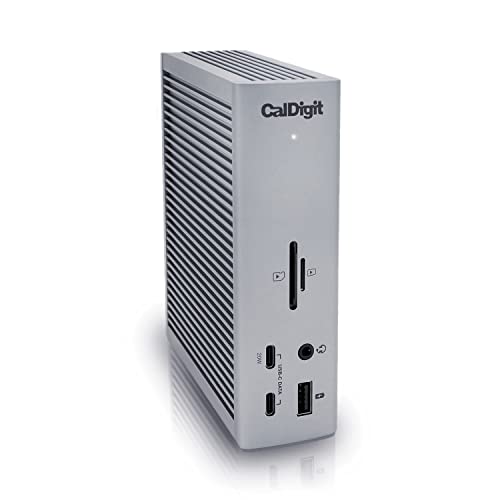
The TS4 earns its place when the desk needs more than display outputs. CalDigit specifies Thunderbolt 4, DisplayPort 1.4 and downstream-Thunderbolt display routes, 2.5GbE, UHS-II readers, and 98W host charging. For a creator, those card readers and peripheral paths can outrank Dell management integration.
The charging limit is the decision point. CalDigit rates the host connection at 98W, so compare that figure with the exact XPS adapter requirement and workload. The supported display ceiling is equally conditional on the Dell GPU, operating system, chosen ports, adapters, and monitors. It cannot be read from connector count alone.
Our Take Two things make the TS4 right: its peripheral mix solves the real desk problem, and either 98W is enough for the configuration or you are willing to retain the Dell charger. Do not choose it to avoid host-specific display checks.
- CalDigit specifies UHS-II readers and 2.5GbE
- Native Thunderbolt 4 peripheral path
- CalDigit rates host charging at 98W
- Complete host and monitor chain controls display support
6. Plugable TBT4-UDZ — Best Mixed HDMI and DisplayPort Layout
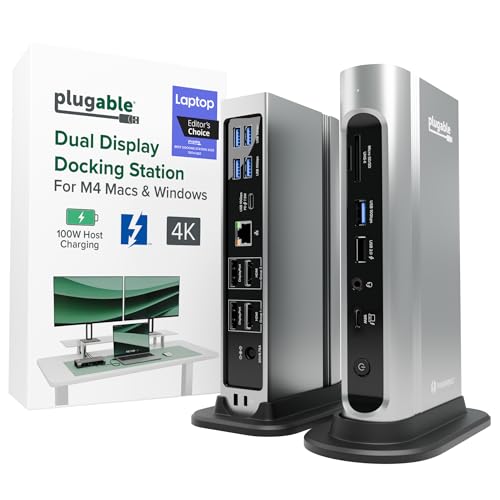
Plugable’s TBT4-UDZ is useful when the monitor side of the desk mixes HDMI and DisplayPort. Plugable documents Thunderbolt 4 and USB4 host support, two HDMI and two DisplayPort groups, and 2.5GbE. It gives you connector choice without forcing a particular display cable standard.
The four video sockets are alternate routes, not a universal four-monitor entitlement. The exact XPS GPU and host path determine the active topology. Plugable also describes negotiated charging rather than a rigid 100W guarantee, so high-power XPS users should expect to compare the result with the original adapter and keep that adapter where necessary.
Our Take Reach for the TBT4-UDZ when cable and monitor connector flexibility outweigh Dell-specific features. What it sells is routing choice, not a promise of four displays or full XPS operating power.
- Plugable supplies HDMI and DisplayPort groups
- Plugable lists 2.5GbE
- Four sockets do not guarantee four active displays
- Charging is negotiated rather than a fixed 100W promise
Buying for Power and Displays, Not Just Connectivity
Record the laptop’s power requirement first
Use the Service Tag to open Dell’s manual and compatibility information, then note the wattage on the original adapter. A dock’s published maximum and a laptop’s expected input are different facts. If Dell confirms the combination and its output covers the configuration, a one-cable desk may be possible. If it does not, the dock can still be the correct display and peripheral hub while the original adapter stays connected.
Do not describe that two-cable arrangement as dangerous or broken. The useful question is whether the dock supplies stable I/O and whether the original charger preserves the laptop’s intended power behavior under the work you run.
Trace the GPU-to-monitor route
Confirm Thunderbolt versus USB-C DP Alt Mode on the host. Then list each monitor’s connector, resolution, and refresh requirement. Dell’s display tables and the third-party maker’s supported topology should cover the whole chain: laptop GPU, DP/DSC capability, dock route, adapters, and monitors. A dock with four video sockets can expose fewer simultaneous outputs on your XPS.
Separate a missing display from a power mismatch
If a display is absent, verify the selected dock port group, cable, input selection, firmware, and exact host table before blaming charging. If the laptop reports slow charging or reduces performance, compare the negotiated dock path with the original adapter requirement. Those are two different problems that happen to share a desk.
Frequently Asked Questions
Does 130W from a Dell dock guarantee full power for every XPS 15 or XPS 16?
No. Dell limits that figure to supported Dell systems, and the exact laptop, dock, cable path, and adapter requirement control the outcome. Verify the Service Tag against Dell’s compatibility information.
Is a 98W Thunderbolt dock a bad choice for a larger XPS?
Not automatically. It can be the right peripheral and display dock when 98W meets the configuration or when you retain the original Dell charger. Choose on the documented power path and your setup, not on one larger number alone.
Can I infer display support from the dock’s HDMI and DisplayPort count?
No. Physical sockets only show possible connections. The laptop GPU, DP and DSC capability, dock grouping, operating system, adapters, monitor modes, and manufacturer topology determine how many displays work together.