Our best overall Thunderbolt 4 dock with a physical HDMI 2.1 port is the Sonnet Echo 20. Sonnet lists two downstream Thunderbolt 4 ports, 2.5GbE, and an internal M.2 NVMe slot, and rates host charging at up to 100W. Go with the StarTech 132N instead when StarTech’s two built-in HDMI 2.1 ports are the central requirement for a qualified Windows desk.
HDMI 2.1 on the dock identifies a manufacturer-documented physical port. By itself it promises no 4K120, no 8K, no FRL, no HDR, no DSC, and no particular extended-display count. The host, GPU or chip, operating system, dock topology, cable, monitor input, resolution, and refresh rate all have to support the same mode. Our broader Thunderbolt 4 dock guide covers buyers who do not require this connector.
Quick picks
- Sonnet Echo 20: Best overall HDMI 2.1 choice.
- Dell SD25TB4: Best HDMI 2.1 choice for a managed Dell desk.
- Anker 778 A83A9: Best mix of conventional display outputs.
- OWC Thunderbolt Go Dock: Best travel dock with integrated power.
- StarTech 132N-TB4USB4DOCK: Best dual-HDMI 2.1 Windows layout.
- Lenovo Universal TB4 Dock: Best universal Lenovo option.
- Lenovo Smart Dock Gen 2 7500: Best Lenovo management path.
| Image | Product | Details | Check Price |
|---|---|---|---|
 | Sonnet Echo 20 Thunderbolt 4 SuperDock | HDMI 2.1 ports: One Manufacturer display ceiling: Dual-display ceiling controlled by the host Host boundary: Exact laptop, OS, supported topology, cable, and monitor input control the result Charging: Up to 100W host charging Best for: HDMI 2.1 desks that also need internal M.2 NVMe storage | Check Price on Amazon |
 | Dell Pro Thunderbolt 4 Smart Dock SD25TB4 | HDMI 2.1 ports: One Manufacturer display ceiling: Up to four external displays Host boundary: Exact Dell or non-Dell host and selected output combination control the result Charging: 130W on supported Dell systems; 96W on non-Dell systems Best for: A managed supported Dell desk | Check Price on Amazon |
 | Anker 778 Thunderbolt Docking Station A83A9 | HDMI 2.1 ports: One Manufacturer display ceiling: Up to four displays on a qualified Windows host Host boundary: Anker states incompatibility with base M1 and M2 MacBooks; socket count alone does not prove display count Charging: Up to 100W, falling to 65W when both 30W USB-C charging ports are used Best for: A qualified Windows desk needing HDMI and DisplayPort flexibility | Check Price on Amazon |
 | OWC Thunderbolt Go Dock | HDMI 2.1 ports: One Manufacturer display ceiling: Dual 4K60 ceiling Host boundary: Exact laptop, supported second route, cable or adapter, and monitors must qualify Charging: 90W host charging; built-in power supply Best for: A travel or shared desk that benefits from integrated power | Check Price on Amazon |
 | StarTech 132N-TB4USB4DOCK | HDMI 2.1 ports: Two Manufacturer display ceiling: Up to four 4K60 displays on qualified Windows hosts Host boundary: Host video and DSC support control the ceiling; Windows figure is not a Mac promise Charging: 98W host charging Best for: A qualified Windows layout needing two direct HDMI 2.1 ports | Check Price on Amazon |
 | Lenovo ThinkPad Universal Thunderbolt 4 Dock 40B00135US | HDMI 2.1 ports: One Manufacturer display ceiling: Up to four 4K60 displays on qualified Windows hosts Host boundary: Exact Windows host and output topology must qualify; use exact model 40B00135US Charging: Up to 100W Power Delivery Best for: A standard Lenovo-branded HDMI 2.1 desk | Check Price on Amazon |
 | Lenovo ThinkPad Thunderbolt 4 Smart Dock Gen 2 7500 | HDMI 2.1 ports: One Manufacturer display ceiling: Multiple-display Windows path; universal numerical ceiling not retained Host boundary: Exact host controls display and fleet features; use exact model 40BE0135US Charging: 100W PD 3.1 Best for: A managed Lenovo environment | Check Price on Amazon |
1. Sonnet Echo 20 Thunderbolt 4 SuperDock – Best overall HDMI 2.1 choice
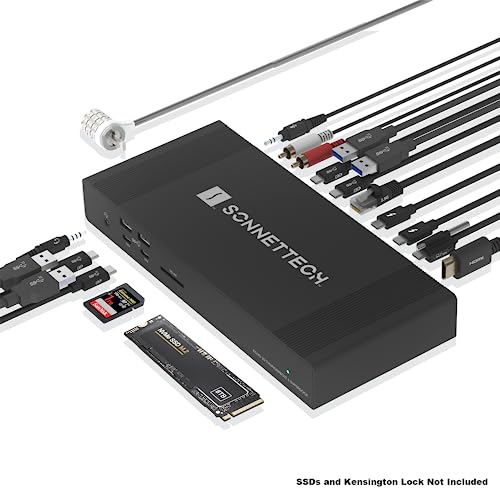
The Echo 20 makes sense when HDMI 2.1 is non-negotiable and you can put its other expansion features to work. Sonnet provides one HDMI 2.1 port plus two downstream Thunderbolt 4 ports, then adds 2.5GbE and an internal M.2 NVMe slot, so one dock can handle a direct monitor, wired networking, and internal storage expansion.
Sonnet rates host charging up to 100W. The dual-display ceiling Sonnet documents stays under the host’s control, so three possible display routes do not add up to three extended screens. Sonnet does not document a specific 4K120, 8K, FRL, HDR, or DSC result for this HDMI route in the cited specifications.
Our Take
When NVMe storage and 2.5GbE are both useful to you, the Echo 20 is the best-rounded HDMI 2.1 dock here. It is more expansion than a basic one-monitor desk needs.
- Physical HDMI 2.1 port
- Two downstream Thunderbolt 4 ports and 2.5GbE
- Internal M.2 NVMe slot and up to 100W charging
- Host controls the dual-display ceiling
- HDMI 2.1 label alone proves no specific video mode
- NVMe slot adds little for buyers who already have storage covered
2. Dell Pro Thunderbolt 4 Smart Dock SD25TB4 – Best Dell and fleet choice
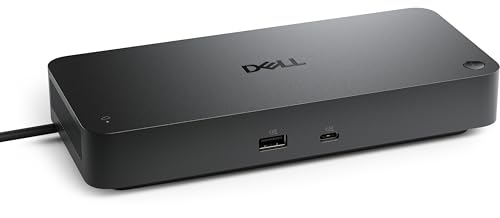
The SD25TB4 is the answer when a supported Dell system needs HDMI 2.1, fleet-oriented integration, and several additional display routes. Dell documents one HDMI 2.1 port, two DisplayPort 1.4 outputs, and two downstream Thunderbolt 4 ports, with a ceiling of up to four external displays. What you actually get comes down to the exact host and the selected output combination.
Charging splits by laptop brand and support path. Dell documents 130W for supported Dell systems and 96W for non-Dell systems, and that 130W branch is not universal USB Power Delivery. The dock also includes 2.5GbE, which strengthens its fit for a matched Dell office.
Our Take
For a supported Dell fleet, the SD25TB4 is the best HDMI 2.1 option. On another laptop brand, evaluate it as a 96W dock with host-dependent display behavior.
- One HDMI 2.1 plus two DisplayPort 1.4 outputs
- Two downstream Thunderbolt 4 ports and 2.5GbE
- 130W charging on supported Dell systems
- Non-Dell charging ceiling is 96W
- 130W branch is Dell-specific
- Up-to-four-display ceiling is host-dependent
3. Anker 778 Thunderbolt Docking Station A83A9 – Best conventional-output flexibility

One HDMI 2.1 port, two DisplayPort outputs, and a downstream Thunderbolt 4 route is what the Anker 778 brings to the desk. Anker lists up to four displays on a qualified Windows host, but that ceiling stays tied to the host. It does not follow from the number of sockets alone.
Anker rates host Power Delivery up to 100W, falling to 65W when both 30W USB-C charging ports are used. That shared-power boundary matters if you expect to charge the laptop and two USB-C devices at once. Anker also states that the dock is incompatible with base M1 and M2 MacBooks. Ethernet is 1GbE.
Our Take
On a qualified Windows host, nothing here matches the Anker 778 for conventional-output flexibility. Avoid it for a base M1 or M2 MacBook, and plan around the 65W shared-power case.
- One HDMI 2.1 plus two DisplayPort outputs
- Downstream Thunderbolt 4 display route
- Up to 100W host Power Delivery when the shared-power reduction does not apply
- Host charging falls to 65W when both 30W USB-C charging ports are used
- Anker states incompatibility with base M1 and M2 MacBooks
- 1GbE rather than 2.5GbE
4. OWC Thunderbolt Go Dock – Best built-in-power travel desk
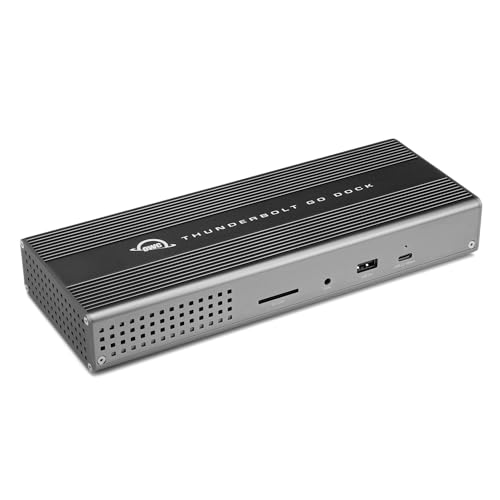
The OWC Thunderbolt Go Dock combines HDMI 2.1 with an integrated power supply. Losing the separate power brick makes the physical setup distinct for travel, hot desks, and compact work areas. OWC documents a dual 4K60 ceiling and includes 2.5GbE.
OWC rates host charging at 90W. Because OWC does not enumerate every valid two-output combination in the cited specifications, follow its topology for the second display rather than assuming any available connection will work. The HDMI 2.1 port is a documented connector, not independent proof of a higher refresh or resolution mode.
Our Take
When built-in power cuts desk or travel clutter, the Go Dock is the best HDMI 2.1 choice. Its 90W charging limit may rule it out for a higher-power laptop.
- Physical HDMI 2.1 port
- Built-in power supply
- OWC-documented dual 4K60 ceiling and 2.5GbE
- 90W charging ceiling
- Exact second-display route must follow OWC’s topology
- Connector name alone establishes no specific high-refresh mode
5. StarTech 132N-TB4USB4DOCK – Best dual-HDMI 2.1 Windows layout

Two physical HDMI 2.1 ports beat a single HDMI route on some desks, and that is the StarTech 132N’s whole argument. StarTech pairs them with two DisplayPort 1.4 outputs and documents up to four 4K60 displays on qualified Windows hosts. It also includes 2.5GbE and rates host charging at 98W.
That four-display ceiling requires the host video path and DSC support documented by StarTech. It is not a Mac promise, and four sockets do not create four display streams. This model belongs on a Windows desk whose monitors already use HDMI, with the exact laptop and display mode checked against the manufacturer topology.
Our Take
For a qualified Windows layout, the 132N is the clearest dual-HDMI 2.1 choice. Its 98W charging ceiling and host-specific display requirements are the tradeoffs.
- Two physical HDMI 2.1 ports
- Two DisplayPort 1.4 outputs and 2.5GbE
- Up to four 4K60 displays on qualified Windows hosts
- Host video and DSC control the display ceiling
- 98W falls below a strict 100W charging requirement
- Windows ceiling must not be transferred to macOS
6. Lenovo ThinkPad Universal Thunderbolt 4 Dock 40B00135US – Best universal Lenovo option

If you want a Lenovo-branded TB4 dock with one HDMI 2.1 and two DisplayPort 1.4 outputs, look for the exact 40B00135US Universal Dock. Lenovo documents up to four 4K60 displays on qualified Windows hosts. As with the other high display-count docks, the laptop path must expose the required streams.
Lenovo rates host Power Delivery up to 100W and includes 1GbE. This model is the simpler of the two Lenovo options, the one to take when you need a standard dock rather than the newer managed path of the Smart Dock Gen 2. Its Windows ceiling does not establish equivalent Mac behavior.
Our Take
Among standard Lenovo options, the 40B00135US is the best HDMI 2.1 choice. Buy it for a qualified Windows desk, not from the four-display headline alone.
- One HDMI 2.1 plus two DisplayPort 1.4 outputs
- Up to four 4K60 displays on qualified Windows hosts
- Up to 100W Power Delivery
- 1GbE rather than 2.5GbE
- Four-display ceiling is Windows-host dependent
- Exact model 40B00135US must be matched
7. Lenovo ThinkPad Thunderbolt 4 Smart Dock Gen 2 7500 – Best Lenovo management path
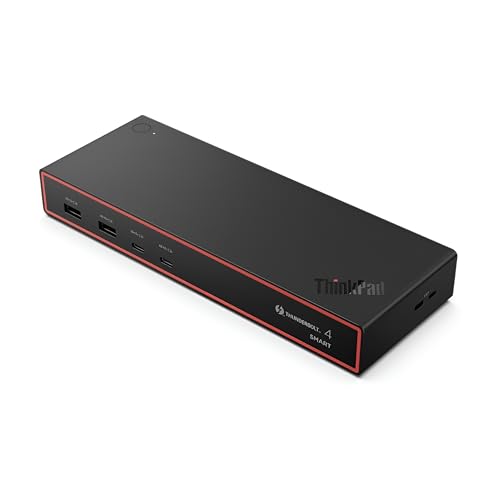
When Lenovo fleet management is part of the buying job, the exact model to find is the 40BE0135US Smart Dock Gen 2 7500. Lenovo lists one HDMI 2.1 port, two DisplayPort 1.4 outputs, one downstream Thunderbolt 4 port, and 2.5GbE, and rates host charging at 100W PD 3.1.
Lenovo establishes a multiple-display Windows path but not a universal numerical ceiling for every host, and the exact laptop also controls which fleet features are available. That makes this a precise managed-environment choice rather than a generic answer for any computer with Thunderbolt 4.
Our Take
The 40BE0135US is the best Lenovo-managed HDMI 2.1 path. Drop back to the Universal Dock when management features do not justify the more specific host dependency.
- One HDMI 2.1 plus two DisplayPort 1.4 outputs
- One downstream Thunderbolt 4 port and 2.5GbE
- 100W PD 3.1
- Exact host controls fleet features
- Multiple-display path is Windows-specific
- Lenovo does not state a universal display-count ceiling
How to choose a Thunderbolt 4 dock with HDMI 2.1
Start with the exact video mode, not the connector label. Write down the resolution, refresh rate, color features, and number of extended displays you need, then find that complete mode in the manufacturer’s host matrix. HDMI 2.1 can name a physical port without proving 4K120, 8K, FRL, HDR, or DSC support. Our HDMI 2.1 versus DisplayPort 1.4 guide explains the connector decision when your monitor accepts both.
Next, count the outputs you will actually use. Sonnet and OWC provide one direct HDMI route, StarTech provides two, and Dell, Anker, and both Lenovo docks add DisplayPort outputs. Those sockets are routing options, not extra display engines. A laptop that exposes fewer display streams will not gain more because a dock has more connectors.
Check the operating-system branch separately. StarTech, Anker, and Lenovo state their higher display-count paths for qualified Windows hosts, and Dell ties its ceiling to the exact host and output combination. Never assume a Windows MST or DSC route works the same way on macOS. If Thunderbolt 4 is not required, the adjacent USB-C docks with HDMI 2.1 guide covers that wider field.
Finally, match charging and networking to the laptop. Dell rates 130W only for supported Dell systems. Anker states that charging can fall from 100W to 65W when both 30W USB-C charging ports are in use. OWC rates 90W, StarTech rates 98W, and Sonnet and both Lenovo docks rate 100W on their named paths. Not one of those ceilings proves that the laptop will accept the full amount under every workload.
HDMI 2.1 dock FAQ
Does an HDMI 2.1 dock guarantee 4K at 120Hz?
No. The connector name alone does not establish that mode. The laptop GPU or chip, operating system, Thunderbolt implementation, dock path, cable, and monitor input all have to support the same resolution and refresh rate, and the manufacturer has to document the complete path.
Do two HDMI 2.1 ports guarantee two extended displays?
No. Two ports make cabling easier when the host supports the required streams, but they add no display capability that the laptop, operating system, or dock topology does not provide.
Can I use the Windows four-display ceiling on a Mac?
Not unless the manufacturer documents a matching Mac path. Windows MST or DSC behavior is not automatically equivalent to macOS behavior, even with the same physical dock connected.