The Plugable USBC-6950PDZ is the best pick for two external monitors on a MacBook Air when you want two compact DisplayLink-driven 4K 60Hz outputs and can accept up to 82W host passthrough from a suitable USB-C charger. Every dock here needs compatible DisplayLink software. On macOS, that means installing or opening DisplayLink Manager, granting Screen Recording permission, and quitting and reopening the app when prompted. A managed Mac may require administrator approval.
These are office-productivity choices, not substitutes for native GPU outputs. Protected streaming video, gaming, 3D work, color-sensitive tasks, and video editing can run into product-specific DisplayLink limits. The stated display modes are ceilings controlled by the Air model, macOS release, dock, driver, cable, adapter, and monitors.
Native path versus DisplayLink path on MacBook Air
| Path | What creates the display | Setup requirement | Buying consequence |
|---|---|---|---|
| Native DP Alt Mode | The Mac exposes a native GPU display stream through USB-C | The MacBook Air generation, lid state where applicable, port, cable, and monitor must support the route | M1 and M2 Air models support one native external display; M3 has a conditional two-display closed-lid branch on macOS Sonoma 14.3+; M4 and M5 support up to two native external displays |
| DisplayLink USB graphics | DisplayLink Manager captures pixels and sends a virtual display over USB | Compatible software, Screen Recording permission, and sometimes administrator approval | It can add a virtual office display path, but it does not change Apple’s native display allowance |
| Hybrid dock | One output group uses native DP Alt Mode while other groups use DisplayLink | Both paths must meet their own host, driver, cable, and monitor conditions | Identify the output group before connecting each screen; similar-looking sockets can follow different routes |
Quick picks
- Plugable USBC-6950PDZ: Best compact choice for two DisplayLink-driven 4K 60Hz outputs.
- VisionTek VT4600DL: Best USB-C or USB-A choice for two 4K 60Hz displays.
- Plugable UD-3900PDZ: Best value hybrid when lower-resolution DisplayLink screens are enough.
- StarTech 116N-USBC-DOCK: Best mixed-device IT choice with selectable output types.
- Plugable UD-6950PDZ: Best port-rich hybrid using two DisplayLink groups.
| Image | Product | Details | Check Price |
|---|---|---|---|
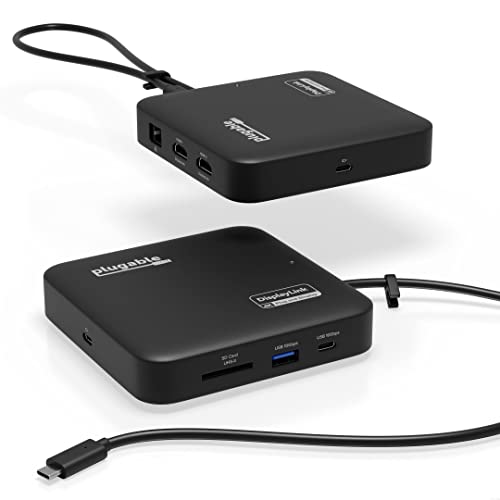 | Plugable USBC-6950PDZ | Display path: 2 DisplayLink DL-6950 USB-graphics HDMI outputs Maximum layout: Up to 2 x 4K 60Hz Mac / driver boundary: macOS 11+; DisplayLink Manager, Screen Recording permission, and possible admin approval required Charging: Accepts 45W-100W input; up to 82W to host; charger not included Best fit: Compact two-monitor MacBook Air office setup | Check Price on Amazon |
 | VisionTek VT4600DL, part 901799 | Display path: DisplayLink USB graphics; choose 2 outputs across 2 DP and 2 HDMI sockets Maximum layout: Up to 2 x 4K 60Hz; 4 sockets do not mean 4 displays Mac / driver boundary: macOS 10.12+; compatible DisplayLink driver required; USB-C or USB-A host Charging: Up to 100W through compatible USB-C; no USB-A host charging Best fit: Universal USB-C or USB-A dual-display desk | Check Price on Amazon |
 | Plugable UD-3900PDZ | Display path: Hybrid: 1 native DP Alt Mode HDMI plus 2 DisplayLink DL-3900 HDMI outputs Maximum layout: 1 x 4K 30Hz native plus 2 x 1920 x 1200 60Hz DisplayLink Mac / driver boundary: macOS 11+; DisplayLink Manager and Screen Recording permission required for 2 virtual outputs Charging: Up to 100W negotiated USB PD Best fit: Value two-monitor setup that can accept lower-resolution DisplayLink screens | Check Price on Amazon |
 | StarTech 116N-USBC-DOCK | Display path: Hybrid: 2 DisplayLink DL-6950 HDMI/DP choices plus 1 native DP Alt Mode HDMI Maximum layout: 2 x DisplayLink 4096 x 2160 60Hz plus 1 native 4096 x 2160 30Hz Mac / driver boundary: macOS listed; full function needs USB-C DP Alt Mode and USB PD; exact driver version not frozen Charging: Up to 100W negotiated USB PD Best fit: Mixed-device IT desk using an explicit two-display path | Check Price on Amazon |
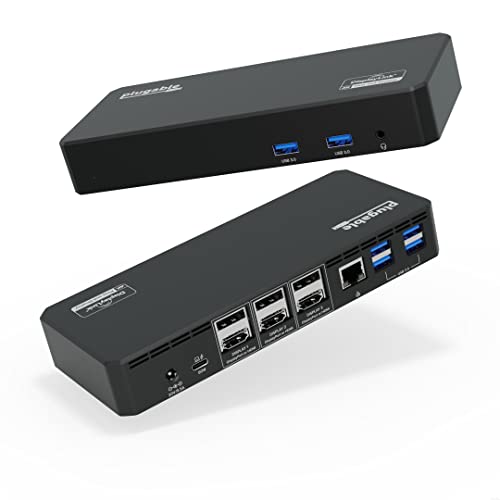 | Plugable UD-6950PDZ | Display path: Hybrid: 1 native DP Alt Mode group plus 2 DisplayLink DL-6950 groups Maximum layout: Up to 3 x 4K 60Hz under stated conditions; this page evaluates 2 external displays Mac / driver boundary: macOS 11+; DisplayLink Manager and Screen Recording permission required for 2 virtual groups Charging: Up to 100W negotiated USB PD Best fit: Port-rich MacBook Air desk using two DisplayLink groups | Check Price on Amazon |
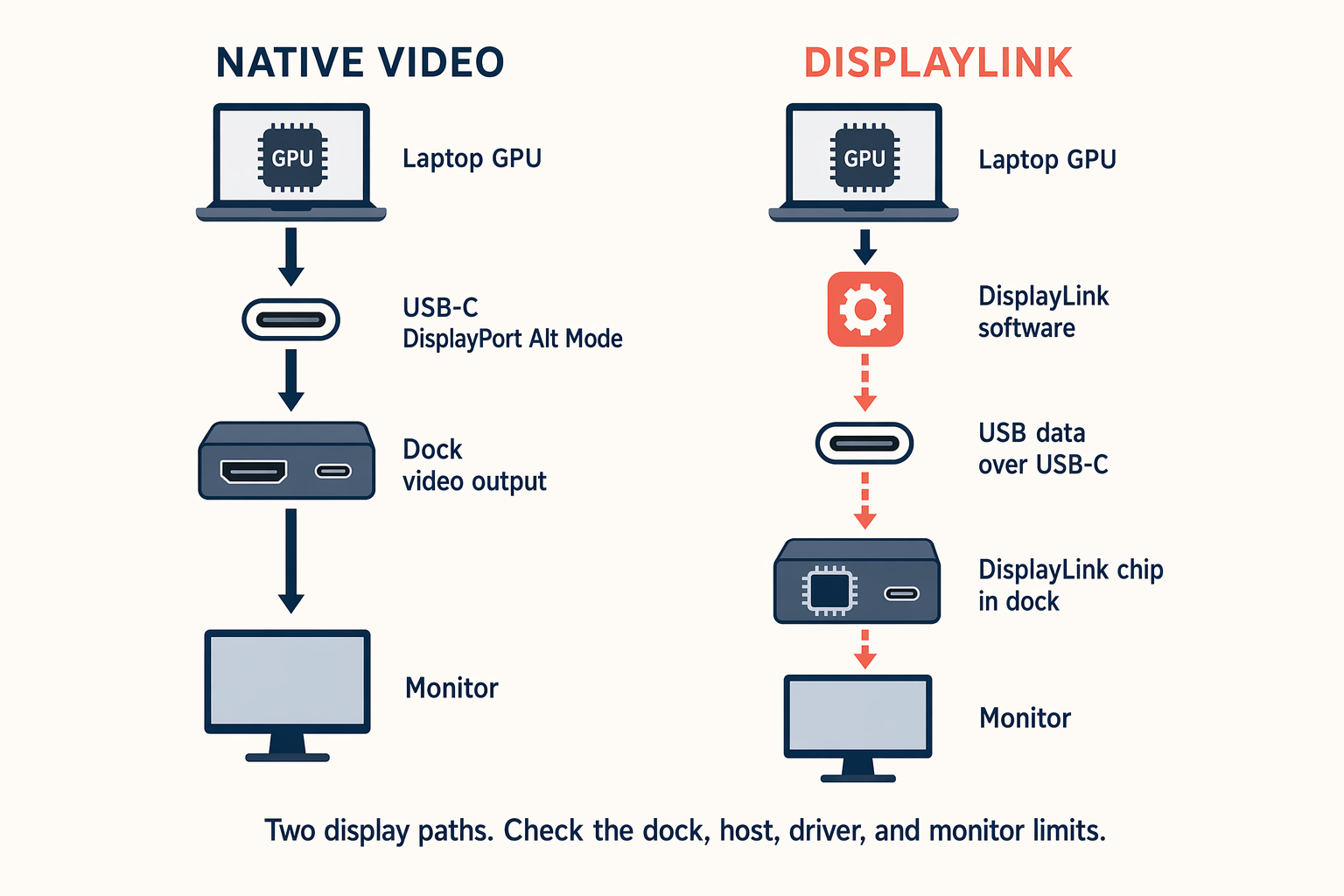
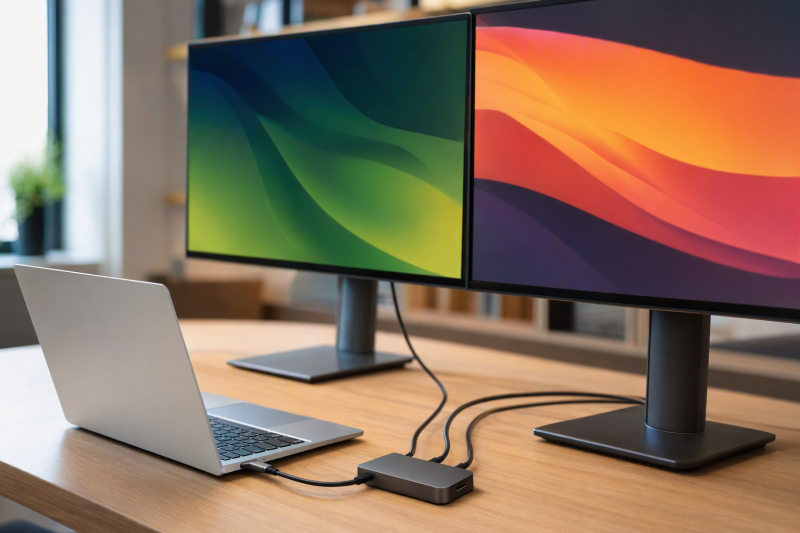
For this two-monitor decision, the diagram’s important split is who creates each screen. A native DP Alt Mode output consumes a display stream exposed by the Mac, while a DisplayLink output is a virtual USB graphics path. Hybrid docks below can offer both, but one path never proves that the other will work.
1. Plugable USBC-6950PDZ – Best overall compact dual-4K choice

Buy the USBC-6950PDZ when both external monitors accept HDMI and you want both screens driven through DisplayLink. Its two HDMI 2.0 outputs use the DL-6950 USB graphics path, which Plugable rates for up to two 3840 x 2160 displays at 60Hz. These are virtual outputs rather than two native HDMI streams from the Mac.
Plugable specifies macOS 11 or later, manual DisplayLink installation, and Screen Recording permission. The dock accepts a 45W to 100W USB-C adapter, sold separately, and can pass up to 82W to the host. Plugable excludes HDCP-protected playback, gaming, and 3D rendering from this product’s intended use.
Our Take
This is the cleanest two-screen Air choice when compact dual 4K 60Hz office output matters more than graphics-heavy or protected-video use.
- Two DL-6950 HDMI output paths
- Up to two 4K 60Hz displays under stated conditions
- Up to 82W host passthrough with a suitable adapter
- Charger is not included
- Manual Mac software setup is required
- No HDCP playback, gaming, or 3D rendering support
2. VisionTek VT4600DL – Best universal USB-C or USB-A choice
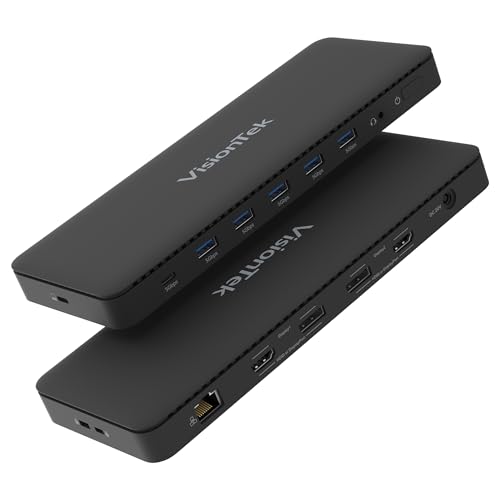
Choose the VT4600DL for a shared desk that may connect through USB-C or USB-A. Its DisplayLink design provides two DisplayPort 1.2 and two HDMI 2.0 sockets, but only two external displays can be active. VisionTek rates the supported two-screen layout up to 4K 60Hz.
VisionTek lists macOS 10.12 or later with a compatible DisplayLink driver. USB-C hosts can receive up to 100W under compatible USB Power Delivery conditions. A USB-A connection still carries DisplayLink data, but it does not charge the MacBook Air. Four video sockets are connector choices, not proof of four independent displays.
Our Take
The VT4600DL earns its place through host and monitor-connector flexibility. Buy it for two active screens, not for the four visible sockets.
- USB-C and USB-A host options
- Choice of HDMI or DisplayPort sockets
- Up to two 4K 60Hz external displays
- Only two of the four display sockets can be active
- Compatible DisplayLink driver is required
- USB-A hosts receive no laptop charging
3. Plugable UD-3900PDZ – Best value hybrid choice
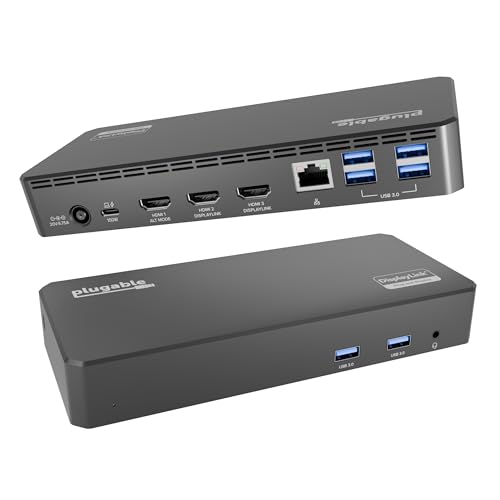
Buy the UD-3900PDZ when two 1920 x 1200 60Hz office monitors meet your needs. Use HDMI 2 and HDMI 3 for this page’s two-screen layout. Those outputs run through DisplayLink DL-3900. HDMI 1 is a separate native DP Alt Mode path rated up to 4K 30Hz, so never treat all three ports as one display group.
Plugable specifies macOS 11 or later, manual software installation, and Screen Recording permission. Without DisplayLink Manager, only the native HDMI output works. The two DisplayLink outputs do not support HDCP, and host charging is rated up to 100W under USB-PD negotiation.
Our Take
This is the value choice for two lower-resolution virtual office screens. Pick another dock if both monitors need 4K 60Hz.
- Two clearly identified DisplayLink outputs
- Separate native DP Alt Mode option
- Up to 100W negotiated host charging
- DisplayLink outputs top out at 1920 x 1200 60Hz
- Virtual outputs do not support HDCP
- Manual driver and permission setup is required
4. StarTech 116N-USBC-DOCK – Best mixed-device IT choice
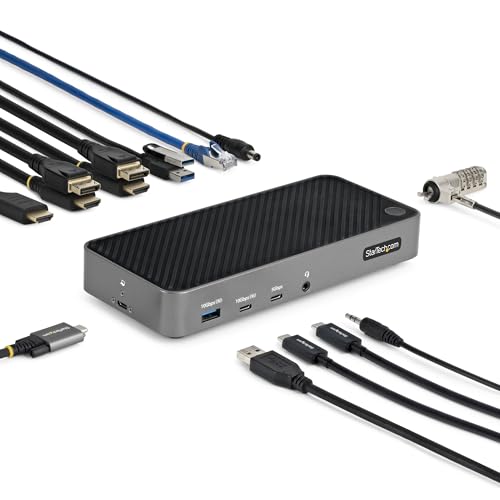
Choose the StarTech dock for an IT-managed desk that needs broad operating-system scope and lets staff select HDMI or DisplayPort. For an Air with two monitors, use the two selectable DL-6950 output groups. StarTech rates each of those DisplayLink paths up to 4096 x 2160 60Hz.
The third HDMI output is different: it uses native DP Alt Mode and is rated up to 4096 x 2160 30Hz. Full dock function needs a USB-C host with DP Alt Mode and USB PD, even when this page’s selected screens use DisplayLink. The authorized evidence lists macOS support but does not freeze an exact current DisplayLink package version, so IT should validate the approved release before rollout.
Our Take
This dock suits managed mixed-device fleets that can document each output path. It is less appealing for a buyer who wants a no-admin setup.
- Two selectable HDMI or DisplayPort groups
- DL-6950 paths rated up to 4096 x 2160 60Hz
- Up to 100W negotiated USB PD
- Third HDMI output follows a separate native path
- Full function requires host DP Alt Mode
- Exact current DisplayLink package version is not frozen
5. Plugable UD-6950PDZ – Best port-rich hybrid choice

Buy the UD-6950PDZ for a port-rich Air desk using display groups 2 and 3. Both use DisplayLink DL-6950, creating the two virtual displays owned by this guide. Display group 1 uses native DP Alt Mode and remains a separate, host-dependent option outside this two-monitor ranking.
Plugable requires macOS 11 or later, DisplayLink software, and Screen Recording permission. It rates host charging up to 100W under USB-PD negotiation. Plugable positions the dock for office and web work and warns about graphics, full-screen video, video editing, and games. The two DisplayLink groups lack HDCP support.
Our Take
Choose this model when you want two virtual display groups plus a fuller desk-dock port set. Keep the native group out of the buying calculation unless your exact Air supports it.
- Two DL-6950 display groups for this layout
- Separate native group for a qualified host
- Up to 100W negotiated USB PD
- Hybrid topology needs careful port mapping
- DisplayLink groups lack HDCP
- Graphics-heavy and full-screen video workloads carry limits
MacBook Air setup and buying check
Start with the exact Air generation and macOS version. Apple’s native allowance varies: M1 and M2 Air models support one native external display, M3 has a documented second-display closed-lid route on macOS Sonoma 14.3 or later with power and external input devices, and M4 and M5 support up to two native external displays. DisplayLink does not revise that matrix.
Next, match the dock’s macOS floor and install a compatible DisplayLink Manager release. Grant Screen Recording permission, then quit and reopen the app when macOS requests it. Ask IT about administrator approval before buying for a managed Mac.
Map each monitor to its actual output group. Confirm the monitor input, resolution, refresh rate, cable, and any adapter. For more help with that physical match, use our guide to choosing a computer monitor.
Treat charging as negotiated USB Power Delivery, not as a promise that the adapter’s input figure reaches the laptop. If protected video, low latency, calibration, gaming, 3D, or editing is central to the desk, prefer a qualified native display route over a virtual office path.
Two-monitor DisplayLink FAQ
Does DisplayLink turn two virtual screens into native Mac displays?
No. DisplayLink Manager sends virtual-display data over USB. It does not add native GPU display streams or change the MacBook Air’s native external-display allowance.
Why does macOS ask for Screen Recording permission?
DisplayLink says the permission lets its software access the pixels needed to create virtual displays. The app must be quit and reopened for the permission to take effect. Managed Macs may need administrator approval.
Can I watch protected streaming video on either screen?
Do not assume so. Plugable explicitly excludes HDCP on the named DisplayLink paths in this guide, and protected-content behavior is product-specific. Put protected playback on a qualified native path when that requirement controls the purchase.
Related reading
See our broad DisplayLink docking-station guide for Mac and Windows choices beyond this exact Air layout. If you do not specifically need DisplayLink, the dual-monitor docking guide compares other two-screen routes.