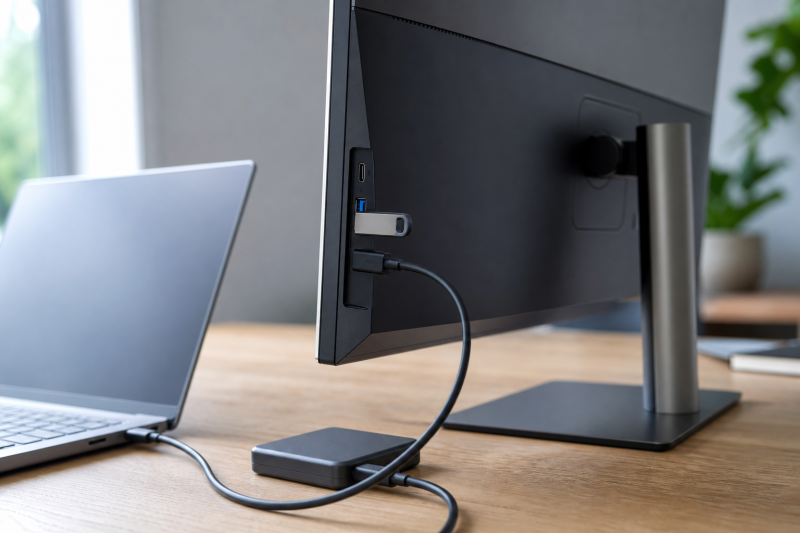
When a monitor’s USB ports work but transfers are slow, compare one device directly on the computer and through the monitor before buying a cable or changing drivers. The monitor’s downstream ports share one upstream link, and an exact USB-C display mode may reserve more lanes for video while leaving USB data at USB 2.0 speed. The slowest documented part of the path sets the ceiling.
If the device never appears in Windows, use the monitor USB ports not working guide. The comparisons below need a port that already enumerates and moves data.
Write down the bandwidth budget
A USB-C connector does not reveal the data rate. USB-IF states that USB Type-C products can implement different data capabilities, and USB 2.0 Type-C supports up to 480Mbps. USB 3.2 defines higher 5Gbps, 10Gbps, and 20Gbps signaling tiers, but those figures are link ceilings rather than promised file-copy results.
Inventory each layer from its official specification:
| Path layer | What to record | Why it can be the bottleneck |
|---|---|---|
| Test device | Interface and documented maximum | A USB 2.0 flash drive cannot prove a faster monitor port |
| Monitor downstream port | USB data tier for that exact port | Charging-only and data ports can look similar |
| Monitor internal hub | Shared upstream and mode limits | Every active downstream device may use the same link |
| Monitor upstream port | Data tier in the active input/mode | High-resolution display allocation can change USB data on some models |
| Upstream cable | Certified or documented data capability | A USB 2.0 Type-C cable forces the path to USB 2.0 operation |
| Computer port | Data and display capability | The monitor cannot negotiate faster than the host path |
Do not multiply or add the printed rates. One 5Gbps upstream does not give each of four monitor ports a private 5Gbps connection.
Remove shared traffic before testing
Dell describes a monitor with USB ports as a hub whose downstream devices all communicate through one upstream connection. If several devices transfer at once, they share that path.
Disconnect external drives, capture devices, webcams, card readers, Ethernet traffic, and a second hub from the monitor. Leave a keyboard or mouse connected only if needed. Pause cloud sync and backup jobs that use the test drive.
Choose one device that is documented for a faster tier than USB 2.0. Use the same single large local file for every pass, and keep the same source, destination, direction, and device on each pass.
You do not need a universal target number. You need a repeatable difference between two routes on the same computer.
Compare direct and monitor routes
Use the same device, data, computer, and direction for both passes:
- Connect the device directly to a documented fast host port.
- Copy the same local data and record elapsed time or the stable transfer range shown by Windows.
- Safely eject the device.
- Connect it to the monitor downstream port under test.
- Repeat the same copy with other monitor peripherals idle.
- Run each route again to see whether the difference repeats.
Keep this as a same-setup comparison between the direct route and the monitor route. USB signaling tiers are ceilings rather than absolute copy targets, so read the difference between your two passes instead of either number on its own.
Interpret only the comparison you made:
- Similar direct and monitor results point back to the device, source storage, or workload.
- A repeatable drop only through the monitor keeps the monitor port, hub, upstream mode, and cable in scope.
- One slow monitor port with another faster port on the same monitor points to a port-specific tier or fault.
- All monitor ports slowing together points toward the shared upstream path or active display/data allocation.
Check USB-C prioritization on the exact monitor
Some USB-C monitors let the display use more high-speed lanes at the expense of USB data. The menu may call this High Resolution versus High Data Speed, but names and effects are model specific.
Dell documents a concrete U3223QZ case: High Resolution increases video bandwidth while USB data drops to USB 2.0, and High Data Speed is required for the monitor webcam’s documented 4K path. That is proof of the tradeoff on the U3223QZ, not a promise about every monitor.
Before changing this setting:
- save the current display resolution, refresh rate, color mode, and monitor menu value;
- read the exact model’s table for the host’s DisplayPort capability;
- note whether a daisy-chained display is active;
- close work that would be disrupted by a display reconnect.
Switch to the documented high-data mode, allow Windows to rediscover the display and hub, then repeat the same monitor-port transfer. Confirm that the required resolution and refresh rate remain available. If USB becomes faster but the display mode falls below your requirement, the setup has a real allocation conflict rather than a broken port.
Do not copy the Dell menu path to a monitor whose manual does not offer it.
Isolate the upstream cable and host port
USB-IF warns that USB Type-C is a connector family, not a guarantee of USB 3.2 or USB4. A cable built only for USB 2.0 data can still have USB-C plugs and can still charge a device.
After the direct-versus-monitor comparison implicates the upstream path, check the cable supplied or approved for the exact monitor. If its data rating is absent, use the USB-C cable speed procedure to establish capability without judging from thickness, charging wattage, or connector shape.
Change one item at a time:
- Same monitor, same downstream device, another documented upstream cable.
- Same cable and monitor, another host port with the required display and data capability.
- Same host path, another monitor downstream port whose manual lists the same tier.
If a cable change restores the monitor baseline, record which cable produced which transfer time. If changing the host port changes the outcome, read the exact computer’s per-port table and record the port label used for each pass. Do not treat nearby USB-C ports as equivalent without that record.
Decide how to allocate the connection
Choose the configuration that matches your repeated result:
| Repeated result | Practical configuration |
|---|---|
| Monitor path matches the direct baseline | Keep the hub path; the monitor is not the measured limiter |
| High Data Speed fixes USB and preserves the required display mode | Keep that documented monitor setting |
| High Data Speed fixes USB but removes a required display mode | Connect high-speed storage directly to the host or use a separate documented data path |
| Only one monitor port is slow | Reserve that lower-tier port for keyboard, mouse, or another low-bandwidth device |
| All monitor devices slow during simultaneous work | Schedule transfers separately or move the high-bandwidth device off the shared hub |
| A documented faster cable restores the route | Keep the proven cable with the monitor and label its data capability |
If the screen or whole USB-C connection also fails during these comparisons, return to the USB-C monitor root guide.
Sources
USB-IF supplies the link vocabulary through its USB 3.2 overview and USB Type-C/USB 2.0 Type-C guidance. Dell’s USB port guide establishes the shared monitor-upstream topology. Dell’s U3223QZ high-data-speed record is the exact-model evidence for a display-bandwidth versus USB-data setting; no other monitor inherits that behavior without its own manual.