If a DisplayLink dock has no monitor output in Windows 11, prove two things first: the selected video socket is controlled by DisplayLink, and Windows can see the DisplayLink USB device. Do not begin with DisplayPort Alt Mode settings. DisplayLink video travels through USB data, DisplayLink software, and the dock’s DisplayLink chip before it reaches HDMI or DisplayPort.
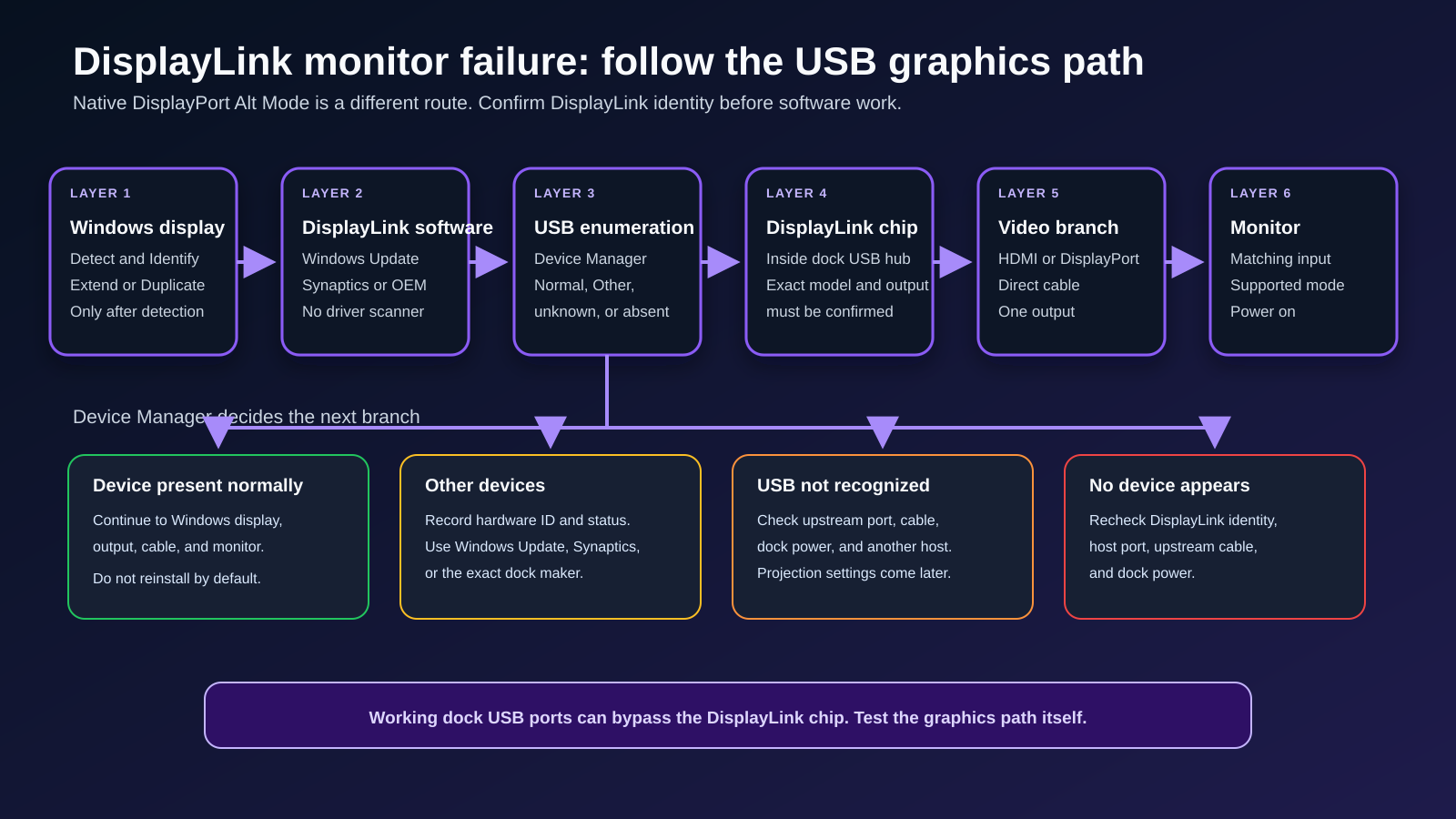
Open Device Manager with the dock connected. A DisplayLink device under USB Display Adapters or Display Adapters sends you toward Windows display configuration. An item under Other devices, a USB device not recognized message, or no DisplayLink device at all sends you back toward software association, the upstream USB path, dock power, or hardware.
A working USB port on the dock does not prove that the DisplayLink chip or its video output is working.
Start with the DisplayLink state
| What Windows shows | What it means | Next check |
|---|---|---|
| DisplayLink device and monitor are present | USB graphics has enumerated far enough for Windows to expose a display | Projection mode, selected monitor input, cable, and display mode |
| DisplayLink device is present, but no monitor appears | USB graphics device exists, but the output-to-monitor branch is incomplete | Video cable, output, monitor input, and exact dock manual |
| DisplayLink hardware appears under Other devices | Windows sees USB hardware but has not associated the normal DisplayLink software path | Hardware ID, Windows Update, or official DisplayLink software |
| Windows reports USB device not recognized | USB enumeration failed before normal DisplayLink binding | Upstream USB cable, host port, dock power, and another host comparison |
| No DisplayLink-related device appears | The chip is not visible on the current USB route | Confirm dock identity, upstream port, cable, power, and physical connection |
| Native USB-C video works, but DisplayLink outputs do not | Native video and USB graphics are separate paths | Stay on DisplayLink enumeration and software |
| Downstream keyboard works, but DisplayLink video does not | The maker’s internal USB hub has some connection | Do not clear the DisplayLink chip or software from suspicion |
Use the row you can observe. Do not uninstall devices to force a different state.
The shortest safe sequence
- Read the dock label and manual to confirm that it contains DisplayLink technology.
- Confirm that the monitor is connected to a DisplayLink-controlled output.
- Connect the dock directly to the computer with its documented upstream USB cable.
- Connect dock power if the exact model requires it.
- Reduce the setup to one monitor, one video cable, and one dock output.
- Open Device Manager and record the DisplayLink device state.
- If the device is present normally, open Settings > System > Display and choose Detect.
- If it is under Other devices or missing, verify the upstream port and cable before installing software.
- Install DisplayLink software only from Windows Update, Synaptics, or the exact dock maker.
- Compare one other host USB port, upstream cable, or computer while keeping the dock and monitor route fixed.
The order prevents a native USB-C display problem from being mistaken for a DisplayLink software problem.
Confirm that the dock and output use DisplayLink
DisplayLink is a technology inside specific docks and adapters, not another name for every USB-C dock.
Use one of these identity checks:
- the exact dock manual names DisplayLink;
- the maker’s product page names a DisplayLink chip or DisplayLink software;
- the dock or adapter carries the DisplayLink logo;
- the maker directs Windows users to DisplayLink software for the selected output.
Do not infer DisplayLink from HDMI, DisplayPort, USB-C, or the number of monitor sockets.
Some hybrid docks combine two paths. One output may use native DisplayPort Alt Mode or Thunderbolt video, while another uses DisplayLink USB graphics. The exact manual must identify the output. If the monitor is on a native USB-C route, use the USB-C monitor troubleshooting owner instead.
The DisplayPort Alt Mode check explains native video but does not test a DisplayLink USB graphics output.
Map a hybrid dock before changing software
A hybrid dock can make the symptom look inconsistent. The same upstream USB cable can feed a native display branch and a DisplayLink branch, but the two outputs do not use the same graphics route.
Build a small output map from the exact manual:
| Output in the manual | Documented path | Current result |
|---|---|---|
| Native Alt Mode or Thunderbolt output | Host GPU sends a native display stream | Working, absent, or untested |
| DisplayLink HDMI or DisplayPort output | USB data reaches the DisplayLink chip and software | Working, absent, or untested |
| Output not identified | Unknown | Do not assign a driver or protocol yet |
Connect one monitor to one documented output. Record Device Manager and Windows Display before moving the cable.
If a native output works while the DisplayLink output fails, keep the DisplayLink USB device and software in scope. If DisplayLink works while the native output fails, leave this article and test the host’s native display capability. If neither path works, confirm whether the whole dock is present before treating two branches as two failures.
The output map also stops an unnecessary DisplayLink reinstall when the monitor was attached to a native socket.
Understand what can work outside the DisplayLink chip
Synaptics’ first-step DisplayLink guide says the DisplayLink chip sits on a dock maker’s internal USB hub. Synaptics also says downstream USB ports do not pass through the DisplayLink chip, while video, network, or audio may do so in a particular design.
The internal split creates useful but limited clues:
- a keyboard can work while the DisplayLink chip is absent;
- the dock can charge a laptop without DisplayLink video;
- a native video output can work while a DisplayLink output fails;
- Ethernet or audio behavior can be relevant only if the exact dock routes them through the chip.
Do not apply one dock’s internal diagram to another.
If the entire Thunderbolt or USB4 device is absent, leave this owner and use the whole-device detection checklist.
Reduce the path to one monitor
Build:
Windows 11 computer -> upstream USB cable -> DisplayLink dock -> one video cable -> one monitor
Remove:
- a second or third monitor;
- USB hubs between computer and dock;
- KVMs and AV receivers;
- video switches;
- extenders;
- unnecessary adapters;
- nonessential dock peripherals.
Select the exact monitor input that matches the connected cable. A monitor can remain on a previous HDMI or DisplayPort input even when Windows detects it.
The simplified route is not the final desk layout. Each test now has one interpretation.
Check Device Manager before changing software
Synaptics’ Windows device-state guide starts with USB detection.
Open Device Manager:
- Right-click Start.
- Choose Device Manager.
- Leave the DisplayLink dock connected.
- Expand USB Display Adapters if present.
- Expand Display Adapters.
- Check Other devices and Universal Serial Bus controllers for a warning or unknown device.
- Record the exact device name and any status code.
Category names can vary by product generation and software. Record what Windows shows rather than forcing the article’s label to appear.
State A: DisplayLink appears normally
The USB graphics device has enumerated. Continue to Windows display configuration and the cable-to-monitor branch.
Open Settings > System > Display. Choose Detect, then press Windows + P and choose Extend for the diagnostic state.
Synaptics’ DisplayLink display configuration page distinguishes extend, duplicate, and off states. The settings apply only after the display path is present.
If Windows lists the monitor but it stays blank:
- select the monitor input manually;
- test another compatible video cable;
- test another output documented as DisplayLink;
- use a basic mode documented by the dock and monitor;
- remove conversion hardware.
State B: DisplayLink appears under Other devices
Windows sees USB hardware but has not associated it with the expected software.
Open the item’s Properties > Details > Hardware Ids and record the values. Synaptics says DisplayLink vendor IDs use VID_17E9. Do not edit the ID or install a package from a search result.
Continue to the official software section below.
State C: USB device not recognized
Synaptics says this state occurs before Windows has identified the device well enough to load the normal DisplayLink path.
Test:
- Disconnect nonessential dock peripherals.
- Reseat the upstream cable at both ends.
- Try another computer USB port documented for the dock.
- Replace only the upstream cable with one the dock maker documents as compatible.
- Confirm external dock power.
- Compare the dock on another supported computer.
Do not reinstall graphics software repeatedly while Windows cannot identify the USB device.
State D: no DisplayLink device appears
Return to identity and physical path:
- Is this exact dock DisplayLink-powered?
- Is the selected socket a DisplayLink output?
- Is the dock connected through its upstream host port?
- Is the cable a full data cable?
- Is dock power present?
- Does the same host port recognize another USB data device?
If a cable is suspect, the USB-C cable guide separates data, charging, and display categories. The USB-C cable-speed guide explains why one successful function does not prove every function.
Install or repair DisplayLink software from the right owner
Only enter this section after confirming the device is DisplayLink-powered.
Synaptics says DisplayLink software can arrive through Windows Update or be downloaded from DisplayLink. Use this order:
- Check the exact dock maker’s Windows 11 support page.
- Check whether that maker requires its package or directs users to Synaptics.
- Run Windows Update and review any offered DisplayLink component.
- If the maker allows the generic package, use the current Synaptics Windows download page.
- Record the package and version.
- Restart only when the installer or Windows requests it.
- Recheck Device Manager before reconnecting additional displays.
Do not use a generic driver site, a driver scanner, or a cleanup tool copied from a forum. Do not install DisplayLink software on a native-only dock in the hope that it will add video.
If the dock already has an exact maker-supported package, read its release notes before replacing it with a generic build.
Isolate the upstream USB path
DisplayLink video depends on a stable USB route.
Use one-variable comparisons:
| Test | Keep fixed | Change | Useful result |
|---|---|---|---|
| Host port | Dock, upstream cable, monitor route | One other compatible USB port | Isolates the original host port or controller path |
| Upstream cable | Host port, dock, monitor route | One exact compatible cable | Isolates cable or connector fit |
| Another computer | Dock, cable, monitor route | One supported Windows 11 host | Isolates original host versus dock path |
| Another DisplayLink output | Host, dock, monitor, mode | One documented output | Isolates an output branch |
| Another monitor input | Host, dock, output, cable | One compatible input | Isolates monitor input |
Avoid changing the host port and cable together. A successful result would not reveal which change mattered.
If the route is incompatible rather than failed, compare current options in the DisplayLink dock guide or the broader USB-C dock guide only after you know whether USB graphics is required.
Separate display configuration from capacity
Once Windows detects the monitor, choose a basic documented mode before adding more screens.
Do not copy a display-count claim from another DisplayLink dock. The chip generation, dock design, software, host, output type, and exact monitor modes all matter.
For two screens, the dual-monitor dock guide is a later shopping route. For larger DisplayLink layouts, the four-monitor dock guide explains exact product topologies. Neither guide changes the capability of the dock already owned.
Escalation matrix
| Final observed state | Escalate to | Evidence to send |
|---|---|---|
| DisplayLink device appears normally, but one output never detects a monitor | Dock maker | Dock model, output, cable, monitor, Windows build, Device Manager state |
| Device remains under Other devices after official software path | Dock maker or Synaptics support | Hardware IDs, status code, software source and version |
| USB device not recognized follows the dock across supported hosts and cables | Dock maker | Host ports, upstream cables, power supply, exact message |
| Dock works on another host but not the original | Computer maker | Computer model, port, Windows build, working comparison |
| One video cable or monitor input alone changes the result | Cable or monitor owner | Exact route and tested mode |
| Required display count exceeds the exact dock documentation | Compatibility decision | Required monitors and modes, not a repair request |
Synaptics directs hardware replacement questions to the original product manufacturer. DisplayLink supplies the technology, but the dock maker owns the final product, power design, USB hub, connectors, and warranty.
Replacement boundary
Replace the dock only when the DisplayLink path fails after:
- exact DisplayLink identity is confirmed;
- the correct host port and upstream cable are used;
- dock power is connected as documented;
- one monitor and one direct video cable are tested;
- official software is installed or associated;
- the device state is recorded;
- the same failure follows the dock across a supported comparison.
Replace a cable or adapter only when a one-variable comparison isolates it. Do not buy a native USB-C adapter if the actual need is DisplayLink USB graphics.
Frequently asked questions
Is DisplayLink the same as USB-C DisplayPort Alt Mode?
No. DisplayLink carries graphics through USB data and DisplayLink software. DisplayPort Alt Mode carries native DisplayPort video through USB-C. A hybrid dock may contain both, so check the exact output.
Why does my keyboard work when DisplayLink video does not?
The keyboard can use the dock maker’s internal USB hub without passing through the DisplayLink chip. Working downstream USB proves a partial data path, not a complete USB graphics path.
Where should DisplayLink appear in Device Manager?
Synaptics documents USB Display Adapters and Display Adapters, with problem states also appearing under Other devices. Names vary by product and software generation. Record the exact name and status.
Should I install DisplayLink software on every USB-C dock?
No. Install it only when the exact dock or selected output is documented as DisplayLink-powered.
Is a USB device not recognized message a graphics setting problem?
Not initially. Windows has not identified the USB device normally. Check the upstream cable, host port, dock power, and another supported host before changing projection settings.
Can Windows Detect fix a missing DisplayLink USB device?
No. Detect asks Windows to find displays on available display paths but cannot create a USB graphics device that did not enumerate.
Sources and methodology
The sequence uses current Synaptics DisplayLink Support pages for USB enumeration, Device Manager states, software installation, and display configuration, plus Microsoft’s current Windows multiple-monitor and external-display guidance. Sources were retrieved on July 28, 2026.
No dock, cable, computer, software build, or monitor was physically tested. The article treats Device Manager and controlled substitutions as state evidence without promising a repair or inferring an exact dock’s display capacity without that dock’s documentation.