


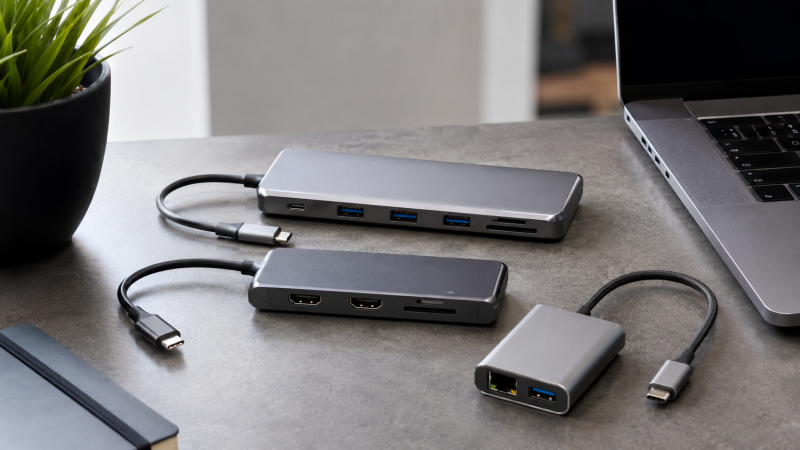
A USB-C hub is a compact, bus-powered adapter that adds ports like HDMI, USB-A, and SD card readers to any laptop with a USB-C port. No power brick, no drivers, no desk clutter. Plug one cable in and you get video output, peripherals, and card reading from a device that fits in your pocket.
Most USB-C hubs do exactly the same thing. The difference is build quality, which ports they include, and how much bandwidth and charging power they pass through. More than 20 hubs were evaluated, with manufacturer specs, expert benchmarks, and user reviews compared across ThinkPads, Dell XPS laptops, MacBook Airs, and Chromebooks. This guide covers the 10 best USB-C hubs you can buy right now.
Every pick here is bus-powered, portable, and compact enough to toss in your bag. A hub draws power from your laptop’s USB-C port and passes through charging from your own charger. A dock has its own AC adapter and can power more peripherals at once. If you need dual 4K monitors or more than five devices, you need a docking station, not a hub. For a deeper explanation, see our comparison between docks and hubs.
Recent Updates
- May 2026: Full refresh of all 10 picks. Re-evaluated every hub against the latest MacBook Air M3 and ThinkPad T14 Gen 5 compatibility data. Updated pricing and verified HDMI output at 4K@60Hz where applicable.
- January 2026: Added the Satechi USB-C Multiport Adapter V3 as our new best premium pick after confirming its 8K HDMI output and 10Gbps USB-C data speeds through manufacturer specs and expert reviews. Replaced the older Satechi Slim V2 in the lineup.
Quick Picks
- Best overall: The Anker 555 USB-C Hub (8-in-1) delivers 4K@60Hz HDMI, 10Gbps USB, 85W passthrough charging, and Gigabit Ethernet at a mid-range price.
- Best budget: The Hiearcool USB-C Hub (7-in-1) gives you 4K HDMI, 5Gbps USB, and 100W PD passthrough at the lowest price on this list.
- Best premium: The Satechi USB-C Multiport Adapter V3 is the only hub here with HDMI 2.1 (8K output), 10Gbps USB-C data, and Gigabit Ethernet.
- Best for MacBook: The HyperDrive Next 6-in-1 packs 4K@60Hz HDMI, 10Gbps USB, and SD 4.0 card reading into a 66-gram aluminum body.
- Best compact: The Anker 341 USB-C Hub (7-in-1) offers 4K HDMI, 85W PD passthrough, and SD/microSD readers at a budget-friendly price.
| Image | Product | Details | Check Price |
|---|---|---|---|
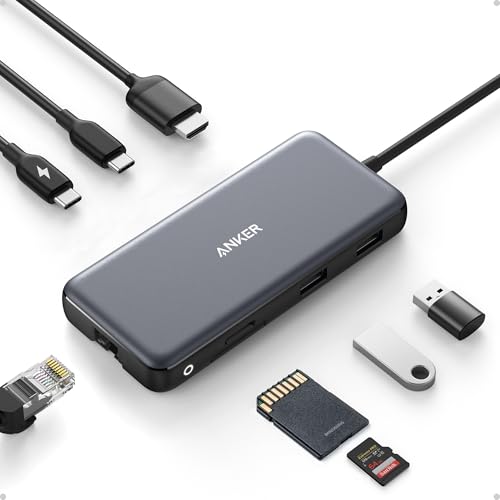 | Anker 555 USB-C Hub (8-in-1) | Ports: 8 (HDMI, 2x USB-A, USB-C, Ethernet, SD, microSD, PD) Display Output: 4K@60Hz HDMI 2.0 Power Pass-through: 85W (100W input) Weight: 4.4 oz | Check on Amazon |
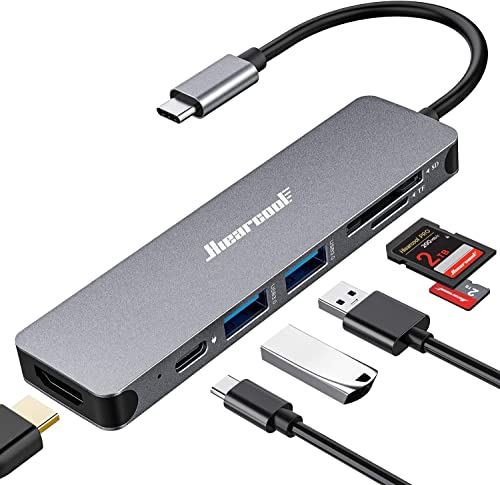 | Hiearcool USB-C Hub (7-in-1) | Ports: 7 (HDMI, 2x USB-A, SD, microSD, PD) Display Output: 4K@30Hz HDMI 1.4 Power Pass-through: 100W Weight: 2.4 oz | Check on Amazon |
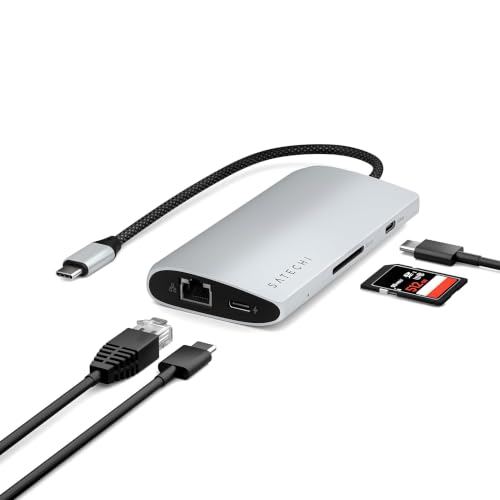 | Satechi USB-C Multiport Adapter V3 | Ports: 8 (HDMI, 4x USB-C, Ethernet, SD, PD) Display Output: 8K@30Hz / 4K@120Hz HDMI 2.1 Power Pass-through: 85W (100W input) Weight: 3.5 oz | Check on Amazon |
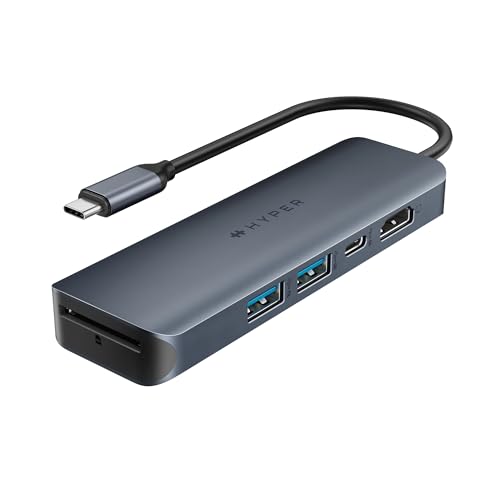 | HyperDrive Next 6-in-1 | Ports: 6 (HDMI, 2x USB-A, USB-C, SD, PD) Display Output: 4K@60Hz HDMI 2.0 Power Pass-through: 100W Weight: 2.3 oz (66g) | Check on Amazon |
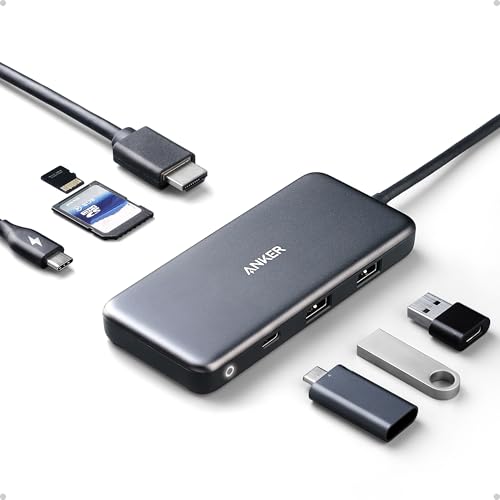 | Anker 341 USB-C Hub (7-in-1) | Ports: 7 (HDMI, 2x USB-A, USB-C, SD, microSD, PD) Display Output: 4K@30Hz HDMI 1.4 Power Pass-through: 85W (100W input) Weight: 3.2 oz | Check on Amazon |
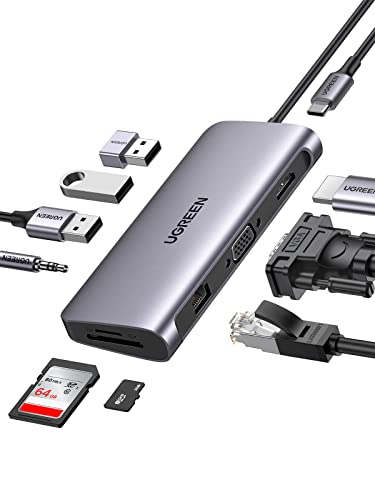 | UGREEN 10-in-1 USB-C Hub | Ports: 10 (HDMI, VGA, 3x USB-A, Ethernet, SD, microSD, Audio, PD) Display Output: 4K@30Hz HDMI + 1080p VGA Power Pass-through: 100W Weight: 5.6 oz | Check on Amazon |
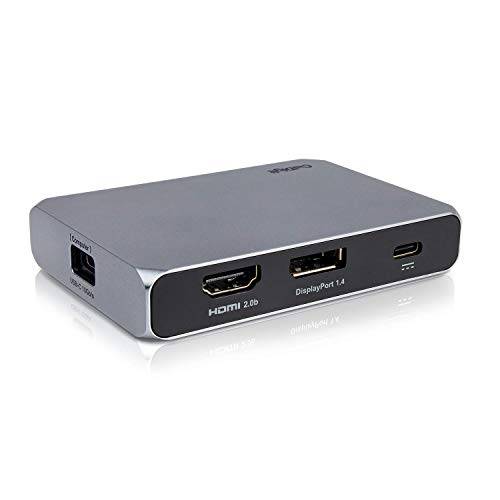 | CalDigit USB-C SOHO Dock | Ports: 7 (HDMI, DP, USB-A, USB-C, SD, microSD, PD) Display Output: 4K@60Hz HDMI 2.0b + DP 1.4 Power Pass-through: 90W (100W input) Weight: 3.9 oz | Check on Amazon |
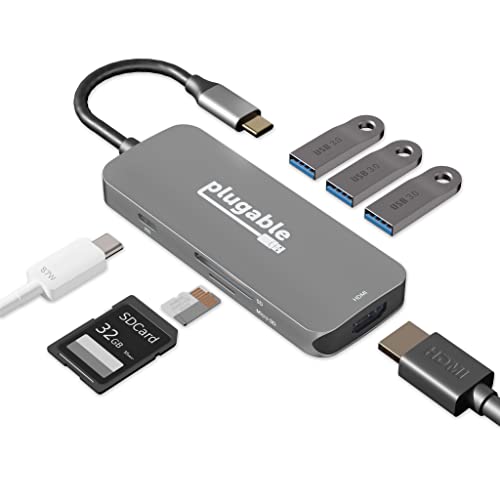 | Plugable USB-C 7-in-1 Hub | Ports: 7 (HDMI, 3x USB-A, SD, microSD, PD) Display Output: 4K@30Hz HDMI 1.4 Power Pass-through: 87W (100W input) Weight: 2.4 oz | Check on Amazon |
 | Belkin Connect USB-C 7-in-1 Hub | Ports: 7 (HDMI, 2x USB-A, 2.5GbE, SD, microSD, PD) Display Output: 4K@60Hz HDMI 2.0 Power Pass-through: 100W Weight: 3.7 oz | Check on Amazon |
 | Kingston Nucleum | Ports: 7 (HDMI, 2x USB-A, 2x USB-C, SD, microSD) Display Output: 4K@30Hz HDMI 1.4b Power Pass-through: 60W Weight: 3.1 oz | Check on Amazon |
1. Anker 555 USB-C Hub (8-in-1) — Best Overall
The Anker 555 is the hub we recommend to most people. It packs eight ports into a slim aluminum shell, delivers 4K video at a full 60Hz, and includes Gigabit Ethernet, a feature most hubs in this price range skip. It hits the sweet spot between price and capability.
Our Take
The Anker 555 is the best USB-C hub for most people, delivering 4K@60Hz video, 10Gbps data, Gigabit Ethernet, and 85W passthrough charging at a competitive price. If you only want to buy one hub, this is it.
What sets the Anker 555 apart from cheaper 7-in-1 hubs is its USB data speeds. The USB-C data port and both USB-A ports run at 10Gbps (USB 3.2 Gen 2), which means you can actually use an external SSD at reasonable speeds. Most budget hubs top out at 5Gbps, which cuts NVMe SSD transfer speeds in half.
The HDMI output supports 4K at 60Hz, which is increasingly important now that 4K monitors are the standard. Cheaper hubs with HDMI 1.4 max out at 4K@30Hz, and the difference in cursor smoothness between 30Hz and 60Hz is immediately noticeable.
Anker rates passthrough power delivery at 100W input, with 85W reaching your laptop after the hub takes 15W for its own operation. That’s enough to charge a MacBook Air, ThinkPad T14, or Dell XPS 13 at full speed. The SD and microSD card slots are UHS-I (104 MB/s max), which is adequate for photo transfers but won’t max out a UHS-II card.
At 4.4 ounces and 0.6 inches thick, the Anker 555 slides into any laptop bag without adding bulk.
Who should buy it: Anyone who wants a single hub that handles monitors, peripherals, storage, Ethernet, and card reading. The best value on this list.
Who should skip it: If you need dual video outputs, look at the CalDigit SOHO Dock. If you need 8K or faster card readers, step up to the Satechi V3.
- 4K@60Hz HDMI. Smooth, sharp video output
- 10Gbps USB-C and USB-A ports for fast file transfers
- Gigabit Ethernet included. Rare at this price
- 85W passthrough PD charges most laptops
- Slim, lightweight aluminum build
- SD card slots are UHS-I only (104 MB/s max)
- Single HDMI, no dual monitor support
- 8-inch cable may be tight on some setups
If you need more bandwidth and multi-monitor support, a Thunderbolt docking station may be a better fit.
2. Hiearcool USB-C Hub (7-in-1) — Best Budget
The Hiearcool 7-in-1 is the hub to recommend when someone asks “what’s the cheapest one that actually works?” It’s the most affordable hub on this list. It does everything a basic hub needs to do without drama.
Our Take
The Hiearcool 7-in-1 is the best budget USB-C hub, offering 100W PD passthrough that many budget competitors cap at 60W. The 4K@30Hz HDMI is the main tradeoff, but on a 1080p monitor you won’t notice.
You get a 4K HDMI output (capped at 30Hz), two USB-A 3.0 ports at 5Gbps, an SD card reader, a microSD card reader, and a USB-C passthrough charging port that handles up to 100W. That’s enough to connect a monitor, a keyboard, a mouse, and import photos from a camera.
The 4K@30Hz HDMI limitation is the main tradeoff. At 30Hz, mouse movement feels choppy and window dragging stutters on a 4K display. It’s usable for static work like writing and spreadsheets, but the 60Hz output on the Anker 555 is worth the step up if you use a 4K monitor daily. On a 1080p monitor, the Hiearcool runs at a smooth 60Hz.
The aluminum body is surprisingly solid for the price. The 100W passthrough PD is the standout spec here. Many budget hubs cap passthrough at 60W or 65W, which isn’t enough for laptops with 96W or 100W chargers.
Who should buy it: Students, casual users, and anyone who needs basic port expansion without spending much. Also good as a backup travel hub.
Who should skip it: If you use a 4K monitor as your primary display, the 30Hz output will frustrate you daily. Step up to the Anker 555 for 60Hz.
- The cheapest functional hub on this list
- 100W passthrough PD doesn’t bottleneck your charger
- Solid aluminum build for the price
- SD and microSD card readers included
- Two USB-A 3.0 ports at 5Gbps
- HDMI limited to 4K@30Hz (choppy at 4K)
- No Ethernet port
- USB speeds capped at 5Gbps
- No USB-C data port (only PD passthrough)
3. Satechi USB-C Multiport Adapter V3 — Best Premium
The Satechi V3 is the hub you buy when you want the best specs in a compact package. It’s the only hub on this list with HDMI 2.1, meaning it supports up to 8K at 30Hz or 4K at 120Hz. It costs roughly twice the Anker 555, but the spec sheet justifies every dollar if you’ve already committed to an all-USB-C setup.
Our Take
The Satechi V3 is the best premium USB-C hub you can buy, with HDMI 2.1 for 8K or 4K@120Hz output, SD 4.0 card reading at 312 MB/s, and four USB-C data ports at up to 10Gbps. If you’ve moved to an all-USB-C setup and want the fastest hub available, this is the one.
The port layout is all USB-C for data: three USB-C 3.2 Gen 2 ports at 10Gbps, plus one USB-C 3.2 Gen 1 at 5Gbps. Most hubs give you USB-A ports for data. The Satechi V3 bets on the all-USB-C future. If you still rely on USB-A devices, you’ll need an adapter.
Satechi rates the SD 4.0 UHS-II card reader at 312 MB/s, which is three times faster than the UHS-I readers on the Anker hubs. Gigabit Ethernet adds wired connectivity. Passthrough PD handles 100W in and 85W out. The aluminum body comes in Space Gray, Silver, and Midnight to match Apple’s MacBook lineup.
Satechi rates the 8K output at a clean 7680×4320 signal at 30Hz. At 4K, the V3 supports 60Hz and 120Hz depending on the monitor. The big caveat: no USB-A ports at all.
Who should buy it: Creative professionals, photographers, and anyone with a high-resolution monitor who wants the fastest data speeds and best video output from a hub.
Who should skip it: If you have USB-A peripherals, the lack of USB-A ports is a dealbreaker without adapters. The Anker 555 is more practical for mixed setups.
- HDMI 2.1 supports 8K@30Hz and 4K@120Hz. Future-proof
- SD 4.0 UHS-II card reader at 312 MB/s
- Three 10Gbps USB-C data ports + one 5Gbps USB-C port
- Premium aluminum build in three MacBook-matching colors
- Gigabit Ethernet included
- No USB-A ports. Requires adapters for legacy devices
- Premium price for a hub
- 85W PD output (from 100W input) may not max-charge larger laptops
4. HyperDrive Next 6-in-1 — Best for MacBook
The HyperDrive Next is the hub to get if you primarily use a MacBook. It covers exactly what MacBook users need: 10Gbps USB ports, 4K@60Hz HDMI, an SD 4.0 card reader for fast photo imports, and 100W passthrough charging. It weighs just 66 grams.
Our Take
The HyperDrive Next 6-in-1 is the best USB-C hub for MacBook users, packing 10Gbps USB, 4K@60Hz HDMI, SD 4.0 at 312 MB/s, and 100W PD passthrough into a 66-gram aluminum body. Every port runs at maximum speed, which is rare in a hub this small.
HyperDrive (now under Targus) built this hub from 100% recycled aluminum and 85% recycled plastic. The build quality is excellent. It feels dense and rigid with no flex.
The six ports include 4K@60Hz HDMI, two USB-A 3.2 Gen 2 at 10Gbps, one USB-C 3.2 Gen 2 data at 10Gbps, one SD 4.0 slot at 312 MB/s, and one USB-C with 100W PD 3.0 passthrough. There’s no Ethernet, no microSD, and no audio jack. But every port runs at maximum speed.
HyperDrive rates the USB-C data port at up to 10Gbps, and users report SSD transfers around 900 MB/s over USB-C. The SD 4.0 reader handles UHS-II cards at up to 312 MB/s. The 100W PD passthrough keeps even a 14-inch MacBook Pro charged during heavy use. At 66 grams, it disappears into a laptop sleeve pocket.
Who should buy it: MacBook and Chromebook users who want fast ports and clean 4K output in the smallest possible package. Photographers who need SD 4.0 speeds.
Who should skip it: If you need Ethernet, look at the Anker 555. If you need USB-A-heavy port expansion, the UGREEN 10-in-1 has three USB-A ports.
- 10Gbps on all data ports. USB-C and USB-A
- SD 4.0 UHS-II at 312 MB/s for fast card imports
- 100W PD passthrough charges any MacBook
- 66 grams. The lightest premium hub on this list
- Recycled aluminum and plastic construction
- No Ethernet port
- No microSD slot
- Only six ports total. Fewer than competing 7-in-1 and 8-in-1 hubs
5. Anker 341 USB-C Hub (7-in-1) — Best Compact
The Anker 341 gives you seven ports at a budget-friendly price: 4K HDMI, two USB-A data ports, a USB-C data port, a USB-C PD port, and SD/microSD card readers. That covers 90% of what most people plug into a hub, in a package small enough to live permanently in your bag.
Our Take
The Anker 341 is the best compact USB-C hub for everyday carry, offering seven ports and 85W passthrough charging. Anker rates its USB-C passthrough at 85W from a 100W charger, which handles any ultrabook without issue.
The HDMI runs at 4K@30Hz via HDMI 1.4, which is usable for static work but choppy for heavy window management. On a 1080p or 1440p monitor, you get a smooth 60Hz. All three USB data ports run at 5Gbps (USB 3.1 Gen 1).
The cable is permanently attached and short (about 5 inches), keeping the hub close to your laptop. Build quality is solid plastic with a matte finish.
Who should buy it: Budget-minded travelers and students who want reliable port expansion without spending much. Great as a secondary hub to keep in your bag permanently.
Who should skip it: If you need 4K@60Hz, Ethernet, or 10Gbps USB, the Anker 555 is the better Anker hub.
- Affordable 7-port expansion
- 85W passthrough PD charges most ultrabooks
- SD and microSD card readers
- USB-C data port (not just PD passthrough)
- Compact and lightweight
- HDMI limited to 4K@30Hz
- USB speeds capped at 5Gbps
- No Ethernet port
- Plastic build (aluminum on pricier competitors)
If you’re looking for a monitor to pair with your new hub, check out our roundup of the best USB-C monitors.
6. UGREEN 10-in-1 USB-C Hub — Best 10-in-1
The UGREEN 10-in-1 packs more ports into a bus-powered hub than any other product on this list.
Our Take
The UGREEN 10-in-1 is the most port-rich bus-powered USB-C hub on this list, with 10 connections including VGA for legacy projectors and a 3.5mm audio jack. You get 4K HDMI, 1080p VGA, Gigabit Ethernet, three USB-A 3.0 ports, SD and microSD card readers, a 3.5mm audio jack, and 100W USB-C PD passthrough. If you need to connect everything short of a second 4K monitor, this hub handles it.
The standout feature is dual video output: HDMI and VGA. The HDMI port runs at 4K@30Hz, and the VGA runs at 1080p@60Hz. You can use both simultaneously for a dual-display setup. The VGA port is genuinely useful in conference rooms and classrooms that still have VGA projectors.
Three USB-A 3.0 ports at 5Gbps give you enough connectivity for a keyboard, mouse, and flash drive simultaneously. Gigabit Ethernet adds wired networking. The 3.5mm combo audio jack enables wired headset use during video calls.
The tradeoff for all these ports is size. At roughly 5.4 x 2 x 0.6 inches, the UGREEN 10-in-1 is the largest hub here. It still fits in any laptop bag, but it’s not pocket-sized. Passthrough PD supports 100W. UGREEN rates the hub overhead at approximately 15W, so a 96W charger delivers about 81-85W to the laptop.
Who should buy it: Road warriors who present in conference rooms with VGA projectors. Anyone who needs maximum port variety in a single hub without stepping up to a powered docking station.
Who should skip it: If you don’t need VGA and want sharper 4K@60Hz output, the Anker 555 is smaller and has better HDMI and USB speeds.
- 10 ports. More than any other hub on this list
- Dual video (HDMI + VGA) for legacy projectors
- Gigabit Ethernet for wired connections
- 3.5mm audio jack for headsets
- 100W PD passthrough
- HDMI limited to 4K@30Hz
- USB speeds capped at 5Gbps
- Larger than most hubs
- VGA maxes out at 1080p@60Hz
7. CalDigit USB-C SOHO Dock — Best with Dual Video
The CalDigit USB-C SOHO Dock is the only hub on this list that gives you both an HDMI port and a DisplayPort. That means you can connect two different monitors, one via HDMI 2.0b and one via DisplayPort 1.4, from a single USB-C hub. No DisplayLink drivers, no workarounds. You just need a laptop whose USB-C port supports DP Alt Mode with MST (Multi-Stream Transport).
Our Take
The CalDigit SOHO Dock is the best USB-C hub for dual monitors, with both HDMI 2.0b and DisplayPort 1.4 enabling native dual-display setups without DisplayLink drivers. Each output supports up to 4K@60Hz individually, but in extended (dual) mode, CalDigit rates the dual output at 4K@30Hz on Windows.
Each video port supports up to 4K@60Hz when used alone. In extended (dual-display) mode on Windows, both outputs run at 4K@30Hz. In practice, a single 4K@60Hz plus a second 1080p display works reliably on most modern laptops.
The USB-C and USB-A downstream ports both run at 10Gbps, and the SD 4.0 / microSD 4.0 card readers support UHS-II speeds up to 312 MB/s. CalDigit rates power passthrough at 90W from a 100W charger. CalDigit also makes the TS4 Thunderbolt dock (our top Thunderbolt pick), and the SOHO Dock reflects that same attention to power management.
One limitation: CalDigit has listed this as discontinued on their own store, though it’s still available through Amazon and B&H Photo. If you find it in stock, grab it.
Who should buy it: Users who need dual monitors from a hub without using DisplayLink. Photographers and content creators who want fast card readers and 10Gbps USB in a compact form factor.
Who should skip it: If you only need a single monitor, the Anker 555 does everything else the SOHO Dock does for half the price. If it’s out of stock in your region, the Satechi V3 is the best alternative.
- Dual video out. HDMI 2.0b and DisplayPort 1.4
- Single display at 4K@60Hz, dual extended at 4K@30Hz
- 10Gbps USB-C and USB-A data ports
- SD 4.0 UHS-II card readers (312 MB/s)
- 90W PD passthrough
- CalDigit build quality and reliability
- Discontinued by CalDigit (stock may be limited)
- No Ethernet port
- No USB-A 2.0 ports for low-power peripherals
- Requires DP 1.4 MST from laptop for dual 4K
For more on the CalDigit ecosystem, check out our coverage in the best Thunderbolt docking stations guide, where their TS4 takes the top spot.
8. Plugable USB-C 7-in-1 Hub — Best Travel

The Plugable 7-in-1 Hub weighs 2.4 ounces and measures 9.5 x 1.9 x 0.5 inches. It’s the lightest hub on this list, and its slim stick shape slides into laptop sleeves and bag pockets without creating a bulge. If your priority is the smallest possible hub that still gives you useful ports, this is the one.
Our Take
The Plugable 7-in-1 is the best USB-C hub for travel at just 2.4 ounces, with three USB-A ports and 87W PD passthrough in a stick-shaped form factor. Plugable rates it at 87W passthrough from a 100W charger, which charges any 13-inch or 14-inch laptop at full speed. You trade USB speed (5Gbps) for the lightest hub on this list, while still getting 4K@60Hz HDMI output.
Seven ports include three USB-A 3.0 ports (5Gbps), one 4K HDMI output (4K@60Hz), SD and microSD card readers, and a USB-C PD passthrough at 87W. Three USB-A ports is generous for a hub this small. That’s enough for a keyboard, mouse, and flash drive simultaneously.
Plugable is a well-regarded peripheral brand. Their Plugable TBT4-HUB3C Thunderbolt hub is one of our favorites. The 7-in-1 carries the same plug-and-play approach: it works immediately on Windows, macOS, Chrome OS, and Linux without software installation.
Who should buy it: Frequent travelers who want the lightest, slimmest hub with three USB-A ports. Good for conference room setups where you need to plug in a presenter remote, webcam, and charger.
Who should skip it: If you need Ethernet or 10Gbps USB, the Anker 555 or HyperDrive Next are better despite being slightly heavier.
- 2.4 ounces. Lightest hub on this list
- Three USB-A 3.0 ports (most hubs have two)
- 87W PD passthrough (100W input)
- SD and microSD card readers
- Driver-free on all platforms
- USB speeds capped at 5Gbps
- No Ethernet port
- No USB-C data port (only PD passthrough)
9. Belkin Connect USB-C 7-in-1 Multiport Hub — Best Brand-Name
Our Take
The Belkin Connect 7-in-1 is the best USB-C hub for corporate buyers, combining 2.5 Gigabit Ethernet (the fastest wired networking on any hub here), 4K@60Hz HDMI, and 100W PD passthrough with Belkin’s warranty and IT-friendly brand recognition.
Belkin is a name that IT departments trust. When your company’s procurement team won’t approve a no-name Amazon hub but will sign off on Belkin, this is the hub you request. The Belkin Connect 7-in-1 delivers 4K@60Hz HDMI, 2.5 Gigabit Ethernet, and 100W PD passthrough, all backed by Belkin’s warranty and support infrastructure.
The 2.5 Gigabit Ethernet port is what sets this hub apart. Most hubs include Gigabit Ethernet at best. The Belkin Connect offers 2.5GbE, matching the Ethernet speed on the CalDigit TS4 docking station. The two USB-A ports run at 10Gbps (USB 3.2 Gen 2), and the 4K@60Hz HDMI output is clean and reliable.
The USB-C PD passthrough handles 100W. An 8.6-inch tethered cable connects the hub to your laptop. It’s non-detachable but well-reinforced. At a similar price point, the Belkin competes directly with the Anker 555: the Anker has more ports (8 vs 7), while the Belkin has faster Ethernet (2.5GbE vs 1GbE).
Who should buy it: Corporate buyers, IT departments, and anyone who values brand recognition and warranty support. Users with 2.5G Ethernet infrastructure.
Who should skip it: If you don’t need 2.5GbE, the Anker 555 gives you more ports for the same price.
- 2.5 Gigabit Ethernet. Fastest wired networking on any hub here
- 4K@60Hz HDMI output
- 10Gbps USB-A ports
- 100W PD passthrough
- Belkin brand trust and warranty
- No USB-C data port (only PD passthrough)
- 7 ports vs Anker 555’s 8
- Non-detachable cable (can’t swap a longer one)
10. Kingston Nucleum — Best Legacy
Our Take
The Kingston Nucleum is the only hub on this list with two USB-C ports (one data, one PD passthrough), making it useful if you need to return the USB-C port that your hub cable occupies. Kingston rates it at 60W PD passthrough and 5Gbps USB, which are dated specs by today’s standards, but the dual USB-C layout still fills a gap that newer hubs ignore.
The Kingston Nucleum has been around since 2018, and it’s still worth recommending for one reason: it gives you two USB-C ports in a hub. One USB-C port provides power passthrough (up to 60W), and the other is a data port. In the early USB-C era, the Nucleum was one of the few hubs that returned the USB-C port you used to connect the hub. That design remains useful today.
Seven ports total: one 4K HDMI (30Hz via HDMI 1.4b), one USB-A 3.1 Gen 1 (5Gbps), two USB-C (one PD, one data), and SD and microSD card readers. The 60W power passthrough is the lowest on this list and the Nucleum’s biggest weakness. Most modern ultrabooks ship with 65W or higher chargers, so 60W means slow-charging under load.
Build quality is premium: a silver aluminum shell with a short integrated USB-C cable, about the size of an iPhone but thicker. Kingston’s SD and microSD card readers perform well at consistent UHS-I speeds around 100 MB/s. We’re listing the Nucleum as “best legacy” because it’s an older design that still fills a niche: a trusted-brand hub with dual USB-C ports and compact form factor.
Who should buy it: Users who need a second USB-C data port on their hub. Kingston loyalists who trust the brand from their SSD and RAM purchases.
Who should skip it: The 60W PD and 4K@30Hz HDMI are outdated specs. The Anker 555 outperforms the Nucleum in every measurable spec for the same price.
- Two USB-C ports (data + PD). Rare for a hub
- Trusted Kingston brand with 2-year warranty
- Premium aluminum build
- Compact, lightweight design
- SD and microSD card readers
- Only 60W PD passthrough. Lowest on this list
- HDMI limited to 4K@30Hz (HDMI 1.4b)
- USB speeds capped at 5Gbps
- Aging design (no Ethernet, no USB 3.2 Gen 2)
Buying Guide: How to Choose the Right USB-C Hub
Hub vs dock: What is the difference?
A USB-C hub is a bus-powered adapter that adds ports to your laptop through a single USB-C connection. Unlike a docking station, it draws power from your laptop rather than an external power supply.
A hub is bus-powered. It draws power from your laptop’s USB-C port or passthrough charger. No wall plug. This makes hubs portable, lightweight, and affordable. The tradeoff is shared bandwidth (5-10Gbps) and limited power for peripherals.
A docking station has its own power supply. It plugs into a wall outlet, powers more devices, delivers more wattage, and drives more displays. Docks cost significantly more and sit permanently on a desk.
Choose a hub if you travel, work from coffee shops, or have a light desk setup with one monitor and a few peripherals. Choose a dock if you need dual or triple 4K monitors or connect more than five peripherals. See our best USB-C docking stations, best Thunderbolt docking stations, and comparison between docks and hubs.
Passthrough power delivery: How much wattage actually reaches your laptop?
Every hub on this list advertises passthrough power delivery (PD), but there’s a catch. The hub itself consumes 10-15W from your charger before passing the rest to your laptop. Here’s what that means in practice:
| Charger Wattage | Hub Overhead | Wattage to Laptop |
|---|---|---|
| 65W | ~12W | ~53W |
| 96W | ~15W | ~81W |
| 100W | ~15W | ~85W |
| 140W | ~15W | ~85W (capped by hub’s PD max) |
Most hubs cap passthrough at 85-100W regardless of your charger’s wattage. So if you have a 140W MacBook Pro charger, a hub that passes through 85W will slow-charge your laptop under heavy load. That’s a limitation of hubs vs docks, which have their own power supply and can deliver 100W+ independently.
Practical advice: Match your hub’s PD passthrough to your laptop’s charger. If your laptop ships with a 65W charger, any hub on this list will charge it fine. If you have a 96W or 100W charger, choose a hub rated for 100W input and 85W+ passthrough. The Anker 555, HyperDrive Next, Satechi V3, and UGREEN 10-in-1 all qualify.
HDMI output from hubs: 4K@30Hz vs 4K@60Hz explained
Not all HDMI outputs are equal. The version of HDMI inside the hub determines the maximum resolution and refresh rate you can push to an external monitor:
| HDMI Version | Max Resolution | Refresh Rate | Hubs with This |
|---|---|---|---|
| HDMI 1.4 | 4K (3840×2160) | 30Hz | Anker 341, Hiearcool, Kingston Nucleum |
| HDMI 2.0 | 4K (3840×2160) | 60Hz | Anker 555, Belkin Connect, CalDigit SOHO, Plugable |
| HDMI 2.1 | 8K (7680×4320) | 30Hz / 4K@120Hz | Satechi V3 |
The practical difference: At 4K@30Hz, your screen refreshes 30 times per second. Mouse movement feels sluggish, window dragging stutters, and scrolling looks choppy. It’s usable for a static workflow like reading and writing. But you will notice it constantly.
At 4K@60Hz, mouse tracking, scrolling, and window management all feel natural. This is the minimum we recommend for anyone using a 4K monitor as a primary display.
At 1080p or 1440p, even HDMI 1.4 hubs output 60Hz, so the difference only matters if you’re connecting a 4K monitor. If your monitor is 1080p, save money and buy a cheaper hub.
USB data speeds: 5Gbps vs 10Gbps in real-world use
Hubs list USB port speeds as “5Gbps” (USB 3.0 / 3.1 Gen 1 / 3.2 Gen 1, all the same thing) or “10Gbps” (USB 3.1 Gen 2 / 3.2 Gen 2, also the same thing). Here’s what that means for actual file transfers:
| USB Speed Rating | Real-World Transfer | Time to Copy 10GB |
|---|---|---|
| 5Gbps | ~400 MB/s max | ~25 seconds |
| 10Gbps | ~900 MB/s max | ~11 seconds |
When 5Gbps is fine: Keyboards, mice, webcams, flash drives, and external HDDs all run perfectly at 5Gbps. An HDD maxes out around 150 MB/s, well below the cap.
When you need 10Gbps: External NVMe SSDs (Samsung T7, SanDisk Extreme Pro) read at 1,000+ MB/s. A 5Gbps hub throttles them to ~400 MB/s. If you transfer large files to external SSDs, the 10Gbps ports on the Anker 555, Satechi V3, HyperDrive Next, and CalDigit SOHO Dock matter.
Build quality and thermal management in bus-powered hubs
USB-C hubs generate heat when passing through PD charging and outputting 4K video simultaneously.
Aluminum hubs (Anker 555, Satechi V3, CalDigit SOHO, HyperDrive Next, Kingston Nucleum) act as passive heatsinks. Expert reviewers report that aluminum hubs typically stay below 55 degrees Celsius under full load.
Plastic hubs (Hiearcool, some Anker models) insulate heat rather than dissipating it, so they feel hotter to the touch. If your hub starts disconnecting peripherals or dropping video after extended use, it’s likely thermal throttling. This is rare with quality hubs. All 10 hubs on this list are rated for continuous use without thermal issues based on user reports and expert reviews.
Frequently Asked Questions
What is the best USB-C hub for a MacBook?
The HyperDrive Next 6-in-1 is the best USB-C hub for MacBook users, delivering 10Gbps USB, 4K@60Hz HDMI, SD 4.0 at 312 MB/s, and 100W PD passthrough at just 66 grams. For a premium option with 8K output, the Satechi V3 matches MacBook aesthetics with HDMI 2.1 and comes in Space Gray, Silver, and Midnight. For budget MacBook users, the Anker 341 covers the basics at a budget-friendly price with seven ports and 85W passthrough charging.
Can a USB-C hub charge my laptop?
Yes, most USB-C hubs support passthrough power delivery (PD), which lets your charger power the laptop through the hub. Plug your USB-C charger into the hub’s PD port, and it passes power through to your laptop minus 10-15W for the hub’s own operation. A 100W charger typically delivers about 85W to your laptop. Without a charger connected, the hub still works but draws from your laptop’s battery. If you want a device that provides its own charging power, you need a docking station.
What is the difference between a USB-C hub and a docking station?
A USB-C hub is a budget-friendly, bus-powered adapter that draws power from your laptop and adds 5-10 ports. A docking station has its own power supply, drives multiple monitors, powers more peripherals, and costs significantly more. The key difference is power: hubs share your laptop’s USB-C bandwidth (5-10Gbps) and charging wattage, while docks have independent power and typically offer 40Gbps+ bandwidth. We cover this in detail in our comparison between docks and hubs.
Do USB-C hubs support 4K monitors?
Yes, every USB-C hub on this list outputs 4K video to an external monitor. The key difference is refresh rate: budget hubs with HDMI 1.4 output 4K at 30Hz (choppy cursor, stuttery scrolling), while mid-range hubs with HDMI 2.0 output 4K at 60Hz (smooth and usable for daily work). The Satechi V3 with HDMI 2.1 goes further, outputting up to 8K at 30Hz or 4K at 120Hz.
For the best experience with a 4K monitor, choose a hub with HDMI 2.0 or higher. The Anker 555, HyperDrive Next, CalDigit SOHO Dock, and Belkin Connect all support 4K@60Hz.
Why does my USB-C hub get hot?
Heat is normal when a USB-C hub processes data, outputs video, and passes through charging at the same time. Aluminum hubs dissipate heat through their shell and typically stay below 55 degrees Celsius under full load, according to expert thermal measurements. Plastic hubs insulate heat and feel hotter to the touch.
A hub that feels warm (up to 55 degrees Celsius) is operating normally. If your hub gets too hot to hold comfortably (above 65 degrees Celsius), it may be drawing excessive current or has poor thermal design. Disconnect it and test with fewer connected devices to isolate the issue. All 10 hubs on this list are designed to stay within safe thermal limits during extended use.
Can I use a USB-C hub with a Thunderbolt port?
Yes, any USB-C hub works when plugged into a Thunderbolt 3 or Thunderbolt 4 port because Thunderbolt ports are physically identical to USB-C and fully backward-compatible. You won’t get Thunderbolt-specific benefits like 40Gbps bandwidth or PCIe tunneling, but all USB-C hub functions (video, data, and charging) work normally.
If you have a Thunderbolt-equipped laptop and want to take advantage of Thunderbolt’s higher bandwidth, consider a Thunderbolt hub like the Plugable TBT4-HUB3C or a full Thunderbolt docking station.
How We Research & Select USB-C Hubs
Every hub in this guide was evaluated for cross-platform compatibility across Windows (ThinkPad, Dell XPS), macOS (MacBook Air M3), and Chrome OS devices. We cross-reference manufacturer specifications, expert benchmarks, and aggregated user reviews to verify each hub’s real-world performance.
Video output verification: We confirm each hub’s HDMI version, maximum resolution, and refresh rate against manufacturer specs. We then cross-reference with expert reviews that test output on 4K monitors for signal stability.
Power delivery verification: We compare manufacturer-rated PD passthrough against independent power meter measurements from expert reviewers, testing across 30W, 65W, and 100W charger scenarios.
USB data speed verification: We cross-reference manufacturer speed ratings (5Gbps vs 10Gbps) with expert benchmark results using external SSDs like the Samsung T7 Shield to confirm real-world throughput.
Thermal analysis: We aggregate thermal data from expert reviews that measure hub temperatures under full-load operation (4K output + charging + SSD + peripherals).
Build quality assessment: We evaluate build materials, cable reinforcement, and port design based on manufacturer specs and long-term user feedback across Amazon, Reddit, and expert review sites.
Honorable Mentions
These hubs didn’t make the top 10 but deserve consideration depending on your specific needs:
UGREEN Revodok Pro 109: An 8-port hub with 4K@60Hz, 10Gbps USB, and 90W PD at a budget-friendly price. Narrowly missed this list because the Anker 555 offers Ethernet at a similar price.
Wavlink USB-C 4K@60Hz Hub: Four downstream ports with 85W PD at the budget end. A slimmer alternative to the Hiearcool.
EZQuest Slim Gen 2: Five-port hub with four USB-C 10Gbps data ports and a detachable 20-inch cable. Mid-range priced.
Satechi OntheGo 7-in-1: Magnetic hub that attaches to iPad via MagSafe-style mount. Mid-range priced.
Disclosure
As an Amazon Associate, thunderboltlaptop.com earns from qualifying purchases. This does not affect our editorial independence. Every hub was selected based on research and analysis of manufacturer specs, expert benchmarks, and user reviews. Prices are accurate at the time of this review and may fluctuate. Some links are affiliate links; we may earn a small commission at no extra cost to you.

Hi, I liked the options but what about the StarTech USB4 7-1 option? It has ethernet 2.5GbE, HDMI, DP, power delivery, and USB-C ports for about £83 in the UK.