


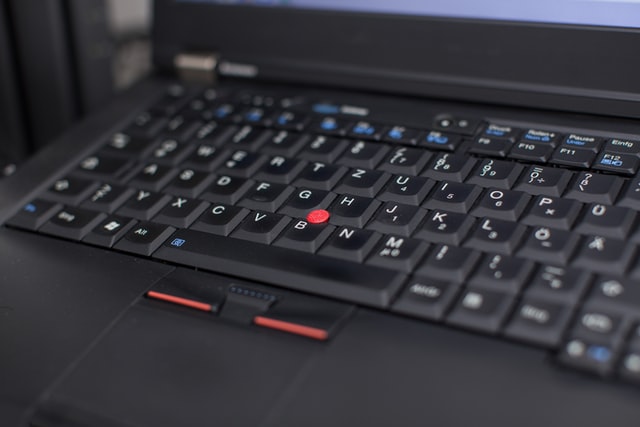
A TrackPoint laptop puts a pointer control in the middle of the keyboard, so your hands stay on the home row. The TrackPoint helps when you write, edit spreadsheets, or use a remote desktop for hours.
Lenovo has enough exact new configurations. Six of the seven have Thunderbolt 4, Thunderbolt 5 or USB4 for a dock, while the E14 has USB-C only.
Choose the keyboard and port layout together, because a red pointing stick does not make every ThinkPad equally suited to a desk dock or a travel bag.Table of Contents
Best TrackPoint Laptops Compared
| Image | Product | Details | Check Price |
|---|---|---|---|
 | Lenovo ThinkPad X1 Carbon Gen 13 Aura Edition | Best fit: Premium travel and docked work Configuration: Core Ultra 7 258V, 32GB RAM, 2TB SSD Screen: 14-inch 2.8K OLED Pointing device: TrackPoint High-speed ports: 2x Thunderbolt 4 | Check Price on Amazon |
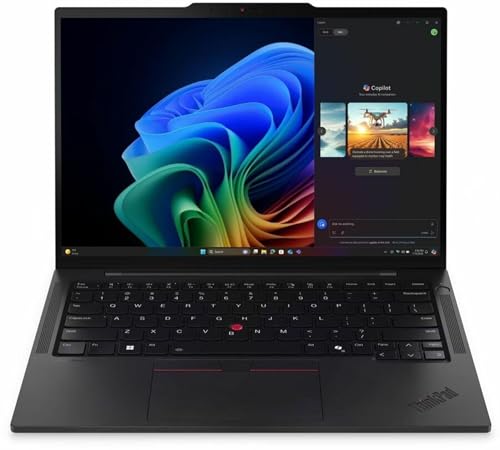 | Lenovo ThinkPad T14s Gen 6 Intel 21QX00LBUS | Best fit: Slim docked office Configuration: Core Ultra 7 268V vPro, 32GB RAM, 512GB SSD Screen: 14-inch WUXGA touchscreen Pointing device: TrackPoint High-speed ports: 2x Thunderbolt 4 | Check Price on Amazon |
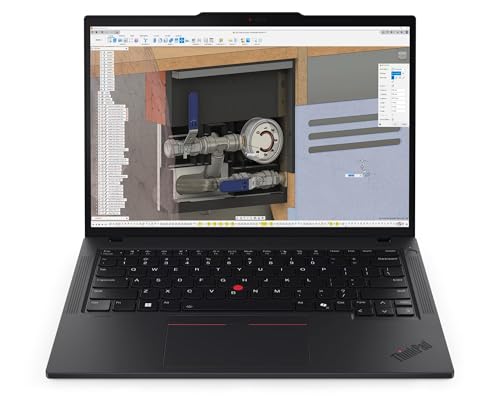 | Lenovo ThinkPad P14s Gen 6 AMD | Best fit: Portable workstation Configuration: Ryzen AI 7 PRO 350, 32GB RAM, 1TB SSD Screen: 14-inch WUXGA, 500 nits, 100% sRGB Pointing device: TrackPoint High-speed ports: 2x Thunderbolt 4 / USB4 40Gbps | Check Price on Amazon |
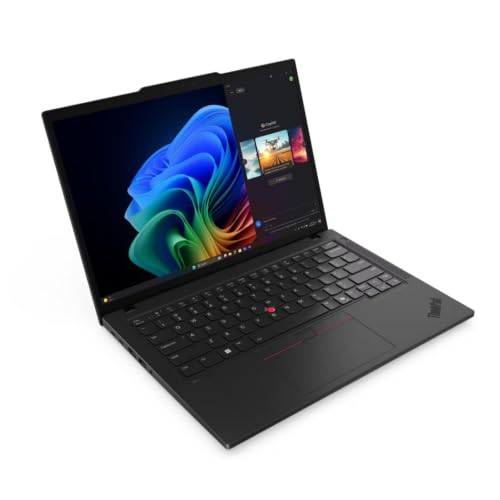 | Lenovo ThinkPad T14 Gen 6 AMD 21QJ00CSUS | Best fit: Configured 14-inch business laptop Configuration: Ryzen AI 7 PRO 350, 16GB RAM, 512GB SSD Screen: 14-inch WUXGA Pointing device: TrackPoint High-speed ports: 2x USB4 40Gbps | Check Price on Amazon |
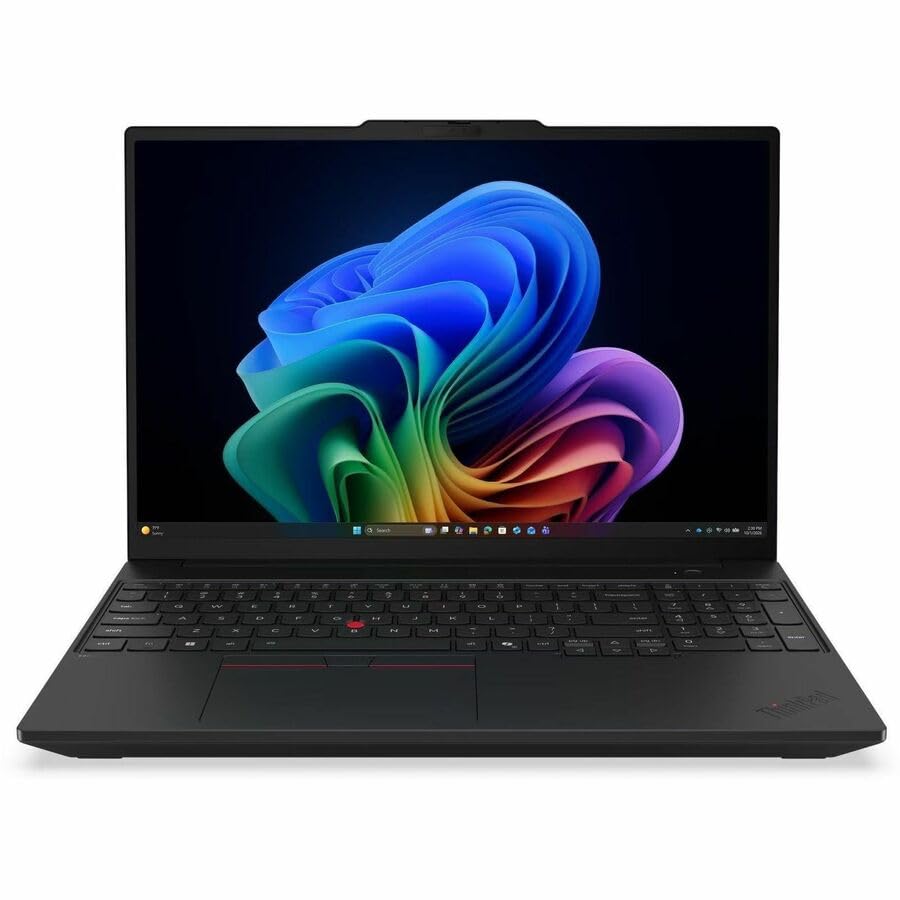 | Lenovo ThinkPad T16 Gen 5 AMD 21WX0005US | Best fit: Large-screen office work Configuration: Ryzen AI 7 PRO 400 450, 32GB RAM, 512GB SSD Screen: 16-inch WUXGA touchscreen Pointing device: TrackPoint High-speed ports: 2x Thunderbolt 4 | Check Price on Amazon |
 | Lenovo ThinkPad E14 Gen 6 AMD 21M3000RUS | Best fit: Basic office and legacy peripherals Configuration: Ryzen 5 7535U, 8GB RAM, 256GB SSD Screen: 14-inch WUXGA Pointing device: TrackPoint High-speed ports: USB-C 5Gbps and 10Gbps, no USB4 or Thunderbolt | Check Price on Amazon |
 | Lenovo ThinkPad P16 Gen 3 21RQ001TUS | Best fit: Heavy workstation work Configuration: Core Ultra 7 255HX, RTX PRO 2000, 32GB RAM, 1TB SSD Screen: 16-inch WQUXGA IPS, 800 nits Pointing device: TrackPoint High-speed ports: 2x Thunderbolt 5 and 1x Thunderbolt 4 | Check Price on Amazon |
1. ThinkPad X1 Carbon Gen 13 Aura Edition — Best Premium Travel Pick
The X1 Carbon is for a person who carries one laptop between meetings and a fixed desk. Amazon identifies this configuration with a Core Ultra 7 258V, 32GB of memory and a 2TB SSD, while Lenovo documents the TrackPoint and two Thunderbolt 4 ports.
Its listed 14-inch 2.8K OLED panel suits dense side-by-side windows without a 16-inch chassis. Two Thunderbolt 4 ports suit a desk dock, but the X1 Carbon is a premium configuration.
Our Take Buy the X1 Carbon Gen 13 if carry size, a high-resolution OLED screen and ports for a dock belong in the same purchase. The listed 32GB and 2TB configuration gives it more headroom than the E14 below, but its role is premium mobility rather than a workstation substitute.
- The listed Core Ultra 7 258V, 32GB RAM and 2TB SSD suit a travel setup with one laptop.
- A 14-inch 2.8K OLED panel gives more workspace than the listed WUXGA models.
- Two Thunderbolt 4 ports support a compact dock without giving up the TrackPoint keyboard.
- The premium 32GB and 2TB configuration exceeds many basic office workloads.
- A 14-inch panel has less physical workspace than the 16-inch T16 and P16.
2. ThinkPad T14s Gen 6 Intel — Best Slim Docked Office Pick
The T14s Gen 6 Intel is for someone who wants a business ThinkPad with a known model code. The Amazon listing identifies 21QX00LBUS with Core Ultra 7 268V vPro, 32GB RAM and a 512GB SSD, so it is easier to match to Lenovo’s specification than a generic reseller bundle.
Lenovo documents a TrackPoint and two Thunderbolt 4 ports for this Intel family, while the listing names a 14-inch WUXGA touchscreen. The combination is sensible for a desk with a Thunderbolt dock and a bag that does not need a 16-inch screen, although the 512GB SSD is smaller than the X1 Carbon listing.
The exact 21QX00LBUS model code is the useful part of this listing. Use it when checking an employer image, dock policy, or replacement unit.Our Take Choose the T14s Gen 6 Intel when a slim 14-inch office machine needs a TrackPoint, vPro, and two Thunderbolt 4 ports. Pick the P14s for its AMD workstation configuration, or the T16 for a larger display.
- The 21QX00LBUS code ties the listed Core Ultra 7 268V, 32GB and 512GB configuration together.
- Two Thunderbolt 4 ports make a single-cable dock practical beside the built-in TrackPoint controls.
- The 14-inch WUXGA touchscreen favors a compact office bag over a large workstation chassis.
- vPro is named in the Amazon title for buyers whose employer specifies that Intel management platform.
- The listed 512GB SSD has less local file room than the 1TB P14s and P16.
- The compact 14-inch screen trades spreadsheet space for portability.
- This Intel model does not suit an AMD purchasing requirement.
3. ThinkPad P14s Gen 6 AMD — Best Portable Workstation
The P14s Gen 6 is the 14-inch option for work that benefits from a ThinkPad workstation. This Amazon configuration combines Ryzen AI 7 PRO 350, 32GB RAM and a 1TB SSD with a WUXGA non-touch screen rated at 500 nits and 100% sRGB.
Lenovo puts a TrackPoint in the P14s keyboard and documents two Thunderbolt 4 / USB4 40Gbps ports, plus HDMI and Ethernet in the family port layout. The Ethernet and HDMI ports make more sense for a user who alternates between a dock, a wired network and a portable workstation than for somebody choosing only on screen size.
Our Take Pick the P14s Gen 6 AMD for the best balance of portable workstation capacity and desk connectivity. Its listed 1TB SSD and 32GB memory put it above the T14 and E14 configurations here, while the P16 is the stronger option when a discrete RTX PRO GPU and a 16-inch display are part of the job.
- Ryzen AI 7 PRO 350, 32GB RAM and a 1TB SSD give this 14-inch configuration meaningful local capacity.
- Amazon lists a 500-nit, 100% sRGB WUXGA panel for this configuration.
- Two Thunderbolt 4 / USB4 40Gbps ports work with fast docks and external storage.
- Lenovo includes Ethernet in the family layout for offices that do not rely on Wi-Fi alone.
- A TrackPoint and three-button trackpad let you keep your hands on the keyboard.
- The listed WUXGA screen has less pixel density than the X1 Carbon’s 2.8K OLED panel.
- Lenovo lists integrated Radeon graphics, a different class from the P16’s RTX PRO 2000 GPU.
4. ThinkPad T14 Gen 6 AMD — Best Configured 14-Inch Pick
The T14 Gen 6 AMD gives a shopper an exact 21QJ00CSUS configuration. Amazon lists Ryzen AI 7 PRO 350, 16GB RAM, a 512GB SSD and a 14-inch WUXGA display, enough to decide whether its supplied capacity fits your software.
Lenovo documents the TrackPoint keyboard and two USB4 40Gbps ports for the AMD family. The USB4 ports make it a better desk candidate than the E14 when you need a fast dock, while its 16GB and 512GB listing means it is a step below the P14s for large local files or more demanding multitasking.
Do not assign a family maximum memory figure to this listing. The exact Amazon configuration is 16GB and 512GB.Our Take Buy the T14 Gen 6 AMD when an exact model code, USB4 desk connectivity and a traditional 14-inch ThinkPad are enough. The P14s earns the upgrade when you want the listed 32GB, 1TB and brighter described panel, while the E14 is the lower-spec route to the same pointing-stick workflow.
- The 21QJ00CSUS model code pairs the Amazon configuration with Lenovo’s AMD T14 documentation.
- Two USB4 40Gbps ports give it a proper high-speed dock path.
- Ryzen AI 7 PRO 350 is named for this 14-inch configuration.
- The listed 16GB RAM and 512GB SSD leave less room than the P14s configuration above.
- The Amazon title does not describe the screen beyond WUXGA, unlike the P14s listing’s brightness and color claims.
- A 14-inch display is less comfortable than the T16 for full-time spreadsheet work.
5. ThinkPad T16 Gen 5 AMD — Best Large-Screen Pick
The T16 Gen 5 AMD suits a desk where screen width helps. The exact 21WX0005US listing names Ryzen AI 7 PRO 400 450, 32GB RAM, 512GB SSD and a 16-inch WUXGA touchscreen, more workspace than the 14-inch models.
Lenovo documents TrackPoint and two Thunderbolt 4 ports for the T16 AMD family, so the larger screen does not cost it dock connectivity. It is less portable than the X1 Carbon, T14s, T14 or P14s because of the 16-inch chassis, which is the trade for a larger panel in front of the same keyboard layout.
Our Take Choose the T16 Gen 5 AMD if it spends more time on a desk than in a small bag. Its listed 32GB supports a serious office load, and two Thunderbolt 4 ports are faster than the E14’s ordinary USB-C ports, but the P16 is the workstation answer for discrete graphics.
- A 16-inch WUXGA touchscreen gives more desk workspace than the 14-inch selections.
- The exact 21WX0005US listing pairs 32GB RAM with Ryzen AI 7 PRO 400 450.
- Two Thunderbolt 4 ports give a high-speed route for a dock or storage.
- The TrackPoint keyboard is available in a larger chassis.
- The 16-inch chassis is less convenient to carry than each 14-inch ThinkPad above.
- The listing’s 512GB SSD is smaller than the 1TB P14s and P16 configurations.
6. ThinkPad E14 Gen 6 AMD — Best Basic Office Pick
The E14 Gen 6 is for a buyer who values the ThinkPad keyboard layout and does not need a Thunderbolt dock. Amazon identifies 21M3000RUS with Ryzen 5 7535U, 8GB RAM and a 256GB SSD, and Lenovo documents the TrackPoint and a 14-inch WUXGA option.
The E14’s ports set it apart. Lenovo lists one 5Gbps USB-C port and one 10Gbps USB-C port with power delivery and DisplayPort, but neither USB4 nor Thunderbolt. Those ports are enough for charging and a display, yet they are not equivalent to the 40Gbps dock path on the P14s, T14 or T16.
Our Take Pick the E14 Gen 6 AMD when you want a TrackPoint office laptop with ordinary USB-C display and charging support. Move to the T14 or P14s if a high-speed dock, more included memory, or more included storage is part of the purchase.
- The exact 21M3000RUS configuration identifies its Ryzen 5 7535U, 8GB RAM and 256GB SSD clearly.
- Lenovo retains the TrackPoint and three-button trackpad layout in this entry-level ThinkPad family.
- USB-C at 5Gbps and 10Gbps supports charging and DisplayPort 1.4 output.
- No USB4 or Thunderbolt means it does not match the dock bandwidth of the other six laptops.
- The listed 8GB RAM and 256GB SSD constrain large local workspaces and files.
- The 14-inch WUXGA screen has less physical space than the T16 and P16.
- Its Ryzen 5 7535U is a different performance tier from the Ryzen AI and Core Ultra configurations above.
7. ThinkPad P16 Gen 3 — Best Heavy Workstation
The P16 Gen 3 is for a desk-bound technical workload that needs a TrackPoint with workstation hardware. Amazon identifies 21RQ001TUS with Core Ultra 7 255HX, RTX PRO 2000 graphics, 32GB RAM and a 1TB SSD, plus a 16-inch WQUXGA IPS panel listed at 800 nits.
Lenovo’s P16 Gen 3 specification pairs the TrackPoint keyboard with an unusually broad wired layout: two Thunderbolt 5 ports and one Thunderbolt 4 port, alongside Ethernet, HDMI and an SD Express reader. That port count makes it the strongest choice here for a desk full of fast storage and displays, but also the least natural machine for a light travel routine. For graphics-heavy choices beyond this page, see our local AI laptop guide.
Our Take Buy the P16 Gen 3 for a heavy professional desk setup where a discrete RTX PRO GPU, a 16-inch screen and Thunderbolt 5 ports serve the same workflow. The P14s is the better answer when you need similar keyboard habits in a much smaller 14-inch class.
- The listed RTX PRO 2000 adds discrete graphics that no other laptop in this roundup includes.
- A 16-inch WQUXGA IPS panel listed at 800 nits gives a much denser work surface.
- Two Thunderbolt 5 ports plus one Thunderbolt 4 port suit several fast desk accessories.
- The 21RQ001TUS listing combines 32GB RAM and a 1TB SSD with the Core Ultra 7 255HX.
- Ethernet, HDMI and an SD Express reader add physical connections beyond the Thunderbolt ports.
- A 16-inch workstation chassis is a poor fit for buyers who carry their laptop daily.
- Its GPU and three-port Thunderbolt layout exceed the needs of ordinary documents and web work.
Buying Guide
Start with the pointing-device workflow
A TrackPoint is the small pressure-sensitive stick between the G, H and B keys on a ThinkPad keyboard. It moves the pointer without moving either hand from the letter keys, and three buttons above the trackpad handle clicks and scrolling. That layout is common to the X1 Carbon Gen 13, T14s Gen 6, P14s Gen 6, T14 Gen 6, T16 Gen 5, E14 Gen 6 and P16 Gen 3.
Other makers have called a similar control a pointing stick, AccuPoint or SensePoint, but the labels do not guarantee that every configuration includes one. A ThinkPad’s PSREF entry names the TrackPoint and three-button trackpad directly, which is why this list does not add a Dell or HP model based on its family name alone.
Choose the port class before choosing a dock
Thunderbolt 4, Thunderbolt 5 and USB4 provide the fast USB-C path that makes one-cable docks and fast external storage useful. The P16 has two Thunderbolt 5 ports and one Thunderbolt 4 port, while the X1 Carbon, T14s and T16 each have two Thunderbolt 4 ports and the P14s has two Thunderbolt 4 / USB4 40Gbps ports. The T14 AMD family offers USB4 support.
The E14 is the exception. Its USB-C ports run at 5Gbps and 10Gbps, not USB4 or Thunderbolt, though they support power delivery and DisplayPort. It can run a display, charger and ordinary USB accessories, but choose the P14s, T14, T16 or a model in our Thunderbolt laptop guide when dock bandwidth is a purchase requirement.
Match the screen to desk time and bag time
Screen size changes how the TrackPoint workflow feels because spreadsheets and remote desktops benefit from a larger visible area. The T16 uses a 16-inch WUXGA touchscreen and the P16 lists a 16-inch WQUXGA 800-nit IPS panel, so both favor long desk sessions where the extra physical width outweighs a larger bag.
The X1 Carbon, T14s, P14s, T14 and E14 stay at 14 inches. The X1 Carbon’s listed 2.8K OLED and the P14s listing’s 500-nit, 100% sRGB WUXGA panel are the clearer screen choices, while the other listings establish WUXGA size without making broader panel promises. Buy the exact display named in the offer rather than a brighter family option.
Buy the listed memory and storage, not the family maximum
Amazon configurations vary even when the laptop name does not. The X1 Carbon, T14s, P14s and T16 listings include 32GB RAM, while the exact T14 listing has 16GB and the E14 has 8GB, so each suits a different amount of simultaneous software and local files. The P16 also lists 32GB alongside its RTX PRO GPU.
Storage follows the same rule. The X1 Carbon lists 2TB, the P14s and P16 list 1TB, and the T14s, T14 and T16 list 512GB, while the E14 has 256GB. If your work includes large source trees, media caches or virtual machines, start with the listed 1TB or 2TB options and use our business laptop Ethernet guide if wired networking is another requirement.
Treat the touchpad as a complement, not a replacement
A TrackPoint is not automatically better than a touchpad. Use the pointing stick when cursor movement between typing tasks is the priority, then use the trackpad for gestures, broad scrolling or any motion that feels more natural with a larger surface. Each laptop here pairs the stick with a trackpad rather than forcing an either-or choice.
The practical difference is hand position, not a universal speed claim. The X1 Carbon and T14s suit people who split time between travel and a dock, while the T16 and P16 provide more screen around the same keyboard layout. Select the chassis around your work location first, then let the TrackPoint preserve a familiar control method.
FAQ
What is a TrackPoint?
A TrackPoint is a small pointing stick located between the G, H and B keys on a ThinkPad keyboard. Pressure on the cap moves the cursor while your fingers stay near the home row, and buttons above the trackpad provide clicks and scrolling control.
The TrackPoint is separate from the trackpad and does not replace it. The ThinkPads listed here pair the TrackPoint with a three-button trackpad, so you can switch controls based on the task rather than buying an external mouse for every cursor move.
How is a TrackPoint different from another maker’s pointing stick?
TrackPoint is Lenovo’s name for the ThinkPad pointing stick and its surrounding button layout. A similar control from another maker can be called a pointing stick, AccuPoint or SensePoint, but those names describe a category rather than a promise that every laptop configuration includes the hardware.
Dell Latitude and HP business families can vary by configuration, so confirm the exact keyboard before buying. The seven ThinkPads here are included because Lenovo’s family documentation names the TrackPoint layout alongside the exact Amazon configuration information.
Is a TrackPoint better than a touchpad?
Neither is better for every job. A TrackPoint keeps your hands in the typing area for small cursor moves, while a touchpad offers a bigger surface for gestures, wide scrolling and pointer movement across a large display.
The right choice is a laptop that includes both, not one that makes you give up the input method you already use comfortably.
Which TrackPoint laptop is best for a Thunderbolt dock?
The P16 Gen 3 is the fullest desk option because Lenovo documents two Thunderbolt 5 ports and one Thunderbolt 4 port. The X1 Carbon and T14s each have two Thunderbolt 4 ports, and the P14s has two Thunderbolt 4 / USB4 40Gbps ports in a smaller chassis.
The T14 AMD family is a USB4 choice, and the T16 has two Thunderbolt 4 ports for desk use. Avoid treating the E14 as equivalent: its USB-C ports handle power and DisplayPort, but Lenovo does not identify them as USB4 or Thunderbolt.
Which one should I choose for a larger screen?
Choose the T16 Gen 5 AMD when you want a 16-inch WUXGA touchscreen with a Ryzen AI configuration for office work. Choose the P16 Gen 3 when the 16-inch WQUXGA, 800-nit panel and RTX PRO 2000 configuration are tied to a heavier workstation job.
The 14-inch X1 Carbon, T14s, P14s, T14 and E14 make more sense when the laptop moves with you. A larger external screen at a desk can also change the decision, which is why the high-speed port class should be chosen at the same time as panel size.
Bottom Line
The X1 Carbon Gen 13 is the premium travel choice, the P14s Gen 6 gives a compact 32GB/1TB workstation configuration, and the P16 Gen 3 is the heavy desk workstation. The E14 Gen 6 belongs on the shortlist only when ordinary USB-C and its listed 8GB/256GB configuration fit the job.


O “trackpoint” foi introduzido nos Laptop da IBM em 1992 e com passar dos tempos foi substituído pelos “touchpads”, mas a Lenovo tem modelo de laptop até 2021 com “trackpoint”.