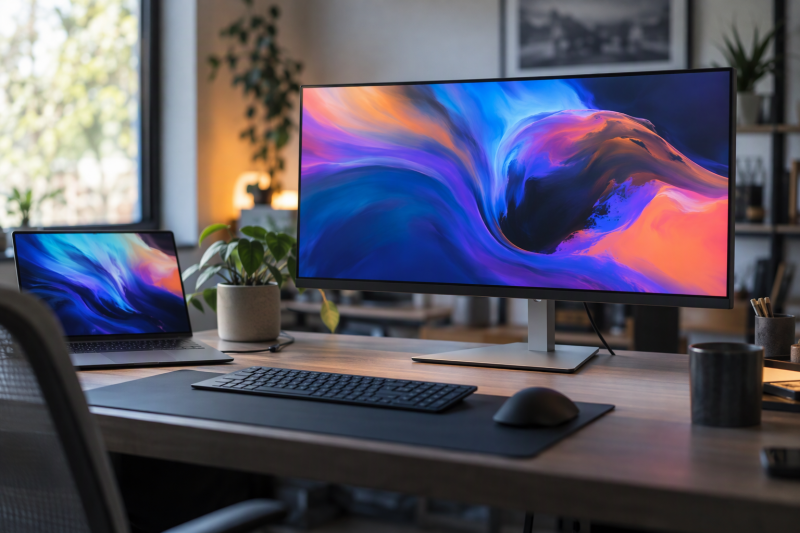
We compare six GIGABYTE monitors, from a 24.5-inch Full HD screen to a 34-inch ultrawide. The figures come from the Amazon listings and from GIGABYTE’s own product pages and manuals. Resolution and size decide how much workspace you get, and panel type, refresh rate and inputs decide whether a model suits your laptop.
Choose the screen size and resolution first, then check the refresh rate against the inputs your source and cable can use.| Image | Product | Best fit | Screen | Refresh | Connections | Limit | Check Price |
|---|---|---|---|---|---|---|---|
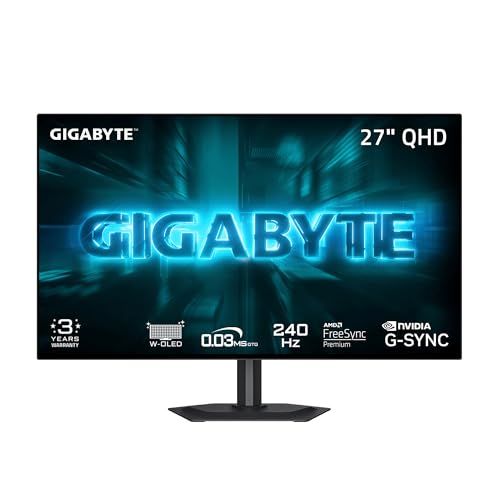 | GIGABYTE GO27Q24G | QHD OLED gaming | 27 in, QHD WOLED | 240Hz | 2 HDMI 2.1, DP, USB-C | USB-C rated 5V/3A, charging not stated | Check Price on Amazon |
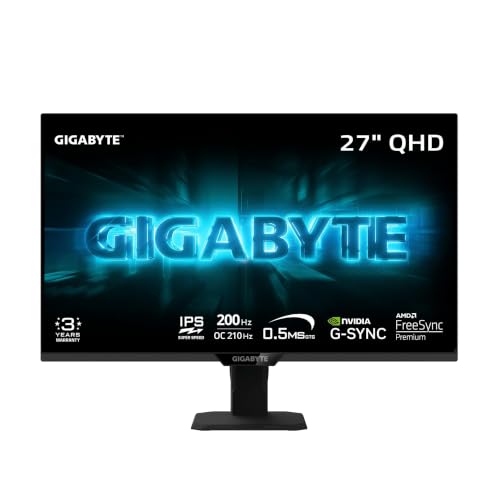 | GIGABYTE G27Q20-T | QHD IPS gaming | 27 in, QHD IPS | 200Hz, 210Hz OC | HDMI named in title | Full input list not in listing | Check Price on Amazon |
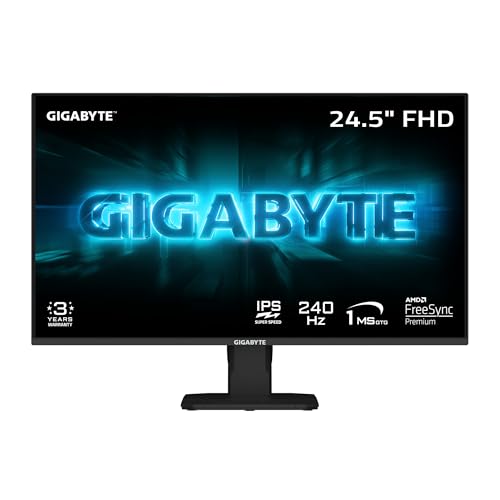 | GIGABYTE GS25F2A | Smaller Full HD screen | 24.5 in, Full HD IPS | 240Hz | 2 HDMI 2.0, DP 1.4 | Full HD, tilt only | Check Price on Amazon |
 | GIGABYTE GS32QCA | Larger curved QHD | 31.5 in, QHD VA, 1500R | 180Hz DP; 144Hz HDMI at QHD | 2 HDMI 2.0, DP 1.4 | 180Hz QHD on DP only per manual | Check Price on Amazon |
 | GIGABYTE GS34WQC | Ultrawide curved workspace | 34 in, 3440 x 1440 VA | 120Hz, 135Hz OC | 2 HDMI 2.0, DP 1.4 | Wide desk space needed | Check Price on Amazon |
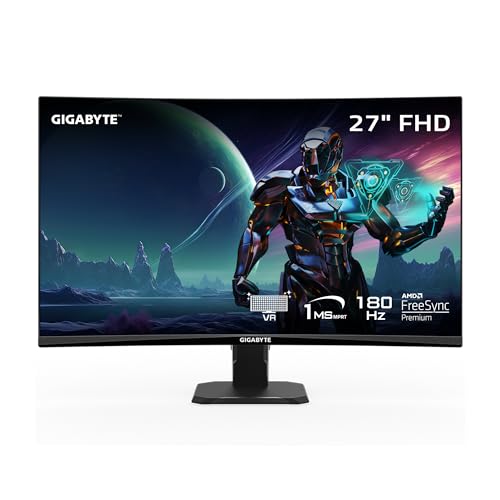 | GIGABYTE GS27FC | Curved Full HD gaming | 27 in, Full HD VA, 1500R | 180Hz | 2 HDMI 2.0, DP 1.4 | Full HD, tilt only | Check Price on Amazon |
1. GIGABYTE GO27Q24G — Best QHD OLED Gaming Screen
The Amazon listing describes the GO27Q24G as a 27-inch WOLED monitor at 2560 x 1440 with a 240Hz refresh rate and 0.03ms gray-to-gray response. It credits MLA+ technology with 275 nits of typical brightness and up to 1300 nits of peak brightness, and describes a RealBlack Glossy surface with an anti-reflective coating. GIGABYTE’s manual lists 275 nits typical in SDR, up to 1300 nits peak in HDR and a 1.5M:1 contrast ratio.
OLED Care is the listing’s name for burn-in protection. GIGABYTE’s manual lists the OLED Care settings as Pixel Shift, APL Stabilize, Sub-Logo Dim, Corner Dim, Brightness Control and Tone Control. It also recommends running Pixel Clean after more than 4 hours of use.
GIGABYTE’s manual lists two HDMI 2.1 ports, one DisplayPort 1.4 and one USB Type-C port rated 5V/3A, and its timing table includes 2560 x 1440 at 240Hz on all four ports. The manual also lists a Type-C Compatibility setting for more mobile devices. The Amazon title names height and tilt adjustment.
USB-C: GIGABYTE’s manual rates the Type-C port at 5V/3A and does not mention laptop charging, and the Amazon listing gives no charging wattage.Our Take Choose the GO27Q24G for QHD OLED gaming when GIGABYTE’s 240Hz timing on HDMI, DisplayPort and USB-C and the height and tilt adjustment in the Amazon title fit the desk.
- For QHD OLED gaming, the Amazon listing describes the GO27Q24G as a 27-inch WOLED panel at 2560 x 1440 with 240Hz and 0.03ms gray-to-gray response.
- GIGABYTE’s manual lists the GO27Q24G at 2560 x 1440 and 240Hz on HDMI, DisplayPort and USB-C, the same mode on each input.
- GIGABYTE’s manual lists Pixel Shift, Sub-Logo Dim and Corner Dim among the OLED Care settings that the Amazon listing names for burn-in protection.
- GIGABYTE’s manual lists two HDMI 2.1 ports for the GO27Q24G, next to its DisplayPort and USB-C inputs.
- The Amazon title for the GO27Q24G names height and tilt adjustment for fitting the screen to the desk.
- GIGABYTE’s manual rates the GO27Q24G’s USB-C port at 5V/3A and does not mention laptop charging, and the Amazon listing gives no charging wattage.
- The Amazon listing says OLED Care minimizes the risks of burn-in and does not say it prevents burn-in.
2. GIGABYTE G27Q20-T — Best QHD IPS Display
The Amazon listing for the G27Q20-T gives a 27-inch SuperSpeed IPS panel at 2560 x 1440, with 200Hz or 210Hz in overclock mode and 0.5ms gray-to-gray response. It also gives a 1000:1 contrast ratio, 123% sRGB and HDR 10 support, and names AMD FreeSync Premium and NVIDIA G-SYNC compatibility.
The listing’s Game Assist group names a timer, Smart OD, OSD Sidekick and Aim Stabilizer, and it adds Black Equalizer 2.0 and a Dashboard that shows hardware stats. The listing gives stand tilt from minus 5 to plus 20 degrees and a 178-degree viewing angle. The title names HDMI, and the bullets do not list the other inputs. Confirm the port count with the seller before planning a laptop desk. Every figure for this monitor comes from the Amazon listing.
Our Take Pick the G27Q20-T for a QHD IPS screen when the listing’s 200Hz rate and tilt adjustment fit the setup.
- The G27Q20-T is a QHD IPS pick on the Amazon listing’s 2560 x 1440 resolution and 27-inch SuperSpeed IPS panel.
- The Amazon listing gives the G27Q20-T 200Hz, or 210Hz in overclock mode, with 0.5ms gray-to-gray response.
- The Amazon listing names both AMD FreeSync Premium and NVIDIA G-SYNC compatibility for the G27Q20-T.
- The G27Q20-T has 123% sRGB and HDR 10 support according to the Amazon listing.
- The G27Q20-T’s 210Hz applies to overclock mode, and the Amazon listing gives 200Hz as the standard rate.
- The Amazon listing for the G27Q20-T does not list the full set of inputs, so the port count needs confirming with the seller.
3. GIGABYTE GS25F2A — Best Compact High-Refresh Full HD Screen
GIGABYTE’s product page lists the GS25F2A as a 24.5-inch SuperSpeed IPS panel at 1920 x 1080 with a 240Hz maximum refresh rate and 1ms gray-to-gray response. The page also lists 300 cd/m2 typical brightness, a 1000:1 contrast ratio, 120% sRGB and a non-glare surface. The Amazon listing gives the same contrast and gamut and names AMD FreeSync Premium and HDR10 certification.
GIGABYTE lists two HDMI 2.0 ports, one DisplayPort 1.4, an earphone jack and 2W x 2 speakers, and the Amazon title names HDMI and DisplayPort. GIGABYTE lists stand tilt from minus 5 to plus 20 degrees and lists height adjustment, swivel and pivot as N/A. It also lists 100 x 100mm VESA mounting and a weight of 3.11 kg with the stand.
Size: GIGABYTE lists 24.5 inches at 1920 x 1080, fewer pixels than the 2560 x 1440 in the GO27Q24G, G27Q20-T and GS32QCA listings.Our Take Choose the GS25F2A when a 24.5-inch, 240Hz Full HD screen with built-in speakers suits the desk better than a larger QHD screen.
- GIGABYTE lists the GS25F2A at 240Hz with 1ms gray-to-gray response, a high refresh rate on a compact Full HD screen.
- GIGABYTE lists two HDMI 2.0 ports and one DisplayPort 1.4 for the GS25F2A, and the Amazon title names HDMI and DisplayPort.
- GIGABYTE lists 2W x 2 built-in speakers and an earphone jack for the GS25F2A.
- The Amazon listing names AMD FreeSync Premium and HDR10 certification for the GS25F2A.
- GIGABYTE lists the GS25F2A at 1920 x 1080, fewer pixels than the 2560 x 1440 in the GO27Q24G and G27Q20-T listings.
- GIGABYTE lists height adjustment, swivel and pivot as N/A for the GS25F2A, so tilt is the only stand adjustment it lists.
4. GIGABYTE GS32QCA — Best Larger Curved QHD Screen
The Amazon listing describes the GS32QCA as a 31.5-inch curved VA panel with a 1500R curve at 2560 x 1440, 180Hz and 1ms MPRT response. Its bullets give 3500:1 contrast and 120% sRGB. GIGABYTE’s manual agrees on 3500:1 and adds 250 nits typical brightness. The listing gives the color depth as 8-bit, while the manual gives 1.07B colors (8-bit+FRC).
The title and the manual both give two HDMI 2.0 ports and one DisplayPort 1.4. GIGABYTE’s timing table lists 2560 x 1440 at 144Hz on HDMI, and at 165Hz and 180Hz on DisplayPort only. The Amazon listing gives 180Hz without naming an input, and tilt from minus 5 to plus 20 degrees.
Our Take Consider the GS32QCA for a larger curved QHD screen if your laptop can send a DisplayPort signal for the 180Hz mode.
- The GS32QCA is a larger curved QHD screen on the Amazon listing’s 31.5-inch 1500R curved VA panel at 2560 x 1440.
- GIGABYTE’s manual lists 2560 x 1440 at 180Hz on DisplayPort for the GS32QCA, a mode a laptop needs a DisplayPort signal to use.
- GIGABYTE’s manual lists two HDMI 2.0 ports and one DisplayPort 1.4 for the GS32QCA, and the Amazon title gives the same ports.
- The Amazon listing gives the GS32QCA stand tilt from minus 5 to plus 20 degrees.
- GIGABYTE’s manual does not list 2560 x 1440 above 144Hz on HDMI for the GS32QCA, so a laptop that sends only HDMI is held to that rate or lower.
- GIGABYTE’s manual lists the GS32QCA at 709 x 497 x 238 mm with the stand, wider than the 556.9mm GIGABYTE lists for the GS25F2A.
- The Amazon listing for the GS32QCA names tilt adjustment but not height adjustment.
5. GIGABYTE GS34WQC — Best Curved Ultrawide Workspace
GIGABYTE’s product page lists the GS34WQC as a 34-inch VA panel with a 1500R curve at 3440 x 1440, with 120Hz or 135Hz in overclock mode and 1ms MPRT response. The page also lists 300 cd/m2 typical brightness, 4000:1 contrast and 120% sRGB. The Amazon listing gives 120Hz, 1ms MPRT and 120% sRGB, and its title names FreeSync Premium.
Both sources give one DisplayPort 1.4, two HDMI 2.0 ports and an earphone jack. GIGABYTE lists 100mm of height adjustment, tilt from minus 5 to plus 20 degrees, PiP and PbP modes and 100 x 100mm VESA mounting, and the Amazon listing repeats the VESA figure. The Amazon title ends in (GS34WQC SA), while the listing’s model field reads GS34WQC EU.
Our Take Pick the GS34WQC for a curved ultrawide workspace when GIGABYTE’s 120Hz rate, or 135Hz in overclock mode, and the HDMI and DisplayPort inputs are enough.
- GIGABYTE lists the GS34WQC as a 34-inch 3440 x 1440 VA panel with a 1500R curve, a curved ultrawide workspace.
- GIGABYTE lists 120Hz for the GS34WQC, or 135Hz in overclock mode, with 1ms MPRT response.
- GIGABYTE lists 100mm of height adjustment and tilt from minus 5 to plus 20 degrees for the GS34WQC stand.
- GIGABYTE lists PiP and PbP modes for the GS34WQC.
- The Amazon listing repeats GIGABYTE’s 100 x 100mm VESA mounting figure for the GS34WQC.
- The Amazon title gives the GS34WQC regional code SA while the listing’s model field gives EU, two codes for one listing.
- GIGABYTE lists the GS34WQC at 808.9 x 488.8 x 234.8 mm with the stand, wider than the 556.9mm GIGABYTE lists for the GS25F2A.
- GIGABYTE’s 135Hz overclock figure for the GS34WQC is below the 180Hz that the GS27FC and GS32QCA listings give.
6. GIGABYTE GS27FC — Best Curved Full HD Screen
GIGABYTE’s product page lists the GS27FC as a 27-inch VA panel with a 1500R curve at 1920 x 1080, with a 180Hz maximum refresh rate, 1ms MPRT response, 250 cd/m2 typical brightness, 3000:1 contrast and 108% sRGB. The Amazon listing gives the same 180Hz, 3000:1 and 108% figures and names AMD FreeSync Premium and HDR10 certification.
GIGABYTE lists two HDMI 2.0 ports, one DisplayPort 1.4 and an earphone jack, with speakers as N/A, and the Amazon title gives the same ports. The Amazon bullets name Game Assist tools including OSD Sidekick, a timer and crosshairs, and GIGABYTE adds Aim Stabilizer and Black Equalizer. GIGABYTE lists tilt from minus 5 to plus 20 degrees, height adjustment as N/A and 100 x 100mm VESA mounting.
Our Take Choose the GS27FC for a curved Full HD screen when 180Hz and two HDMI ports plus DisplayPort cover your sources.
- GIGABYTE lists the GS27FC as a 27-inch VA panel with a 1500R curve, a curved Full HD screen.
- GIGABYTE lists 180Hz and 1ms MPRT response for the GS27FC.
- GIGABYTE lists two HDMI 2.0 ports and one DisplayPort 1.4 for the GS27FC, and the Amazon title gives the same ports.
- GIGABYTE lists Aim Stabilizer, Black Equalizer, Crosshair and Timer game tools for the GS27FC.
- GIGABYTE lists the GS27FC at 1920 x 1080, fewer pixels than the 2560 x 1440 in the GO27Q24G and G27Q20-T listings.
- GIGABYTE lists height adjustment, swivel and pivot as N/A for the GS27FC, and speakers as N/A.
Buying Guide: Choosing a GIGABYTE Monitor
Pick the resolution and screen size together
GIGABYTE lists the GS25F2A at 24.5 inches with Full HD and the GS27FC at 27 inches with Full HD. The Amazon listings give the GO27Q24G and G27Q20-T at 27 inches with 2560 x 1440, more pixels at the same size as the GS27FC.
The GS32QCA listing gives QHD at 31.5 inches, and GIGABYTE lists the GS34WQC at 3440 x 1440 on a 34-inch panel. Measure the desk before choosing the wider screen, since GIGABYTE lists 808.9mm of width with the stand for the GS34WQC against 556.9mm for the GS25F2A.
Compare OLED, IPS and VA descriptions
The GO27Q24G listing describes a WOLED panel, and GIGABYTE’s manual lists OLED Care settings such as Pixel Shift and Corner Dim. The G27Q20-T and GS25F2A listings describe SuperSpeed IPS panels.
GIGABYTE lists the GS32QCA, GS34WQC and GS27FC with VA panels and 1500R curves. It lists contrast of 3000:1 to 4000:1 for those three, against the 1000:1 that the Amazon listings give for the GS25F2A and G27Q20-T.
Match the refresh rate to the input
GIGABYTE’s manual lists the GO27Q24G at 2560 x 1440 and 240Hz on HDMI, DisplayPort and USB-C. The G27Q20-T listing gives 200Hz, or 210Hz in overclock mode, and GIGABYTE lists 240Hz for the smaller GS25F2A at 1920 x 1080.
For the GS32QCA, GIGABYTE’s manual lists 180Hz at 2560 x 1440 on DisplayPort and up to 144Hz on HDMI. GIGABYTE lists 120Hz, or 135Hz in overclock mode, for the GS34WQC and 180Hz for the GS27FC. The source and cable must support the chosen mode.
Check the laptop’s video connection
GIGABYTE’s manual for the GO27Q24G lists two HDMI 2.1 ports, one DisplayPort 1.4 and one USB Type-C port rated 5V/3A. The manual does not mention laptop charging, and the Amazon listing gives no charging wattage.
GIGABYTE lists two HDMI 2.0 ports and one DisplayPort 1.4 for the GS25F2A, GS27FC and GS34WQC, and its manual lists the same for the GS32QCA. None of those four lists names a USB-C port. Check that a laptop with only USB-C ports can send video to these inputs through an adapter or cable, and that it supports the display output mode.
Plan the stand and mounting position
The Amazon title for the GO27Q24G names height and tilt adjustment. The G27Q20-T and GS32QCA listings give tilt from minus 5 to plus 20 degrees and do not name height adjustment, and GIGABYTE lists height adjustment as N/A for the GS25F2A and GS27FC.
GIGABYTE lists 100mm of height adjustment and 100 x 100mm VESA mounting for the GS34WQC, with a weight of 6.08 kg without the stand. Check an arm’s weight and size ratings against those figures before mounting.
FAQ
Which GIGABYTE monitor here has an OLED panel?
The GO27Q24G is the OLED model here. Its Amazon listing describes a 27-inch WOLED panel at 2560 x 1440 and 240Hz, and GIGABYTE’s manual lists the same resolution and refresh rate on every input.
The G27Q20-T and GS25F2A listings describe IPS panels, while GIGABYTE lists the GS32QCA, GS34WQC and GS27FC as VA with a 1500R curve. GIGABYTE also lists a 1.5M:1 contrast ratio for the GO27Q24G in its manual, against 1000:1 for the GS25F2A.
Which option is the smallest?
GIGABYTE lists the GS25F2A at 24.5 inches, against 27 inches for the GO27Q24G, G27Q20-T and GS27FC in their listings and GIGABYTE pages. GIGABYTE lists that size with 1920 x 1080 and 240Hz.
GIGABYTE lists the GS25F2A at 556.9 x 402.0 x 179.4 mm with its stand, against 610.5 x 441 x 208 mm for the GS27FC. Its 1920 x 1080 resolution has fewer pixels than the 2560 x 1440 in the GO27Q24G and G27Q20-T listings.
Which display is ultrawide?
GIGABYTE lists the GS34WQC at 34 inches and 3440 x 1440 on a curved VA panel, with 120Hz, or 135Hz in overclock mode, and a 1500R curve.
The GS32QCA listing gives a 31.5-inch QHD curved screen, which is not an ultrawide format. GIGABYTE lists 709 x 497 x 238 mm for the GS32QCA and 808.9 x 488.8 x 234.8 mm for the GS34WQC, both with stands.
Can I get 180Hz from the GS32QCA over HDMI?
GIGABYTE’s manual for the GS32QCA lists 2560 x 1440 at 180Hz on DisplayPort only, and its HDMI entries stop at 144Hz at that resolution. The Amazon listing gives 180Hz without naming an input.
If the laptop offers only HDMI, check its own output modes and any adapter before buying. The manual’s 165Hz and 180Hz entries sit in the DisplayPort column only.
Does the GO27Q24G USB-C port charge a laptop?
GIGABYTE’s manual lists the GO27Q24G USB Type-C port at 5V/3A and does not mention laptop charging. Its timing table includes 2560 x 1440 at 240Hz on that port, and the Amazon listing gives no charging wattage.
Check the laptop’s video support and the monitor’s power specification separately, and keep a charger available for the laptop.
Bottom Line
Choose the GO27Q24G for QHD OLED, the G27Q20-T for QHD IPS, or the GS25F2A for a smaller Full HD screen. The GS32QCA and GS27FC cover curved QHD and Full HD choices, while the GS34WQC adds an ultrawide format.
For a broader screen decision, see our monitor selection guide and gaming monitor comparison. The laptop’s output and cable must also support the resolution and refresh rate you want.