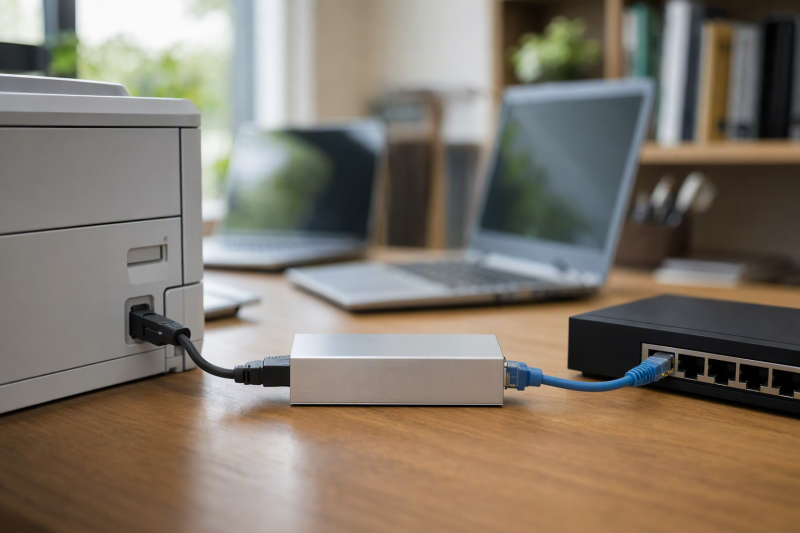
An older USB printer may still make clean pages while every laptop in the household takes turns finding the one computer connected to it. A print server can put that printer on the local network without leaving a host PC running. The catch is printer language and driver support. A box that accepts a USB plug does not automatically support a host-based printer, scanning, ink-status reporting, AirPrint, or every phone.
These six print servers are meant to share a USB printer over wired Ethernet or Wi-Fi. No exact printer was tested with these units. Before buying, check the printer model against the server maker’s compatibility list, confirm a supported driver for every computer, and see whether your existing router already offers compatible USB printer sharing.
Identify the exact printer model and whether it prints through standard network protocols. Do not buy a print server solely because the USB connector fits.USB Print Servers Compared
| Image | Product | Details | Check Price |
|---|---|---|---|
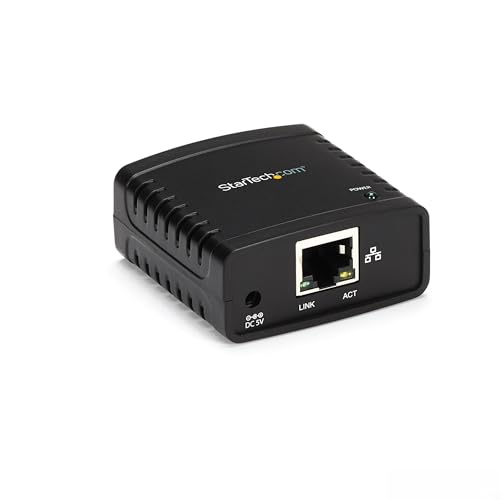 | StarTech PM1115U2 | Printers: 1 USB Network: Wired 10/100 Mobile/scan: Not promised Best fit: Documented wired setup | Check Price on Amazon |
 | Xiiaozet 3-USB | Printers: Up to 3 USB claimed Network: Wi-Fi or wired Mobile/scan: No AirPrint/mobile Best fit: Three compatible printers | Check Price on Amazon |
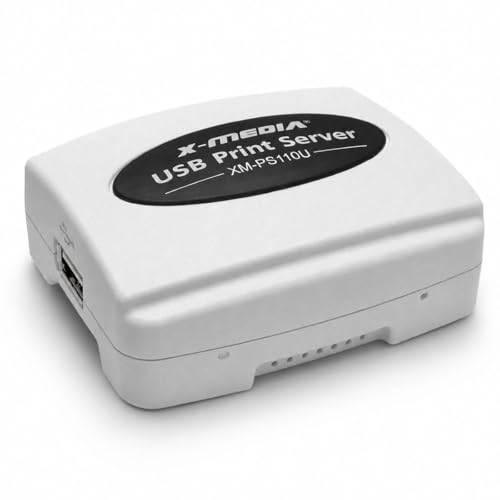 | X-MEDIA XM-PS110U | Printers: 1 USB Network: Wired 10/100 Mobile/scan: Not stated Best fit: Exact listed printer | Check Price on Amazon |
 | StarTech PM1115UW | Printers: 1 USB Network: Wireless-N or wired Mobile/scan: No AirPrint/iOS Best fit: Printer away from router | Check Price on Amazon |
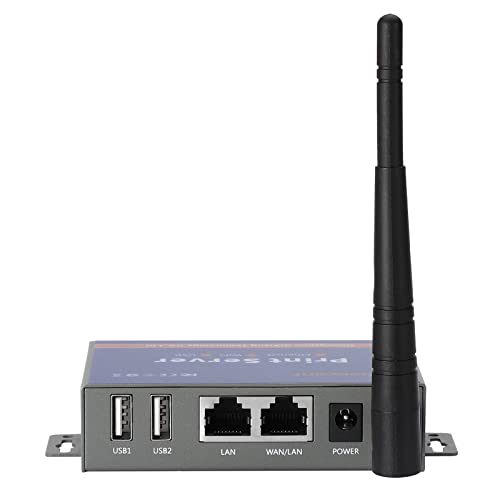 | CHEECENT CR202 | Printers: 2 USB Network: Wi-Fi or wired Mobile/scan: No scan/phone/tablet Best fit: Two computer-only printers | Check Price on Amazon |
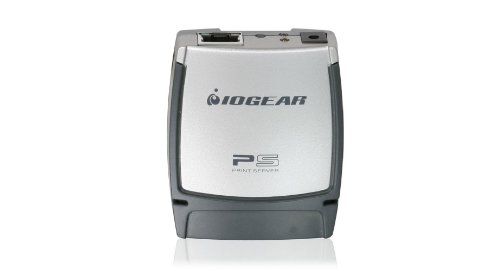 | IOGEAR GPSU21W6 | Printers: 1 USB Network: Wired 10/100 Mobile/scan: Not stated Best fit: Published compatibility list | Check Price on Amazon |
1. StarTech PM1115U2 — Best Documented Wired Choice
StarTech’s PM1115U2 connects one USB 2.0 printer to a 10/100-Mbps Ethernet LAN. Its listing names LPR printing and Bonjour services, with a web interface for network setup. StarTech publishes setup guides for Windows and macOS, which is useful when a desk includes both. The printer still needs its own driver on each client. Leave room near the printer for the USB cable, the Ethernet cable, and the server’s power adapter.
The maker explicitly says it is not plug-and-play and may not work with multifunction printers needing proprietary drivers or full bidirectional USB communication. StarTech support also explains that a multifunction device may print while scanning remains unavailable over its print-server protocol. The included setup software is Windows-only, though manual and macOS setup instructions exist. Confirm the exact printer model and expected functions before buying.
Our Take Choose the PM1115U2 for one wired printer when compatibility is documented. Expect to configure the network yourself.
- Maker documents LPR/Bonjour and setup steps.
- No host computer needs to remain on for printing.
- Manual IP and queue setup.
- No promised scanning or full printer-status features.
2. Xiiaozet Three-USB Wireless Server — Best Three-Printer Layout
Xiiaozet’s listing says it can share up to three USB printers over a wired LAN or Wi-Fi using Raw or IPP network printing. That layout may suit a desk with several USB printers, e.g., a laser printer and a label printer, provided each exact model is supported. The seller describes queue management and IP-address or hostname setup on Windows and macOS. It explicitly says mobile printing and AirPrint are not supported.
The broad “95% of printers” compatibility number is an unverified seller claim, not a guarantee for a particular model. The listing warns that proprietary protocols such as CAPT or DDST may fail and that some printers need sleep or bidirectional modes changed. Check whether all three intended printers can be added and used simultaneously in the vendor’s documentation. A three-port count is not proof of universal driver support.
Our Take Choose Xiiaozet for the most printer slots here, but only if each exact printer and each client’s operating system passes the compatibility check.
- Three USB printer slots stated.
- Wi-Fi or wired LAN placement.
- No AirPrint or mobile printing claim.
- Proprietary printer languages may fail.
3. X-MEDIA XM-PS110U — Best Compatibility-List Check
X-MEDIA lists the XM-PS110U as a one-USB-port, 10/100-Mbps wired print server. The listing says it supports multiple operating systems and points buyers to a PDF compatibility guide under the product documents. That guide is the document to inspect before purchase, not the seller’s generalized “more than 320 printer models” claim. If your exact printer is listed, the box may give a simple wired link from a nearby printer to the router.
The checked bullets do not clearly spell out each network protocol, supported OS version, or what multifunction features carry over. The compatibility PDF was not checked against a specific printer. Prefer the better-documented StarTech or IOGEAR entry when this model’s exact compatibility evidence is missing.
Our Take Shortlist the XM-PS110U only if its published model list matches your printer, since sparse protocol detail makes it a poor blind purchase.
- Simple wired one-printer format.
- Listing points to a compatibility document.
- Protocol and OS detail sparse in checked bullets.
4. StarTech PM1115UW — Best Wi-Fi Placement
StarTech specifies that the PM1115UW adds 802.11b/g/n Wi-Fi to a one-printer USB print server and retains a 10/100-Mbps RJ45 port. It suits a printer and router that cannot share a convenient Ethernet cable. StarTech publishes setup instructions and support articles for its print-server series. The box still needs its own power and must join the local network. The phrase “wireless printer” here means the server provides the network link, not that the USB printer itself gains new features.
The listing explicitly rules out iOS, iPadOS, and AirPrint. StarTech support says a multifunction printer may print through its standard protocols while scanning does not. Older Wireless-N compatibility also depends on the router’s current Wi-Fi settings. Confirm the network can support the unit’s bands and security mode. Use the wired port when Wi-Fi coverage near the printer is unreliable.
Our Take Choose the PM1115UW as the documented placement fix for a compatible USB printer away from Ethernet. Do not count on it for phone printing or network scanning.
- Wi-Fi and wired Ethernet options.
- Maker setup resources available.
- No AirPrint or iOS/iPadOS support stated.
- Wireless-N network fit needs checking.
5. CHEECENT CR202 — Best Two-Printer Option
CHEECENT’s CR202 lists two USB printer ports, with a Wi-Fi or Ethernet connection to the network and a browser-based setup interface. With two ports, you can stop leaving a host PC running when two ordinary USB printers need to serve several Windows, Mac, or Linux computers. The metal housing has a mounting hole, useful for keeping the server next to the printers rather than among desk cables. Each client still needs a compatible printer driver.
The seller repeatedly warns that it is not plug-and-play and does not support scanning, phones, tablets, Chromebooks, or non-printer USB devices. It points buyers to a printer compatibility list and says bidirectional mode may need to be disabled. The warnings and exclusions are significant limits you need to accept before buying. Check both printers by model and decide whether losing ink-level or scan status is acceptable before committing to this two-port setup.
Our Take Choose the CR202 for exactly two compatible printers and computer-only clients. Weigh its stated feature exclusions as heavily as its second USB port.
- Two USB printer connections.
- Wi-Fi and Ethernet backhaul.
- Browser-based management stated.
- No scanning or mobile clients.
- May require bidirectional mode changes.
6. IOGEAR GPSU21W6 — Best Published Printer List
IOGEAR’s GPSU21W6 listing describes one USB printer connection over 10/100-Mbps Ethernet, DHCP, and web/Telnet management. IOGEAR maintains a GPSU21 product page with a printer compatibility list, manual, and setup resources. The list is useful when a specific older printer is the reason for this purchase. The server is small and wired, with a power adapter and network connection needed near the printer.
The seller says it can print across the Internet, but do not expose a legacy print-server management interface directly to the public Internet. Use it on a trusted local network and follow current security guidance for any remote access. The checked listing does not establish scanning, AirPrint, or compatibility with every newer printer and OS. Verify the exact GPSU21W6 variant and the printer model against IOGEAR’s current documents before ordering.
Our Take Choose IOGEAR for a documented wired alternative with a model list to check. Treat broad remote-printing language as a security question, not a reason to open Internet access.
- Manufacturer printer-compatibility list.
- DHCP and web management stated.
- No Wi-Fi in checked model.
- Legacy protocol/security fit needs review.
Buying Guide: Check the Printer Before the Server
Confirm exact printer language and client drivers
Find the printer’s exact model and current driver for every laptop that will print. Then check the server maker’s printer list or protocol guidance. A USB printer that relies on a host PC’s proprietary processing may not accept raw network jobs through a simple LPR/IPP server. Xiiaozet specifically warns about CAPT and DDST, and StarTech warns about proprietary drivers and full bidirectional communication. A brand name or USB 2.0 label is not enough to clear the compatibility question.
Test direct USB printing first if possible. If the printer already fails on a current operating system, a print server will not create a missing driver. For mixed Windows and Mac desks, verify both setup paths, not just the server’s headline OS list. StarTech provides platform-specific instructions, while IOGEAR and X-MEDIA offer model lists to check. Check whether the printer and the print server receive firmware and security support. Some older devices may be inappropriate for an untrusted network.
Decide wired versus Wi-Fi and count real printer ports
A wired server is easiest when the printer sits near a router or switch. The Ethernet socket is the server’s link to the network, while USB connects the printer. A plain USB selector switch is not a network print server. PM1115U2, X-MEDIA, and IOGEAR are wired single-printer choices. If the printer is across the room, StarTech PM1115UW or a listed wireless multi-printer unit can avoid a long Ethernet cable, but signal quality and network security settings still affect the result.
Count USB printer ports, not generic USB device promises. CHEECENT lists two, Xiiaozet three, and the others one. A multipurpose USB device server is a different tool that may require clients to take turns owning a USB device. The products here are presented for network printing. For a crowded desk, our USB-C hub guide helps with laptop-side ports, while the USB-C docking station guide covers a permanent desk connection. Neither replaces the server next to the printer.
Set up the queue and keep management local
Expect to assign or discover the server’s local IP address, then add a printer using the queue and protocol its maker documents. The StarTech PM1115U2 uses LPR queue “LP1” in its listing, and another server may use Raw or IPP. Do not guess queue names across brands. A DHCP reservation can keep the address stable if the router supports it. The correct printer driver usually remains installed on each client. The server passes jobs rather than rendering every printer language itself.
Keep administration on a trusted local network. Do not open legacy web or Telnet management directly to the Internet for convenience. Print job success also does not prove ink status, scanning, or fax functions will cross the network. If a multifunction device’s scan workflow is required, verify a specific supported method or choose a printer with built-in network features instead. An existing router’s USB print function may be simpler if it explicitly supports your exact model.
Frequently Asked Questions
Will a USB print server also share my scanner?
A print server usually does not pass that function through standard print-server protocols. Printing and scanning are separate functions, and StarTech support states that multifunction printers can print while scanning remains unavailable through its print servers. CHEECENT explicitly excludes scanning. A USB port on the server does not make it a full USB-over-IP device server.
Check the exact printer and server combination if scanning is essential. A printer with built-in network scanning, or a specifically compatible device-server workflow, may be more appropriate. Scanner support was not independently tested for these models.
Can I print from an iPhone or iPad through these servers?
Do not assume phone printing works. StarTech PM1115UW and Xiiaozet explicitly rule out AirPrint or mobile printing in their checked listings, while CHEECENT excludes phones and tablets. Bonjour discovery on a computer does not automatically mean AirPrint from iOS. A general “wireless” label describes the server’s network link, not Apple’s print protocol.
If mobile printing is a firm requirement, verify the exact protocol and printer model with the maker before purchase. A printer with native AirPrint may be simpler. The six servers here are meant for sharing an existing USB printer primarily among computers.
Does the printer need to be next to a laptop all day?
No, a standalone print server keeps the USB printer on the network without a dedicated laptop acting as the host. The printer, server, network connection, and their power supplies still need to stay on. Some sellers advertise printing “from anywhere”. You should not treat the phrase as permission to expose the box to the Internet.
Clients generally need a working driver and access to the server’s local IP address and queue. If the printer goes to sleep or loses USB connectivity, jobs may fail even while the server remains online. Check the printer’s sleep and bidirectional settings using the maker’s instructions.
Bottom Line
Choose StarTech PM1115U2 for one compatible wired printer with documented setup steps, PM1115UW for a printer that sits away from Ethernet, or CHEECENT CR202 for a second printer slot with clear feature limits. Start with the exact printer model and driver, not the number of USB ports on the box.