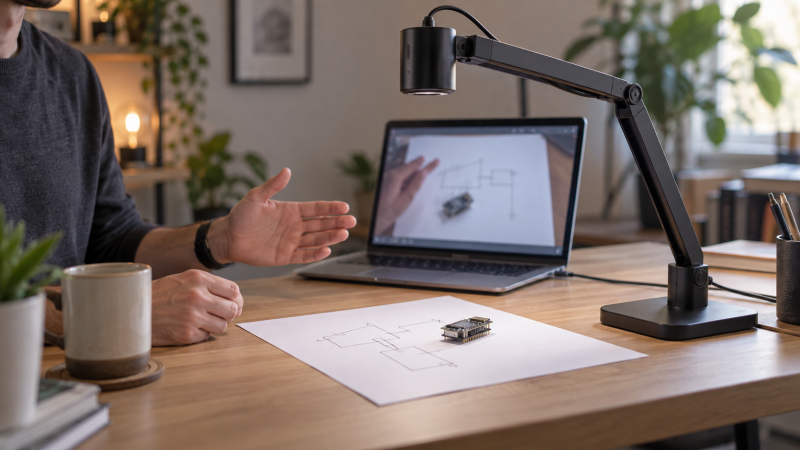
A document camera lets an audience see the page, circuit board or small object on your desk while you talk through it. For a laptop-led live demonstration, the useful question is what the audience can see at normal stream resolution, not merely the camera’s highest still-image pixel count. Frame size, focus controls, lighting and software fit can count for more than the headline sensor number.
These five exact Amazon US models had active New offers on September 29, 2026. Each fills a different desk role, from high-detail USB capture to HDMI fallback and manual-focus closeups. We have not independently tested image quality or app behavior.
Place a printed worksheet or object under the lens before deciding. Check the full frame, the focus transition and what a remote viewer actually receives.USB Document Cameras Compared
| Image | Product | Details | Check Price |
|---|---|---|---|
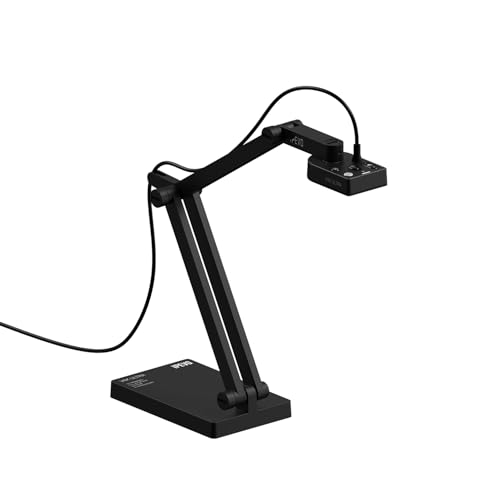 | IPEVO V4K-13MP Ultra | Image: 13MP, up to 3840x3104 listed Connection: USB Focus/control: Autofocus; LED Buyer fit: Detailed paper or object view | Check Price on Amazon |
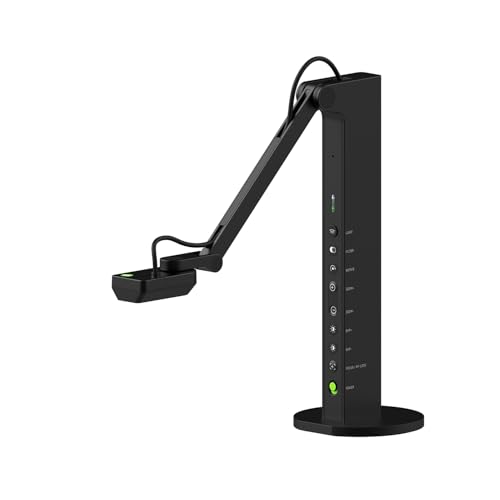 | IPEVO VZ-R Ultra | Image: 13MP USB; 4K HDMI listed Connection: USB and HDMI Focus/control: Tactile controls; LED Buyer fit: Laptop plus direct display | Check Price on Amazon |
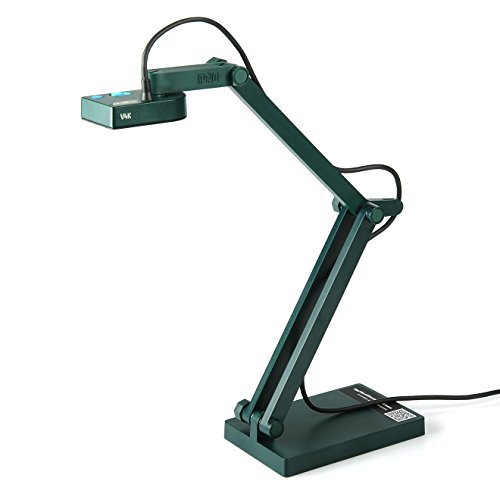 | IPEVO V4K 8MP | Image: 8MP; 1080p30 listed Connection: USB Focus/control: Fast focus, multi-joint arm Buyer fit: Simple established USB route | Check Price on Amazon |
 | PAKOTOO 8MP | Image: 8MP; A3 area listed Connection: USB 2.0 Focus/control: Button AF, flip and exposure Buyer fit: Worksheets and orientation | Check Price on Amazon |
 | HUE HD Pro | Image: 1080p live view listed Connection: USB Focus/control: Manual focus; flexible neck Buyer fit: Close object or detail work | Check Price on Amazon |
1. IPEVO V4K-13MP Ultra — Best Detailed USB Desk View
The V4K-13MP Ultra’s listing describes a 13MP sensor, up to 3840 by 3104 live-image resolution, autofocus, an LED and a flexible arm. The autofocus and flexible arm are useful when a demonstration moves between a full page and small detail without rearranging the whole desk. Its USB path is aimed at a laptop and IPEVO Visualizer software, not a standalone monitor. The exact listing also mentions a built-in microphone.
Do not assume a video call transmits every pixel the camera can capture. Meeting software, network settings and screen-sharing choices may reduce what viewers see. Rehearse with the actual app, then ask a remote participant whether fine handwriting remains readable. Autofocus can also hunt when hands pass under the lens. Pause or refocus after moving a three-dimensional object into place.
The higher sensor count is most useful for cropping or inspecting small details locally. If a meeting-room screen must work without a laptop, IPEVO VZ-R Ultra is the more flexible connection route. A video-editing monitor can help review a recorded demonstration, but it cannot restore detail lost by the call service.
Our Take Choose the V4K-13MP Ultra when USB capture and fine local detail are your priorities. Test the actual call view before paying for resolution your audience cannot receive.
- High listed sensor resolution for detailed work.
- Flexible arm, autofocus and LED are listed.
- USB route suits a laptop-led desk.
- No HDMI route in this exact listing.
- Meeting apps may not pass through full capture resolution.
2. IPEVO VZ-R Ultra — Best USB and HDMI Flexibility
VZ-R Ultra gives you USB for the laptop and HDMI for a direct monitor or projector. Its listing describes a 13MP camera, up to 4096 by 3072 in USB mode and 3840 by 2160 over HDMI, plus a built-in LED and tactile adjustment controls. The dual path helps when a desk demonstration sometimes goes into a video meeting and other times goes directly to a room display.
HDMI does not mean the document camera can share through a laptop without a capture interface. Choose the route before connecting: direct display output for the room, or USB input to the laptop for a call. The seller’s resolution figures are mode-specific and do not promise a fixed live frame rate. Check focus, exposure and the physical arm position with the object you plan to show. A tall project may need more clearance than a flat page.
Compared with IPEVO V4K-13MP Ultra, the advantage is connection flexibility rather than a claim of better measured image quality. If your laptop also drives a presentation teleprompter, map its USB and display connections before adding another camera.
Our Take Buy VZ-R Ultra if both laptop meetings and direct room display are regular jobs. If every demonstration stays in one USB video call, the extra connection may go unused.
- USB and HDMI routes cover two presentation setups.
- 13MP sensor and tactile controls listed.
- LED supports a dimmer desk.
- Direct HDMI output is not a laptop video input.
- Mode-specific output figures need setup testing.
3. IPEVO V4K 8MP — Best Established USB Route
This older V4K is a distinct 8MP USB document camera, not the 13MP Ultra above. Its exact listing describes 3264 by 2448 maximum capture, up to 30 frames per second at full HD and 15 frames per second at the maximum resolution. The multi-jointed stand gives a useful overhead view for handwriting, printed diagrams and small parts. IPEVO’s official support page documents its Visualizer software.
For moving hands, 1080p at the higher listed frame rate may look steadier than choosing maximum pixels. A document camera’s resolution menu does not decide what Zoom or another service sends to the audience. Test the output at the resolution and frame rate your presentation software accepts. The listing includes older computer requirements. Check your current laptop and browser workflow rather than assuming every machine will behave the same.
The V4K 8MP can be a simpler route if you do not need VZ-R’s HDMI output or the 13MP Ultra’s extra local capture detail. For a laptop with camera and presentation ports, a powered hub may be useful, but confirm that the camera appears correctly before the live session.
At maximum resolution the exact listing specifies a lower frame rate than its full-HD mode. Choose based on whether the audience sees text or moving hands.Our Take Choose V4K 8MP for a familiar USB-only overhead camera. Run one full rehearsal with your actual meeting app and switch modes if motion looks choppy.
- Full-HD 30fps mode is listed.
- Multi-jointed arm helps paper framing.
- Official IPEVO software support exists.
- Maximum-resolution mode is listed at 15fps.
- USB only, without the VZ-R’s direct HDMI route.
4. PAKOTOO 8MP — Best On-Device Page Orientation
PAKOTOO’s exact 8MP listing centers on A3-sized coverage and physical image-flip controls. It describes left-right and up-down inversion from the camera, three LED brightness levels, exposure adjustment and button-triggered autofocus. If you rotate the arm to show a sketch from the presenter’s side of a table, quick orientation control can save time during a call.
There are important limits in the same listing: USB 2.0 only, no HDMI, no zoom and no iPad compatibility. It also says setup may require selecting “USB Camera” in the computer’s camera app rather than assuming an automatic switch. Try both flat pages and raised objects. A listed A3 capture area helps large paper, but readable text still depends on lighting, focus and the stream’s resolution.
PAKOTOO is the utility choice rather than a promise of the best measured picture. HUE HD Pro is a different answer if you prefer manual focus for small objects. A desk key light may reduce shadows from hands, but avoid a lamp angle that throws glare off glossy paper.
Our Take Pick PAKOTOO when you show large pages and want quick flip controls. Verify your laptop recognizes it and your audience sees the correct orientation before going live.
- On-device page-flip and exposure controls.
- A3-sized capture area is listed.
- LED and button autofocus support changing material.
- No HDMI or iPad support in this listing.
- USB camera selection may take a setup step.
5. HUE HD Pro — Best Manual-Focus Closeups
HUE HD Pro trades sensor headline numbers for a bendable neck and manual focus. Its exact blue-model listing says it streams at 1080p, has LED lights and a microphone, and can plug its flexible neck directly into a USB port without the base. The seller describes a close-focus range beginning at one centimeter, useful for a small craft part, connector or specimen held steady beneath the lens.
Manual focus avoids automatic focus hunting, but it also asks you to adjust focus when you change object height. Make room for that movement in a live demo. The listing describes optional HUE Intuition software and compatibility with common camera apps. Confirm which features need that software on your computer. Do not assume the claimed close-focus distance guarantees a wide field of view at that distance.
The flexible neck makes HUE physically different from the articulated IPEVO stands. Its listed full-HD live view is enough for many calls where the service reduces resolution anyway. For a broad page with fast refocusing, IPEVO V4K-13MP Ultra may be easier. A USB-C hub helps only if it leaves stable space for the gooseneck and camera cable.
Manual focus is deliberate. Set it for the height of the object before the audience needs to inspect a tiny detail.Our Take HUE HD Pro suits close object demonstrations where you prefer to lock focus yourself. Practice moving the neck and resetting focus without blocking the camera view.
- Flexible neck supports varied small-object angles.
- Manual focus avoids autofocus hunting.
- 1080p USB live view and LEDs are listed.
- Focus must be adjusted as object height changes.
- No HDMI route in this exact listing.
Buying Guide
1. Start with the audience’s viewing path
A sensor resolution is not the same as the delivered stream. Video-call software may scale or compress the image. Put a printed page under the camera, share it through the exact app, and ask someone on another connection to read the smallest text you intend to show. Record the call if possible. A recorded rehearsal also reveals reflections or an upside-down image before the actual event.
Choose the cable path for the destination. Every model here offers USB for a laptop. VZ-R Ultra also has HDMI for direct display use. HDMI output does not become a laptop camera input without a capture path. If your desk also uses a teleprompter, map both devices to ports and power before the call.
2. Test page size and arm clearance
Measure the biggest page or object you will show. A camera that frames a small circuit board may not cover an A3 worksheet at the same height. The PAKOTOO listing specifies an A3-sized area. The IPEVO arms give different placement routes. Keep the camera stable while your hands write or assemble parts. A desk full of tripods can consume the working space.
Try the camera over a raised object. Results with flat paper do not predict how well it will focus on a connector, model or tool. Autofocus may react to passing hands. Manual focus takes preparation. HUE’s bendable neck makes placement easy, but it can still spring into a poor angle if its USB base is crowded by other hardware.
3. Light the work without glare
An onboard LED is convenient but not always the best angle. Glossy pages, shiny screws and laminated cards can reflect a lamp straight into the lens. Turn the built-in light down or use a side light with a diffuser. Watch the live preview while moving the object. If the camera autoexposes for a white sheet, a darker object may become hard to see.
Make handwriting and fine parts legible. Use a darker pen, larger print or a higher-contrast mat. Those choices help more than chasing a 13MP number if the audience receives 720p or 1080p. A flat LED desk light can fill shadows from one side, while the camera’s own LED can remain off.
4. Rehearse focus and orientation controls
Pick one way to rotate or mirror the picture. PAKOTOO lists physical inversion buttons. Other setups may use camera software or the conferencing app. Stacking two flips can leave text backward. Place a card with clear lettering in the frame and confirm that the remote viewer reads it correctly.
Practice transitions between items. Move from a page to a small 3D object and back, watching focus and exposure. Button-triggered autofocus can be steadier than continuous hunting, while HUE’s manual focus can hold a chosen plane. For a recorded product demo, a close-range fill light can be useful, but secure any stand outside the overhead frame.
FAQ
Can I use a USB document camera in Zoom or Teams?
Usually, if the computer recognizes it as a camera. Select the document camera as the video source or share a camera-app window, depending on the meeting software. The PAKOTOO listing says you may need to choose “USB Camera” manually.
Test the exact app and computer before a live session. Some camera features live in vendor software rather than the basic USB video feed. Confirm that the audience sees the document view rather than a mirrored preview intended for you.
Is 13MP automatically better than an 8MP camera for live demos?
No. Extra sensor pixels can help local capture or digital cropping, but a meeting service may send a much smaller picture. Lighting, focus stability, motion frame rate and a good overhead angle can be more important to the remote viewer.
The older IPEVO V4K 8MP listing gives different frame rates at full-HD and maximum-resolution modes. Compare a recorded call at the modes you will use, not just the largest number on the product page.
Do I need HDMI as well as USB?
Only if you regularly feed a room monitor or projector directly. VZ-R Ultra lists both connections and is useful when your audience alternates between a local screen and an online meeting.
For a laptop-only call, USB is enough in principle. HDMI from the camera is output, not an input your laptop automatically understands. Keep the workflow simple unless a direct display is part of your job.
Bottom Line
Choose IPEVO V4K-13MP Ultra for detailed USB desk capture, IPEVO VZ-R Ultra when direct HDMI display is also useful, or HUE HD Pro for close objects and deliberate focus. V4K 8MP offers an established USB route. PAKOTOO 8MP adds useful page-orientation controls. Rehearse through the actual meeting app before trusting a sensor specification.