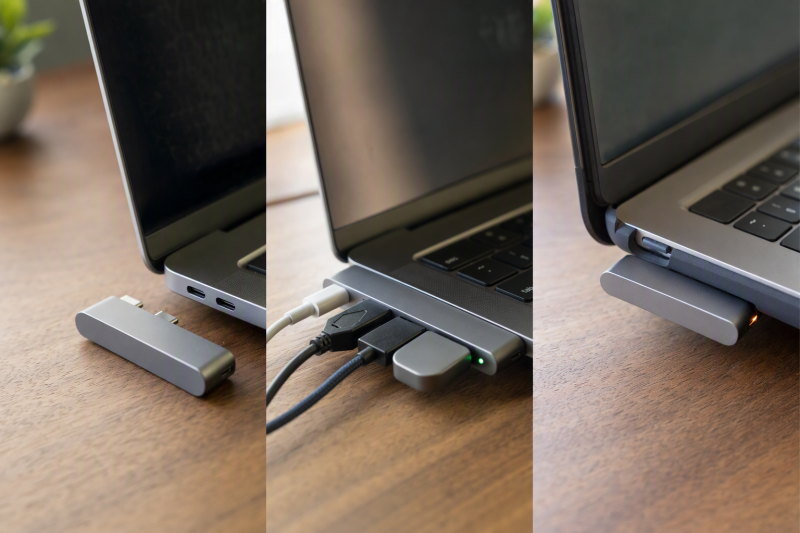
A form-fitting dual-plug hub is for a MacBook Pro setup where two adjacent left-side USB-C or Thunderbolt ports are available, but a dangling cable and a blocked neighbor are not. The six hubs below come from active new marketplace listings that identify this two-port, chassis-oriented category. The physical fit is the first purchase decision, not a cosmetic bonus.
These are listing-stated capabilities, not lab results. Check your exact MacBook model, chip, port side, and case before buying.
Key Takeaway: Choose the hub only after you confirm the two-port geometry, the bare-chassis or case condition, and the capabilities of your exact MacBook Pro. More downstream ports do not make an ill-fitting dual plug useful.
Quick comparison
| Hub | Best for | Listing-stated highlights | Fit or host caution |
|---|---|---|---|
| MOKiN 9-in-2 hub | Wired networking plus two HDMI connections | 2 HDMI, Ethernet, USB, SD/microSD, 100W PD claim | Requires two same-side Thunderbolt 3 ports |
| HyperDrive Duo 7-in-2 hub | A detachable magnetic mount | HDMI 4K60, USB4 40Gbps with 100W PD, Ethernet, microSD, audio | No stated case-on dual-plug fit |
| Melelink 8-in-2 hub | SD and microSD alongside HDMI | 4K60 HDMI claim, Thunderbolt 3, USB, card readers | Bottom cases are called out as incompatible |
| BHHB 8-in-2 hub | MacBook listings that mention MagSafe clearance | HDMI, Thunderbolt 4/3, USB, SD/TF, 100W PD claim | Not for MacBook Neo or a bottom case |
| Yeemie 13-in-2 hub | Two HDMI screens on an Intel MacBook Pro | Two HDMI at 4K30, Ethernet, audio, SD/TF, 100W PD claim | Listing says M1 to M4 MacBooks show one external monitor |
| Selore&S-Global hub | Matching a display plan to the Mac chip | HDMI, Thunderbolt 3/4, USB-A, USB-C data, audio | Not compatible with MacBook Pro cases |
| Image | Product | Details | Check Price |
|---|---|---|---|
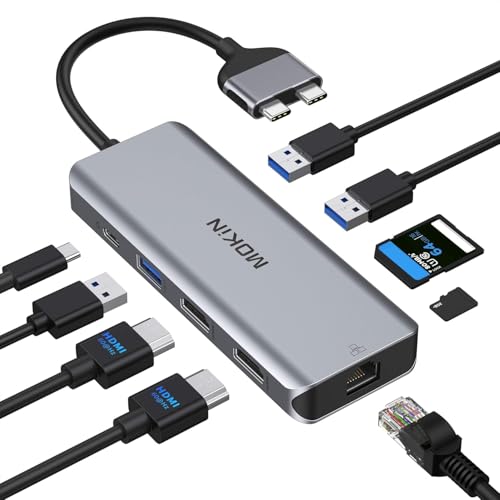 | MOKiN 9-in-2 MacBook Dock | Host fit: Two same-side Thunderbolt 3 ports Displays: 2 HDMI, listed 4K60 single or 4K30 dual Networking: Gigabit Ethernet Card readers: SD and microSD | Check Price on Amazon |
 | HyperDrive Duo 7-in-2 Hub | Host fit: MacBook Pro 14 and 16 inch, magnetic mount Display: Listed 4K60 HDMI Data: Listed USB4 40Gbps with 100W PD Case note: Listed for cases with included extension cable | Check Price on Amazon |
 | Melelink 8-in-2 Hub | Host fit: MacBook Pro/Air 2016 to 2026, bare chassis Displays: Listed 4K60 HDMI and 5K60 Thunderbolt 3 Data: Listed up to 40Gbps Thunderbolt 3 Card readers: SD and microSD | Check Price on Amazon |
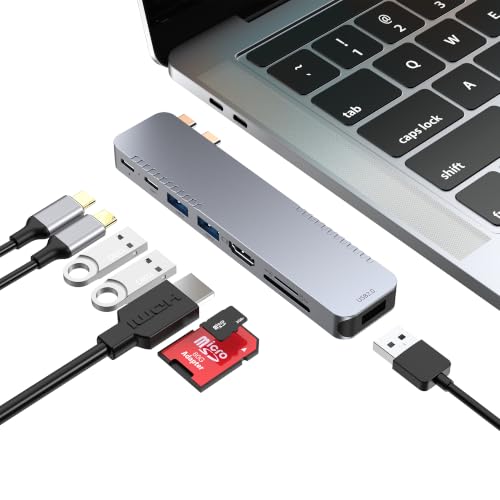 | BHHB 8-in-2 Hub | Host fit: Bare MacBook Pro/Air; not MacBook Neo Display: Listed 4K30 HDMI and 5K60 Thunderbolt path Charging: 100W PD claim Clearance: Listing says MagSafe is not blocked | Check Price on Amazon |
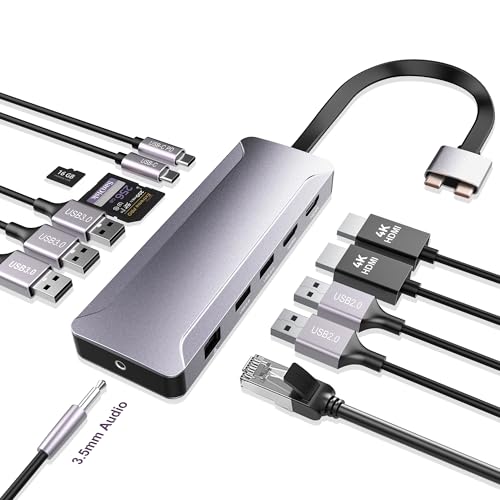 | Yeemie Pro 13-in-2 Hub | Host fit: Listed for 2016 to 2024 MacBook Pro, bare chassis Displays: Two HDMI at 4K30; one monitor on M1 to M4 Networking: Gigabit Ethernet Card readers: SD and TF | Check Price on Amazon |
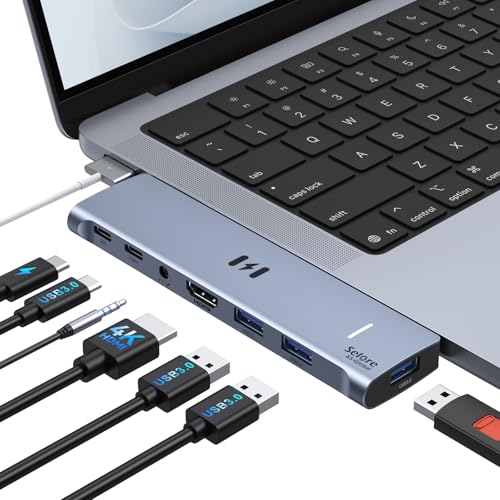 | Selore&S-Global Hub | Host fit: Dual-plug left-side MacBook Air/Pro Display: Listed 4K60 HDMI and 5K60 Thunderbolt Data: Listed up to 40Gbps Case note: MacBook Pro cases listed incompatible | Check Price on Amazon |
1. MOKiN 9-in-2 MacBook Dock — Best for Ethernet and Two HDMI Ports
The MOKiN 9-in-2 hub is the broadest connectivity choice here for a desk that needs wired networking and two HDMI sockets in the same compact attachment. Its marketplace listing describes two HDMI ports, two USB 3.0 ports, one USB 2.0 port, SD and microSD readers, Ethernet, a USB-C power-delivery input, and a pass-through Thunderbolt 3 port. That spread is practical only if you want the hub to replace several small adapters at once.
Fit is the gating issue. The listing says it is designed for MacBook Pro and Air models with two Thunderbolt 3 ports on one side, and explicitly says a MacBook with only one port on that side is unsupported. It also claims 4K at 60Hz for a single HDMI connection and 4K at 30Hz when both HDMI outputs are used. Treat those as listing-stated downstream capabilities, then confirm what your MacBook and display arrangement can actually drive.
Pros
- Ethernet plus two HDMI ports gives a wired-desk buyer more connection types without adding a separate network adapter.
- SD and microSD readers are useful when a camera-card workflow is as important as USB peripherals.
Cons
- Two same-side host ports are mandatory, so this is not a fallback for a one-port-side chassis.
- Dual-HDMI resolution is listed lower than single-HDMI resolution. Check the difference before planning two high-resolution screens.
Our Take: Choose this MOKiN for Ethernet and two HDMI ports only after confirming the bare-chassis fit and display plan.
2. HyperDrive Duo 7-in-2 Hub — Best for a Detachable Magnetic Mount
Hyper’s listing describes magnetic strip mounting that lets you detach and reattach the HyperDrive Duo 7-in-2 hub, and its title names the 14-inch and 16-inch MacBook Pro. It lists 4K60Hz HDMI, USB4 at 40Gbps with 100W power delivery, 10Gbps USB-C and USB-A, Gigabit Ethernet, microSD, and a 3.5mm audio combo jack.
Hyper says the hub works with cases and includes a USB-C extension cable, but the listing does not say the two plugs seat with a bottom case on. It states no MagSafe clearance and no chip-specific display rules.
Pros
- Magnetic strip mounting lets you detach and reattach the hub, according to Hyper’s listing.
- Hyper lists 40Gbps data and 100W charging at the same time on the USB4 port.
Cons
- Hyper does not say the two plugs seat with a case on, and it pairs the case claim with an included extension cable.
- The title names only the 14-inch and 16-inch MacBook Pro, so a 13-inch Pro or MacBook Air owner has no stated fit.
Our Take: Pick the HyperDrive Duo for its magnetic mount and USB4 port on a 14-inch or 16-inch MacBook Pro, not as a stated case-on dual-plug fit.
3. Melelink 8-in-2 Hub — Best for Card Reader and Single 5K Path
The Melelink 8-in-2 hub is a card-reader-forward option that lists HDMI, a Thunderbolt 3 port, USB-A and USB-C data ports, plus SD and microSD readers. Its marketplace listing claims 4K at 60Hz over HDMI and 5K at 60Hz through the Thunderbolt 3 port, along with up to 40Gbps data transfer and 100W input with an 85W output figure. That makes it a sensible candidate for someone who needs to ingest cards and use one high-resolution display path.
The listing says a bottom case prevents fit and that M1 MacBooks cannot extend to two external displays through this arrangement. The host capability is decisive.
Pros
- SD and microSD can be read simultaneously according to the listing, which keeps a photo-import workflow compact.
- A claimed 5K60 Thunderbolt 3 display path gives the buyer a stated option beyond HDMI, subject to host support.
Cons
- Bottom-case interference is explicit, so the chassis fit should be confirmed before looking at its port map.
- M1 multi-display restrictions apply, even though the hub presents more than one display connection.
Our Take: Choose Melelink for card readers and a listed single 5K path, not to solve a cased chassis or host-display limit.
4. BHHB 8-in-2 Hub — Best for a MagSafe Clearance Claim
The BHHB 8-in-2 hub suits a buyer whose charger connection is part of the physical layout. Its listing says the hub does not block the MagSafe charging connection and names 13-inch through 16-inch MacBook Pro models from 2016 through 2026, as well as several MacBook Air generations. The listed downstream mix includes 4K30 HDMI, a Thunderbolt 4/3 port, USB-A and USB-C data, SD and TF readers, and power delivery.
The listing excludes MacBook Neo and bottom cases, and gives chip-specific display guidance. Keep its 4K30 HDMI claim separate from its 5K60 Thunderbolt claim.
Pros
- The MagSafe-clearance claim addresses a concrete side-of-chassis concern that many generic cable hubs do not address.
- Separate HDMI and Thunderbolt display claims provide more than one listed route to a display setup.
Cons
- No bottom case support means protective shells are a direct fit risk.
- Display behavior depends on chip generation, so the connector count cannot settle the monitor question by itself.
Our Take: Consider BHHB for its listed MagSafe clearance only after matching its bare-chassis and chip conditions to your Mac.
5. Yeemie Pro 13-in-2 Hub — Best for Two HDMI Ports on Intel MacBook Pros
The Yeemie Pro 13-in-2 listing names MacBook Pro models from 2016 through 2024 and MacBook Air models from 2018 through 2025. It lists two 4K@30Hz HDMI ports, three USB 3.0, one USB-C and two USB 2.0 ports, Gigabit Ethernet, a 3.5mm audio jack, SD and TF readers, and 100W power delivery with 85W output.
Yeemie’s listing says M1, M2, M3 and M4 MacBooks support only one external monitor and that the second HDMI will not display. By its own listing, a two-screen HDMI setup depends on an Intel MacBook Pro. The listing also says to remove a bottom case, and its title gives a 2025-2018 range that differs from the model years in its feature text.
Pros
- Two HDMI ports plus Ethernet and audio cover a wired desk with two screens on a compatible Intel MacBook Pro.
- SD and TF readers work at the same time, according to Yeemie’s listing.
Cons
- Yeemie says the second HDMI port will not display on M1 through M4 MacBooks.
- Both HDMI ports are listed at 4K@30Hz, and the bottom case has to come off first.
Our Take: Choose the Yeemie for two HDMI screens only on an Intel MacBook Pro that fits its stated range, with the bottom case removed.
6. Selore&S-Global Hub — Best for Chip-Specific Display Planning
The Selore&S-Global hub puts more of its compatibility language into the listing than most. It is described as a dual-plug adapter for 13-inch through 16-inch MacBook Air and MacBook Pro models, with a left-side connection that does not block the MagSafe cable. The listed downstream ports are HDMI at 4K60, Thunderbolt 3/4, three USB-A ports, one USB-C data port, and 3.5mm audio.
Its listing separates display support by chip and says charging, downstream phone power, data, and video cannot all use the Thunderbolt port simultaneously. Treat that port as a task-specific resource.
Pros
- Chip-specific display guidance gives a buyer a clearer pre-purchase compatibility check than a generic dual-monitor promise.
- The listed 40Gbps, 5K60, and power roles are separated, making it easier to plan what the Thunderbolt port is meant to do.
Cons
- MacBook Pro cases are listed as incompatible, so a bare-chassis fit is not a case-on fit.
- The Thunderbolt functions are not simultaneous. Check the limit before you expect one port to deliver every maximum at once.
Our Take: Choose Selore&S-Global when its chip-specific guidance matches your bare MacBook Pro and use case.
Buying Guide: Confirm the mechanical fit before comparing ports
Confirm the two-port side and chassis generation
Start with the MacBook, not the hub. These products need two adjacent USB-C or Thunderbolt ports on one chassis side. The MOKiN 9-in-2 hub excludes a one-port-side model, while the Yeemie 13-in-2 hub names MacBook Pro models from 2016 through 2024.
Treat form-fitting as a geometry claim. A dual-plug body only works when its spacing matches the host ports and clears nearby charging hardware. The BHHB 8-in-2 hub and Selore&S-Global hub say their left-side connection does not block MagSafe, but that does not prove clearance for every cable or chassis revision.
Separate a bare-chassis fit from a case-on fit
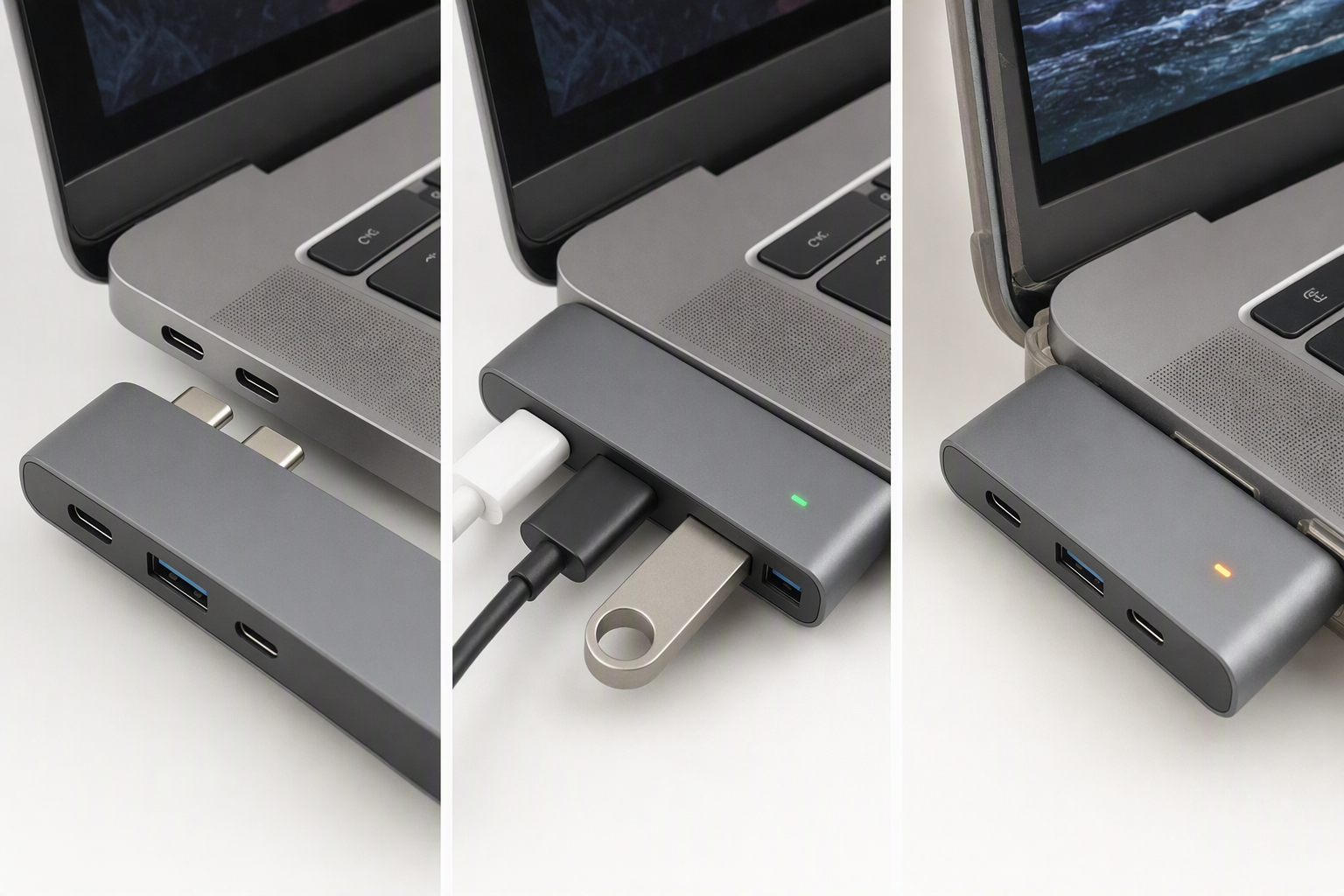
A protective bottom case changes the purchase decision. Melelink and BHHB state that a bottom case can prevent the normal connection, Yeemie says to remove the bottom case, and Selore&S-Global calls MacBook Pro cases incompatible. Even a thin lower shell can stop the hub from seating.
Use a case warning as a stop sign, not a minor caveat. The HyperDrive Duo 7-in-2 hub says it works with cases and includes a USB-C extension cable, but its listing does not say the two plugs seat with a case on. If the case stays on, choose physical compatibility before downstream ports.
Match display claims to the Mac chip and connection path
External-display support comes from the whole chain. HDMI resolution, Thunderbolt capability, macOS mode, and your Mac’s chip all affect the result. The Selore&S-Global hub shows why two host connectors do not automatically mean two independent displays.
Read each downstream port as a separate role. The Melelink 8-in-2 hub lists 4K60 HDMI and 5K60 Thunderbolt 3, while BHHB lists 4K30 HDMI and a 5K60 Thunderbolt path. Plan the exact screen, cable, and host port.
Reserve power and bandwidth for the job that needs them
Power delivery is not the same as downstream capability. Several listings mention 100W-class PD, but the delivered power can differ from the input figure, as Melelink’s 100W-input and 85W-output claim illustrates. Reserve a port by its stated function rather than by its USB-C shape.
Maximum claims can be mutually exclusive. Selore&S-Global says its Thunderbolt port supports charging, downstream phone power, data, and video, but not all four at the same time. For a storage-heavy desk, validate the required data path, then add display and charging needs around it rather than assuming every headline maximum can happen together.
Frequently Asked Questions
Will a dual-plug hub fit my MacBook Pro with a case?
Usually, do not assume it will. The product listings for Melelink and BHHB explicitly warn that a bottom case can stop the standard dual-plug connection from seating, and Yeemie says to remove the bottom case. Selore&S-Global also says its adapter is not compatible with MacBook Pro cases. The hub may be chassis-specific, but that means bare-chassis-specific unless the listing says otherwise.
Check the exact physical condition you will use every day. If you will not remove the case, use that as the first filter before HDMI, Ethernet, or card-reader comparisons. HyperDrive says its Duo works with cases and includes a USB-C extension cable, but its own listing does not say the two plugs seat with a case on.
Key Takeaway: A case warning is a fit failure risk, not a footnote. Verify a case-on solution before choosing a form-fitting dual-plug hub.
Do two plugged-in USB-C ports mean I can run two external displays?
No. Two host plugs describe the hub’s mechanical and electrical connection to the MacBook. They do not establish the number of external displays macOS and the host chip can extend. Melelink and Yeemie both include listing warnings about M1-related multi-display limits, while Selore&S-Global provides a specific M1/M2, M3 clamshell, and M4/M5/Intel breakdown.
Follow the stated display path and host condition. One listing can describe HDMI and Thunderbolt display outputs at different resolutions, and another can cap the dual-HDMI scenario differently from a single HDMI connection. Confirm your exact Mac chip, lid state where relevant, monitor inputs, and the port you intend to use.
Key Takeaway: Count host-supported displays, not connectors. The hub expands ports, but it does not override the MacBook’s display rules.
Is a Thunderbolt-labeled downstream port always full Thunderbolt for every task?
Not necessarily. Product listings can use the same physical connector for different roles, with different limits. Selore&S-Global says its Thunderbolt functions cannot all be used simultaneously. The practical question is not only whether a port is present, but whether it is listed for the particular combination of charging, display, and storage you need.
Read the individual capability statements together. A claimed 40Gbps data path, a 5K display path, and a 100W charging figure may all be listed functions without being simultaneous ones. For a high-speed SSD plus monitor setup, choose the hub only after reserving the port and bandwidth for the task that cannot compromise. For a conventional cable-connected alternative, see our guide to USB-C hubs. For a desktop dock rather than a chassis-fitting adapter, compare Thunderbolt 4 docking stations.
Key Takeaway: Use the downstream-port specification as a task map. A USB-C or Thunderbolt-shaped port is not a guarantee that every advertised maximum works at once.