For a supported Dell laptop, Dell Pro Thunderbolt 4 Smart Dock SD25TB4 is the best dock in this frozen slate. Dell documents up to 130W for supported Dell systems, versus up to 96W for non-Dell systems, and reserves some power-button, MAC pass-through, Wake-on-LAN, firmware, and fleet behavior for qualifying hardware. Each alternative answers one different need: CalDigit TS4 is the full desktop I/O alternative, Plugable TBT4-UDZ covers a conventional third-party desk, Kensington SD5760T supplies a native dual-HDMI route, and OWC Thunderbolt Go Dock favors built-in power and a cleaner travel setup.
The Dell name on a laptop does not prove Thunderbolt 4. Check the exact service tag and specification for the host port, accepted charging, firmware, operating system, GPU, DSC/MST support, native display count, and required cable. A third-party dock may handle data and displays without inheriting Dell’s 130W route or fleet functions. The broad Thunderbolt 4 dock guide is useful after that Dell-specific check.
Quick picks
- Dell SD25TB4: Best supported Dell power and fleet route.
- CalDigit TS4: Best full desktop I/O alternative.
- Plugable TBT4-UDZ: Best conventional third-party desk branch.
- Kensington SD5760T: Best native dual-HDMI branch.
- OWC Thunderbolt Go Dock: Best built-in-power clean-desk option.
Compare Thunderbolt 4 docks for Dell laptops
| Image | Product | Details | Check Price |
|---|---|---|---|
 | Dell Pro Thunderbolt 4 Smart Dock SD25TB4 | Best for: Supported Dell power and fleet path Host boundary: Exact service-tag support Laptop power: Up to 130W supported Dell; up to 96W non-Dell Fleet boundary: Only documented supported-hardware functions Buyer check: Firmware, OS, GPU, and display topology | Check Price on Amazon |
 | CalDigit TS4 | Best for: Full desktop I/O role Host boundary: Exact Dell Thunderbolt 4 path Laptop power: Verify third-party PD ceiling and Dell acceptance Fleet boundary: No Dell integration established Buyer check: Exact port and display matrix | Check Price on Amazon |
 | Plugable TBT4-UDZ | Best for: Conventional third-party desk Host boundary: Exact Dell Thunderbolt 4 path Laptop power: Retained ceiling unknown Fleet boundary: No Dell integration established Buyer check: Exact outputs, mode, and accepted power | Check Price on Amazon |
 | Kensington SD5760T K34110NA | Best for: Native dual-HDMI route Host boundary: Dell GPU and DSC/MST matrix Display boundary: Two sockets do not guarantee two displays Laptop power: Retained ceiling unknown Buyer check: Resolution, refresh, cable, and monitor inputs | Check Price on Amazon |
 | OWC Thunderbolt Go Dock | Best for: Built-in-power clean desk or travel kit Host boundary: Exact Dell Thunderbolt 4 path Power design: Built-in supply; accepted laptop power separate Fleet boundary: No Dell integration established Buyer check: Exact ports, display path, and physical fit | Check Price on Amazon |
1. Dell Pro Thunderbolt 4 Smart Dock SD25TB4 — best overall
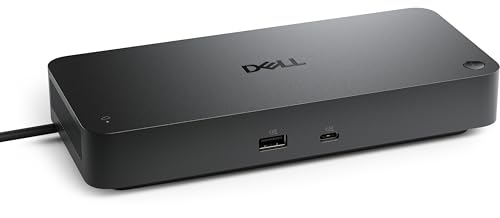
SD25TB4 leads because it addresses the Dell-specific parts of the purchase. Dell documents up to 130W only on supported Dell systems and up to 96W on non-Dell systems. That vendor-qualified branch can matter to a Dell mobile workstation or managed fleet in a way that a generic USB Power Delivery number cannot.
Power is only one part of the match. Dell ties some power-button, MAC-address pass-through, Wake-on-LAN, firmware, and management behavior to supported hardware, and the exact service tag, BIOS, dock firmware, operating system, and fleet configuration control whether those features apply. Do not treat the word Dell as the support matrix.
Display capability remains a separate route. Physical outputs do not prove a monitor count or mode. Confirm the laptop GPU, Thunderbolt 4 implementation, DSC/MST support, cable, adapter, resolution, refresh, internal panel, and monitor inputs before expecting a particular topology.
Our Take
Choose SD25TB4 when Dell-qualified charging and fleet behavior are the reason for buying. Confirm the exact service tag against Dell support before paying for functions the laptop may not expose.
- Dell first-party power and fleet route
- Up to 130W on supported Dell systems
- Up to 96W documented for non-Dell systems
- Service-tag support controls Dell-specific functions
- Output sockets do not prove display topology
2. CalDigit TS4 — best full desktop I/O alternative
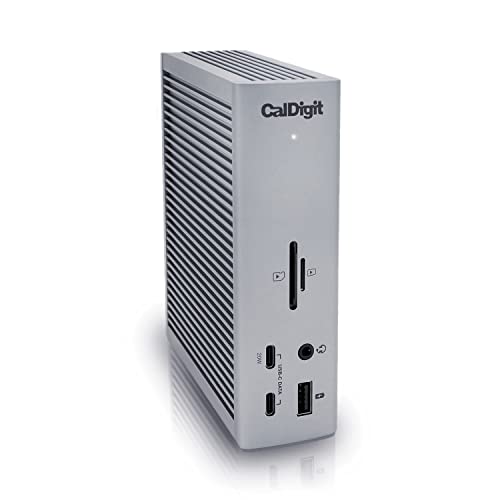
CalDigit TS4 is the full desktop I/O choice in the frozen order. It fits a Dell buyer whose priority is a third-party Thunderbolt 4 desk rather than Dell-specific management. That can be the right trade when peripheral expansion matters and the laptop does not need the SD25TB4’s qualified fleet path.
The retained manager gate does not preserve a complete TS4 port inventory, display matrix, or laptop-power figure for this article. Verify the exact CalDigit specification for the purchased revision rather than transferring a number from another dock or assuming that every connector works simultaneously.
TS4 does not inherit Dell’s supported 130W route, power-button behavior, MAC pass-through, Wake-on-LAN, firmware tools, or management features. Match its documented USB PD ceiling against the Dell laptop’s accepted input, and keep the Dell adapter if the computer requires more under load.
Our Take
Choose TS4 when a full third-party desktop I/O role matters more than Dell integration. Check the exact port map, display modes, power ceiling, and Dell accepted input before purchase.
- Full desktop I/O role in the frozen slate
- Third-party option for a qualifying TB4 Dell
- Does not depend on Dell fleet enrollment for core docking
- No Dell-specific fleet functions are established
- Exact port, display, and power matrix must be checked
3. Plugable TBT4-UDZ — best conventional third-party desk dock
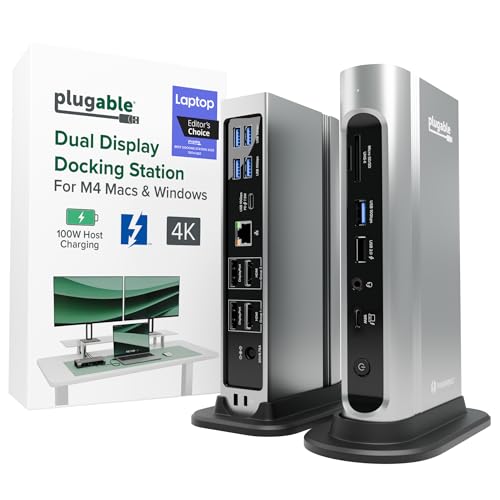
Plugable TBT4-UDZ is the straightforward third-party branch for a Dell laptop with a documented Thunderbolt 4 path. It belongs ahead of more specialized choices when the buyer wants core docking without making Dell fleet controls or a travel-oriented power design the center of the decision.
The frozen gate does not retain its complete port inventory, manufacturer display ceiling, or USB PD ceiling, so keep those fields as purchase checks. Four or more physical video connectors, if present on a dock, would still not prove four simultaneous displays; the host GPU, DSC/MST, cable, adapter, monitor input, resolution, and refresh remain limits.
Plugable also does not inherit Dell’s vendor-qualified 130W charging or management behavior. Confirm accepted laptop power and whether the supplied Dell adapter must remain connected for the workload.
Our Take
Choose TBT4-UDZ for a conventional third-party TB4 desk after confirming the exact display and power matrix. Choose SD25TB4 when Dell-specific functions drive the purchase.
- Core third-party Thunderbolt 4 role
- Clear option when fleet features are unnecessary
- Fits the conventional permanent-desk branch
- Exact retained port and power details are unknown
- No Dell-specific integration is established
4. Kensington SD5760T K34110NA — best native dual-HDMI branch

Kensington SD5760T is the frozen slate’s native dual-HDMI route. It makes sense when the intended monitors accept HDMI and the Dell laptop’s exact Windows display path supports the requested two-screen setup without making downstream Thunderbolt adapters the preferred route.
Two HDMI sockets still do not prove two extended displays at every resolution and refresh. Confirm the Dell GPU, Thunderbolt 4 port, DSC/MST behavior, driver, internal-display use, cables, and monitor inputs. The complete topology stays a host decision, not a connector count.
The retained gate does not preserve SD5760T’s exact laptop-power ceiling or complete port list. Nor does it establish Dell power-button, fleet, firmware, MAC pass-through, or Wake-on-LAN behavior for Kensington.
Our Take
Choose SD5760T when native dual HDMI matches the monitors and the exact Dell display matrix qualifies. Verify charging and every required non-display port separately.
- Native dual-HDMI role
- Avoids making HDMI adapters the default plan
- Useful for a qualifying two-monitor Windows desk
- Two sockets do not guarantee two displays
- Exact power and Dell fleet behavior are not retained
5. OWC Thunderbolt Go Dock — best built-in-power clean-desk option
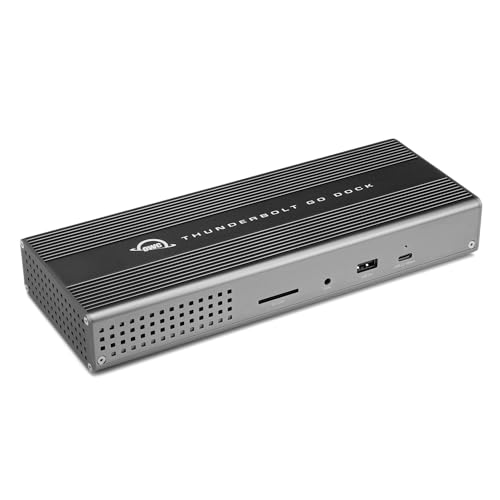
OWC Thunderbolt Go Dock is the clean-desk and travel branch because the frozen gate identifies its built-in power design. That can remove a separate dock power brick from a bag or crowded setup, although the dock itself remains a full docking device rather than a small bus-powered hub.
Built-in power does not establish the wattage a Dell laptop accepts. The retained gate does not preserve the exact OWC host-power ceiling, port list, or display matrix for this article. Check each against the exact model record, then compare the result with the Dell laptop’s supplied adapter.
OWC also remains a third-party route. It does not gain Dell’s qualified 130W behavior or fleet functions. Buy it for power-supply packaging and its documented core docking fit, not for unproven Dell integration.
Our Take
Choose Thunderbolt Go Dock when a built-in supply makes the desk or travel kit simpler. Confirm its exact power, ports, display path, and physical size before treating it as the portable answer.
- Built-in dock power supply
- Clean-desk and travel role
- Third-party TB4 option for a qualifying Dell
- Built-in power is not accepted laptop wattage
- No Dell fleet integration is established
How to choose a Thunderbolt 4 dock for a Dell laptop
Start with the service tag
Open Dell’s exact specification and support record for the service tag, then confirm Thunderbolt 4, charging input, firmware, OS, GPU, native display count, DSC/MST, and any enterprise features. A USB-C-shaped port can expose a different capability set.
Separate five power numbers
Dock power-supply input, external supply wattage, dock overhead, USB PD offered to the host, and laptop-accepted power are five different things. Dell’s supported 130W path is vendor-qualified. A third-party dock’s ordinary USB PD ceiling does not become 130W because it connects to a Dell.
Build the display topology before counting sockets
Write down every monitor’s resolution, refresh, and input, then add the laptop’s internal panel and the intended dock outputs or adapters. Compare that plan with the exact GPU, DSC/MST, cable, and dock matrix. Our USB4 and Thunderbolt 4 explainer helps classify the host link, not the final display count.
Decide whether fleet functions matter
If power-button behavior, MAC pass-through, Wake-on-LAN, firmware management, or other fleet controls are purchase reasons, use Dell’s exact supported-hardware record. Third-party docks should be judged on their own documented functions.
Frequently asked questions
Will any Thunderbolt 4 dock charge a Dell laptop at 130W?
No. The frozen evidence assigns the up-to-130W route to SD25TB4 on supported Dell systems, and third-party USB PD ceilings and laptop acceptance remain separate.
Does a Dell USB-C port prove Thunderbolt 4?
No. Use the exact service-tag specification and port markings.
Do two HDMI ports guarantee two external displays?
No. GPU, DSC/MST, driver, internal panel, cables, resolution, refresh, and monitor inputs together control the topology.
Final recommendation
Dell SD25TB4 is the best overall choice when a supported Dell laptop needs the first-party 130W and fleet path. After that, one requirement picks each alternative: TS4 for full desktop I/O, TBT4-UDZ for a conventional third-party desk, SD5760T for native dual HDMI, OWC Thunderbolt Go Dock when its built-in supply solves the packing or desk problem.