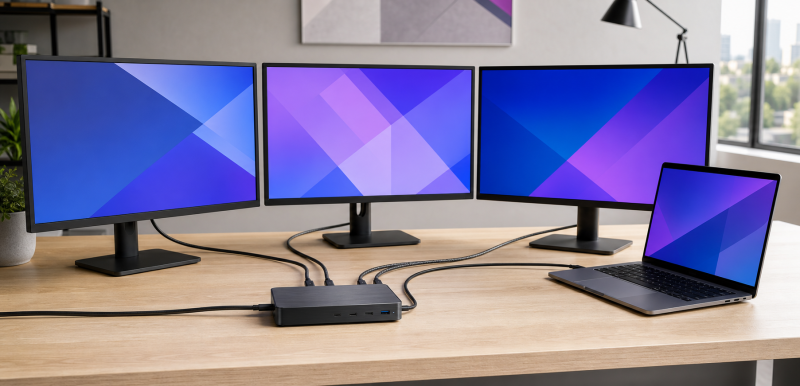
For a native triple-monitor Windows setup, the Plugable TBT4-UDZ is our best Thunderbolt 4 dock. Its two HDMI plus two DisplayPort output groups give you a clear conventional-monitor layout, and Plugable documents up to four 4K60 displays on qualified Windows hosts. For a managed Dell desk, the Dell SD25TB4 is the stronger fit.
Three physical video sockets do not guarantee three extended displays. The laptop GPU, Windows display path, Thunderbolt port, output grouping, monitor modes, cables or adapters, and Display Stream Compression support can each lower the result. Every count below is a manufacturer ceiling for a qualified host. See our Thunderbolt 4 dock guide when three monitors are not the deciding requirement.
Quick picks
- Plugable TBT4-UDZ: Best overall dedicated-output layout.
- Dell SD25TB4: Best managed Dell choice.
- Anker 778: Best HDMI and DisplayPort flexibility.
- HP Thunderbolt Dock 120W G4: Best HP or fleet choice.
- StarTech 132N-TB4USB4DOCK: Best explicit four-output map.
- Lenovo Universal Thunderbolt 4 Dock: Best universal Lenovo desk.
- Lenovo Smart Dock Gen 2 7500: Best Lenovo management path.
| Image | Product | Details | Check Price |
|---|---|---|---|
 | Plugable TBT4-UDZ | Windows display ceiling: Up to four 4K60 displays on qualified Windows hosts Output map: Two HDMI plus two DisplayPort output groups Host / DSC boundary: Use Plugable's exact Windows host and output-group path; Mac uses separate dual-display branches; socket count is not proof Charging: Plugable-rated 98W host charging Best for: A native three-monitor Windows desk using dedicated HDMI or DisplayPort outputs | Check Price on Amazon |
 | Dell Pro Thunderbolt 4 Smart Dock SD25TB4 | Windows display ceiling: Up to four external displays Output map: Two DisplayPort 1.4, one HDMI 2.1, and two downstream Thunderbolt 4 paths Host / DSC boundary: Exact Dell host and selected output combination control resolution and refresh Charging: 130W on supported Dell systems; 96W on non-Dell systems Best for: A managed triple-monitor desk built around a supported Dell laptop | Check Price on Amazon |
 | Anker 778 Thunderbolt Docking Station A83A9 | Windows display ceiling: Up to four displays on a qualified Windows host Output map: One HDMI 2.1, two DisplayPort outputs, and a downstream Thunderbolt 4 display route Host / DSC boundary: Use Anker's qualified Windows topology; Windows ceiling must not be transferred to Mac Charging: Up to 100W PD; falls to 65W when both 30W USB-C charging ports are used Best for: A three-monitor desk that needs HDMI, DisplayPort, and downstream Thunderbolt choices | Check Price on Amazon |
 | HP Thunderbolt Dock 120W G4 | Windows display ceiling: Triple 4K60 on qualifying DP 1.4 DSC Windows hosts; up to four external displays Output map: One HDMI 2.0 plus two DisplayPort 1.4 outputs Host / DSC boundary: The exact Windows host must provide the qualifying DisplayPort 1.4 DSC path Charging: Up to 100W USB-C PD Best for: An HP or fleet desk with a confirmed triple-4K60 DSC host | Check Price on Amazon |
 | StarTech 132N-TB4USB4DOCK | Windows display ceiling: Up to four 4K60 displays on qualified Windows hosts Output map: Two HDMI 2.1 plus two DisplayPort 1.4 outputs Host / DSC boundary: Host video capability and DSC support control the display ceiling Charging: 98W host charging Best for: A conventional-monitor desk that needs an explicit four-output map | Check Price on Amazon |
 | Lenovo ThinkPad Universal Thunderbolt 4 Dock 40B00135US | Windows display ceiling: Up to four 4K60 displays on qualified Windows hosts Output map: One HDMI 2.1 plus two DisplayPort 1.4 outputs Host / DSC boundary: Exact host display streams and DSC support control the result Charging: Up to 100W PD Best for: A Lenovo-centered triple-monitor desk using one HDMI and two DisplayPort monitors | Check Price on Amazon |
 | Lenovo ThinkPad Thunderbolt 4 Smart Dock Gen 2 7500 40BE0135US | Windows display ceiling: Multiple-display Windows path; no numeric triple-monitor or triple-4K ceiling retained Output map: Two DisplayPort 1.4, one HDMI 2.1, and one downstream Thunderbolt 4 port Host / DSC boundary: The exact host controls the display result and fleet features; three sockets do not establish three displays Charging: 100W PD 3.1 Best for: A Lenovo management path after exact-host triple-display confirmation | Check Price on Amazon |
1. Plugable TBT4-UDZ – Best overall dedicated-output layout
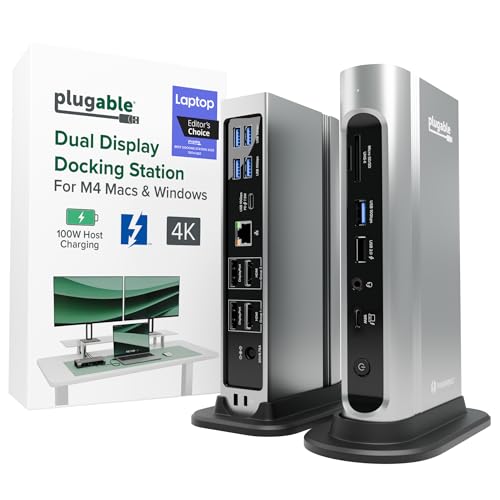
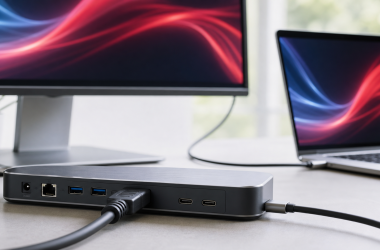
The TBT4-UDZ fits when your three monitors already use HDMI or DisplayPort and you would rather not build the desk around display adapters. Plugable provides two HDMI plus two DisplayPort output groups and documents up to four 4K60 displays on qualified Windows hosts. Treat that as a ceiling: follow Plugable’s exact output grouping and host requirements instead of picking any three sockets at random.
Mac support runs on separate dual-display branches and does not inherit the Windows result. Plugable documents 2.5GbE and 98W host charging.
Our Take
For a qualified Windows laptop and three conventional monitors, the TBT4-UDZ makes the native-output case more clearly than anything else here. Confirm the exact output grouping before cabling the desk.
- Two HDMI plus two DisplayPort output groups
- Plugable documents up to four 4K60 displays on qualified Windows hosts
- 2.5GbE
- Exact output grouping and host path must qualify
- Mac branches have a different ceiling
- 98W is below a strict 100W requirement
2. Dell Pro Thunderbolt 4 Smart Dock SD25TB4 – Best managed Dell choice
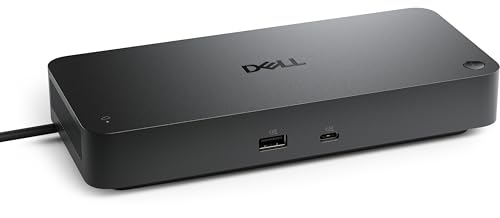
The SD25TB4 is built for a Dell-centered Windows desk. Dell lists two DisplayPort 1.4 outputs, one HDMI 2.1 output, and two downstream Thunderbolt 4 ports, with a ceiling of up to four external displays. That broad map can serve three-monitor layouts, though the exact Dell host and selected port combination still control resolution and refresh.
Dell documents up to 130W charging for supported Dell systems and 96W for non-Dell hosts, and that 130W branch is vendor-specific rather than universal USB Power Delivery. The dock also includes 2.5GbE.
Our Take
When the exact laptop appears in Dell’s display matrix, the SD25TB4 is the natural managed-Dell choice. Non-Dell buyers should value it on its 96W branch.
- Two DisplayPort 1.4, HDMI 2.1, and two downstream Thunderbolt 4 routes
- Dell lists up to four external displays
- 2.5GbE
- 130W is limited to supported Dell systems
- Non-Dell charging ceiling is 96W
- Exact triple-monitor mode depends on the host and port combination
3. Anker 778 A83A9 – Best HDMI and DisplayPort flexibility

One HDMI 2.1 output, two DisplayPort outputs, and a downstream Thunderbolt 4 display route in a single dock is the Anker 778’s pitch. Anker documents up to four displays on a qualified Windows host. For a three-monitor desk, use only the combination covered by Anker’s Windows topology.
Anker rates host Power Delivery up to 100W, though that ceiling falls to 65W when both 30W USB-C charging ports are used. Networking is 1GbE. Anker also states that the 778 is incompatible with base M1 and M2 MacBooks, which is one more reason not to translate its Windows display ceiling into a Mac promise.
Our Take
No other dock here mixes HDMI, DisplayPort, and downstream Thunderbolt routing as widely as the Anker 778. Watch its shared power budget when charging other USB-C devices.
- One HDMI 2.1 plus two DisplayPort outputs
- Downstream Thunderbolt 4 display route
- Anker documents up to four displays on a qualified Windows host
- Host charging drops to 65W when both 30W USB-C charging ports are used
- 1GbE rather than 2.5GbE
- Incompatible with base M1 and M2 MacBooks according to Anker
4. HP Thunderbolt Dock 120W G4 – Best HP or fleet choice

The HP G4 makes sense when your qualified Windows host can actually use its explicit triple-4K60 path. HP documents HDMI 2.0 and two DisplayPort 1.4 outputs, a set that maps directly onto a three-monitor desk. HP’s triple 4K60 ceiling requires a qualifying DisplayPort 1.4 DSC Windows host, so a Windows label alone is not enough.
HP lists up to four external displays, up to 100W USB-C Power Delivery, and 2.5GbE. For an HP or fleet desk whose exact laptop meets the DSC requirement, nothing here is more direct.
Our Take
Of everything here, the G4 carries the clearest documented triple-4K60 statement. Buy it only after confirming the laptop’s DisplayPort 1.4 DSC path.
- One HDMI 2.0 plus two DisplayPort 1.4 outputs
- HP documents triple 4K60 on qualifying Windows hosts
- Up to 100W USB-C PD and 2.5GbE
- Triple 4K60 requires a qualifying DP 1.4 DSC host
- Windows alone does not establish compatibility
- Manufacturer ceiling is not a guaranteed result
5. StarTech 132N-TB4USB4DOCK – Best explicit four-output map

The StarTech 132N puts two HDMI 2.1 and two DisplayPort 1.4 outputs on one dock, all of them clearly documented. StarTech lists up to four 4K60 displays on qualified Windows hosts, so a supported triple-monitor layout sits inside its stated ceiling.
The host’s video capability and DSC support control the actual count, resolution, and refresh. StarTech rates host charging at 98W and includes 2.5GbE. Do not round that 98W up to meet a 100W purchasing requirement.
Our Take
When a four-output conventional-video map is the priority, the 132N is the strongest alternative to Plugable. Its ceiling still depends on host video and DSC.
- Two HDMI 2.1 plus two DisplayPort 1.4 outputs
- StarTech documents up to four 4K60 displays on qualified Windows hosts
- 2.5GbE
- Host video and DSC control the ceiling
- 98W charging is below a strict 100W requirement
- Four sockets do not qualify an unsupported laptop
6. Lenovo ThinkPad Universal Thunderbolt 4 Dock 40B00135US – Best universal Lenovo desk

A Lenovo-centered Windows desk that needs one HDMI 2.1 and two DisplayPort 1.4 outputs is exactly what the 40B00135US is for. Lenovo documents up to four 4K60 displays on qualified Windows hosts. Its three conventional outputs keep the physical map simple, but the exact host must still provide the required display streams and DSC capability.
Lenovo rates host Power Delivery up to 100W and includes 1GbE. It is the universal Lenovo choice here, with networking that tops out below the 2.5GbE models.
Our Take
For one HDMI and two DisplayPort monitors, the Universal Dock is the clean Lenovo option. Confirm the Windows host matrix before treating the four-display ceiling as your result.
- One HDMI 2.1 plus two DisplayPort 1.4 outputs
- Lenovo documents up to four 4K60 displays on qualified Windows hosts
- Up to 100W PD
- Host and DSC support control the display result
- 1GbE rather than 2.5GbE
- Physical output count is not a compatibility guarantee
7. Lenovo ThinkPad Thunderbolt 4 Smart Dock Gen 2 7500 40BE0135US – Best Lenovo management path
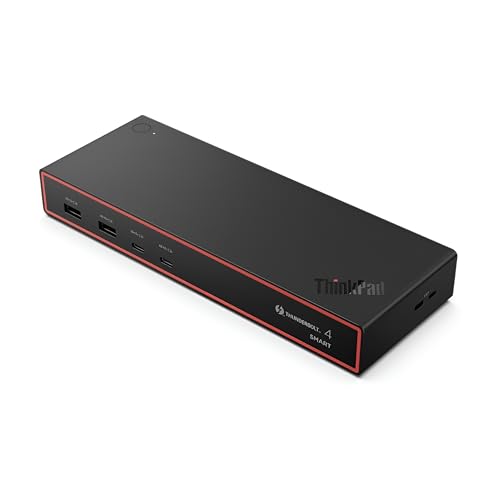
The 40BE0135US is for buyers who care more about Lenovo management fit than about a broad resolution claim. Lenovo documents a multiple-display Windows path, two DisplayPort 1.4 outputs, one HDMI 2.1 output, and one downstream Thunderbolt 4 port. What Lenovo does not state, in the cited specifications for this exact model, is a numeric triple-monitor or triple-4K ceiling.
The exact host controls both its fleet features and the display result. Lenovo lists 100W PD 3.1 and 2.5GbE. Read the three conventional outputs as a connection map, then confirm the exact laptop’s display matrix before purchase.
Our Take
Take the Smart Dock Gen 2 7500 as the Lenovo management pick, but give it the strictest host check in this list, because the cited specifications do not state a numeric triple-display ceiling.
- Two DisplayPort 1.4 plus one HDMI 2.1 output
- One downstream Thunderbolt 4 port
- 100W PD 3.1 and 2.5GbE
- No manufacturer-stated numeric triple-monitor ceiling
- Exact host controls display and fleet features
- Three sockets do not prove three extended displays
How to qualify a native Windows triple-monitor dock
Start with the laptop GPU and its Thunderbolt port. Multi-Stream Transport lets a supported Windows display path carry multiple streams, while Display Stream Compression can be required to fit high-resolution modes within the available link. No dock adds a stream the host does not expose. Our guide to three-monitor dock limits explains why socket count and usable display count often differ.
Next, copy the dock maker’s output map exactly. Plugable and StarTech each document two HDMI plus two DisplayPort outputs, while HP and Lenovo Universal provide a direct three-output map with one HDMI and two DisplayPort connections. Dell and Anker add downstream Thunderbolt routes, and that extra flexibility makes the supported combination more important, not less.
Then verify resolution and refresh for all three screens running at once. HP’s documented triple-4K60 result is explicitly limited to qualifying DisplayPort 1.4 DSC Windows hosts. Others may state up to four displays or up to four 4K60 displays, but you still need the exact host branch and port combination that supports your three-monitor mode.
Keep macOS out of the reasoning entirely. Windows MST and DSC ceilings do not become Mac ceilings, even when the same dock has enough physical outputs. If you need a broader device mix, compare it with our three-monitor docking guide before choosing the narrower Thunderbolt 4 route.
Finally, check charging under the peripheral load you will actually run. Anker documents that the 778 falls from up to 100W to 65W when both 30W USB-C charging ports are used. Dell’s 130W branch is specific to supported Dell systems, and StarTech’s 98W remains below a strict 100W requirement. Keep the laptop’s original power adapter when the documented branch does not meet its needs.
Triple-monitor Thunderbolt 4 FAQ
Do three video outputs guarantee three extended Windows displays?
No. The host GPU, Thunderbolt implementation, Windows display path, MST or DSC support, output grouping, cables or adapters, and monitor modes all have to support the complete setup. The output count is only the physical map.
Can I apply a four-display Windows ceiling to a Mac?
No. Manufacturer documentation keeps Windows multi-display paths separate from Mac branches. Check the manufacturer’s exact Mac matrix instead of transferring a Windows MST or DSC result.