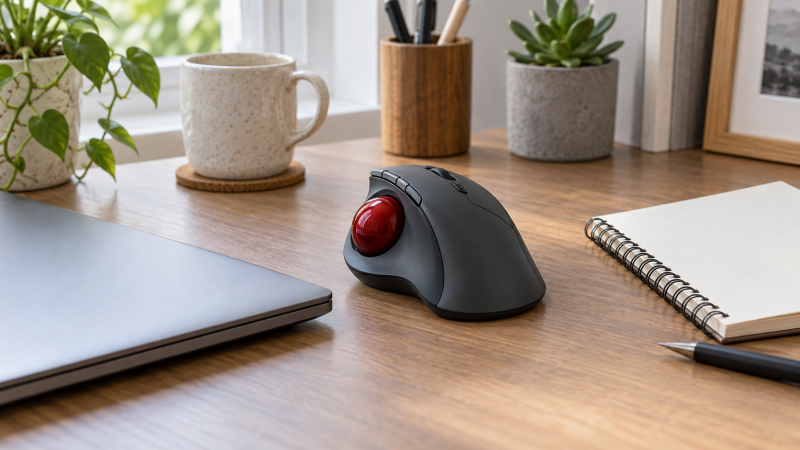
A finger trackball keeps its body stationary while the index or middle fingers roll a ball to move the pointer. The stationary body can preserve mouse space beside an editing keyboard, control surface, or laptop. It also changes the movement pattern. The fingers handle cursor travel, so buttons and a scroll control must remain easy to reach without destabilizing the hand.
These eight products include two distinct groups. Kensington, JOMAA, Perixx, and ProtoArc are desk-based finger trackballs suited to sustained editing. OATIPHO, two YUMQUA models, and welspo are handheld devices whose balls are operated by the thumb. The handheld units save surface space and help with presentations or casual navigation, but they are not equivalent to a large index-finger ball for detailed timeline or pixel work.
The Perixx PERIMICE-822IR is the best overall editing-desk choice because it combines a 40mm index-finger ball, six quiet buttons, four connection paths, four DPI settings, a wheel, web-based programming, and published dimensions. The ProtoArc EM03 NL is the best rechargeable alternative with a larger 44mm ball and a claimed 60-day battery. The wired Kensington Orbit K64327F is the simplest stationary pick, though the missing scroll ring is a significant limit for editing workflows.
| Image | Product | Details | Check Price |
|---|---|---|---|
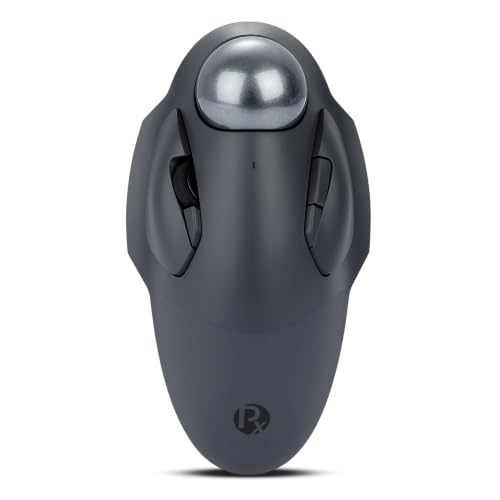 | Perixx PERIMICE-822IR | Control: Index/middle-finger ball Ball: 40mm Connection: Wired, 2.4GHz, 2 Bluetooth DPI: 400, 800, 1200, 2400 Buttons: 6 quiet, programmable | Check Price on Amazon |
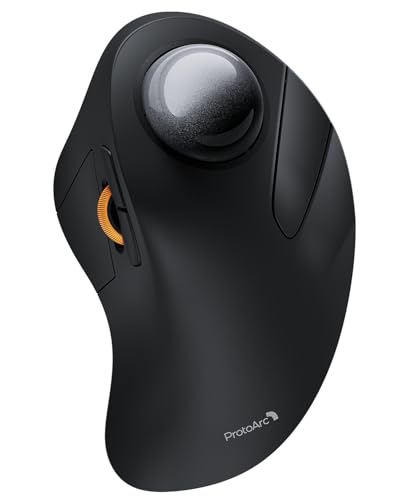 | ProtoArc EM03 NL | Control: Index-finger ball Ball: 44mm Connection: 2 Bluetooth plus USB receiver DPI: 200, 400, 800, 1200, 1600 Power: 930mAh; up to 60 days claimed | Check Price on Amazon |
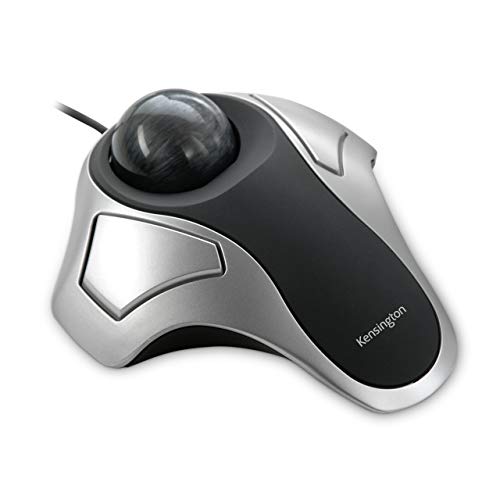 | Kensington Orbit K64327F | Control: Finger ball; ambidextrous Ball: 40mm Connection: Wired USB Buttons: 2 programmable Scrolling: No scroll ring | Check Price on Amazon |
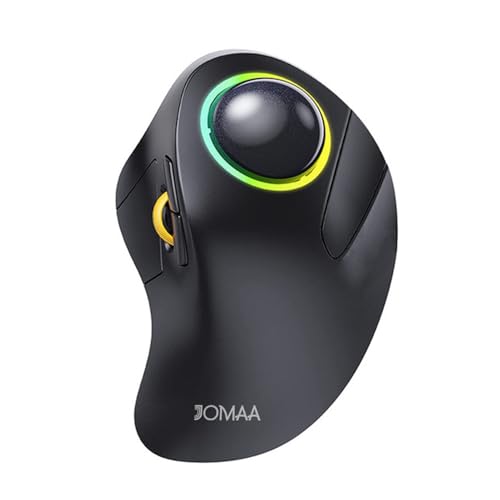 | JOMAA Wireless Trackball | Control: Finger ball Ball: Red ceramic; size not stated Connection: 2 Bluetooth plus 2.4GHz CPI: 200 to 1600; 5 stages Power: 930mAh rechargeable | Check Price on Amazon |
 | YUMQUA Y-01 | Control: Handheld thumb ball Connection: Wired USB 2.0 Buttons: 3 Scrolling: 4-direction stated Handedness: Ambidextrous | Check Price on Amazon |
 | YUMQUA Y-10W | Control: Handheld thumb ball Connection: Wireless USB receiver DPI: 400, 600, 800, 1200 Range: 10 meters claimed Power: 1 AAA battery | Check Price on Amazon |
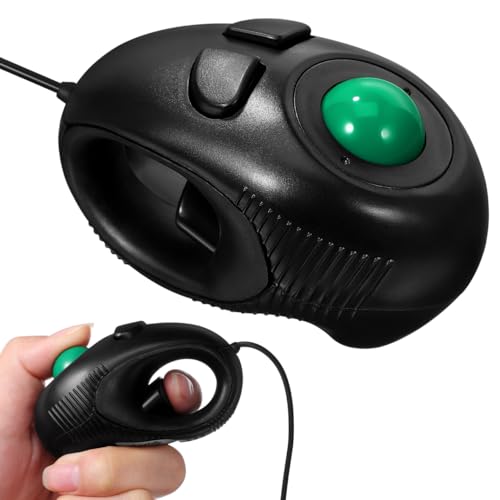 | OATIPHO Wired Handheld Trackball | Control: Handheld thumb ball Size: 4.33 x 2.36 x 1.97 inches Connection: Wired USB 2.0 Buttons: 3 Scrolling: 4-direction stated | Check Price on Amazon |
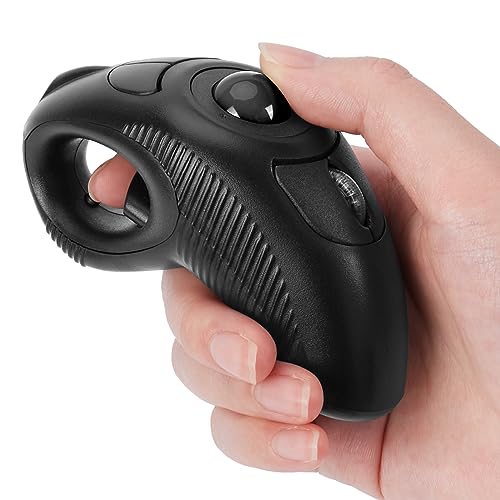 | welspo iF6B | Control: Handheld thumb ball Connection: Wireless USB receiver Power: AAA battery Extra: Laser pointer Handedness: Ambidextrous | Check Price on Amazon |
Quick Picks
- Best overall: Perixx PERIMICE-822IR for its 40mm ball, six quiet buttons, wired and wireless modes, four DPI levels, and published dimensions.
- Best rechargeable desk trackball: ProtoArc EM03 NL for a 44mm finger ball, three-device support, five DPI levels, and claimed 60-day runtime.
- Best simple wired desk pick: Kensington Orbit K64327F for a 40mm ball, ambidextrous body, two programmable buttons, and no battery.
- Best RGB multi-device option: JOMAA Wireless Trackball for two Bluetooth channels, a USB receiver, ceramic ball, and five CPI steps.
- Best handheld wired option: YUMQUA Y-01 for ambidextrous off-table use without batteries.
- Best handheld wireless option: YUMQUA Y-10W for four DPI settings, a 10-meter claimed range, and a storage bag.
1. Perixx PERIMICE-822IR — Best Overall
For an editing desk that needs fine pointer control without sweeping a mouse, the PERIMICE-822IR centers a 40mm index-finger ball in a right-hand body. A ball this size gives the index and middle fingers room for broad rolls and small corrections without moving the housing. Its rubber-coated surface supports the palm, and Perixx suggests allowing one to two weeks to adjust when moving from a mouse or thumb trackball.
It has four connection paths: wired USB, 2.4GHz wireless, and two Bluetooth channels. Four paths are unusually flexible for an editing desk shared by a workstation, laptop, and tablet. The product is listed as plug-and-play, while supported buttons can be programmed through the Perixx website without installing software. Web device access should be granted only on a trusted maker page and where workplace policy allows it.
All six buttons are described as quiet, including the side and DPI controls. Sensitivity choices are 400, 800, 1200, and 2400 DPI, and scrolling uses a conventional wheel. The body measures 4.92 x 2.44 x 3.03 inches and weighs 0.35lb, so you can check the fit against your desk. A 12-month limited warranty is stated.
Best for: Precision editors who want a large finger ball, quiet controls, and several wired or wireless connection choices.
Pros
- 40mm European-made index-finger ball
- Wired, 2.4GHz, and two Bluetooth connections
- Six quiet buttons with web-based programming
Cons
- Right-hand body rather than ambidextrous layout
- Web configuration requires trusted browser device access
2. ProtoArc EM03 NL — Best Rechargeable Desk Trackball
The ProtoArc EM03 NL uses the largest stated ball here at 44mm. Its sculpted stationary body lets the index or middle fingers control the pointer while the arm stays largely in place. The supplied evidence does not include body dimensions, so the space-saving claim refers to not sweeping the device, not a verified small footprint.
ProtoArc includes two Bluetooth channels and one USB-receiver channel to support three paired devices. Three paired devices fit an editing station where a desktop handles rendering while a laptop or tablet handles review. Compatibility is stated for Windows, Android, macOS, and iPad. Exact button-remapping support is not stated, so judge the hardware layout as it ships.
Five DPI levels are provided, ranging from 200 to 1600, with the low settings useful for fine pointer control. Quiet clicks suit voice work and shared rooms. A built-in 930mAh battery is claimed to last up to 60 days per full charge, with automatic sleep after inactivity. Runtime depends on daily use and radio mode.
Best for: A rechargeable three-device desk setup that favors a large ball and low-DPI control.
Pros
- 44mm index-finger trackball
- Three-device Bluetooth and receiver support
- Five DPI settings and claimed 60-day battery
Cons
- Body dimensions are not stated
- No button-programming details provided
3. Kensington Orbit K64327F — Best Simple Wired Desk Pick
For editors who want a trackball with nothing to charge or pair, the Kensington Orbit K64327F is a basic ambidextrous desk trackball that includes a 40mm ball and two buttons. Internal red optics read the ball, and the stationary body uses less movement area than a conventional mouse. Its symmetrical arrangement makes it the only true desk-based pick here that clearly supports either hand.
This model is wired USB only, which removes charging, batteries, receivers, and pairing from the workflow. Compatibility is stated for Windows, macOS 10.8 and later, and ChromeOS 44 and later. Kensington Konnect software can assign functions to the two buttons and adjust cursor speed on supported systems.
The major limitation is stated plainly, and there is no scroll ring. Scrolling therefore depends on software assignment, keyboard shortcuts, or application controls, which can be disruptive in long timelines and documents. The included two-year warranty is useful, but the pick suits editors who prioritize a simple ball and already have another scrolling method.
Best for: Ambidextrous wired control where battery-free simplicity is more important than a dedicated scroll mechanism.
Pros
- 40mm ball and ambidextrous stationary body
- Wired USB needs no batteries
- Two programmable buttons and two-year warranty
Cons
- No scroll ring
- Only two buttons
4. JOMAA Wireless Trackball — Best RGB Multi-Device Option
JOMAA describes a finger-controlled desk trackball with a red ceramic ball. Ceramic can provide a hard, smooth rolling surface, but ball diameter and body dimensions are not stated. Without those figures, finger contact area and desk footprint are difficult to compare directly with the 40mm Perixx or 44mm ProtoArc.
Wireless modes include a 2.4GHz USB dongle and Bluetooth 5.0 with two Bluetooth devices supported. In total, the layout is presented as a three-device switch. Five CPI stages span 200 to 1600, covering very slow pointer control through ordinary office sensitivity. The listing uses CPI rather than DPI, but both describe movement sensitivity in this context.
The rechargeable battery is specified at 930mAh and 3.7V, with a low-power alert below 3.3V. Charging current is stated at 30mA, but charge time and runtime are omitted. The RGB lighting has four modes, and sleep begins after 30 seconds. Frequent sleep may save power but could interrupt stop-and-start editing if wake behavior feels slow.
Best for: Buyers who want three-device wireless support and low sensitivity settings with RGB lighting.
Pros
- Ceramic finger trackball
- Two Bluetooth channels plus USB receiver
- Five CPI stages from 200 to 1600
Cons
- Ball diameter and body dimensions are not stated
- No runtime or charge-time figure
5. YUMQUA Y-01 — Best Handheld Wired Option
The YUMQUA Y-01 is not a desk-based index-finger trackball. It is a handheld mouse with the thumb on the roller ball and three buttons operated while the device is cradled. Its advantage is using no desk surface at all, which can help in a packed equipment area or while reviewing away from the desk.
A wired USB 2.0 connection provides plug-and-play operation without batteries. Compatibility is stated for Windows, macOS, Linux, and ChromeOS, subject to an available USB port. The ambidextrous shape can be held left- or right-handed, though button reach and fine control will depend on grip.
Four-direction scrolling is included, and Amazon lists physical dimensions, but adjustable sensitivity is not stated. Handheld thumb movement is less suited to sustained pixel-level adjustments than a 40mm or 44mm finger ball. Claims about pain relief should be treated as marketing, not a medical outcome.
Best for: Off-table navigation and review controls where no mouse surface is available.
Pros
- Uses no desk surface
- Wired USB needs no batteries
- Ambidextrous three-button design with 4D scrolling
Cons
- Thumb-operated, not an index-finger editing trackball
- Amazon lists dimensions, but sensitivity specifications are not stated
6. YUMQUA Y-10W — Best Handheld Wireless Option
The YUMQUA Y-10W applies the same off-table handheld idea to a wireless connection. It can be held in either hand, with the thumb controlling the ball. A claimed 10-meter range makes it useful for presentation screens, couch review, or controlling a system from outside the immediate desk area.
Four DPI settings are listed: 400, 600, 800, and 1200. The low end may help slow pointer movement, although thumb-ball size is not stated. Connection language mentions PS/2 or USB while the package lists a USB receiver, so buyers should confirm the receiver and adapter arrangement rather than assuming direct PS/2 hardware.
One AAA battery and a protective storage bag are included. Compatibility is stated for Windows, Mac, Linux, and Android. The wireless YUMQUA is the more flexible handheld pick for distance and sensitivity, but editors should still choose a desk-based finger ball for hours of repeatable timeline work.
Best for: Wireless off-table navigation with adjustable pointer sensitivity.
Pros
- Ambidextrous handheld use
- Four DPI levels from 400 to 1200
- Claimed 10-meter range and storage bag
Cons
- Thumb-controlled rather than finger-controlled
- PS/2 versus USB connection wording needs confirmation
7. OATIPHO Wired Handheld Trackball — Best Size-Verified Handheld Pick
OATIPHO publishes dimensions of about 4.33 x 2.36 x 1.97 inches, so buyers can judge storage and grip. The device is held in the hand with the roller ball under the thumb, and it has three buttons and four-direction scrolling. Despite “finger mouse” in the title, it is not an index-finger ball.
The USB 2.0 cable provides a stable connection without a receiver or battery. The listing says it works with compatible laptops and desktops but does not name operating systems, cable length, DPI, or button assignments. Its fit is therefore clearest for basic navigation rather than an application-specific editing workflow.
The small body can go into a desk drawer or laptop case, and you don’t need a mouse pad. Cable routing remains relevant: a handheld device is less convenient if the wire catches on equipment or is too short for the intended posture. Use it for mobile or occasional control rather than assuming precision from the compact form.
Best for: Buyers who need a measured, wired handheld controller for cramped or mobile setups.
Pros
- Published 4.33 x 2.36 x 1.97-inch dimensions
- No batteries or wireless pairing
- Three buttons and 4D scrolling
Cons
- Thumb ball, not a desk finger trackball
- DPI, cable length, and OS support are not stated
8. welspo iF6B — Best Handheld Presentation Pick
The welspo iF6B is a wireless handheld thumb trackball with an integrated laser pointer. The index or middle finger operates a trigger while the thumb rolls the ball. The trigger and thumb ball layout is aimed at presentations and distant navigation rather than a fixed editing station.
Welspo specifies a USB 2.0 receiver for plug-and-play wireless operation and includes a carrying bag in the package. The manufacturer states power comes from a AAA battery. The listing advises using a buyer-supplied battery rather than the one included, an unusual warning that should be followed. Amazon lists physical dimensions, but range, DPI, and supported operating systems are not stated.
The shape can be used with either hand or cradled between both. Medical claims about avoiding wrist harm, arthritis, or carpal tunnel syndrome are not established by the product data and should not guide the purchase. Choose this only when a laser pointer and off-table control solve the actual job.
Best for: Presentations that need pointer control and a laser in one handheld device.
Pros
- Built-in laser pointer
- Ambidextrous handheld form
- Wireless receiver and carrying bag
Cons
- Not a desk-based finger trackball
- Amazon lists dimensions, but range, DPI, and OS support are not stated
Buying Guide: Choosing a Finger Trackball for Editing
Confirm which finger moves the ball
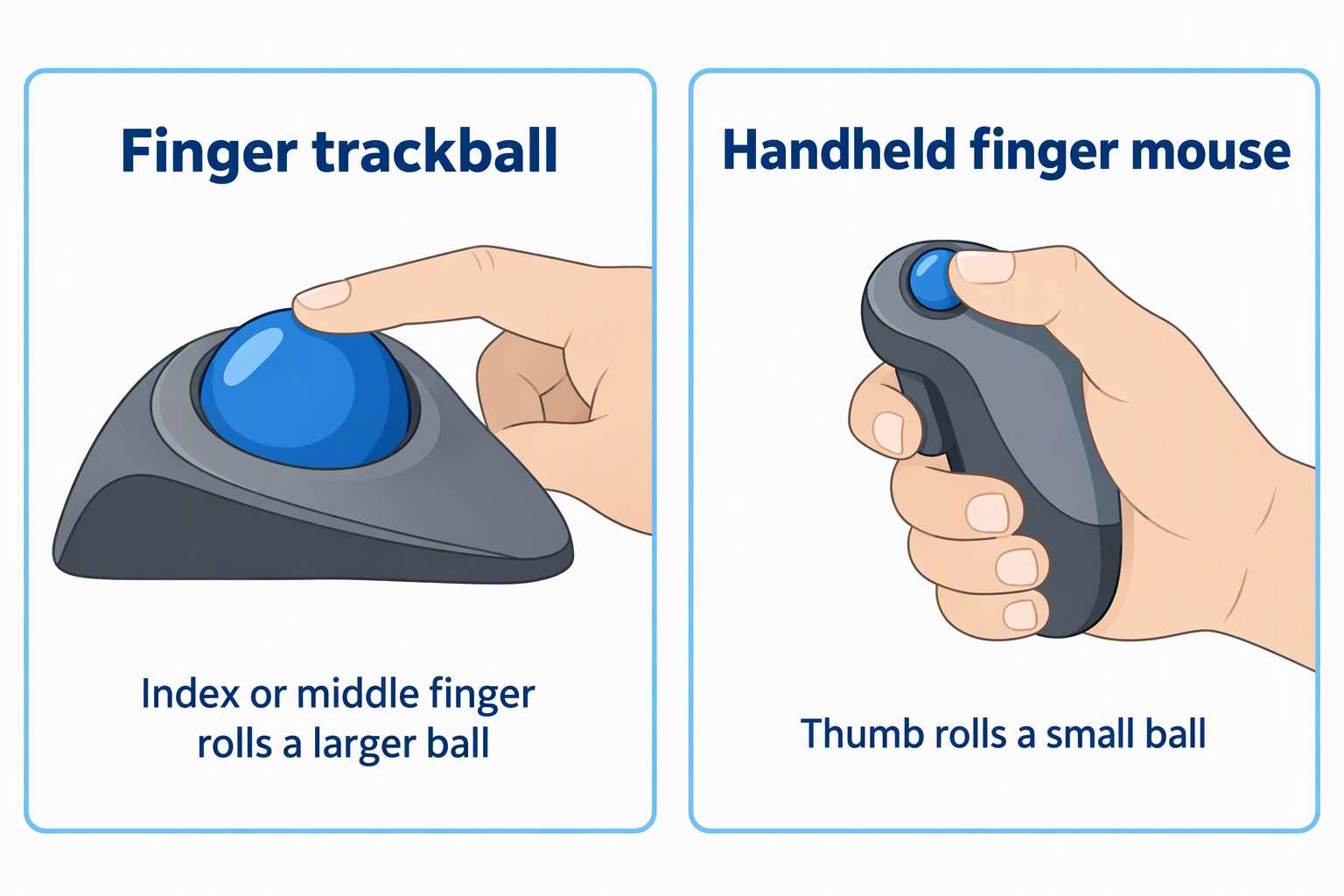
A true finger trackball places a larger ball under the index or middle fingers. A handheld “finger mouse” may instead use the thumb on a small roller ball while another finger clicks a trigger. For sustained editing, prioritize a 40mm to 44mm index-finger ball for more contact area and controlled rolls.
The handheld models still have a place for presentations, couch control, or desks with no usable surface. They should not be compared directly with Perixx, ProtoArc, Kensington, or JOMAA on editing precision because their grip and ball operation differ.
Match ball size to movement style
A larger ball supports broad cursor travel with a longer finger sweep and permits tiny corrections through fingertip motion. Perixx and Kensington use 40mm balls, while ProtoArc states 44mm. JOMAA does not provide a diameter.
Ball size alone does not establish sensor quality or smoothness. Bearings, surface cleanliness, sensitivity settings, and software acceleration also affect the result. Try slow diagonal motion and repeated stops at small targets during the return period.
Choose DPI for timelines and detailed selections
Low settings slow cursor travel and can help with keyframes, mask points, or cell boundaries. ProtoArc and JOMAA list settings beginning at 200, Perixx at 400, and the YUMQUA wireless handheld at 400. Higher settings cross large displays with less ball rotation.
Start with operating-system acceleration at a known setting, then adjust one variable at a time. A very low DPI can demand excessive rolling, while a very high DPI can make a one-pixel correction difficult.
Plan scrolling before buying
Editing applications use scrolling for timelines, zooming, parameter lists, and navigation. A wheel or ring needs to be reachable without losing ball control. Kensington explicitly does not include a scroll ring, so its two buttons or keyboard must cover that workflow.
Four-direction scrolling on handheld models may help with documents, but implementation details are sparse. Test horizontal and vertical behavior in the exact editing application because browser scrolling does not prove timeline compatibility.
Decide between wired and wireless control
Wired USB eliminates batteries and radio pairing, making Kensington or a handheld wired model predictable. Wireless clears a cable from the editing surface and can switch among systems. Perixx provides one wired plus three wireless paths, the broadest connection set here.
Check receiver type and Bluetooth support against every device. Keep receivers away from shielded hubs or metal enclosures, and verify that a company-managed computer permits Bluetooth or browser configuration.
Count buttons and map the editing actions
Useful mappings can include undo, redo, play, blade, hand tool, zoom, or application switching. Perixx supplies six programmable controls. Kensington supplies only two. Choose based on the actions needed without leaving the trackball, not the largest abstract button count.
Programming may depend on desktop software or a web configurator. Confirm operating-system support, storage behavior, and whether assignments remain when switching devices. Follow application and workplace security rules.
Leave room for the stationary body
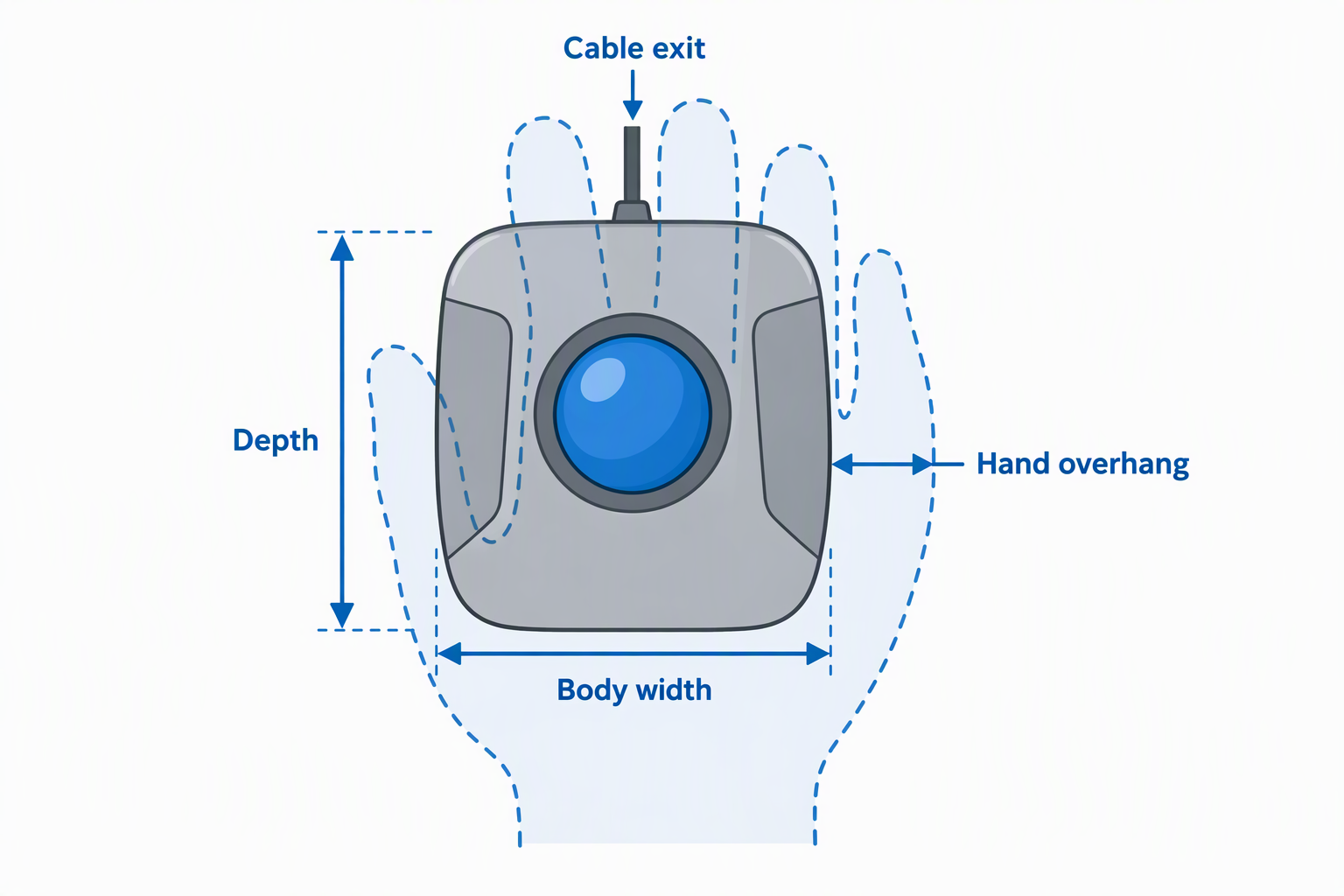
A trackball does not sweep across the desk, but its housing still occupies a fixed rectangle and may be tall. Perixx publishes dimensions; several others do not. Measure body width, depth, cable exit, and hand overhang rather than assuming “space saver” means physically tiny.
Place it close enough that the shoulder stays relaxed. A laptop, keyboard, control surface, and trackball should not force the forearm to angle sharply outward. Stationary control saves movement area only when placement is comfortable.
Expect a learning period
Finger trackballs use muscles and coordination differently from a mouse. Perixx states that most users need one to two weeks. Begin with ordinary browsing before attempting detailed edits on a deadline.
Avoid gripping or pressing the palm down while learning. Take breaks, clean the ball when movement becomes rough, and stop if pain, numbness, tingling, or weakness increases. A pointing device is not medical treatment.
Check noise and maintenance
Quiet buttons help in voice booths and shared editing rooms. Perixx states quiet operation across all six buttons, while ProtoArc states quiet clicks without detailing each control. Confirm which buttons and wheel actions produce sound.
Trackballs collect dust and skin oils at the ball supports. Follow the maker’s removal and cleaning instructions, avoid liquids near the sensor, and never force a ball out with a sharp tool. Rough movement may indicate dirt rather than sensor failure.
Related Precision-Desk Guides
A stationary pointer works best with a stable editing layout. Compare vertical mice, ergonomic mouse pads, compact keyboards, and monitor arms when arranging reach and screen position.
For connected gear, guides to USB-C hubs, Thunderbolt docks, USB-C docking stations, and desk cable management can help preserve ports and keep a wired trackball from snagging.
Frequently Asked Questions
Is a finger trackball more precise than a mouse?
It can feel precise because the fingers can make small ball corrections while the body stays still. Precision still depends on ball size, sensor, DPI, acceleration, cleanliness, and the user’s practice.
A trackball is not automatically more accurate. Test it in the actual editor with keyframes, small selection handles, and slow diagonal movements before relying on it for deadline work.
What is the difference between a finger and thumb trackball?
A finger trackball usually places a large ball under the index and middle fingers, with the thumb handling a button. A thumb trackball places the ball at the side under the thumb.
The handheld products here also use their small balls with the thumb despite being sold as finger mice. They are included for off-table control but are distinct from desk-based finger trackballs.
Is a 40mm or 44mm ball better?
Both are large enough for finger operation. A 44mm ball offers slightly more surface for broad rolls, while a 40mm ball can support a somewhat smaller surrounding body.
Sensor tuning, support points, ball finish, and hand fit can count for more than four millimeters. Compare the complete device rather than choosing from diameter alone.
Can a trackball replace a mouse for video editing?
Yes, if its scrolling, button mapping, and pointer behavior match the editing application. Many users can handle timelines, keyframes, and general navigation without moving the device across the desk.
Keep the old mouse available during the learning period. Specialized gestures or fast gaming-style camera movement may remain easier on another pointer.
How often should a trackball be cleaned?
Clean it when rolling becomes rough, sticky, or inconsistent rather than following a fixed calendar. Dust buildup varies with the room, skin contact, and daily use.
Use the maker’s instructions for ball removal. Wipe support points gently, keep moisture away from the sensor, and reinstall the dry ball without forcing it.
Final Verdict
The Perixx PERIMICE-822IR is the best all-round finger trackball for a precision editing desk. Its 40mm ball, quiet six-button layout, wheel, four connection paths, four DPI levels, web-based programming, and stated dimensions cover the most practical workflow needs.
The ProtoArc EM03 NL is the stronger rechargeable choice with a 44mm ball and claimed 60-day runtime, while the Kensington Orbit K64327F offers wired ambidextrous simplicity if the missing scroll ring is acceptable. Choose the handheld YUMQUA, OATIPHO, or welspo models only when off-table operation or presentation control is the main priority, since their thumb balls are not substitutes for a large desk-based finger trackball.