If the picture and the monitor’s USB hub work but its Ethernet does not, start with the monitor’s network adapter and physical link, not a Windows reset. In Windows 11, confirm whether the monitor’s USB Ethernet controller appears, then check the RJ45 LEDs and Ethernet status. Those observations separate a missing USB device from a bad cable link or an IP/network problem.
If the screen itself is missing, begin with the USB-C monitor connection path. If the RJ45 jack sits on a separate dock rather than on the monitor, use the USB-C dock Ethernet guide.
Identify the first broken link
The route is longer than the visible cable suggests:
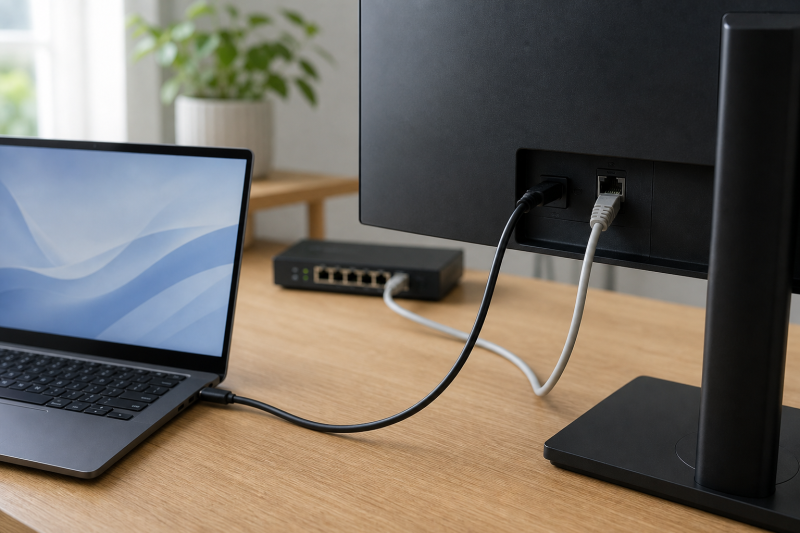
Windows PC -> USB-C data link -> monitor USB hub -> monitor Ethernet controller -> RJ45 cable -> router or switch
Check it in that order. Keep the monitor connected and open Settings > Network & internet > Advanced network settings. Also open Device Manager > Network adapters.
| Windows and hardware state | What it narrows down | Next move |
|---|---|---|
| No monitor Ethernet adapter is listed | Windows is not enumerating the integrated NIC | Verify the upstream USB data route and exact monitor support |
| Adapter is listed, but RJ45 link LEDs are dark | USB enumeration works; the physical network link does not | Reseat both RJ45 ends and test the switch/router port |
| Adapter shows Disabled | Windows knows the device but is not using it | Enable that exact adapter and recheck status |
| Adapter shows an error icon or code | The device exists but Windows reports a device/driver fault | Record the code before applying an exact update |
| Link is up, but Windows reports no internet | The controller and physical link are further along | Run the Windows network diagnostic and inspect address state |
| Direct laptop Ethernet works on the same cable and router port | The network beyond the computer works in that comparison | Return to the monitor NIC and its USB upstream route |
Do not start by uninstalling every network adapter. Removing several adapters at once destroys the evidence you just collected.
Confirm the monitor actually owns the RJ45 path
Read the exact model’s official manual. Confirm that the RJ45 port is a host-facing network function, not a service-only connector, and note the supported upstream input. Similar-looking models in one family can have different hubs.
Dell describes a USB-equipped monitor as a hub: downstream devices communicate with the host through the monitor’s upstream connection. On supported models, one USB-C cable may carry the picture and USB data. With an HDMI or DisplayPort video connection, a separate USB upstream cable may be required for the monitor hub.
A stable picture proves only the video route. A monitor connected by DisplayPort plus power can show Windows perfectly while its Ethernet controller has no data path to the computer.
Disconnect any separate USB hub, KVM, extension cable, or adapter between the computer and monitor for the baseline. Use the monitor’s documented upstream port and cable. Leave the RJ45 cable disconnected until Windows can see the monitor Ethernet adapter.
Look for the monitor network adapter in Windows
In Device Manager > Network adapters, find the adapter that appears when the monitor’s upstream USB connection is attached. The name may identify a USB or Gigabit Ethernet controller. Do not assume a Realtek name applies to every monitor; Dell’s U2421E documentation uses a Realtek controller for that exact model.
Use one controlled comparison:
- Note the current Network adapters list.
- Disconnect only the monitor’s upstream USB-C cable.
- Wait for Windows to update the list.
- Reconnect the same cable to the same documented host port.
- Note which adapter returns and whether Windows shows an error code.
If no network adapter changes but other monitor USB devices also disappear, this is a monitor upstream-data problem rather than an Ethernet-only fault. Stay with the exact cable, host port, and monitor input documentation. If other monitor USB devices remain but only the NIC is absent, keep the case Ethernet-specific and leave the rest of the monitor hub installed.
If the adapter is disabled, enable only that adapter. If it has an error, copy the device name, hardware ID, status text, and code before installing anything.
Read the RJ45 link before changing network settings
Reconnect the Ethernet cable and inspect the LEDs beside the monitor’s RJ45 jack, if the manual documents them. Also inspect the router or switch port light.
Dell’s U2421E service material places secure cable seating and link-LED checks before software conclusions. Follow that principle without copying model-specific LED meanings to another monitor.
When both ends stay dark:
- reseat both connectors until their latches engage;
- try a known-working RJ45 cable;
- move to a known-working router or switch port;
- return the original cable and port one at a time so the changed component is clear.
If the same cable and switch port establish a link with another computer or adapter, the failure remains on the monitor/controller side of the comparison. If neither device links, fix the cable or network port before touching Windows.
Separate link failure from Windows configuration
When link lights are active and the adapter appears, open Settings > Network & internet > Ethernet. Check whether Windows reports connected, disconnected, or connected without internet. Then run the Windows 11 Network and Internet troubleshooter through the Get Help route Microsoft provides.
For a connected adapter with no internet, inspect its assigned IPv4 address and default gateway. An address beginning with 169.254 usually means Windows did not receive an address from DHCP; it does not prove that the monitor NIC is defective. Compare the same RJ45 cable and switch port with another known-working Ethernet device.
Avoid changing DNS, setting a manual IP address, or running a stack of command-line resets before you know whether the local link and DHCP path work. Those changes can hide the original state.
Microsoft lists network reset late in its Ethernet procedure because it removes installed network adapters and restores their settings after restart. Use it only after you have saved VPN, virtual-switch, and static-network requirements and simpler physical, adapter, and update checks have failed.
Apply only exact updates
Once the failing layer is stable, run Settings > Windows Update and review optional driver updates for the exact computer. Then use official support for the full computer and monitor model.
Some monitors expose a USB Ethernet controller that has a maker-supplied LAN package. For the C2422HE, C2722DE, and C3422WE, Dell documents slow or intermittent monitor Ethernet and names an exact Dell Unified LAN driver update for those three models. That is an affected-set route, not permission to install a generic Realtek download or a package for a similar monitor.
Record the existing driver provider, version, and date before an update. Change one package, restart when its instructions require it, and repeat the same adapter/link/status observation. If the adapter returns after the exact update, keep the before-and-after versions with the result.
Sources
The diagnostic order uses Microsoft’s Windows Ethernet connection procedure for Windows state and last-resort reset boundaries. Dell documents the monitor upstream/downstream hub relationship, the separate upstream-data requirement, and exact-model Ethernet checks in the U2421E service material. Dell’s C2422HE, C2722DE, and C3422WE Ethernet record supports the named-monitor update branch only.