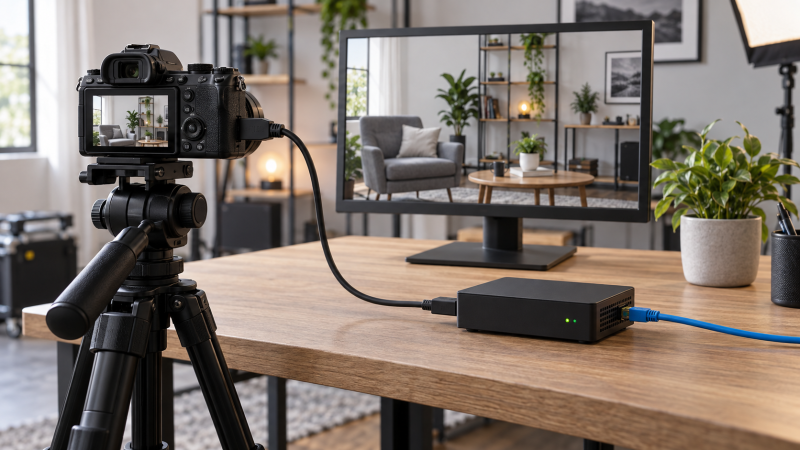
A hardware encoder can put a camera feed online without leaving a laptop in the signal path. It cannot fix a camera that sends no usable signal, and it cannot stream to a destination whose protocol it does not support. Before buying, match camera output, encoder input and encode limit, audio path, and destination ingest protocol in that order.
Write down the exact signal your camera sends and the exact stream your platform accepts. The encoder has to handle both.Confirm the camera’s live output
Find the camera manual’s HDMI or SDI output section. Note connector type, clean-output setting, resolution, frame rate, whether the camera overlays menus or focus boxes, and whether the output stays active during long operation. The camera’s recording format is not necessarily the same as its live output. A body that records 4K internally might send a different resolution or frame rate over HDMI. Use the output specification, not the recording headline.
If your camera has micro-HDMI, allow for connector retention and cable strain relief. A plug that works on a desk may not survive a bumped tripod. For longer cable runs, check the camera and encoder connection plan and the appropriate cable specification. Do not assume an adapter turns an HDMI input into an SDI input. Keep the camera’s power and thermal behavior in mind for a long stream, but verify those from its own manual rather than assuming all cameras support unlimited live output.
Check whether the encoder has the matching input connector. Magewell’s Ultra Encode family matrix distinguishes HDMI, SDI and combined-input models. An Ultra Encode HDMI is not a universal SDI input merely because other devices share the family name. AJA’s HELO Plus documents both HDMI and SDI I/O, but its supported formats need to match the incoming feed.
Separate accepted input from encoded output
An encoder may accept a high-resolution signal and then encode a lower-resolution stream. Magewell’s Ultra Encode model comparison lists the base HDMI/SDI units with a main encode limit in the 1080p60 class, while Plus and AIO variants list 4Kp30 main encoding. Do not turn an input or loop-through figure into a claim that the outgoing stream has the same resolution. The limits depend on the exact SKU and firmware.
Make a two-column note with camera output on one side and encoder accepted input on the other. Then write the encoder’s supported output codec, resolution and frame rate below. If the camera sends 4Kp60 but the destination only needs 1080p, a device that accepts the input and encodes 1080p may be sufficient. If you need 4K output, verify the model’s encode limit and the platform’s ingest rules independently.
Include audio in the match. Check whether your camera embeds the desired audio in HDMI or SDI, and whether the encoder passes or selects it. Some encoders offer a separate analog line input, but a physical socket does not prove it will mix with embedded audio or provide the gain your microphone needs. Magewell’s Ultra Encode HDMI page distinguishes HDMI embedded audio from 3.5 mm line input and lists two-channel AAC encoding for the model. Verify your exact source level and channel mapping before a live event.
Match the destination’s protocol and credentials
Ask the receiving platform which ingest method it accepts: RTMPS, RTMP, SRT, HLS or another method. Also note accepted codec, frame rate, bitrate and audio settings. YouTube’s live encoder guidance recommends RTMPS where supported, with settings chosen for the connection and a realistic upload test. Do not assume an encoder’s SRT capability means every social platform accepts SRT directly.
The same encoder family may support different protocols by model. Magewell’s Ultra Encode matrix lists RTMP/RTMPS and SRT among the family features while showing model-specific differences in simultaneous sessions and recording. AJA’s HELO Plus page lists RTMP-family options and SRT. Verify caller/listener mode where SRT is required. The phrase “supports SRT” alone may not match a receiver’s required role.
For a service using a stream URL and key, handle the key as a credential. Enter it into the encoder’s configuration interface without exposing it in screenshots, shared notes or the public article. YouTube’s encoder setup explains the URL-and-key workflow. A built-in preset can simplify setup, but check whether it supports the exact account, event and privacy mode you need.
Check network and monitoring before showtime
Use a stable uplink with enough sustained upload bandwidth for the selected video and audio bitrate plus headroom. Ethernet is often easier to reason about than a crowded wireless link, but you should test on the network you will use. If a cellular or bonded connection is part of the plan, verify whether the modem, service account or subscription is included. A USB port alone is not proof of cellular support.
Plan how you will see the camera feed and the outgoing stream. An HDMI loop-through can feed a local monitor without guaranteeing that the remote service has received clean audio and video. Check both locally and at the destination. Test motion, audio, loss of signal, reconnection, and whether the encoder resumes when network service returns. YouTube recommends a pre-event test that resembles the stream you will run and monitoring its health during the event.
Our standalone hardware encoder buying guide compares available choices. Bring this checklist to the guide, and eliminate any box that cannot satisfy your camera, audio and ingest path.
Frequently asked questions
Will any HDMI camera work with any HDMI encoder?
No. The connector is only the first check. Verify that the camera sends a clean, continuous output at a format the encoder accepts. Frame rate, resolution, copy-protection behavior, audio embedding and cable stability can all affect a setup.
Look up the exact camera’s output specification and the encoder’s input list, then test the pair. A shared port shape does not prove every signal mode is supported.
Does a 4K HDMI input mean I can stream in 4K?
Not necessarily. Input acceptance and output encoding are separate capabilities. Some hardware accepts or loops through 4K while encoding a 1080p stream. The receiving platform may impose another limit or require a specific codec and bitrate.
Read the exact model’s maximum encoded output, not only its HDMI-input headline. Then compare it with the destination’s ingest settings and your sustained uplink.
Is SRT better than RTMPS for every stream?
Neither is universal. The destination must accept the chosen protocol, and the encoder must offer the required mode. SRT is useful in some point-to-point and contribution workflows. An RTMPS ingest may be the straightforward route to a platform that asks for an RTMP-style server URL and key.
Start with the receiver’s supported method. Choose the encoder and network settings around that requirement, and test the complete path before an event.
Bottom line
Verify camera output → encoder input → encoded stream → platform ingest as four distinct stages. Add the audio and network path, then prove the whole chain with a private rehearsal before treating a spec-sheet match as a working stream.